Note
Access to this page requires authorization. You can try signing in or changing directories.
Access to this page requires authorization. You can try changing directories.
Applies to: Microsoft 365 Copilot Audience: IT administrators and independent software vendor (ISV) partners.
Overview
Admin-published federated Copilot connectors (FCCs) use the Model Context Protocol (MCP) for products that need a tenant-specific MCP endpoint or authentication setup. Admins can find connector templates, curated by Microsoft and third-party ISVs and partners, in the Microsoft 365 admin center. They can use these templates to create and publish connectors within their organization. End users use the published connector like any other federated Copilot connector in Microsoft 365 Copilot.
Admin-published FCCs give you the quality, governance, evaluation, and discoverability of out-of-the-box connectors while supporting MCP apps that need customer-specific configuration. Products that typically need an admin-published FCC are systems where each customer has its own customized MCP endpoint or tenant-specific OAuth app.
Important
Depending on the connector, the MCP endpoint URL, the authentication configuration, or both can be specific to your organization. The setup page asks only for what your connector needs. Microsoft prepopulates everything else for you to change as needed.
This article explains how admin-published FCCs work, how to set one up, how to troubleshoot common issues, and how ISV partners can offer their product as an admin-published FCC.
How admin-published FCCs work
An admin-published FCC connects Copilot to your data in real time. When a user asks Copilot a question, Copilot retrieves data directly from the specified MCP server endpoint during the query. Data is retrieved into Copilot at query time and isn't indexed or stored permanently.
Admin-published FCCs can also create, update, or delete data where the connector provides those tools, with the user's approval and subject to their permissions in the source system. Supported actions vary by connector. For example, the Salesforce connector (preview) supports both read and write actions.
For these connectors, the MCP endpoint URL, the authentication configuration, or both can vary from one customer organization to another, so you supply those values. Microsoft initiates the draft connector for all other values, including the connector definition, quality evaluation, security reviews, and documentation.
The following table shows the settings that can be specific to your organization.
| Setting | When you provide it |
|---|---|
| MCP endpoint URL | Prefilled when the product uses a shared endpoint. You enter it when it's specific to your organization, and it's validated against the product's expected format. |
| Authentication | You configure it when sign-in is specific to your organization, for example, your own OAuth app. |
Other connector details, such as the display name and description, are provided by Microsoft and can vary from connector to connector.
Prerequisites
Before you set up an admin-published FCC, make sure you have the following:
- Administrator access to the Microsoft 365 admin center (Copilot > Connectors).
- The MCP capability enabled in the source product, following the product's own setup documentation.
- An MCP endpoint that is publicly accessible by Copilot.
- The authentication details your product requires, for example, an OAuth application with its client ID and client secret. Connectors that use OAuth 2.0 with Dynamic Client Registration (DCR) don't need a preregistered client.
- An MCP server that exposes the tools required by the connector, with the necessary permissions in the source system.
Set up an admin-published FCC
To create an admin-published FCC for your organization:
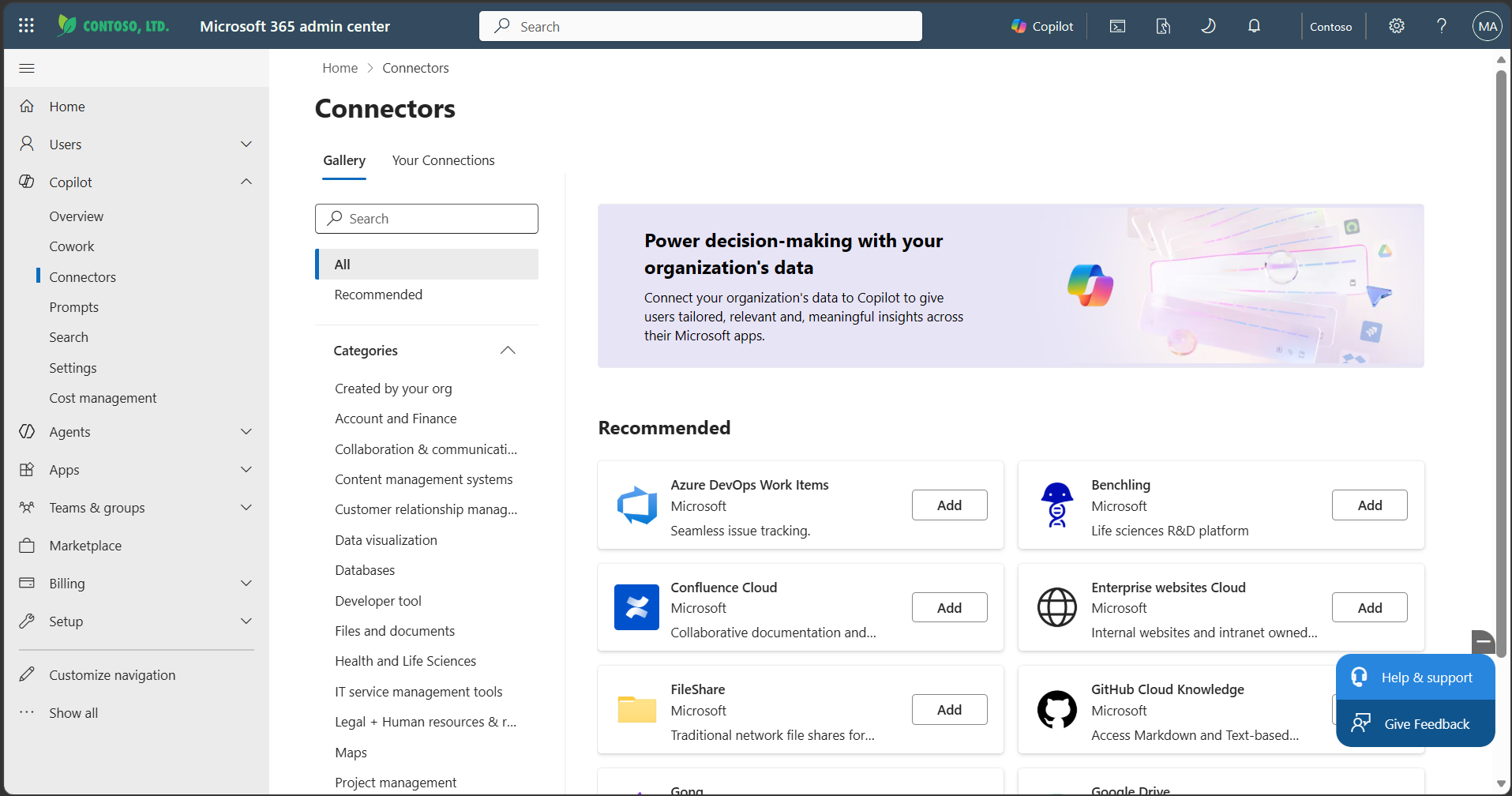
- In the Microsoft 365 admin center, go to Copilot > Connectors and open the connector catalog. Admin-published FCCs appear alongside out-of-the-box connectors.
- Select the admin-published FCC for your product. A configuration page opens that asks only for customer-specific information.
- Enter or confirm the MCP endpoint URL, and then verify the connection.
- Configure authentication as required by the connector.
- Review the connector details.
- Choose the audience: selected users or groups, or your broader organization.
- Select Create.
Your configuration is validated before the connector is created. If a value is invalid, creation is blocked and you see an actionable error that describes what to fix. After you create the connector, it's ready to test in Copilot within 30 minutes. To validate the experience before a wider rollout, you can start with a selected group of users and expand the audience later.
For guidance on MCP authentication, see MCP authentication guidance.
Troubleshooting
Use the following table to resolve common issues.
| Issue | Resolution |
|---|---|
| Authentication failures (invalid, revoked, or expired credentials) | Check the client ID and client secret in the connector's authentication configuration. |
| Missing permissions | Confirm that the connecting app or account has the required permissions in the source system. |
| MCP URL validation issues | Confirm that the URL matches the product's expected format and is publicly reachable. |
| Connector not visible to a user | Confirm that the user is in the selected audience, and wait up to 30 minutes. |
| Required tools unavailable | Confirm that the MCP server exposes the tools required by the connector and that the signed-in user has permission to use them. Check the connector's documentation for supported actions and setup requirements. |
| Connector not used for relevant prompts | Confirm that the user is in the selected audience and signed in to the source system through the connector, and that the prompt relates to data the connector's tools can retrieve. |
Benefits
For customers, admin-published FCCs mean no connector building, guided onboarding, better setup documentation, and better Copilot quality. For partners, they provide a single Microsoft-managed connector definition, reduced onboarding complexity, and better discoverability.
For partners: offer your product as an admin-published FCC
If you're an ISV partner and your product requires a customer-specific MCP endpoint or authentication setup, you can work with Microsoft to offer it as an admin-published FCC. Provide the following information:
- The MCP server URL pattern, including the parts that vary per customer or tenant.
- The authentication model, for example, OAuth 2.0 with a client ID and secret, or a per-tenant OAuth app.
- A connector description.
- Admin setup documentation for enabling MCP in the customer's environment.
- Optional skills.
- A test environment with credentials for validation.
- Evaluation scenarios.
Connectors available through this path
The following connectors are published as admin-published FCCs. Check the connector catalog in your admin center for the latest list.
| Connector | MCP endpoint URL format | Authentication |
|---|---|---|
| Benchling | https://<tenant>.mcp.benchling.com/mcp |
OAuth 2.0 with Dynamic Client Registration (DCR) |
| Salesforce (preview) | https://api.salesforce.com/platform/mcp/v1/platform/headless-360 |
OAuth 2.0 (client ID and secret) |
| ServiceNow | https://<servicenowinstance>.service-now.com/sncapps/mcp-server/mcp/sn_itsm_mcp_server_itsm_default |
OAuth 2.0 (client ID and secret) |
| Snowflake | https://{account}.snowflakecomputing.com/api/v2/databases/{database}/schemas/{schema}/mcp-servers/{name} |
OAuth 2.0 (client ID and secret) |
Frequently asked questions
Is my data stored?
No. The connector retrieves data at query time and doesn't index or store data permanently.
How long until the connector is available?
The connector is ready to test in Copilot within 30 minutes of creation.
Can I control who can use the connector?
Yes. During setup, you choose the audience: selected users or groups, or your broader organization.