Note
Access to this page requires authorization. You can try signing in or changing directories.
Access to this page requires authorization. You can try changing directories.
Applies to: Microsoft 365 Copilot Chat and Copilot Cowork Audience: Microsoft 365 administrators and Salesforce administrators.
Note
The Salesforce federated connector is in public preview and uses the Salesforce beta MCP server.
Overview
The Salesforce connector brings live Salesforce CRM data and Salesforce-built skills into Microsoft 365 Copilot. Administrators configure and deploy the connector by using their existing Salesforce environment and authentication setup. Microsoft and Salesforce jointly maintain the connector, skills, and quality evaluations, so organizations don't need to build or maintain a custom integration.
The connector uses the Salesforce beta Model Context Protocol (MCP) server, part of Salesforce Headless 360. Copilot uses the server's tools to discover available Salesforce operations at runtime rather than relying on a fixed list of operations.
Salesforce enforces object-level permissions, field-level security, record-level sharing rules, role hierarchies, and territory-based access controls at query time. Users can access only the Salesforce data they're authorized to see.
This connector provides live data and skills. It doesn't replace the Salesforce CRM synced connector, which indexes content for search.
What users can do
Users can ask Copilot to work with Salesforce data and perform administrative and development tasks in natural language. The Headless 360 MCP server provides capabilities across Salesforce, not just sales workflows.
Depending on the operations available from the server and the user's permissions, users can:
- Work with Salesforce records: Create, read, update, delete, query, and search records in standard and custom objects, and traverse relationships between records.
- Manage users and access: Create, deactivate, or freeze users, and assign permission sets and permission set licenses.
- Develop Apex triggers: Read, write, and deploy triggers.
- Build event-driven integrations: Work with platform events, Change Data Capture, and event relays.
- Configure named credentials: Set up authentication mechanisms, endpoints, and certificate handling for external services.
- Manage Commerce Cloud orders.
The server provides four tools: Discover finds available operations, Describe returns an operation's specification, Dispatch runs an operation, and Dispatch (Read-Only) retrieves information without changing data or configuration. The operation library grows independently of these tools, so available actions can change as Salesforce adds capabilities.
Every action runs as the signed-in Salesforce user. If a user can't perform an action in Salesforce, they can't perform it through the connector. Salesforce attributes actions to that user in its audit trail. Test configuration changes in a sandbox or developer organization before applying them in production.
Available skills
Salesforce skills provide guided sales workflows on top of the server's capabilities, including account planning, pipeline reviews, renewal analysis, and outreach drafts.
The account-plan skill confirms the complete set of proposed changes before writing them and reports partial failures. The log-activity skill also requests confirmation before saving a task.
Results that include Salesforce records can appear as interactive Salesforce widgets in the conversation, with compact inline cards for account details.
Some skills also use email, calendar, conversations, or documents when those sources are available to the user. For example, Microsoft providers can supply Outlook email and calendar, Teams chats, and SharePoint or OneDrive files.
| Skill | Description |
|---|---|
account-context |
Brief users on an existing Salesforce account, including open deals, risks, stakeholders, owned products, and outreach triggers. |
account-plan |
Retrieve or build an account plan from account, pipeline, activity, and relationship data, including priorities, competition, objectives, measures, and relationship risks. |
account-tiering |
Rank accounts into action tiers based on ideal customer profile fit, engagement, activity, contacts, and opportunities. |
assign-target-to-sdr |
Assign a Salesforce lead or contact to an active Agentforce Engagement Agent after confirming the target and agent. |
calendar-events |
Show Salesforce events with local times, subjects, locations, and related contacts, accounts, or opportunities. |
call-follow-up |
Draft a customer follow-up email, an internal recap, or proposed Salesforce updates from a meeting transcript and CRM history. |
call-prep |
Prepare a customer meeting brief from Salesforce records and available email, documents, and conversations. |
close-plan |
Build a dated mutual action plan or customer-facing business case, including the path to signature, owners, and return on investment. |
customer-health |
Assess customer health, renewal risk, engagement, and value trends, or prepare a business review. |
customer-voice |
Compile attributable customer quotes and themes from call transcripts and email across Salesforce accounts. |
daily-briefing |
Summarize a representative's priorities, upcoming calls, slipping deals, commitments, and unread customer email. |
deal-advance-gap |
Diagnose stage-exit gaps and blockers that prevent an opportunity from advancing. |
deal-review |
Review a deal's qualification, risks, recent activity, and next actions, using a scorecard such as MEDDIC when available. |
deal-signals |
Review positive and concerning signals across open deals, including book health and recommended actions. |
deal-slip-scenario |
Identify deals at risk of slipping and assess the forecast impact of a slip, reduction, or loss. |
draft-outreach |
Draft a personalized email using Salesforce records and available communication history. |
event-invite-list |
Prioritize customer event invitees by location, ideal customer profile fit, and opportunity signals. |
executive-movement |
Check executive changes against dated external sources, relate them to Salesforce records, and recommend follow-up without changing CRM data. |
expansion-whitespace |
Identify product coverage gaps and evidence-backed expansion opportunities. |
find-internal-answer |
Find authoritative internal answers, policies, approvers, assets, precedents, or experienced colleagues. |
forecast-narrative |
Explain a representative's or team's forecast, quota gap, commit, and changes using opportunity data and field history. |
handle-objection |
Prepare grounded responses to customer objections using deal context, win-loss history, and approved internal evidence. |
inbox-sweep |
Prioritize customer email threads that need attention and draft replies using Salesforce context and the user's writing style. |
lead-triage |
Prioritize leads and prospects, assess fit and intent, and recommend ownership, response speed, or next actions. |
log-activity |
Draft and, after confirmation, save a completed or follow-up Salesforce task linked to the relevant record. |
pipeline-review |
Review one representative's pipeline, stage distribution, stalled deals, risks, and improvement opportunities. |
query-activity-history |
Build an interaction timeline from completed Salesforce tasks and events, including cadence, gaps, and last contact. |
renewal-radar |
Review renewal dates and compare at-risk renewals using Salesforce opportunities and supporting evidence. |
rep-context |
Summarize an internal sales representative's quarterly position, activity trends, open deals, and quota attainment when quota data is available. |
research-prospect |
Research a new company or person using web sources and Salesforce, including company facts, contacts, recent signals, and fit. |
salesforce-hygiene-check |
Identify overdue close dates and opportunities with no logged activity for at least 14 days, without changing records. |
schedule-meeting |
Propose meeting times, draft a scheduling email, or log a confirmed Salesforce event using available calendar and CRM data. |
stakeholder-map |
Map decision makers, influence, relationships, gaps, and access paths using contacts and available communications. |
summarize-conversation-transcript |
Summarize a Salesforce voice or video call transcript, including sentiment, decisions, next steps, and related opportunities. |
team-pipeline |
Review team attainment, stage distribution, and opportunities that need attention or coaching. |
using-display-widget |
Present assembled Salesforce data as a styled widget. |
voice-profile |
Build a reusable writing profile from sent email and optional conversations to personalize outreach drafts. |
weekly-wrap |
Summarize a representative's or team's sales week, including wins, losses, advances, slips, and upcoming closes. |
win-loss-review |
Analyze closed opportunities, win rates, loss stages, objections, and deal patterns for coaching and process improvements. |
Prerequisites
Before you set up the connector, ensure you have:
- Administrator access to the Microsoft 365 admin center (Copilot > Connectors).
- A Salesforce organization on a supported edition, with the Salesforce MCP server enabled.
- Salesforce administrator permissions to create an External Client App in that organization.
- Salesforce licenses and Microsoft 365 Copilot access for the users who use the connector.
Step 1: Create an External Client App in Salesforce
A Salesforce administrator creates an External Client App that Copilot uses for OAuth 2.0 sign-in. Configure the following settings:
| Setting | Value |
|---|---|
| Callback URL | https://teams.microsoft.com/api/platform/v1.0/oAuthRedirect |
| OAuth scopes | mcp_api and Perform requests at any time (refresh_token, offline_access) |
| Security | Require Proof Key for Code Exchange (PKCE) extension for supported authorization flows |
After saving the app, copy its consumer key (client ID) and consumer secret (client secret). You need these values when you create the connector.
If sign-in fails, first check the callback URL, OAuth scopes, and PKCE setting.
Step 2: Create the connector in the Microsoft 365 admin center
In the Microsoft 365 admin center, go to Copilot > Connectors and open the connector gallery.
Select Salesforce.
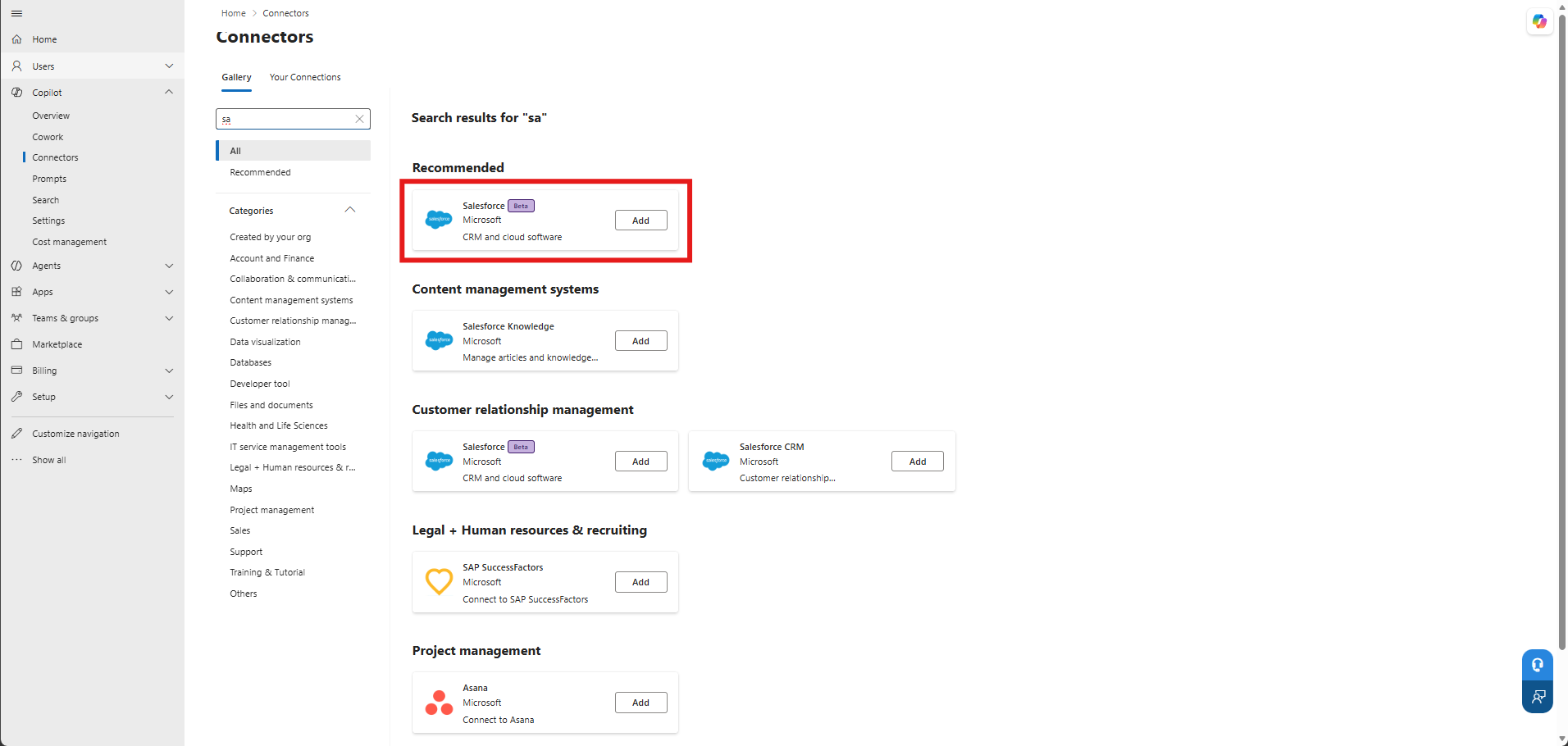
Enter the organization-specific Salesforce instance or MCP endpoint URL requested by the configuration page.
Enter the client ID and client secret from Step 1.
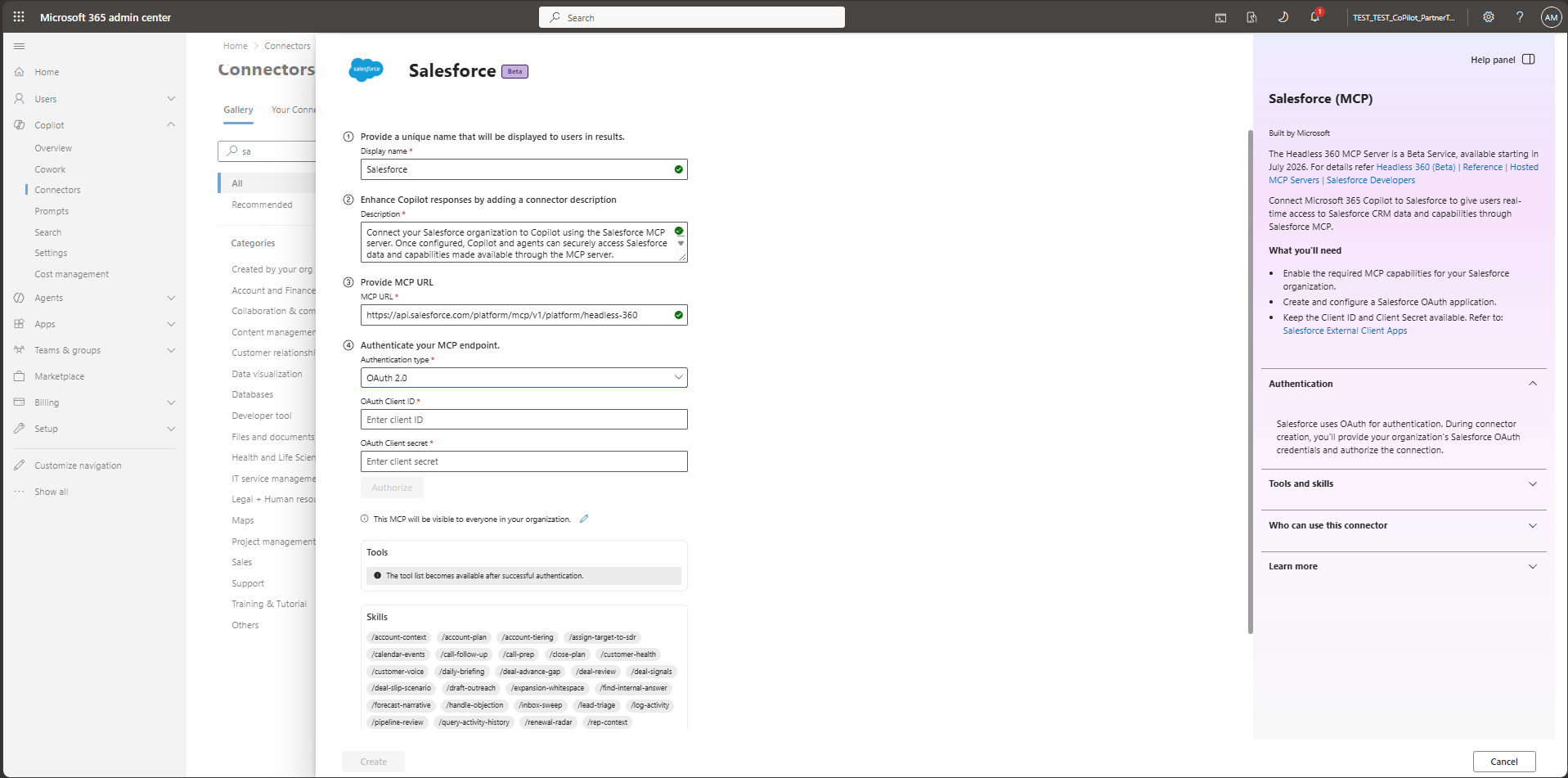
Give the connection a clear name. If your organization has more than one Salesforce connector, use distinct names so users can tell them apart.
Review the connector details.
Choose the audience: selected users or groups, or your whole organization.
Select Create.
The configuration is validated before the connector is created. Invalid values block creation and produce an error that describes what to fix. The connector is typically ready to test in Copilot within 30 minutes. Start with a pilot group to validate the experience before expanding the audience.
Step 3: Users connect their Salesforce account
The first time a user asks a Salesforce question, Copilot prompts them to sign in to Salesforce. Each user signs in with their own Salesforce credentials. If the Salesforce organization requires multi-factor authentication, the user completes it during sign-in.
After signing in, users can find Salesforce among their data sources in Copilot Chat and Cowork, or ask a Salesforce question and let Copilot select the appropriate skill.
Example prompts
The following examples combine Salesforce data with sales workflows in Copilot Chat and Cowork. Prompts that use Outlook email, Teams messages, workbook creation, or scheduled automation require those data sources and features to be available in the Copilot experience you're using.
| Scenario | Example prompt |
|---|---|
| Prioritize renewal and account risks in Copilot Chat | "Which Contoso Bank renewals in Salesforce are overdue, and what should I do first? Use relevant Outlook emails and Teams conversations to explain the risks. Highlight the most pressing accounts and show the results in a Salesforce widget." |
| Build an interactive forecast workbook | "Build an Excel forecast workbook from my Salesforce opportunities closing this quarter. Bring in deal-status updates from Outlook. Separate CRM facts from editable assumptions. Let me move deals between quarters and include backfill deals, with a chart that recalculates the gap to my target. Show proposed Salesforce updates and ask for confirmation before saving them." |
| Prioritize accounts in Cowork | "Tier Northglass Transit, Pinnacle Health Systems, and United Oil & Gas Corp. from Salesforce for where I should spend time next. Use fit, open pipeline, support risk, and activity evidence as of September 10, 2026 UTC." |
| Automate a daily risk briefing in Cowork | "Every morning, review the Salesforce customers, accounts, and opportunities I follow. Highlight new or worsening risks, prioritize the most urgent ones, and recommend actions to reduce each risk, explaining the expected value of taking action." |
Data handling, privacy, and security
The connector retrieves Salesforce data at query time and doesn't index or store it permanently. Access is governed by each user's Salesforce permissions and the audience selected by the administrator.
Some skills create or update Salesforce records, such as account-plan objectives and measures, tasks, lead or contact assignments, and calendar events. These capabilities are subject to the user's Salesforce permissions.
During preview, use of the connector is subject to the Salesforce Beta Services Agreement. For Microsoft's privacy practices, see the Microsoft Privacy Statement.
Troubleshooting
| Issue | Resolution |
|---|---|
| Sign-in or authorization error | Check the External Client App's callback URL, mcp_api and refresh_token/offline_access scopes, and PKCE setting. Confirm the client ID and client secret in the connector configuration. |
| Connector not visible to a user | Confirm the user is in the selected audience, and allow up to 30 minutes after creation. |
| Copilot doesn't use Salesforce for a relevant prompt | Confirm the user signed in through the connector and the prompt relates to Salesforce data. Try starting a new conversation. |
| Two Salesforce entries appear | The older Salesforce MCP listing might also be enabled. Use the entry named Salesforce and consider disabling the older listing. |
| Widget content is cut off or uses an older layout | Start a new conversation. Copilot can cache an earlier widget version for a short time. |
| Missing data or permission errors | Confirm the user's Salesforce profile and permission sets grant access to the requested objects and records. |
Get support
Open a support request with the service responsible for the issue:
- Salesforce Support: Salesforce organization configuration, the MCP server, the External Client App, Salesforce data or permissions, and the content of skill responses.
- Microsoft Support: Connector setup in the Microsoft 365 admin center, deployment and visibility, and how Copilot displays results.
Frequently asked questions
Is my Salesforce data stored in Microsoft 365?
The connector retrieves data at query time and doesn't index or store it permanently.
Can I control who can use the connector?
Yes. During setup, choose selected users or groups, or your whole organization.
Does this connector replace the Salesforce synced connectors?
No. Synced connectors index content for search. This federated connector uses live data and Salesforce skills.
When will the connector be generally available?
The connector is in public preview. Microsoft will announce general availability later.