Note
Access to this page requires authorization. You can try signing in or changing directories.
Access to this page requires authorization. You can try changing directories.
The BambooHR Microsoft 365 Copilot connector indexes employee profiles from BambooHR into Microsoft Graph, making them accessible across Microsoft 365 experiences including Microsoft 365 Copilot and Microsoft Search. This article provides information about the configuration steps that BambooHR admins need to complete in order for your organization to deploy the BambooHR connector.
For information about how to deploy the connector, see Deploy the BambooHR connector.
Setup checklist
The following checklist lists the steps involved in configuring the BambooHR environment and setting up the connector prerequisites.
| Task | Role |
|---|---|
| Create a BambooHR developer account | BambooHR admin |
| Register a BambooHR application | BambooHR admin |
| Configure redirect URLs | BambooHR admin |
| Select application scopes | BambooHR admin |
| Obtain client credentials | BambooHR admin |
Create a BambooHR developer account
- Go to the BambooHR developer portal.
- Sign in with your existing BambooHR developer account credentials, or create a new developer account.
Note
The developer portal is separate from your main BambooHR instance and is used specifically for creating and managing API applications that integrate with BambooHR.
Register a BambooHR application
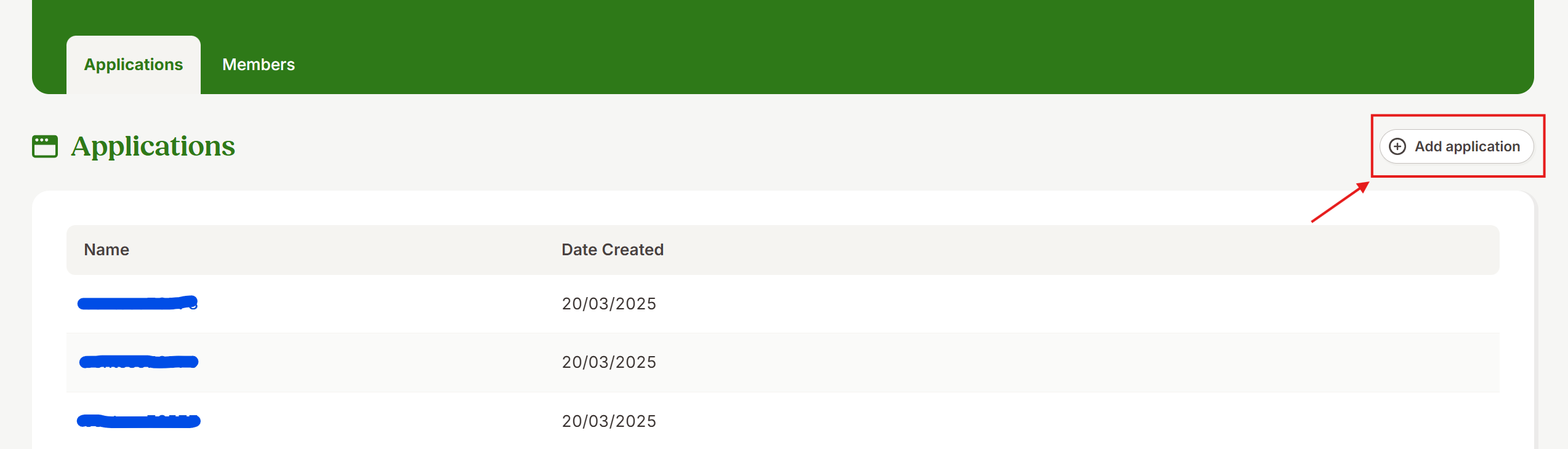
- In the developer portal, create a new BambooHR app.
- Enter a unique application name, such as "Microsoft 365 Copilot connector" or your organization's name.
Configure redirect URLs
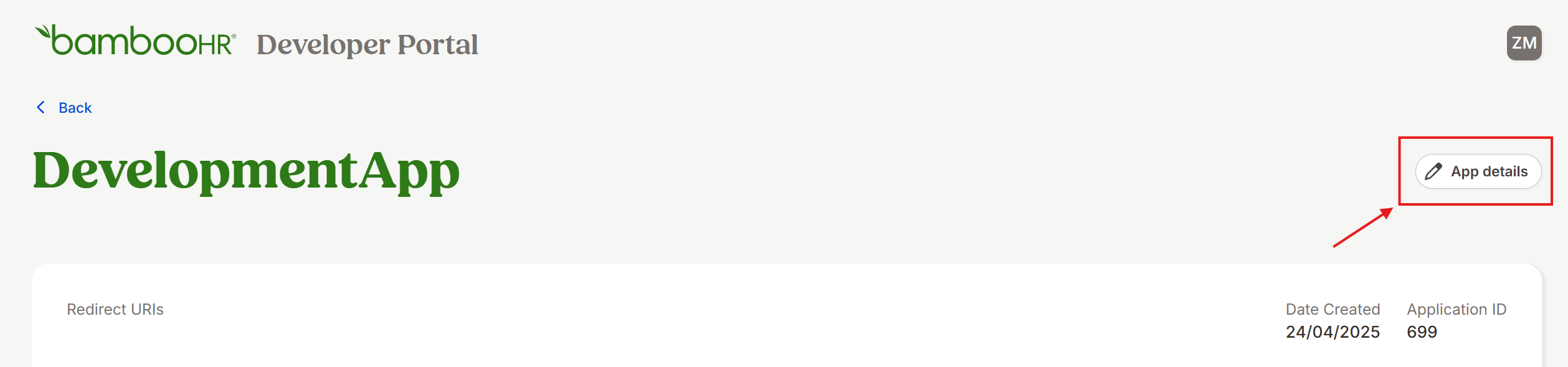
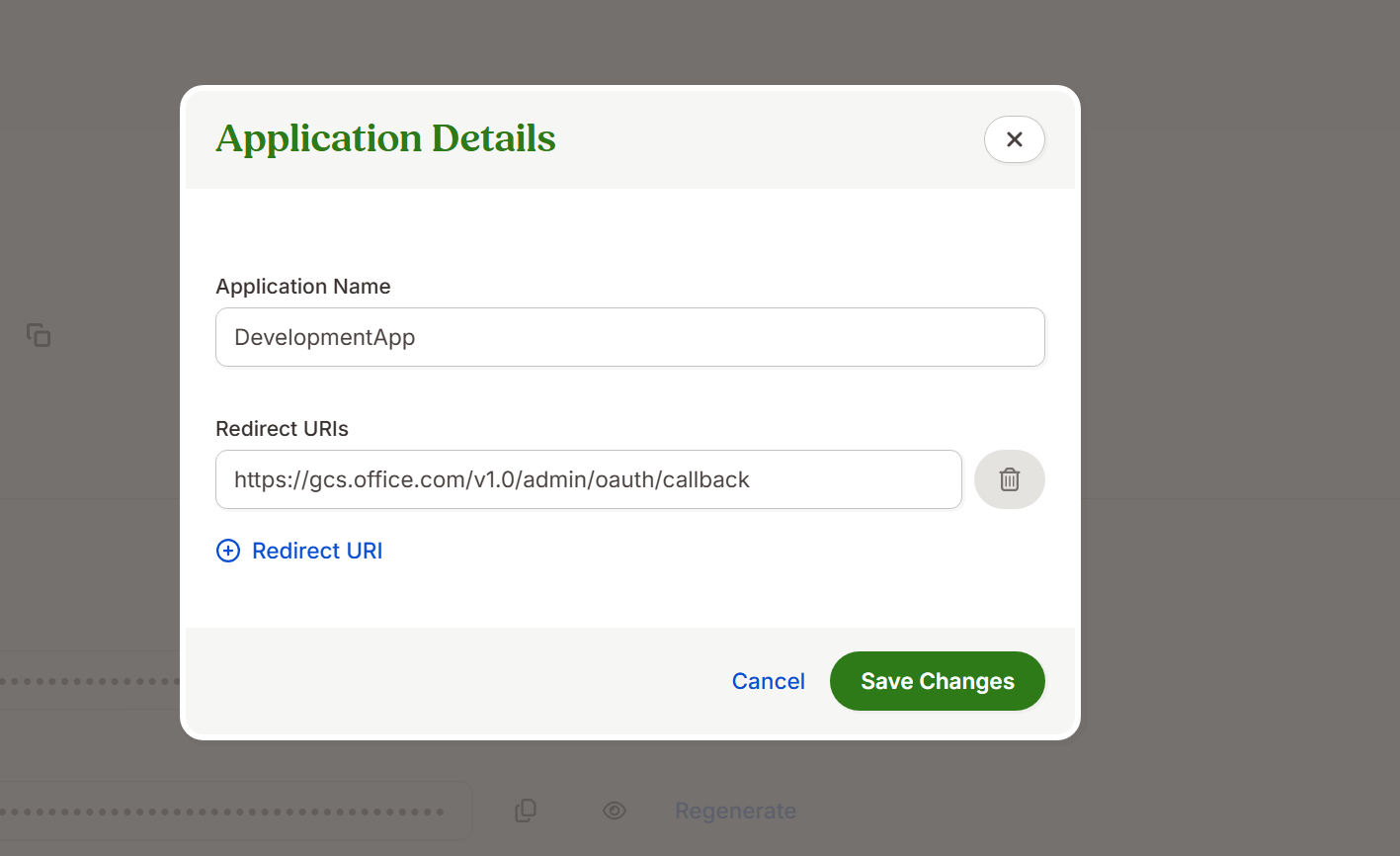
- In the app details section, add the redirect URL that Microsoft 365 uses to communicate with BambooHR during authentication.
- Copy and paste the following URL:
https://gcs.office.com/v1.0/admin/oauth/callback
Select application scopes
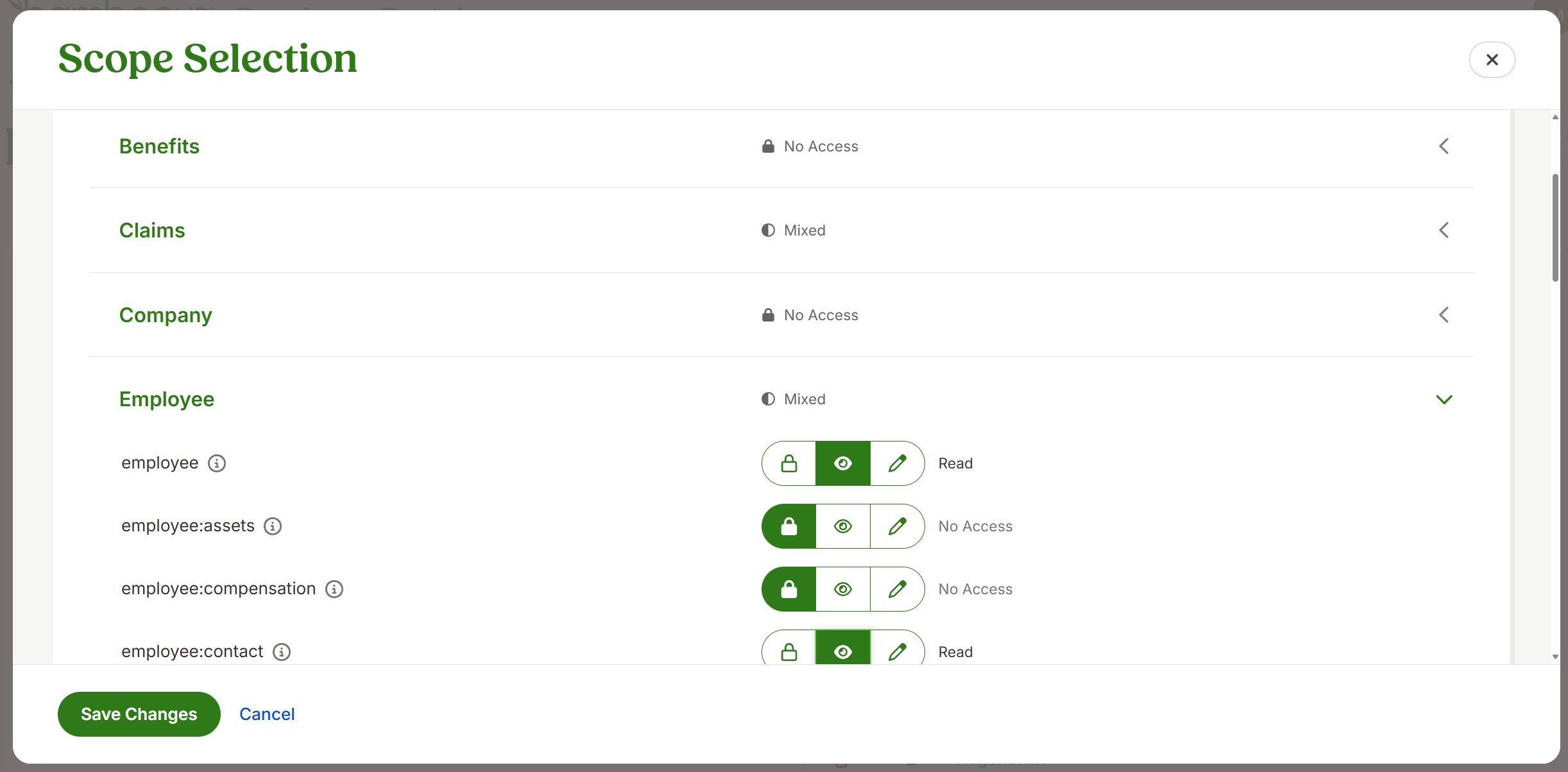
In the application scopes section, select the required permissions with read-only access to ensure the connector can retrieve the necessary profile information:
| Category | Required scopes |
|---|---|
| Claims | email, openid |
| Employee | employee, employee:contact, employee:identification, employee:job, employee:management, employee:name, employee_directory, sensitive_employee:protected_info |
| Miscellaneous | field, offline_access, public.user |
| Reports | report |

Obtain client credentials
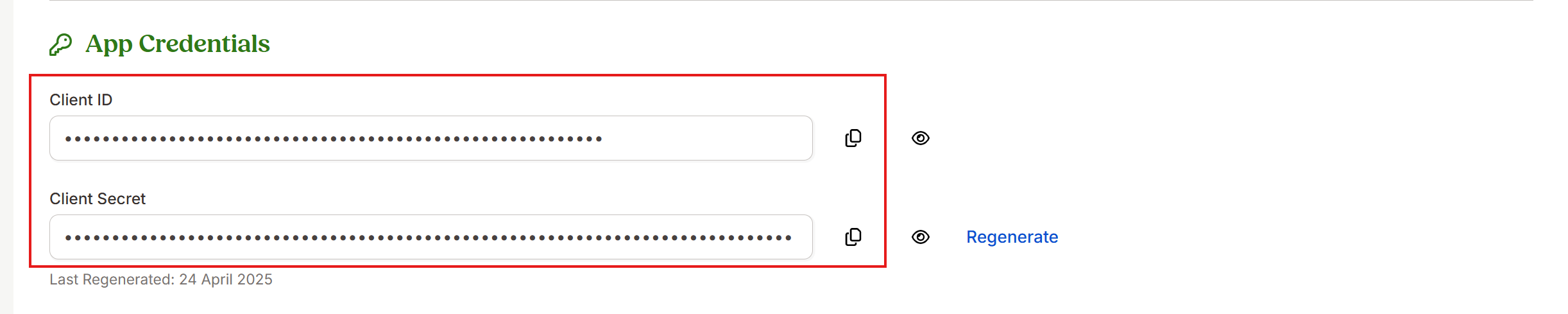
- Go to the App credentials section.
- Record the App client ID and App client secret. Use these credentials to authenticate the Microsoft 365 connector with your BambooHR application during setup.