Note
Access to this page requires authorization. You can try signing in or changing directories.
Access to this page requires authorization. You can try changing directories.
The BambooHR Microsoft 365 Copilot connector indexes employee profiles from BambooHR into Microsoft Graph, so you can access them across Microsoft 365 experiences including Copilot and Microsoft Search. This article describes the steps to deploy and customize the BambooHR connector.
For BambooHR service configuration information, see Set up the BambooHR service for connector ingestion.
Prerequisites
Before you deploy the BambooHR connector, ensure your organization has a configured BambooHR environment. The following table summarizes the steps to configure the BambooHR environment and deploy the connector.
| Task | Role |
|---|---|
| Configure the BambooHR developer portal | BambooHR admin |
| Deploy the connector in the Microsoft 365 admin center | Microsoft 365 admin |
| Customize connector settings (optional) | Microsoft 365 admin |
Before you deploy the connector, make sure that you meet the following prerequisites:
- You must be a Microsoft 365 admin.
- You completed the BambooHR service setup steps in Set up the BambooHR service for connector ingestion.
- You have the BambooHR app client ID and client secret from the developer portal.
- You have your BambooHR instance URL (for example,
https://contoso.bamboohr.com/).
Deploy the connector
To add the BambooHR connector for your organization:
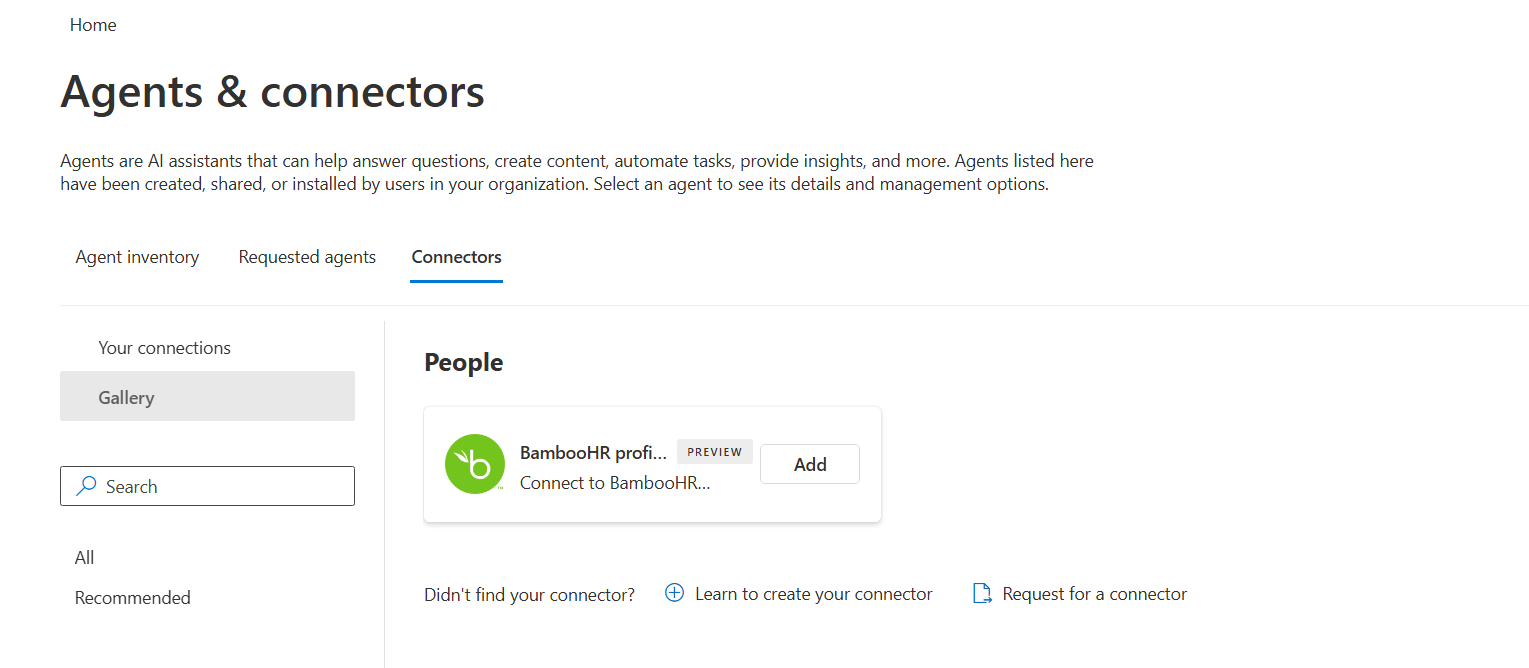
- In the Microsoft 365 admin center, in the left pane, select Copilot > Connectors.
- Select the Gallery tab.
- From the list of available connectors, select BambooHR.
Set display name
The display name helps identify references in Copilot responses so users recognize the associated file or item. The display name also signifies trusted content and is used as a content source filter.
Select a display name (for example, "BambooHR Profiles") that helps users recognize associated profiles in a Copilot response.
For more information about connector display names and descriptions, see Enhance Copilot discovery of connector content.
Set instance URL
Enter your BambooHR instance URL. The URL follows the format: https://<company-subdomain>.bamboohr.com/
Choose authentication type
The BambooHR connector uses OAuth 2.0 for authentication. To configure:
- Select OAuth 2.0 from the list of authentication types.
- Enter the client ID and client secret from your BambooHR developer portal.
- Select Authorize to sign in with admin credentials from the BambooHR instance containing your employee data and consent to the required permissions.
Roll out
To roll out the connector to a limited audience, select the toggle next to Rollout to limited audience and specify the users and groups to include. For more information, see Staged rollout for Copilot connectors.
Select Create to deploy the connection. The BambooHR connector starts indexing content right away.
The following table lists the default values that are set.
| Category | Settings | Default values |
|---|---|---|
| Users | Access Permissions | All profiles are accessible to anyone. |
| Map identities | Data source identities | Mapped using Microsoft Entra IDs (email match). |
| Sync | Incremental crawl | Every 15 minutes. |
| Sync | Full crawl | Every day. |
Note
Everyone in your Microsoft tenant can see all data retrieved through the BambooHR Copilot connector. If a user is blocked from seeing another user's profile data, that profile data isn't shared or stored in the blocked user's view.
To customize these values, select Custom setup. For more information, see Customize settings.
After you create your connection, you can review the status in the Connectors section of the Microsoft 365 admin center.
Customize settings (optional)
You can customize the default values for the BambooHR connector settings. To customize settings, on the connector page in the admin center, select Custom setup.
Customize user settings
Access permissions
The BambooHR connector supports only data that everyone can see. All users see indexed data in search results.
Map identities
Identity mapping checks whether the email address of BambooHR profiles matches the UserPrincipalName (UPN) or email of users in Microsoft Entra ID. Because transformations aren't supported, email addresses must match between BambooHR and Microsoft Entra for successful indexing.
Customize content settings
Manage properties
The BambooHR connector doesn't support adding new properties or removing existing properties. The annotationSerialized property includes all the default properties.
The following table lists the properties that the connector indexes by default.
| Property | Semantic label | Description | Schema attributes |
|---|---|---|---|
| First name | Employee's first name | Search | |
| Last name | Employee's last name | Search | |
| Name | Employee's full name (display name) | Search | |
| Employee's work email address | Search | ||
| Birth date | Employee's date of birth | Query, Retrieve | |
| Job information department | Employee's department | Query, Retrieve, Search | |
| Job information division | Employee's division | Query, Retrieve, Search | |
| Employee number | Employee's number | Query, Retrieve | |
| Employee Eeid | Employee's ID in BambooHR | Query, Retrieve | |
| Employment status | Employment status (full-time, contractor, etc.) | Query, Retrieve, Search | |
| Original hire date time | Created date time | Employee's original date of hire | Query, Retrieve |
| Hire date time | Employee's hire date (used when original hire date is null) | Query, Retrieve | |
| Job information job title | Employee's job title | Query, Retrieve, Search | |
| Supervisor ID | Employee's manager identifier | Query, Retrieve | |
| Mobile phone | Employee's work mobile phone | Retrieve | |
| Work phone | Employee's work phone | Retrieve | |
| Job information location | Employee's office location | Query, Retrieve, Search | |
| Status | Active/inactive (internal filtering only) | Query |
Customize sync intervals
The refresh interval determines how often your data syncs between the data source and the connector index. There are two types of refresh intervals:
- Incremental crawl: Defaults to every 15 minutes.
- Full crawl: Defaults to every day.
For more information, see Guidelines for crawl settings.