Note
Access to this page requires authorization. You can try signing in or changing directories.
Access to this page requires authorization. You can try changing directories.
Note
This article applies to the Employee Self-Service declarative agent. For the Employee Self-Service custom engine agent, see Configure SharePoint as a knowledge source.
To add SharePoint content as a knowledge source for the Employee Self-Service agent:
Open the Employee Self-Service agent in Copilot Studio and select the Configure tab.
Go to the Knowledge section. Under Add files, meetings, chats, emails, and websites, select the SharePoint icon.
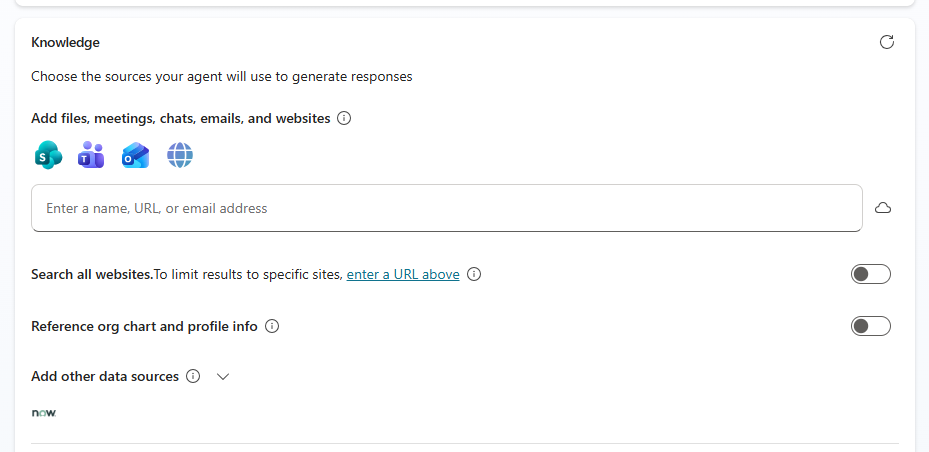
In the Enter a name, URL, or email address box, add the SharePoint sites or files that contain your HR or IT content. Use either of these methods:
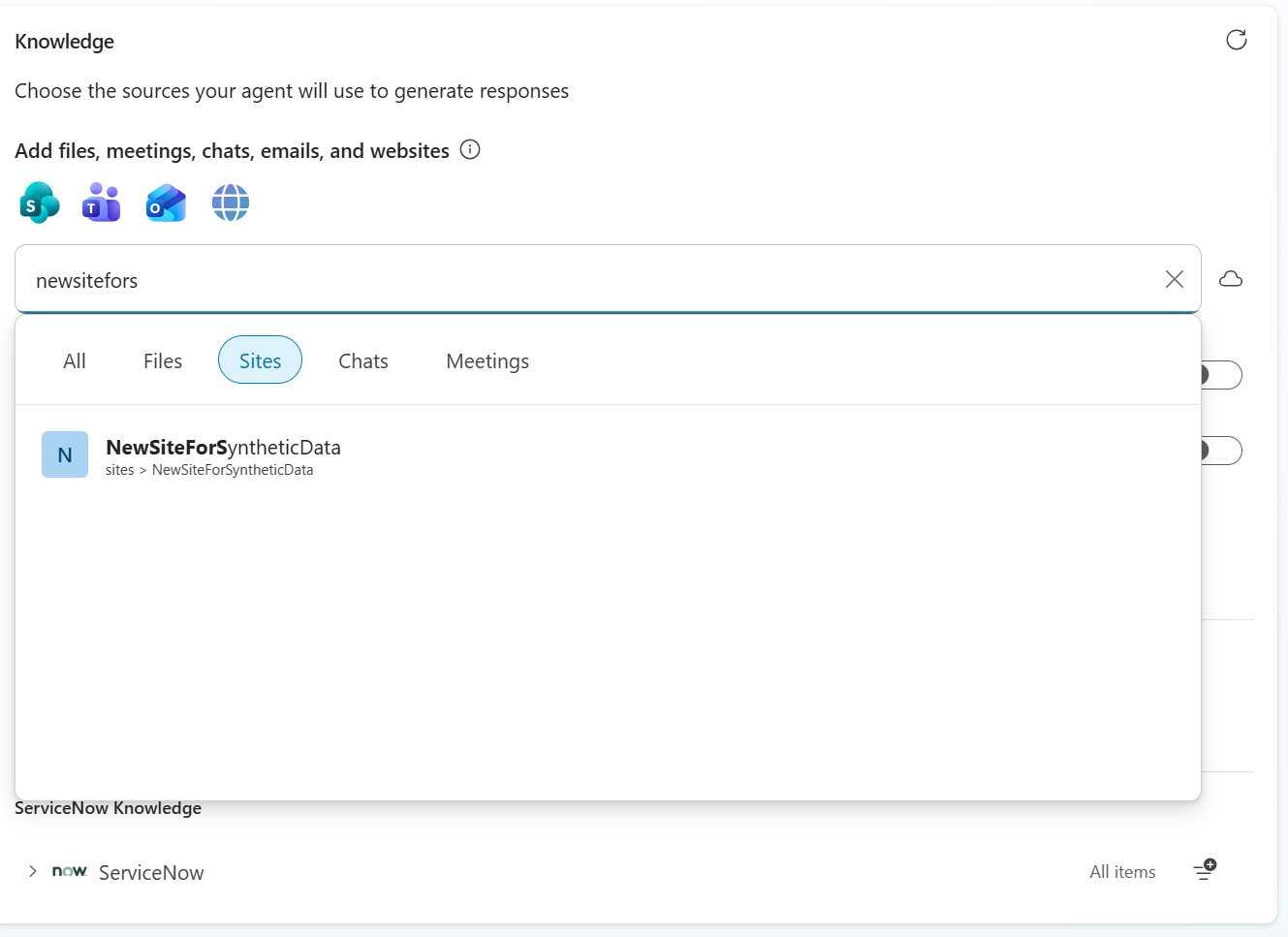
Search and select: Type part of a site or file name to filter the results. Select the Sites tab to show only sites, or the Files tab to show only files. Then select an item from the list.
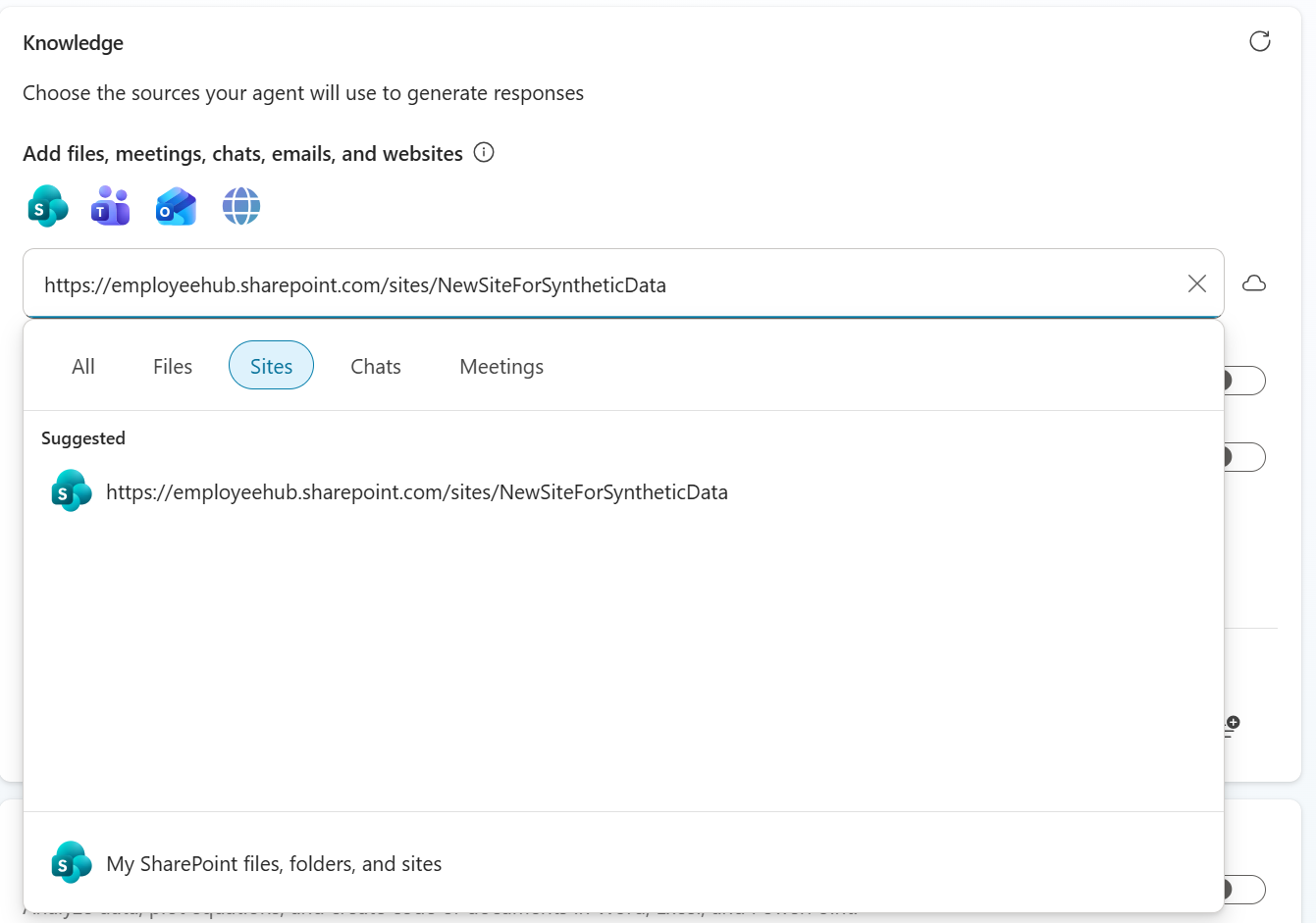
Paste a URL: Paste the URL of a SharePoint site into the box, and then select the suggested site.
Repeat the previous step for each site or file that you want to add.
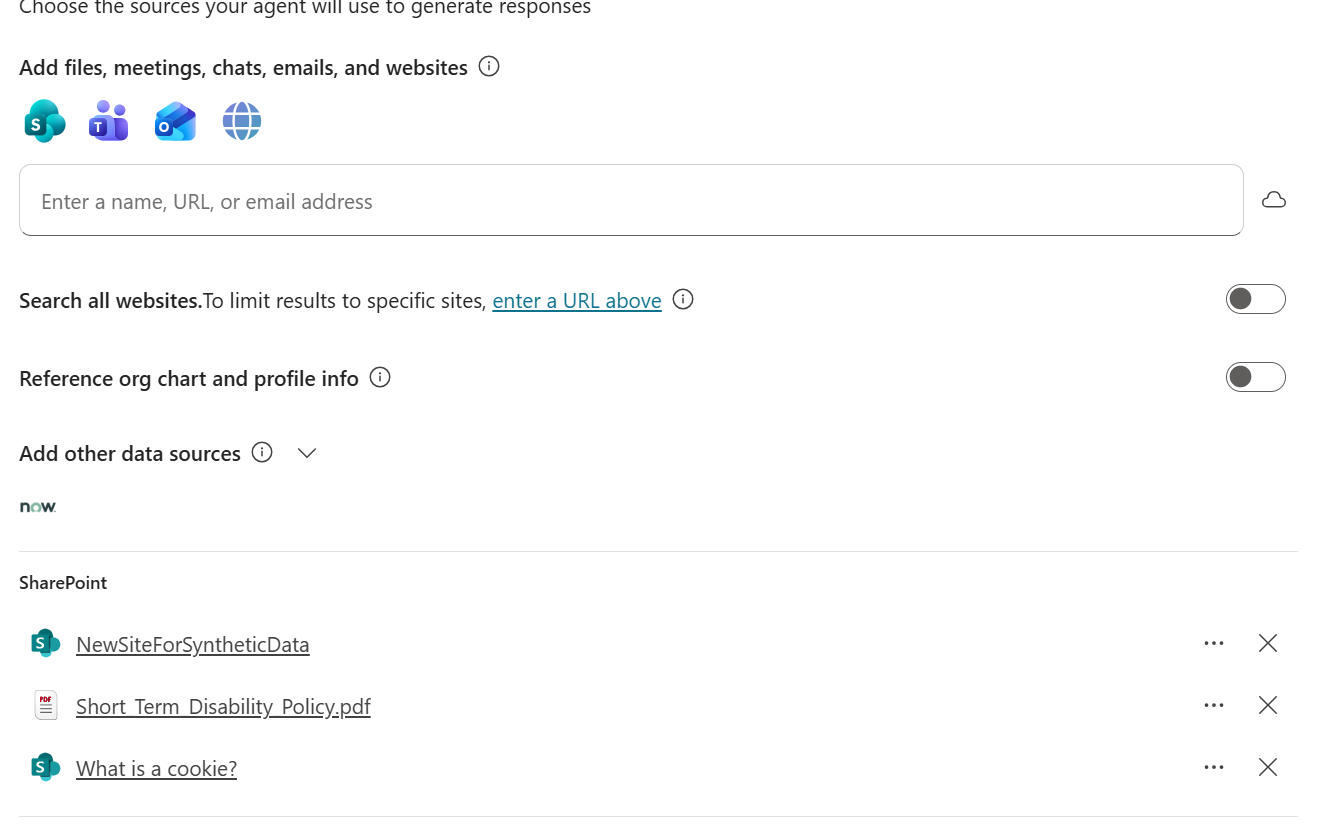
The sites and files you add appear under SharePoint in the Knowledge section. You don't need to save.
Republish the agent so that employees get responses grounded in the new sources.
Important
Add a SharePoint site rather than a single page when you want the agent to use all of the site's content. A common mistake is adding a page URL. You can add one, but the agent then uses only that page, not the rest of the site.
- Site URL (uses all content in the site):
https://contoso.sharepoint.com/sites/HR - Page URL (uses only that page):
https://contoso.sharepoint.com/sites/HR/SitePages/Benefits.aspx
Tip
Add only the SharePoint sites and files that contain authoritative HR and IT content. Narrow, well-maintained sources produce more accurate answers. For guidance, see Optimize SharePoint knowledge sources.
SharePoint knowledge filtering
For information on SharePoint knowledge filtering, see SharePoint advanced filtering.