Note
Access to this page requires authorization. You can try signing in or changing directories.
Access to this page requires authorization. You can try changing directories.
If your Employee Self-Service deployment already integrates with Workday using integration system users (ISUs) and a Reports as a Service (RaaS) report, you don't need to redo your setup. The simplification ships in two parts that affect you differently.
What the simplification changes (and what it doesn't)
Read this section before you start the procedure. It addresses the most common misconceptions seen in recent deployments.
| Area | Before (legacy ISU + RaaS) | After (simplified) |
|---|---|---|
| User-context lookup | RaaS report plus two ISU accounts (ISU_WQL_COPILOT and ISU_Generic_COPILOT); resolved per session |
Single Workday REST call (/workers/me) made once per session as the signed-in user. Worker ID is cached and reused for the rest of the session |
| Power Platform Workday connection | No REST base URL required | Adds a mandatory REST base URL field |
| Microsoft Copilot Studio user-context topic | Legacy topic that consumes RaaS data | Switched to the V2 topic that consumes the REST call |
| Other Workday scenarios (read employee data, update phone, update email, time off, and your custom topics) | SOAP, signed-in user, standard Workday audit trail | Unchanged—still SOAP, still signed-in user, audit trail unchanged |
| ISU account usage | GET-only. Updates always ran as the signed-in user via OAuth, never as the ISU | Unchanged—same model, same answer to the common misconception |
Note
Don't confuse this simplification with the separate work to add new REST-based scenarios to the Workday connector. "Simplified" doesn't mean "everything moves to REST." Outside of /workers/me, every Workday scenario stays on SOAP.
Supported authentication topologies
Workday uses an identity provider (IdP) for sign-in. The simplified setup works when Workday's IdP is either:
- Microsoft Entra ID directly: The user's Microsoft Entra user principal name (UPN) matches the user's Workday login ID.
- A third-party IdP that Microsoft Entra is federated with: Microsoft Entra federates to the third-party IdP, the third-party IdP is configured as Workday's IdP, and Workday resolves the user from the SAML claims it receives.
These topologies match the Entra federated with a cloud-based third-party IdP and Entra NOT federated with any third-party IdP rows in the Workday authentication matrix in Employee Self-Service prerequisites. If your tenant uses a third-party identity provider that isn't federated with Microsoft Entra, the simplified setup isn't supported. If your UPNs don't align with Workday login IDs under either topology, you might still need a custom user-context mapping topic. Confirm your configuration with your identity and Workday administrators before relying on the default flow.
Out of scope
The simplified setup, like the legacy setup, supports employees only. External staff and non-employees aren't supported.
Prerequisites
Before you start, confirm that the right people are available for each step:
| Role | Why they're needed | Steps they own |
|---|---|---|
| Workday administrator with rights to manage API clients | Edits the existing Employee Self-Service API client (functional area scope, owned-scope toggle) | Steps 2–5 |
| Power Platform maker or environment admin for the environment where Employee Self-Service is installed | Edits the Workday OAuth connection in make.powerautomate.com | Steps 6–7 |
| Microsoft Copilot Studio maker for the Employee Self-Service agent | Takes the package update and switches the user-context topic | Steps 1 and 8 |
You also need:
- An existing Employee Self-Service deployment running the legacy ISU + RaaS configuration. If you're a new customer, follow Set up the simplified Workday integration for Employee Self-Service instead.
- The current Power Platform environment URL and access to the existing Workday OAuth connection.
How the update is delivered
The simplified setup ships as two updates that arrive separately:
- Workday connector update – Because the Workday connector is a Power Platform connector, the connector update is delivered through Power Platform connector updates to your tenant. The update is backward-compatible with existing SOAP scenarios and adds optional REST support alongside SOAP. No customer action is required to receive it.
- Employee Self-Service Workday package update – Available in Microsoft AppSource. Existing customers take the update from Microsoft Copilot Studio. The package update doesn't affect the production-running agent or the maker experience until you take it. New customers install the latest Workday package as part of the standard installation.
Warning
Taking the package update puts the existing Workday connection into a stale state. The Power Platform maker has to reconnect the Workday connection (steps 6 and 7 in this article) before end users can use the agent for Workday scenarios. After the connection is restored, each end user is prompted to reauthorize the OAuth connection once on their next Workday-touching turn; refresh tokens flow normally from there. Plan the package update for a low-traffic window.
Upgrade procedure
Complete the following steps in order. After step 7, your environment runs the simplified flows end to end.
Step 1: Update the Workday connector package
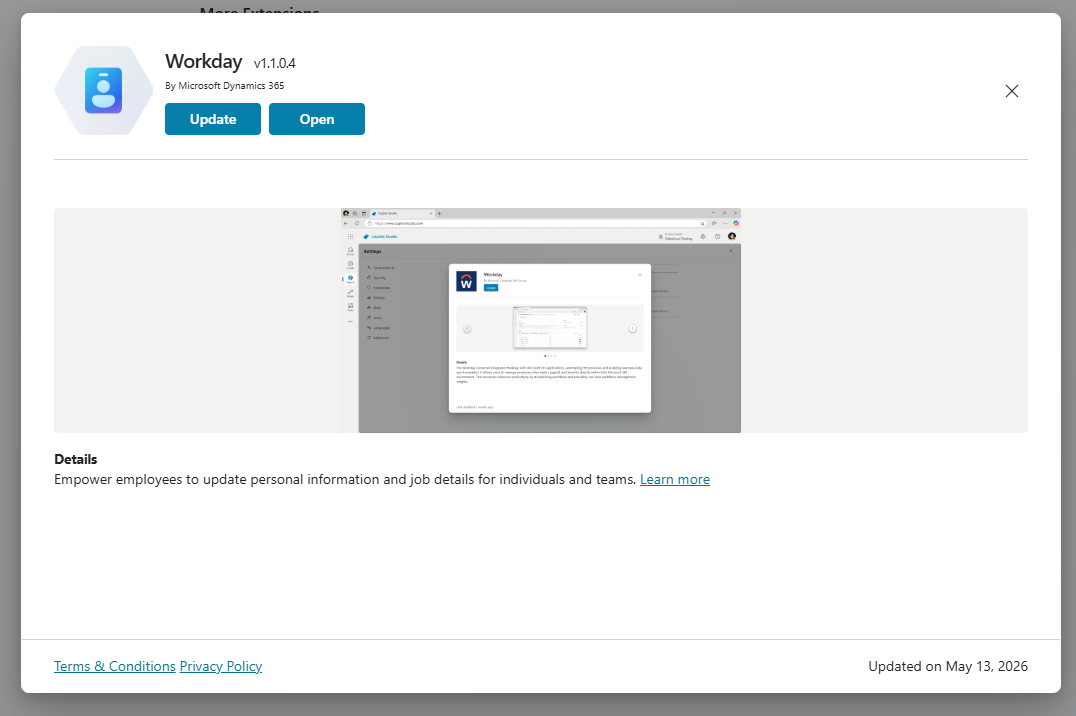
In Microsoft Copilot Studio, go to Settings > Customize > Workday and select Update. For the general Copilot Studio settings reference, see Customize your agent in Microsoft Copilot Studio.
Step 2: Open View API Clients in Workday
Sign in to Workday as an administrator who can manage API clients. In the Workday global search, enter view api client and select View API Clients from the Tasks and Reports results.

Step 3: Edit your existing Employee Self-Service API client
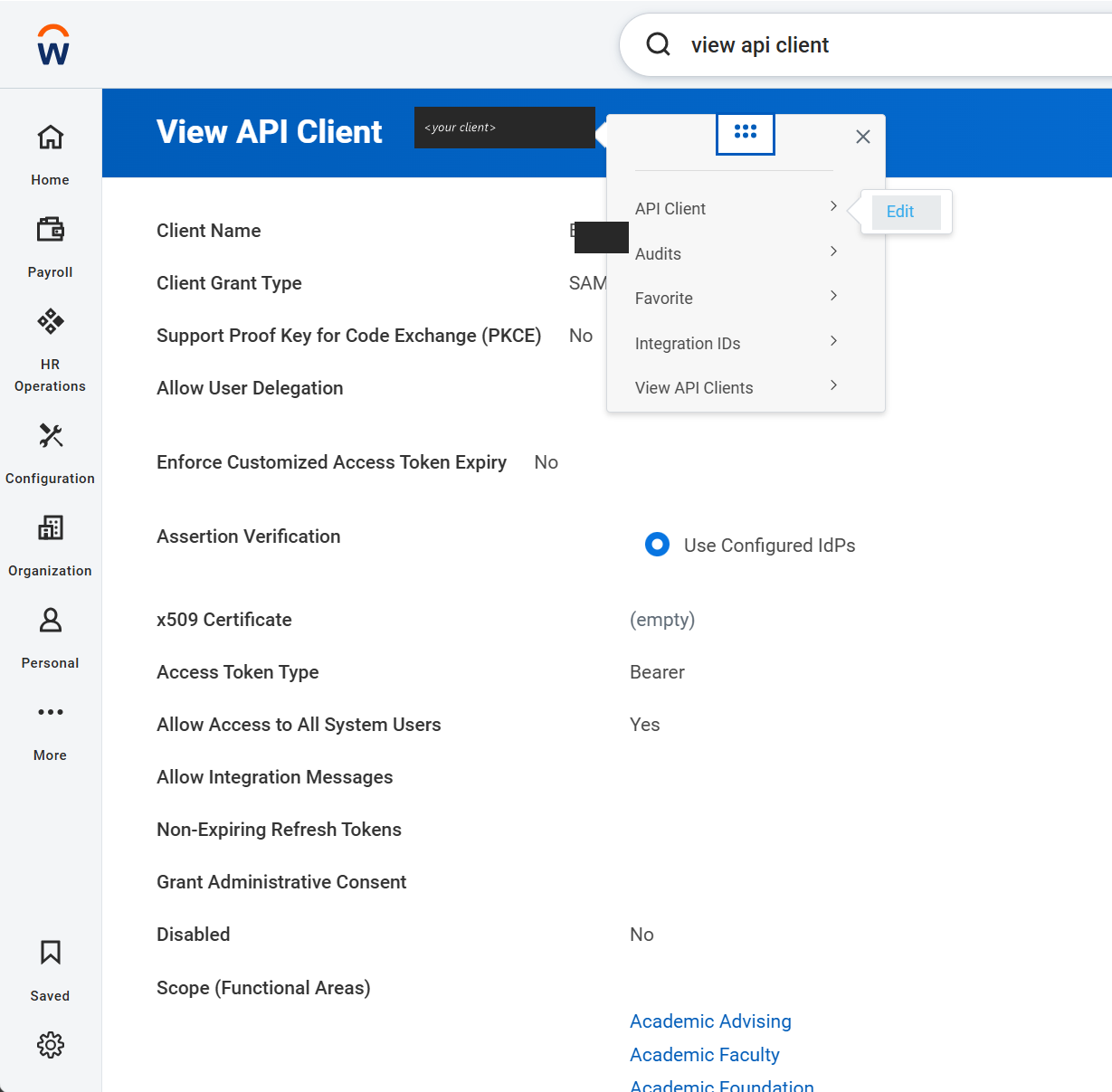
In the API clients list, locate the API client you registered for Employee Self-Service. Open its related-actions menu and select API Client > Edit.
Step 4: Update Scope (Functional Areas)
On the Edit API Client page, add the following functional areas to Scope (Functional Areas) if they aren't already selected, and set Include Workday Owned Scope to Yes:
- Core Payroll
- Organizations and Roles
- Staffing
- Time Off and Leave
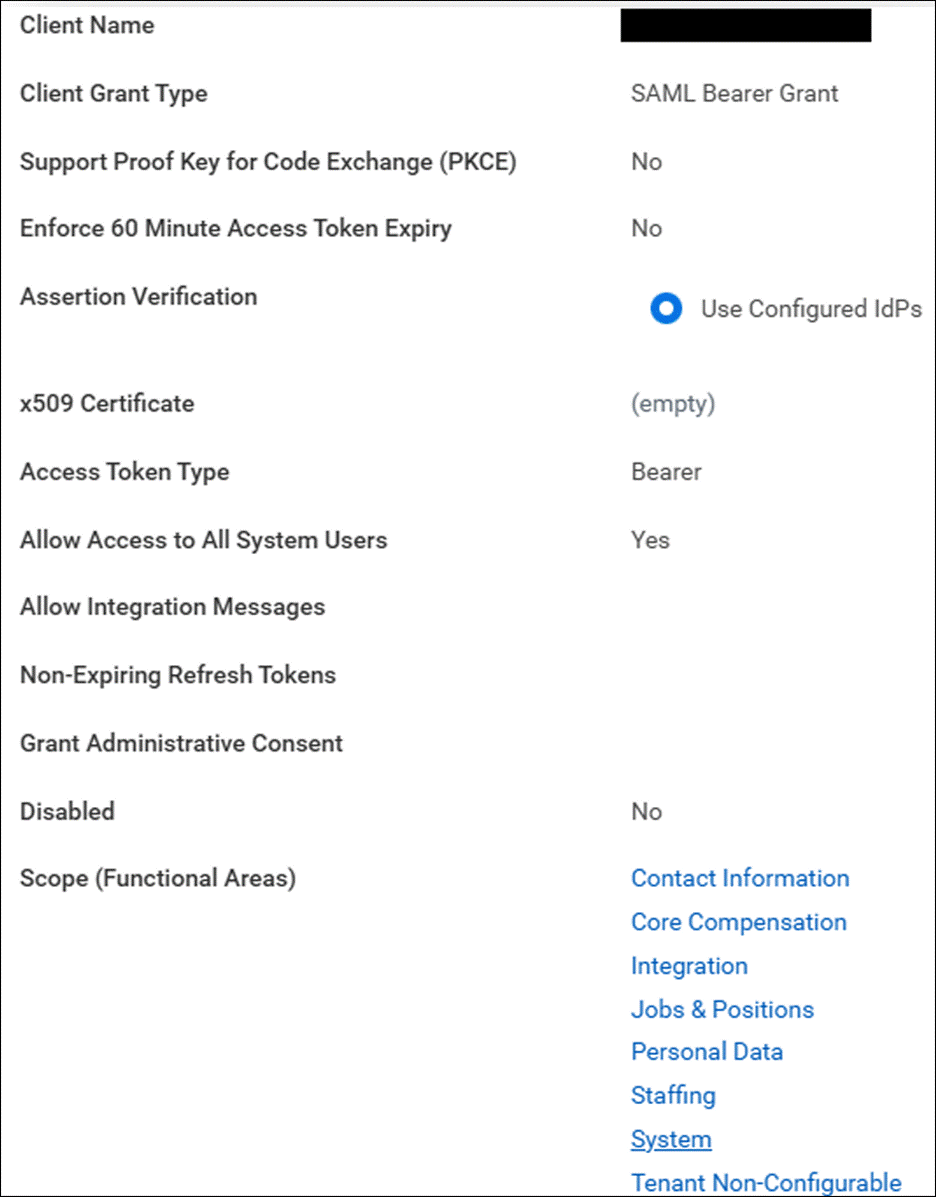
These four functional areas are the minimum scope required for the out-of-the-box Employee Self-Service experience. If you extended Employee Self-Service with custom topics that use other Workday domains (for example, Recruiting or Learning), add those functional areas too. Include Workday Owned Scope must be Yes so that Workday-owned web services (for example, the REST /workers/me endpoint used for user-context lookup) are included. The same guidance is documented for new setups in Set up the simplified Workday integration for Employee Self-Service.
Save the changes.
Step 5: Copy your Workday REST API endpoint
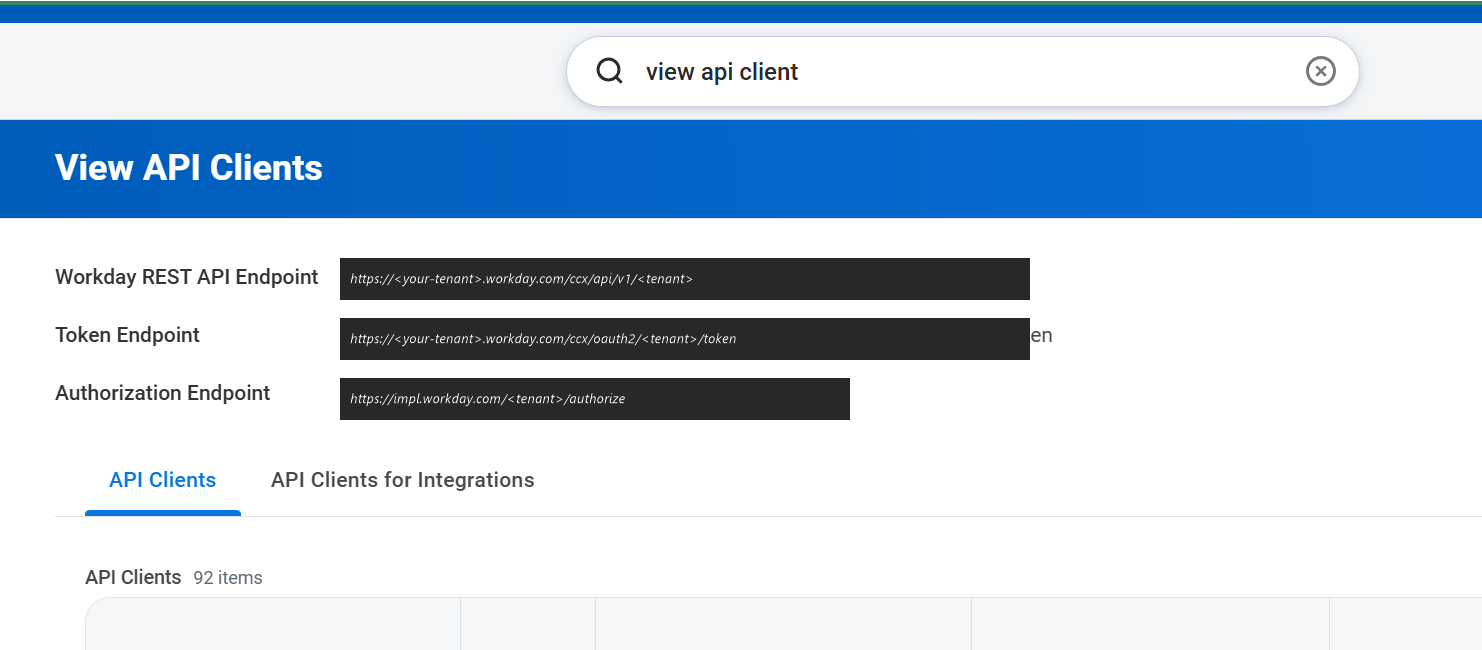
Return to the View API Clients report. Locate the Workday REST API Endpoint value at the top of the page and copy it as Workday displays it—the host and path vary by Workday deployment, so don't reconstruct or template the URL by hand.
Then trim the copied value so it ends at /api. Remove everything after /api (for example, the tenant suffix or any /v1 or resource path that Workday appends). The REST base URL field expects the endpoint up to /api only; leaving the trailing path in causes the simplified flow to fail silently.
Step 6: Add the REST base URL to the Power Platform Workday connection
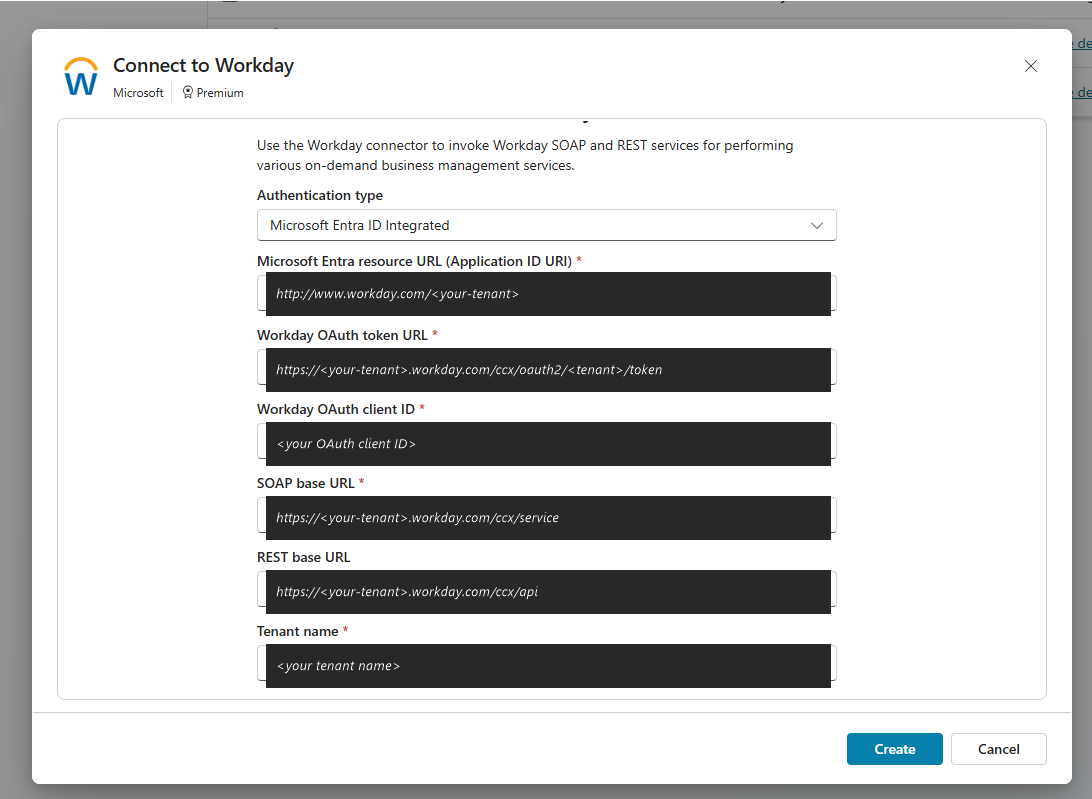
Go to make.powerautomate.com, select the environment where Employee Self-Service is installed, and open Connections. Edit the existing maker OAuth connection for Workday and paste the value you copied in step 5 into the REST base URL field. For general guidance on managing Power Platform connections, see Manage connections in Power Apps.
Important
The REST base URL field is mandatory for the simplified setup, even though Power Platform shows it as optional. Without it, the simplified flow fails silently and the agent falls back to the legacy ISU-based RaaS path. You can't decommission the ISU_WQL_COPILOT and ISU_Generic_COPILOT integration system users until this field is populated and the connection is working.
The maker might be prompted to reauthorize the connection once. This prompting is standard Power Platform behavior when a required field is added to a connector configuration and isn't a defect.
Step 7: Turn on Allow permission to share parameters
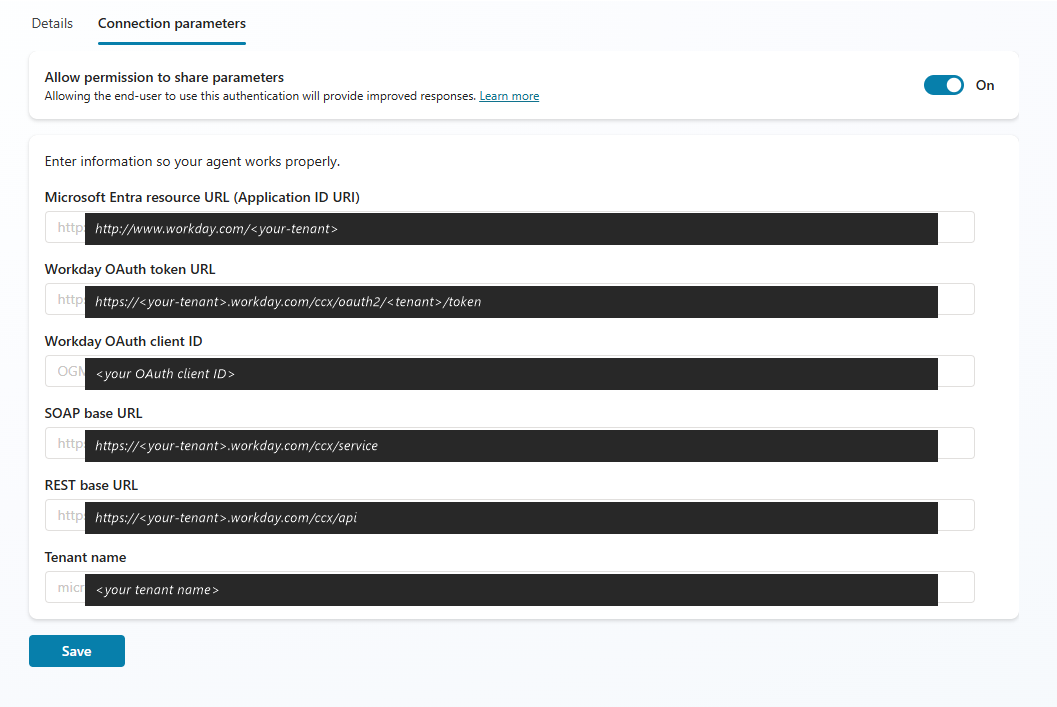
Still in the Workday connection, open the Connection parameters tab and turn Allow permission to share parameters to On. Confirm that all parameter fields (including REST base URL) are populated, then select Save.
Tip
If the parameter fields (including REST base URL) appear empty when you open the Connection parameters tab, the connection might already have Allow permission to share parameters set to On from a previous save. A known platform issue prevents the values from rendering in that case. To force them to repopulate, turn the toggle Off, select Save, turn it back On, then select Save again. The parameter fields then show the expected values.
Step 8: Switch the user-context topic to V2
In Microsoft Copilot Studio, go to Agents > ESS HR/IT > Topics and open the [Admin] - User Context - Setup topic. In the Topic node, select the existing topic reference and choose Select a topic. Search for v2, then select Workday [System] - 1: Set User Context V2. Save the topic.

Note
Authentication topologies and IdP support are covered in What the simplification changes (and what it doesn't) at the top of this article. Confirm your topology before you save the topic; some tenants may still require a custom user-context mapping topic.
What you can decommission on your timeline
Removing your existing ISU accounts, security groups, and RaaS reports from Workday isn't mandatory and isn't part of the upgrade steps. The simplification only removes the Power Platform connection references that point to them. The accounts can remain active in Workday.
Items that can be decommissioned if they aren't used by other integrations:
ISU_WQL_COPILOTandISU_Generic_COPILOTintegration system user accounts.ISSG_WQL_COPILOTandISSG_Generic_COPILOTintegration system security groups.- The
WD_User_ContextRaaS report. The Workday REST endpoint/workers/mereplaces it for the user-context lookup.
Important
Don't retire any of these items until all of the following are true:
- The simplified flow is verified in every environment that runs Employee Self-Service (dev, test, and production).
- You confirm that no other integration, custom topic, or downstream system depends on those ISU accounts, security groups, or the RaaS report.
- The change is observed in production for at least one full business cycle that covers the scenarios your users exercise.
Custom scenarios that still require RaaS
The simplified setup covers all out-of-the-box Employee Self-Service operations without requiring a RaaS report or ISU-based environment configuration.
If you built custom topics in Microsoft Copilot Studio for nonstandard scenarios—for example, custom leave policies, custom absence types, or headcount setups—your existing RaaS reports continue to work and can still be used to build custom topics. This path is unchanged by the simplification.
If you aren't ready to simplify yet
If you aren't yet ready to take a dependency on the Workday REST API, your existing setup continues to work without modification. You can take the updated package, and your existing scenarios still run with your existing ISU connections and RaaS report. There's no fixed deadline for the simplified setup today. See Integrate Workday with your Employee Self-Service deployment for the legacy reference.