Note
Access to this page requires authorization. You can try signing in or changing directories.
Access to this page requires authorization. You can try changing directories.
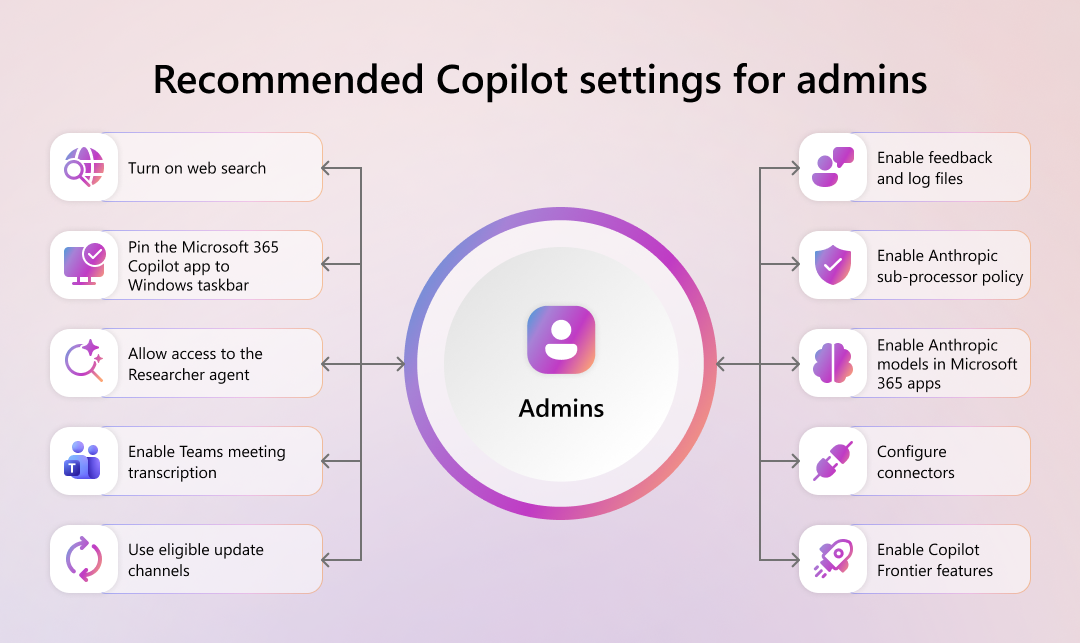
Configure your tenant for the best Microsoft 365 Copilot experience. This article describes ten priority configuration settings that improve adoption, satisfaction, and retention, and explains where to find them in the Microsoft 365 admin center.
This video provides an overview of how the recommended configuration settings can help to optimize Microsoft 365 Copilot in your business.
Why configuration matters
Proper configuration of Copilot tenant settings is critical so users can fully benefit from Copilot. Tenants that are correctly configured show measurable improvements in usage, engagement, and satisfaction. Configuring these settings helps move tenants from at‑risk to healthy states and supports better governance, compliance, and AI‑powered productivity outcomes.
Recommended Copilot tenant settings
The following ten settings are the most critical configurations for Copilot success.
Turn on web search
The Turn on web search setting allows Microsoft 365 Copilot to retrieve real‑time public information from the web.
This setting generates search queries from user prompts and using results from services like Bing to enrich responses, combining web data with organizational context while remaining governed by admin controls and security policies.
Why this setting matters:
- Retrieves current public information to enhance response accuracy
- Reduces reliance on outdated training data
- Combines web and organizational data for more complete, relevant results
For more information about this setting, see Data, privacy, and security for web search in Microsoft 365 Copilot and Microsoft 365 Copilot Chat.
Pin the Microsoft 365 Copilot app to the Windows taskbar
The Pin the Microsoft 365 Copilot app to the Windows taskbar setting places the Microsoft 365 Copilot app on the Windows taskbar. This setting makes Copilot more visible and accessible on users’ desktops.
Why this setting matters:
- Provides a consistent, one‑click entry point to Copilot outside Microsoft 365 apps
- Reduces friction for users, making Copilot easier to access and increasing adoption
- Helps standardize the Copilot experience across devices for better admin manageability
For more information, see Pin Microsoft 365 Copilot and its companion apps to the Windows taskbar.
Allow access to the Researcher agent
The Agent settings page in the Microsoft 365 admin center controls whether Microsoft-provided agents, such as the Researcher agent, are available to users in Microsoft 365 Copilot experiences.
When this setting is enabled, users can access the Researcher agent to perform advanced, multi-step research using Copilot. If it is restricted, access to these Microsoft-built agents (including Researcher) is limited based on the configured policy.
Why this setting matters:
- Enables Copilot to deliver deeper, high‑value insights using advanced reasoning
- Combines multiple data sources to improve the quality and depth of analysis
- Increases trust through transparent, cited responses while supporting complex research tasks
For more information, see Manage agents in the Microsoft 365 admin center.
Enable Teams meeting transcription
Enabling Teams meeting transcription captures meeting conversations as structured text that Microsoft 365 Copilot uses to generate summaries, action items, and meeting Q&A.
This setting provides the grounded data Copilot needs to analyze meeting content, improving accuracy, knowledge reuse, and access to insights during and after the meeting.
Why this setting matters:
- Provides structured data that enables Copilot to generate summaries, action items, and Q&A
- Improves accuracy and supports long-term knowledge reuse across meetings
- Ensures transcripts are governed artifacts aligned with organizational security and data protection policies
For more information, see Manage Microsoft 365 Copilot in Teams meetings and events.
Use eligible update channels
Using an eligible update channel ensures that Microsoft 365 apps receive the latest Copilot features, updates, and fixes so the service remains fully functional and consistent for users.
This setting keeps apps on eligible release channels that deliver Copilot capabilities reliably, helping ensure compatibility, performance, and ongoing access to new Copilot experiences.
Why this setting matters:
- Ensures Copilot features are available, functional, and consistently delivered
- Keeps users on the latest capabilities while improving security, reliability, and performance
- Helps admins balance innovation with control by managing feature rollout at scale
For more information, see Change update channel of Microsoft 365 Apps to enable Copilot.
Enable feedback and log files
The Enable feedback and log files setting enables users and admins to submit feedback and diagnostic data, creating a continuous feedback loop that helps improve Microsoft 365 Copilot performance and user experience over time.
This setting captures insights from real user interactions and issues, allowing Microsoft to refine Copilot responses, accelerate issue resolution, and give admins visibility into adoption challenges and user experience trends.
Why this setting matters:
- Creates a continuous feedback loop that improves Copilot performance and user experience
- Provides Microsoft with actionable insights and diagnostic data to enhance product quality
- Gives admins visibility into user experiences and adoption challenges to inform targeted support
For more information, see Manage Microsoft feedback for your organization.
Enable Anthropic sub‑processor policy
The Enable Anthropic sub‑processor policy setting allows Microsoft 365 Copilot to use additional AI models (such as Claude) from Anthropic alongside Microsoft models, expanding flexibility, reasoning capabilities, and output quality while remaining within Microsoft’s compliance framework.
This setting lets admins control whether these external models are available in Copilot, enabling more advanced scenarios like deep analysis and multi-step workflows while maintaining governance, security, and policy enforcement across the tenant.
Why this setting matters:
- Enables use of multiple AI models within Copilot while remaining within Microsoft’s compliance framework
- Improves output quality for complex and advanced scenarios
- Future‑proofs deployments with multi‑model innovation under enterprise governance
For more information, see Anthropic as a subprocessor for Microsoft Online Services.
Enable Anthropic models in Microsoft 365 apps
The Enable Anthropic models in Microsoft 365 apps setting allows Copilot to use Anthropic models within apps like Word, Excel, and PowerPoint, improving reasoning, structure, and output quality for everyday work scenarios.
This setting lets Copilot select the most suitable AI model for each task directly within Microsoft 365 apps, enabling more advanced document creation, data analysis, and multi-step workflows while remaining centrally governed by Microsoft 365 policies.
Why this setting matters:
- Enables Copilot to select the most suitable AI model for each task
- Improves reasoning, structure, and overall output quality across scenarios
- Enhances document creation, data analysis, and multi-step workflows within a centralized, governed Microsoft 365 environment
For more information, see Copilot in Microsoft 365 apps with Anthropic models.
Configure connectors
The Configure Connectors setting enables Microsoft 365 Copilot to access and use data from third‑party systems, extending its knowledge beyond Microsoft 365 to provide richer, more context-aware responses.
This setting integrates external data sources with Copilot.
Why this setting matters:
- Extends Copilot beyond Microsoft 365 by integrating data from third‑party systems
- Improves response accuracy, relevance, and depth with richer organizational context
- Preserves existing security and compliance controls while expanding data access
For more information, see Manage Connector connections.
Enable Copilot Frontier features
The Enable Copilot Frontier features setting gives organizations early access to new and upcoming Copilot capabilities, such as advanced AI features, agents, and multi-step workflows before they are generally available.
This setting allows admins to selectively enable preview features for users.
Why this setting matters:
- Provides early access to the latest Copilot innovations before general availability
- Helps admins evaluate and prepare for upcoming features in advance
- Enables controlled rollout and feedback to shape future experiences while managing risk
For more information, see Get started with the Microsoft Frontier program.
Impact for admins
Configuring these settings enables administrators to:
- Drive Copilot adoption and usage across the organization.
- Improve user satisfaction and productivity outcomes.
- Meet data security, compliance, and governance requirements.
- Identify configuration gaps using tenant health insights.
- Prioritize remediation based on measurable impact.
- Support continuous improvement through feedback and analytics.
Best practices
- Review Copilot configuration status in the Microsoft 365 admin center on a regular cadence.
- Use tenant health scoring to track progress over time.
- Engage stakeholders to align on security and compliance policies.
- Monitor adoption metrics and adjust configurations accordingly.
- Stay current on new Copilot features and configuration requirements.