Note
Access to this page requires authorization. You can try signing in or changing directories.
Access to this page requires authorization. You can try changing directories.
Organizational prompts are Microsoft 365 Copilot prompts that your organization creates and publishes for their end users. Administrators can create, view, update, delete, import, and publish prompts so they're shared with users in your organizations. When the prompts are published, they're displayed to users in Microsoft 365 Copilot Chat, Microsoft Edge, and Microsoft Teams. As your users type in Copilot, organizational prompts are automatically suggested.
Important
You need to be part of the Frontier preview program to get early access to this Microsoft 365 Copilot feature. Frontier connects you directly with Microsoft's latest AI innovations. Frontier previews are subject to the existing preview terms of your customer agreements. As these features are still in development, their availability and capabilities may change over time.
This article explains:
- How organizational prompts work.
- How to create, import, and manage organizational prompts.
- Where users can see organizational prompts.
- How to review analytics for organizational prompts.
Prerequisites
To manage, create, update, edit, import, and delete organizational prompts, use one of the following roles, or a role with equivalent permissions:
For more information, see About administrator roles in the Microsoft 365 admin center.
View and manage organizational prompts in the admin center
You can publish up to 1,000 organizational prompts in your tenant. It typically takes about 3 hours for prompts to display in the prompt lab. To view and manage your organizational prompts:
Sign in to the Microsoft 365 admin center if needed.
Expand Copilot and select Prompts.
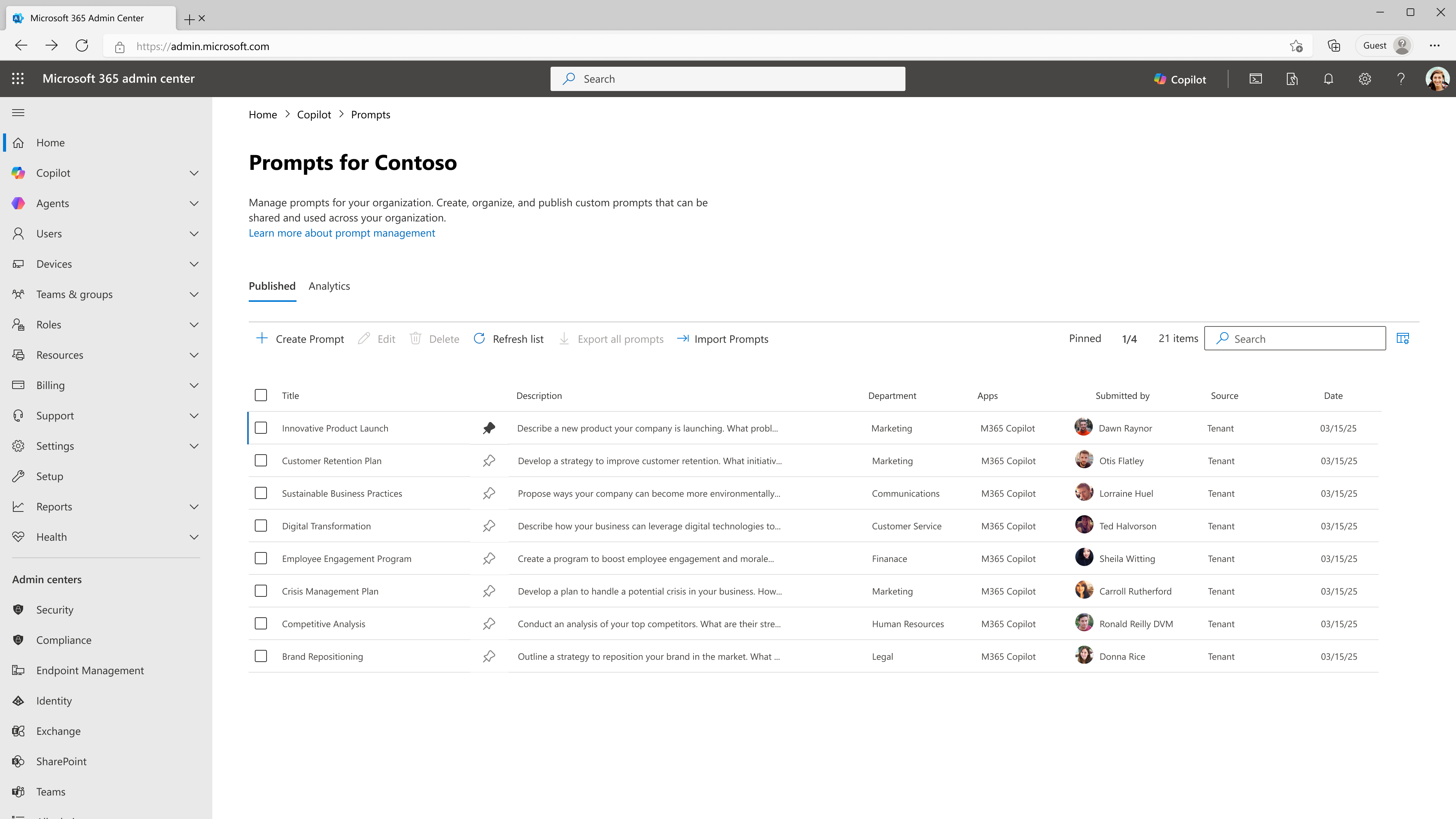
Your list of organizational prompts is displayed.
The list can be filtered or updated with the following options:- Search: Use the search box to find prompts by title or content.
- Sort: Sort the list by any column header.
- Refresh list: After you create, edit, or delete prompts, refresh to see the latest list.
The following actions are available for prompts:
Create organizational prompts
Prompts can be created either manually or through bulk import. To manually create a prompt:
- Sign in to the Microsoft 365 admin center if needed.
- Expand Copilot and select Prompts to display the list of organizational prompts.
- Select Create prompt.
- Fill in the prompt fields for your organizational prompt.
- Select Publish to save and publish the prompt to your tenant. It typically takes about 3 hours for prompts to display in the prompt lab.
Localization for organizational prompts
Admins can add prompts in any language using the Language field on the prompt. Automatic translation or conversion to other languages isn't available currently. If your organization needs prompts in multiple languages, create a separate prompt for each language.
Edit an organizational prompt
To edit an organizational prompt:
- Sign in to the Microsoft 365 admin center if needed.
- Expand Copilot and select Prompts to display the list of organizational prompts.
- Select the organizational prompt you want to change, then select Edit.
- Change the prompt fields
- Select Save to publish the edited prompt to your tenant. It typically takes about 3 hours for changes to display in the prompt lab.
Pin an organizational prompt
Pin frequently used or priority prompts to the top of the list to display them to end users in Copilot. These prompts are displayed as suggested prompts in Copilot Chat. Up to four prompts can be pinned.
There are two ways to pin a prompt. In the organizational prompts list, select the prompt you want to pin, then either:
- Select the unpinned icon in the prompt's row to switch it to pinned.
- Select Pin prompt from the more options menu (...).
To unpin a prompt, select the prompt and choose Unpin prompt from the more options menu (...), or select the pinned icon to switch it to unpined.
Delete an organizational prompt
To delete a single organizational prompt:
- Sign in to the Microsoft 365 admin center if needed.
- Expand Copilot and select Prompts to display the list of organizational prompts.
- To delete a prompt, select it, then choose Delete.
To delete multiple organizational prompts:
If you'd like to delete multiple prompts at once, select the checkboxes next to the prompts you want to delete, then choose Delete.
Warning
Deletion is permanent. Save a copy of the prompt fields before deleting if you might need to restore it, or export all prompts.
Import prompts in bulk
When you have multiple prompts to publish, you can import prompts. The file size limit for import is 5 MB and you can import up to 100 prompts at a time. If you have more than 100 prompts, split them across multiple files. For example, you might use bulk import when migrating from a prompt library spreadsheet or for rolling out a department-wide catalog.
- Sign in to the Microsoft 365 admin center if needed.
- Expand Copilot and select Prompts to display the list of organizational prompts.
- Select Import prompts, which opens the flyout to import prompts.
- Select Download prompts template (.csv) and save the
prompt-import-template.csvfile. - Fill in one row per prompt. Use the prompt fields reference to understand the required fields and character limits.
- Save the file as a UTF-8 encoded CSV. In Microsoft Excel, this file type is CSV UTF-8 (comma delimited)(*.csv).
- Upload and review the validation preview.
Export all organizational prompts
You can export all organizational prompts to a CSV file. Exporting is useful for backing up your prompts or for making bulk edits to prompts. To export all organizational prompts to a CSV file:
- Sign in to the Microsoft 365 admin center if needed.
- Expand Copilot and select Prompts to display the list of organizational prompts.
- Select Export all prompts. If you're using the file to make bulk edits, the exported file includes columns that aren't used for import, such as
Last Updated. Before importing, remove columns that aren't listed in prompt-import-template.csv.
Validation errors
When a prompt or batch of prompts is submitted, you might encounter the following errors:
| Error | Meaning |
|---|---|
| Prompt basic validation failed | The prompt is missing required fields or has an invalid structure. |
| Tenant prompts published items limit has been reached | The tenant has reached the 1,000-prompt limit. Delete unused prompts before publishing more. |
| Failed to batch insert prompt items to SDS collection | Server-side failure during a batch insert. Retry the request. If the issue persists, file a support ticket. |
Where organizational prompts are displayed to users
Organizational prompts surface in three places inside Microsoft 365 Copilot.
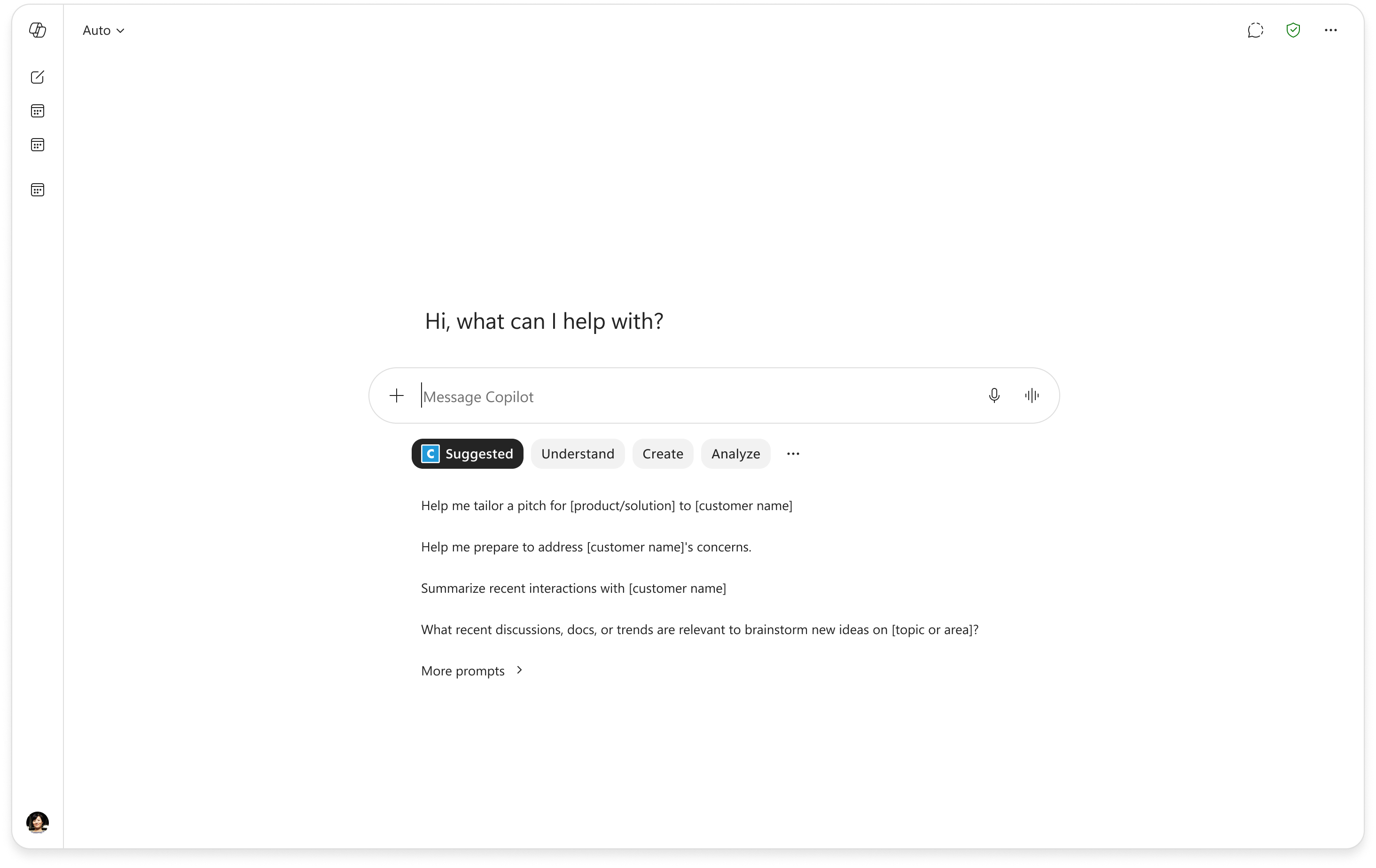
Suggested prompts in Microsoft 365 Copilot Chat
When users open Microsoft 365 Copilot Chat, a button titled Suggested appears on the home page. Selecting Suggested opens the pinned prompts. At the bottom of the pinned prompts list, Discover more prompts like these takes users to suggested prompts in the prompt lab. If you'd like to change the logo that's displayed, edit the Square logo in Company branding from the Microsoft Entra admin center. For more information, see Configure your company branding.
Prompt lab
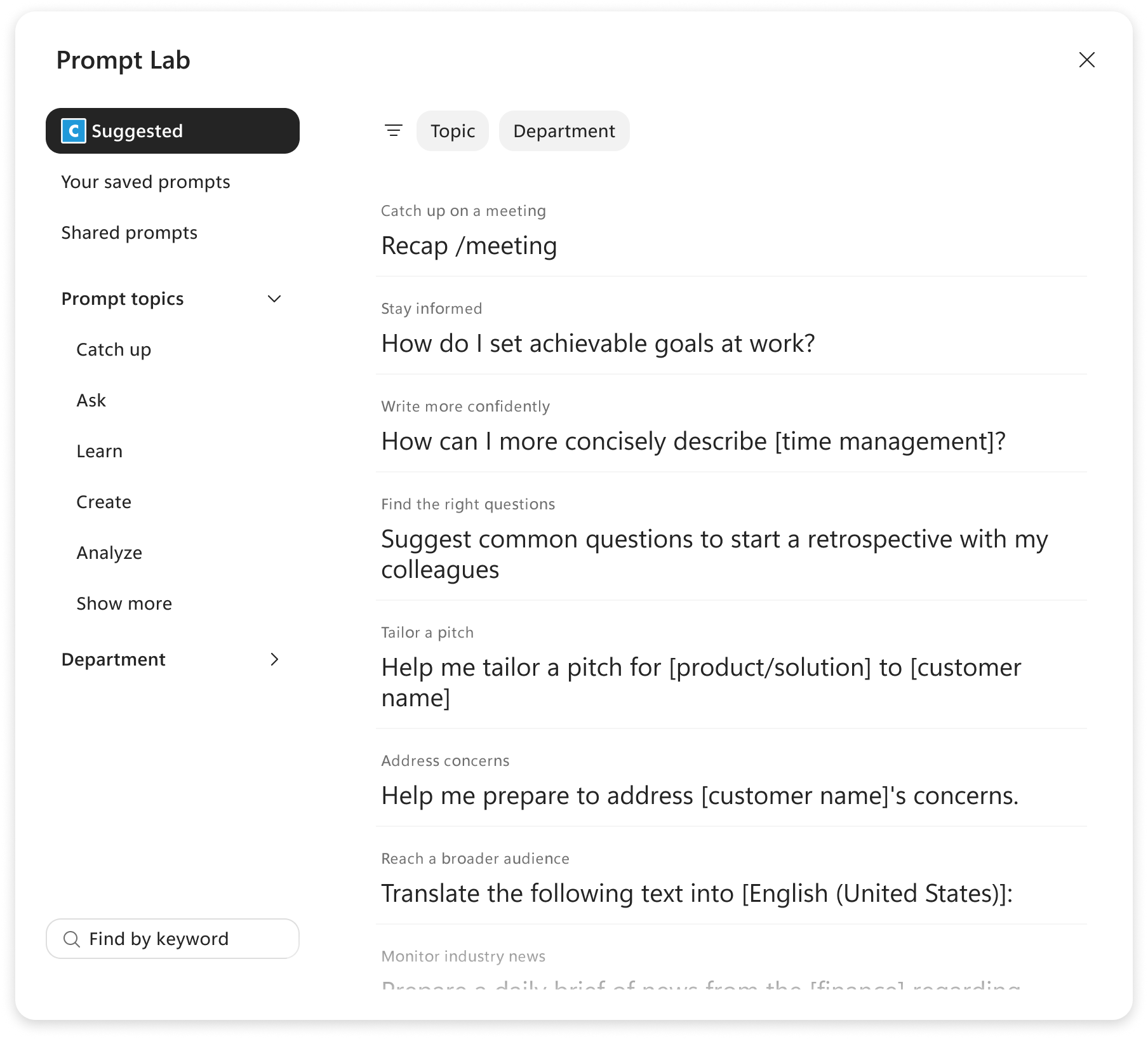
The prompt lab displays all organizational prompts available to the user. Users can:
- Search prompts by keyword.
- Filter by task type.
- Filter by department.
Selecting a prompt places the prompt into the Copilot Chat message box but doesn't submit it. Users can modify the prompt easily before they submit it.
Autosuggest in the Copilot input box
When users start typing in the Copilot message box, matching organizational prompts appear as typeahead suggestions. For users who already know the prompt they want, using autosuggest is the quickest option.
Review analytics for organizational prompts
Admins can view metrics for each prompt in the admin center to evaluate prompt performance and adoption. This data helps identify prompts that aren't being adopted so you can modify them and helps you find top-performing prompts to promote. You can review this data for the last 7, 14, or 28 days. The following analytics are available for organizational prompts:
- Active users: the number of distinct users who have used this prompt.
- Submissions: the total number of times the prompt has been submitted to Copilot.
Prompt fields reference
Use the chart to understand the required fields and character limits when creating, importing, or editing organizational prompts.
| Field | Required | Character Limit | Notes | prompt-import-template.csv column |
|---|---|---|---|---|
| Title | Yes | 35 | The label users see in the prompt lab cards. | Title |
| Display prompt | Yes | 132 | Short title shown on pill suggestions, on prompt lab cards and in autosuggestions. | Display Prompt |
| Prompt | Yes | 8000 | The actual prompt sent to Copilot when the user selects this prompt. | Prompt Text |
| Language | Yes | - | The language the prompt is written in. Automatic translation isn't supported. For more information, see Localization for organizational prompts. When importing prompts, use the values from the View all supported locales link in the import prompts flyout. Examples of values for Locale include en-US, es-ES, and ja-JP. |
Locale |
| Task type | Yes | - | Used to organize prompts and to power task-type filters in the prompt lab. When importing prompts, verify the values from the View all supported task types link import prompts flyout. Examples of values for Task Type include Analyze, Create, and Edit. |
Task Type |
| Department | No | 120 | Free-form text. Used to organize prompts and to power department filters in the prompt lab. | Department |
| Supported apps | Yes | - | The Copilot surfaces where the prompt should appear (for example, Copilot web, Copilot work). | Products |
| Description | No | 200 | Internal context for other admins; not shown to end users. | Description |