Note
Access to this page requires authorization. You can try signing in or changing directories.
Access to this page requires authorization. You can try changing directories.
In Microsoft Places, an object profile card is automatically created whenever a new place (such as a building, floor, section, room, workspace, or desk) is created. You do not manually create the card itself. Instead, the profile card is dynamically populated based on the metadata and configuration you apply to that object over time.
This means that building a rich and useful object profile card is really about configuring the correct properties for each place using the Set-PlaceV3 cmdlet and related setup steps.
Permissions
To configure profile card data using Set-PlaceV3, you must have one of the following roles:
- Exchange Administrator
- Places TenantPlacesManagement
- Global Administrator
How object profile cards are populated
Once an object exists, its profile card pulls together information from multiple configuration sources.
Core metadata from the Places directory
The majority of fields on the profile card are populated using properties you define with Set-PlaceV3. These include:
- Display name (
-DisplayName) - Labels (
-Label) - Hierarchy (via
-ParentId) - Capacity (rooms and workspaces)
- Accessibility (
-IsWheelChairAccessible) - Devices (audio, video, display)
- Tags (features or amenities)
- Phone number and geo coordinates
- Mode (for desks and workspaces)
- Resource links (for buildings)
Hierarchy-driven location details
Location information is not always set directly on every object. Instead, Places uses a hierarchy:
- Building → Floor → Section → Room/Workspace → Desk
Rooms and workspaces inherit location details such as:
- Street
- City
- State
- Country/Region
- Postal code
It is important to configure address and geo information at the building level, not on individual rooms or workspaces. The profile card automatically reflects this inherited data.
Mode and booking behavior (desks and workspaces)
For desks and desk pools (workspaces), the profile card reflects how the space can be used based on the -Mode property:
- Reservable
- Drop-in
- Assigned
- Unavailable
Additional metadata, such as the assigned user for an assigned desk or a reason for unavailability, is also surfaced through this configuration.
Device and feature metadata
Fields such as the following determine what is shown on the profile card about meeting room capabilities or desk equipment:
-AudioDeviceName-VideoDeviceName-DisplayDeviceName-MTREnabled
Tags and labels
Tags (-Tags) and labels (-Label) allow you to describe the space (for example, furniture type or features). These appear in the card and help users understand the space and filter or search for it.
Object photo
Unlike other profile card data, the photo is not configured through Set-PlaceV3.
- Photos are uploaded and managed through the Microsoft Entra ID resource account
- The older
Set-UserPhotocmdlet was deprecated in April 2024 - Currently, you must use the Entra admin center to set or update photos for:
- Rooms
- Workspaces
It is not currently possible to set photos for:
- Buildings
- Floors
Key considerations
When configuring objects to produce accurate and useful profile cards, keep the following in mind:
The profile card is a reflection of your configuration
There is no separate "card editor." The completeness of the card depends entirely on how thoroughly you configure each place.
Hierarchy is critical
Every object must be properly parented:
- Buildings → Floors → Sections → Rooms/Workspaces/Desks
Without this structure, location and contextual details will not appear correctly.
Metadata is not driven by mailboxes
For desks in particular, metadata such as display name or capacity is stored in the Places directory and not synchronized from mailbox properties.
Some properties have propagation delays
Updates to rooms and workspaces can take up to 24 hours to appear in user experiences. For bulk onboarding, Initialize-Places can be used to accelerate visibility.
Overview of Places finder
Places finder and Room finder rely on the same meeting rooms and workspaces data configured in Exchange Online, but Places finder also uses building and floor hierarchical data. Rooms and workspaces will automatically show up in Places finder as long as you've properly configured your building and floor hierarchy as described in Configure buildings and floors .
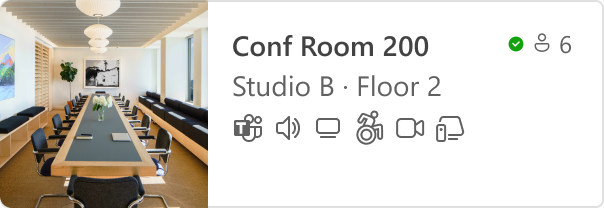
In addition, Places finder will show a much richer experience for conference rooms and workplaces once you've added metadata. Check out Set-PlaceV3 for the full list.
Enable Places finder
Places finder is opt-in. You might want to start by turning it on for a subset of users to validate the experience, before enabling it for everyone. You'll use the Set-PlacesSettings PowerShell cmdlet to enable Places finder. For example, here's how to enable it for users in a specific mail-enabled security group:
Important
If you plan to use a standard security group, your configuration might not work as expected. To ensure proper functionality, the security group must be set as a mail-enabled security group.
Set-PlacesSettings -PlacesFinderEnabled 'Default:false,OID:53212aff-b481-31b1-970b-2ca512e6ae53@ef2a97124-022c7-4bcb7-8a8c-bc2a4256201c:true'
And here's how to enable it for everyone in your tenant:
Set-PlacesSettings -PlacesFinderEnabled 'Default:true'
See Set-PlacesSettings for more details.
You can also use Get-PlacesSettings to verify which users Places finder is enabled for.
Note
To try the experience yourself, make sure you're a member of the mail-enabled security group you're enabling it for, and not just the owner of that security group.
Understanding the differences between Room finder and Places finder
Capabilities
| Room finder | Places finder | |
|---|---|---|
| Browse for rooms | Browse by buildings (Room Lists) | Browse by location hierarchy (Country/Region, State/Region, City, Building, Floor) |
| Building suggestions | Recent buildings (Room Lists) from user's booking history | Buildings from user's booking history and work plan |
| Default building | Last building (Room List) selected | Last building set in work plan |
| Spaces | Conference room, workspaces | Conference room, workspaces |
| Filters | Filter by capacity, standard properties, and custom tags. Standard properties for meeting rooms: Video, Display, Audio, Microsoft Teams Room, and Wheelchair accessible. Standard properties for workspaces: Wheelchair accessible. |
Filter by capacity, standard properties, and custom tags. Standard properties for meeting rooms: Video, Display, Audio, Microsoft Teams Room, and Wheelchair accessible. Standard properties for workspaces: Wheelchair accessible. |
| Room details | Name Availability Capacity City Features: Standard properties with icons Features: Custom properties (no icons) |
Name Availability Capacity Building - Floor - City Picture Features - Standard properties with icons Features - Custom properties with icons Nearby collaborators for workspaces |
| Hide hidden rooms | Yes | Yes |
| Access policies | Yes | Yes |
| Address Book policies | Yes | Yes |
| Pre-fetching results | Yes | Yes |
Properties used by Room finder and Places finder
| Property | Property used by Room finder | Property used by Places finder |
|---|---|---|
| Room name, Capacity, MTREnabled, AudioDeviceName, DisplayDeviceName, VideoDeviceName, IsWheelChairAccessible, Tags | Properties of the room in Exchange Online | Properties of the room in Exchange Online |
| City, State, CountryorRegion | Properties of the room in Exchange Online | Properties of the Building |
| GeoCoordinates, PostalCode, Street | Not used | Not used currently |
Frequently Asked Questions
For more information, see Enable Places Finder.
Add Places App to Outlook and Teams
The Microsoft Places app is available on the web at Microsoft Places and as an app within Microsoft Teams, Outlook, and the Microsoft 365 app (previously known as Microsoft Office).
The following guides can help you deploy and pin the Places app across Microsoft 365:
- Preinstall and pin the Places app in Teams
- Deploy the Places app in Outlook and the Microsoft 365 app