Note
Access to this page requires authorization. You can try signing in or changing directories.
Access to this page requires authorization. You can try changing directories.
Places Finder can replace the Room Finder experience in Outlook and Teams calendar. The improved functionality helps employees choose the right place to meet and work productively.
Overview of Places Finder
Places Finder and Room Finder rely on the same meeting rooms and workspaces data configured in Exchange Online, but Places Finder also uses building and floor hierarchical data.
Rooms and workspaces automatically appear in Places Finder as long as you've properly configured your building and floor hierarchy as described in Configure buildings and floors.
In addition, Places Finder provides a richer experience for conference rooms and workspaces once you've added metadata. See Set-PlaceV3 for the full list of supported properties.
Enable Places Finder
Places Finder is opt-in. You might want to start by enabling it for a subset of users to validate the experience before enabling it for everyone.
Use the Set-PlacesSettings PowerShell cmdlet to enable Places Finder.
For example, here's how to enable it for users in a specific mail-enabled security group:
Important
If you plan to use a standard security group, your configuration might not work as expected. To ensure proper functionality, the security group must be configured as a mail-enabled security group.
Set-PlacesSettings -PlacesFinderEnabled 'Default:false,OID:53212aff-b481-31b1-970b-2ca512e6ae53@ef2a97124-022c7-4bcb7-8a8c-bc2a4256201c:true'
To enable Places Finder for everyone in your tenant:
Set-PlacesSettings -PlacesFinderEnabled 'Default:true'
For more information, see Set-PlacesSettings.
You can also use Get-PlacesSettings to verify which users Places Finder is enabled for.
Note
To test the experience yourself, make sure you're a member of the mail-enabled security group that you're enabling Places Finder for, and not just the owner of that group.
Understanding the differences between Room Finder and Places Finder
Capabilities
| Capability | Room Finder | Places Finder |
|---|---|---|
| Browse for rooms | Browse by buildings (Room Lists) | Browse by location hierarchy (Country/Region, State/Region, City, Building, Floor) |
| Building suggestions | Recent buildings (Room Lists) from the user's booking history | Buildings from the user's booking history and work plan |
| Default building | Last building (Room List) selected | Last building set in work plan |
| Spaces | Conference rooms, workspaces | Conference rooms, workspaces |
| Filters | Filter by capacity, standard properties, and custom tags. Standard properties for meeting rooms: Video, Display, Audio, Microsoft Teams Room, and Wheelchair accessible. Standard properties for workspaces: Wheelchair accessible. | Filter by capacity, standard properties, and custom tags. Standard properties for meeting rooms: Video, Display, Audio, Microsoft Teams Room, and Wheelchair accessible. Standard properties for workspaces: Wheelchair accessible. |
| Room details | Name Availability Capacity City Features: Standard properties with icons Features: Custom properties (no icons) |
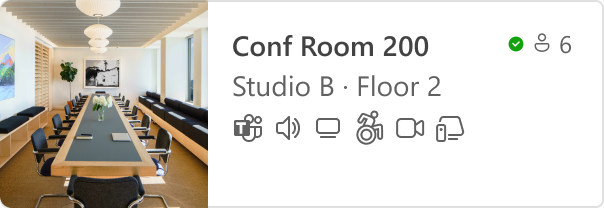
Name Availability Capacity Building – Floor – City Picture Features: Standard properties with icons Features: Custom properties with icons Nearby collaborators for workspaces |
| Hide hidden rooms | Yes | Yes |
| Access policies | Yes | Yes |
| Address Book policies | Yes | Yes |
| Pre-fetching results | Yes | Yes |
Properties used by Room Finder and Places Finder
| Property | Property used by Room Finder | Property used by Places Finder |
|---|---|---|
| Room name, Capacity, MTREnabled, AudioDeviceName, DisplayDeviceName, VideoDeviceName, IsWheelChairAccessible, Tags | Properties of the room in Exchange Online | Properties of the room in Exchange Online |
| City, State, CountryOrRegion | Properties of the room in Exchange Online | Properties of the building |
| GeoCoordinates, PostalCode, Street | Not used | Not currently used |
Frequently Asked Questions
For more information, see Enable Places Finder.
Add Places app to Outlook and Teams
The Microsoft Places app is available:
- On the web at Microsoft Places
- As an app in Microsoft Teams
- As an app in Outlook
- As an app in the Microsoft 365 app (previously known as Microsoft Office)
Deploy and pin the Places app
The following guides can help you deploy and pin the Places app in Teams, Outlook, and Microsoft 365: