Note
Access to this page requires authorization. You can try signing in or changing directories.
Access to this page requires authorization. You can try changing directories.
Important
This feature is part of Frontier preview program. Frontier connects you directly with Microsoft’s latest AI innovations. Frontier previews are subject to the existing preview terms of your customer agreements. As these features are still in development, their availability and capabilities may change over time.
You discover approved agent templates in your Microsoft 365 tenant. Agent templates are preconfigured templates for AI-powered Agent 365 agents in Microsoft 365. These templates define the agent's capabilities, identity, and compliance settings. Users can add and configure, also known as onboard agents after admin approval to automate tasks and enhance team productivity.
Note
You can discover and create agents on both desktop and mobile (Teams app store only) devices. However, you can access the agent settings card only on desktop by hovering or selecting the agent and then selecting the settings gear from the agent card.
Prerequisites
- You need admin approval for your request in the Microsoft 365 admin center before creating an agent.
- You need a "Microsoft Agent 365 Frontier" subscription enabled by the tenant admins in the Microsoft 365 admin center. This 25-seat subscription allows hiring autonomous agents.
Discover agent templates
Agent templates are available in the Microsoft Copilot Store and Teams apps store under Agents for your team. All users in the tenant can find and view agent templates.
Note
For mobile, agent templates are available only in the Teams app store.
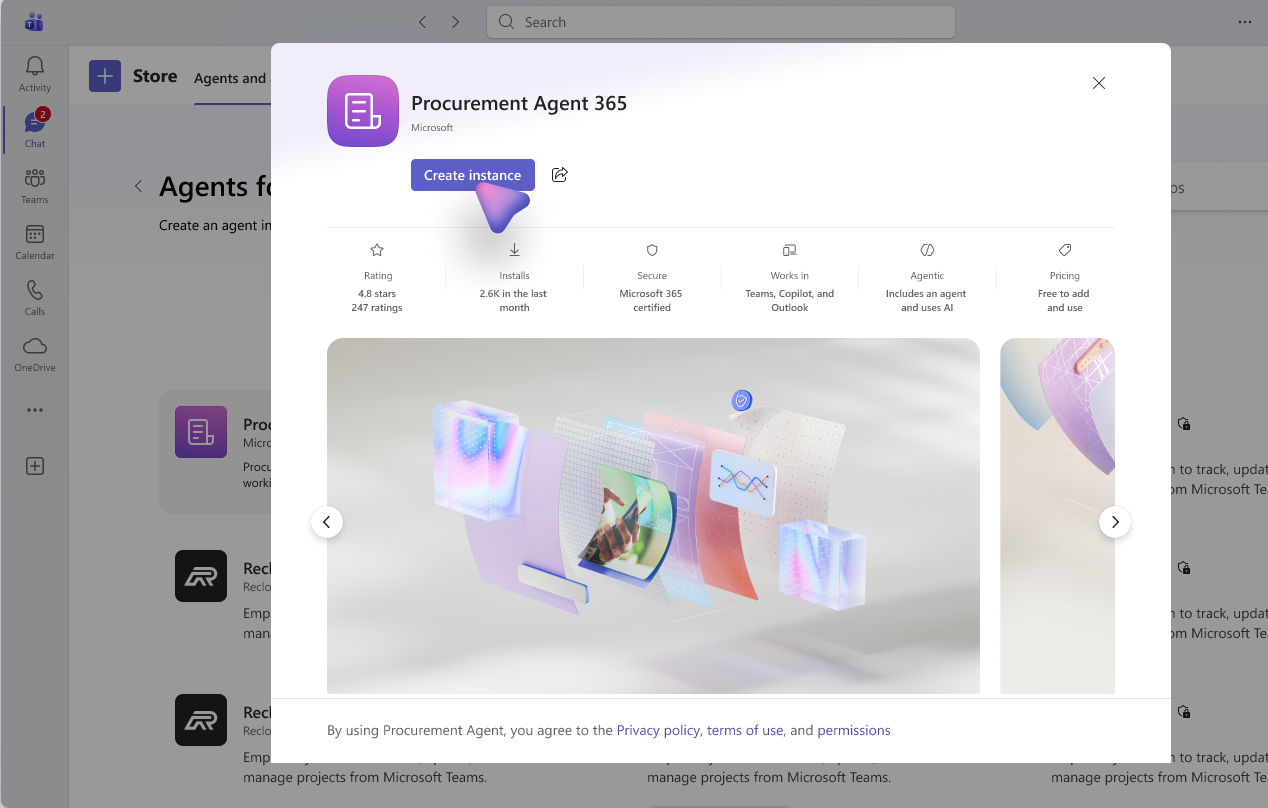
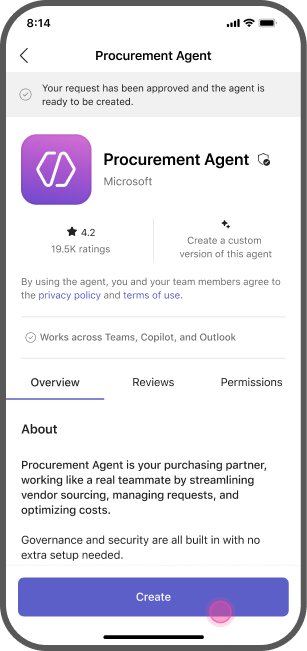
The following image shows examples of agent templates available on both desktop and mobile devices.
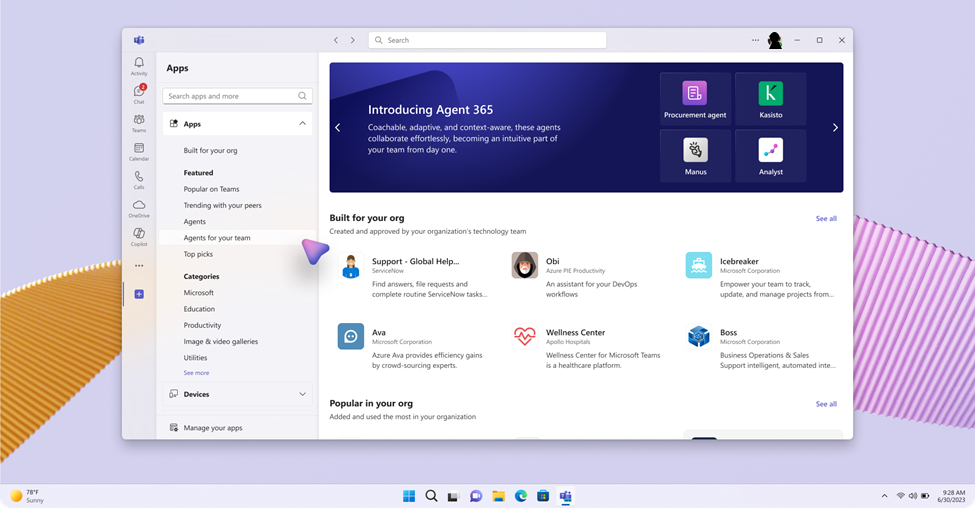
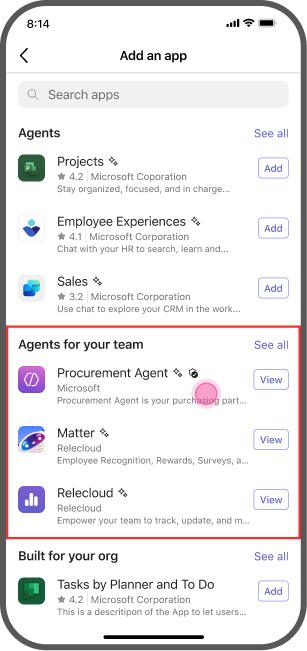
Users can select an agent template from the Agents for your team category in Teams and the Microsoft 365 Agent store.
When you select a template, the detail pane shows:
- Description and skills
- Developer information
- Required licenses and policies
Create an agent
To create an agent, follow these steps:
Select Request instance (desktop)/ Request (mobile) on the agent template details page.
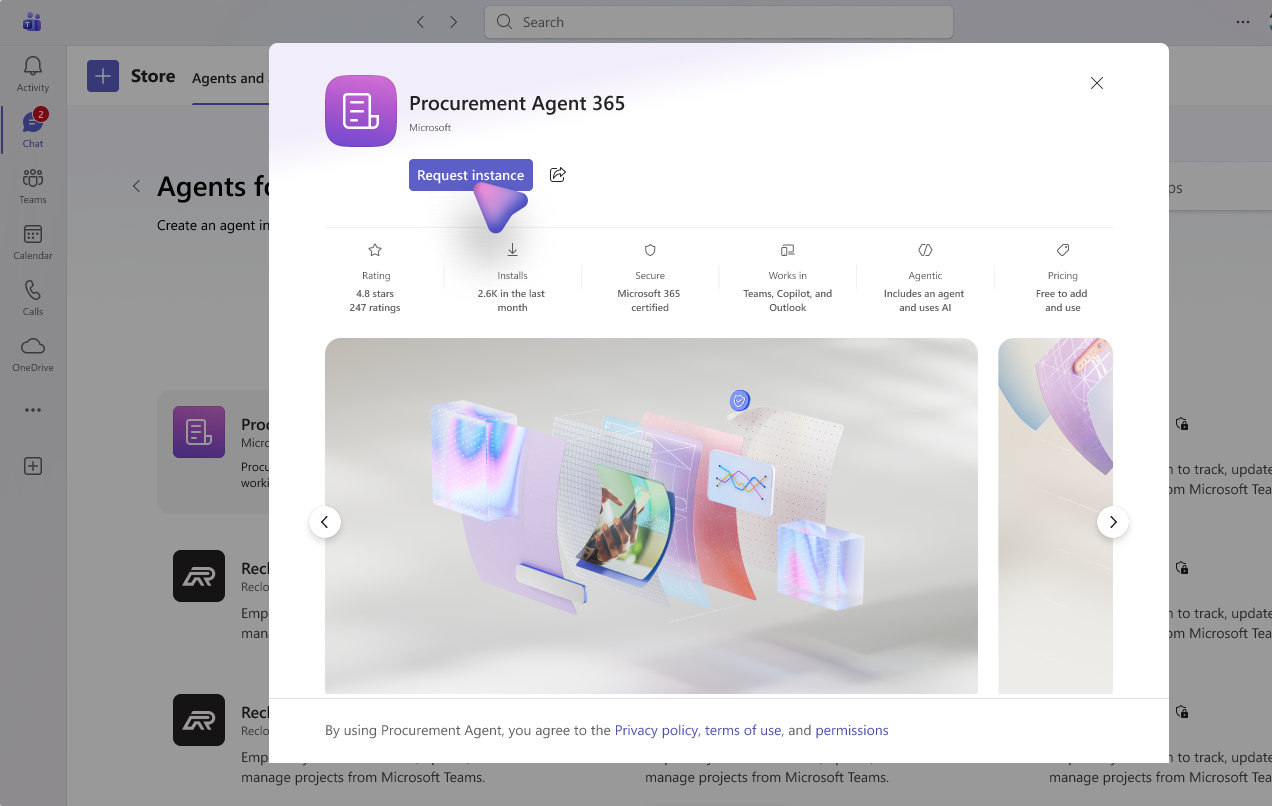
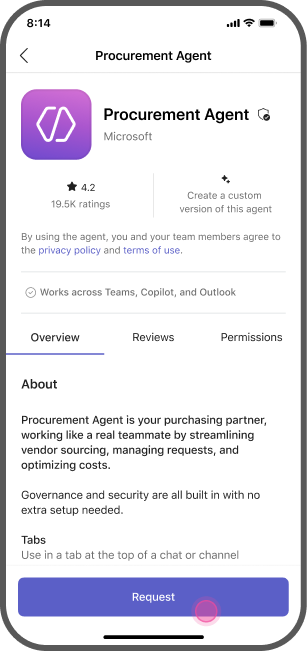
Admin approves the request in the Microsoft 365 admin center, activates the template, and assigns licenses and policies. Learn more in Agent 365 Overview page in the Microsoft 365 admin center.
After admin activation, select Create instance (desktop)/ Create (mobile) on the template page.
Configure the agent:
- Agent icon: The icon that appears for the agent.
- Name (configurable): The name of the agent. Don't use spaces or special characters in the agent name.
- Agent description: The description for the agent.
- Alias (configurable): The alias that can be assigned to the agent.
- Domain: Pick from a list of allowed domains accessible to you. In case when only one domain is available, it is selected by default.
Select Save to finish.
Onboard an agent
After the agent is provisioned, it reaches out via Teams chat. The AI agent now appears in your organization chart under the creator's supervision. You can interact with the AI agent using Teams chat, channels, and meetings.
Configure more settings in the agent settings card in Teams on your desktop, by hovering or selecting the agent and then selecting the settings gear from the agent card.
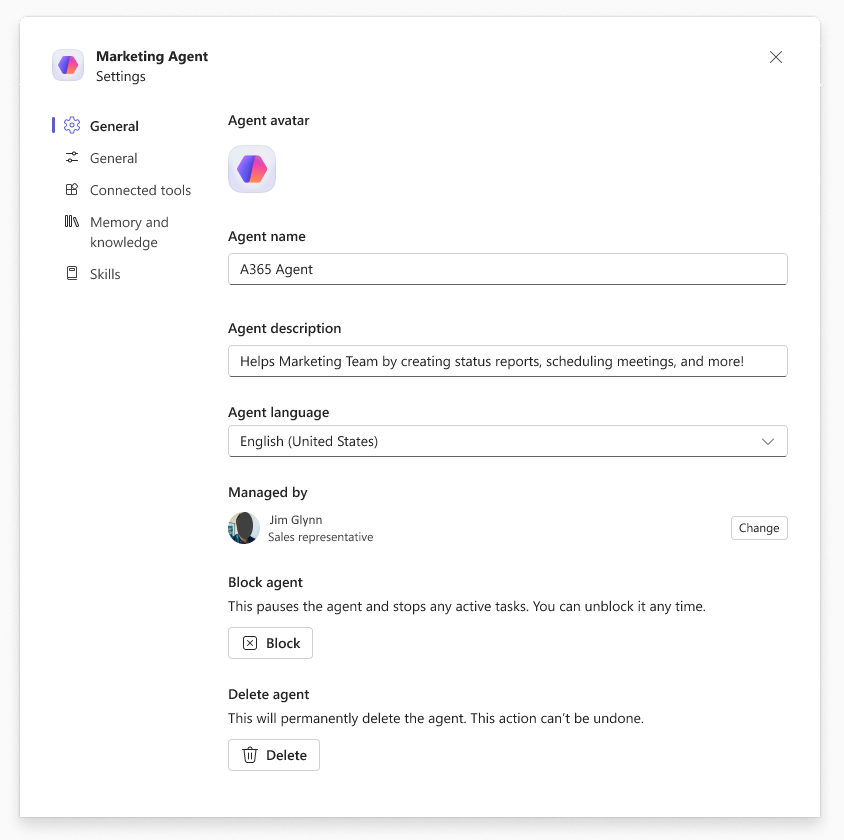
Block or delete agents in Teams from the agent settings card. Tenant admins can also manage agents in the Microsoft 365 admin center. Blocking pauses the agent and stops any active tasks. You can unblock it any time. Deleting permanently deletes the agent. This action can't be undone.
Resources associated with an agent remain for 30 days after deletion.