Note
Access to this page requires authorization. You can try signing in or changing directories.
Access to this page requires authorization. You can try changing directories.
Important
You need a Bot Transcript Viewer security role to view the list and its metrics. Only admins can grant this role by assigning the Bot Transcript Viewer security role during agent sharing.
To enable this security role in your single or group environment see How to configure transcript settings.
User questions, Reactions, Sessions, and Comments pages list the underlying data that inform a particular context. For example, the page called Account Management under Analytics > Themes might list all user questions relevant to the theme Account Management within the time range of Last 7 days. In this case, the context is the theme Account Management in the time range of the last seven days. What makes this the context is that the time range was already configured when the user drilled down on the Account Management theme on the Themes page.
Note
If you open the question list page by selecting See questions in Analytics > Generated answer rate and quality tile, the list is unfiltered by default.
There are several things you can do on list pages, depending on what your page is listing:
- Apply more filtering on the list (beyond a context-specific filter) to further narrow it down by specified dimensional values.
- See details on an individual item in the list.
- Evaluate the list based on configurable test method criteria.
- Clear all existing filter settings.
- Download the list as a .csv file (questions only, not reactions).
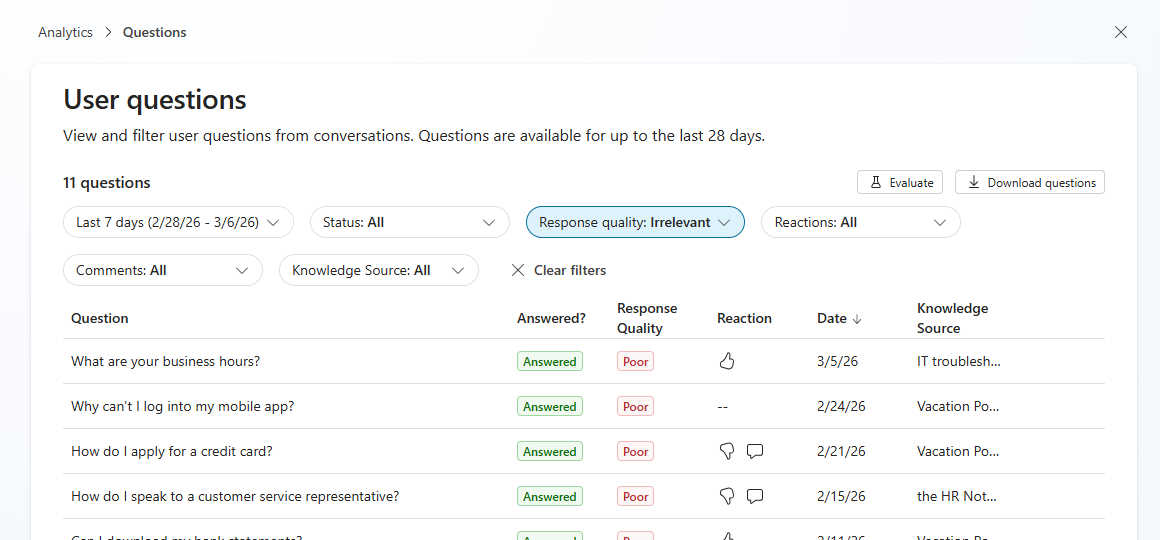
Apply more filtering
To add focus, narrow down the list further using the list's dimensional filters. Filters add specificity by focusing on relevant items, enhancing investigation and review processes. The filtering system supports combinations of different filter types and optionally multiple values within the same filter category for nuanced selection.
Depending on your list's context, one or more filters might not be available. Consult the following table for support details.
| Filter | Reaction list context | Question list context | Comment list context | Description |
|---|---|---|---|---|
| Time period | Yes | Yes | Yes | Time period used for filtering the listed data. |
| Status | No | Yes | No | Response to the question of whether the user query was answered or not. Possible values are Answered and Unanswered |
| Response quality1 | No | Yes | No | Response quality for the user query. Possible values are Good and (among the Poor values) are Incomplete, Irrelevant, and Incomplete knowledge use.2 |
| Reactions | Yes | Yes | Yes | The thumbs up/thumbs down reaction value. |
| Comments | Yes | Yes 3 | No | Whether a text comment was included as a reaction. |
| Knowledge source | No | Yes | No | List of knowledge sources cited in the selected time period. |
1 Response quality isn't always available and shows up only if the question was sampled for quality analysis.
2 Response quality is categorized as good quality, poor quality due to irrelevant response, poor quality from incomplete response, and poor quality due to incomplete knowledge use.
3 Except the Themes question list context.
To reset all filters so they don't filter out any data, select Clear all filters. This action doesn't change the time period. This functionality is visible only if there are active filters applied to the list.
See details on an individual item in the list
To see the underlying user query and agent response associated with a single list item, and any other relevant item-specific information, select the item in the list. A side panel opens with this information.
Important
The Analytics page stores user queries and agent responses for up to 28 days.
The following example shows the Reactions list with a single agent response's details in the side panel. Other contexts like Question lists and Comments lists have different list item details panels.
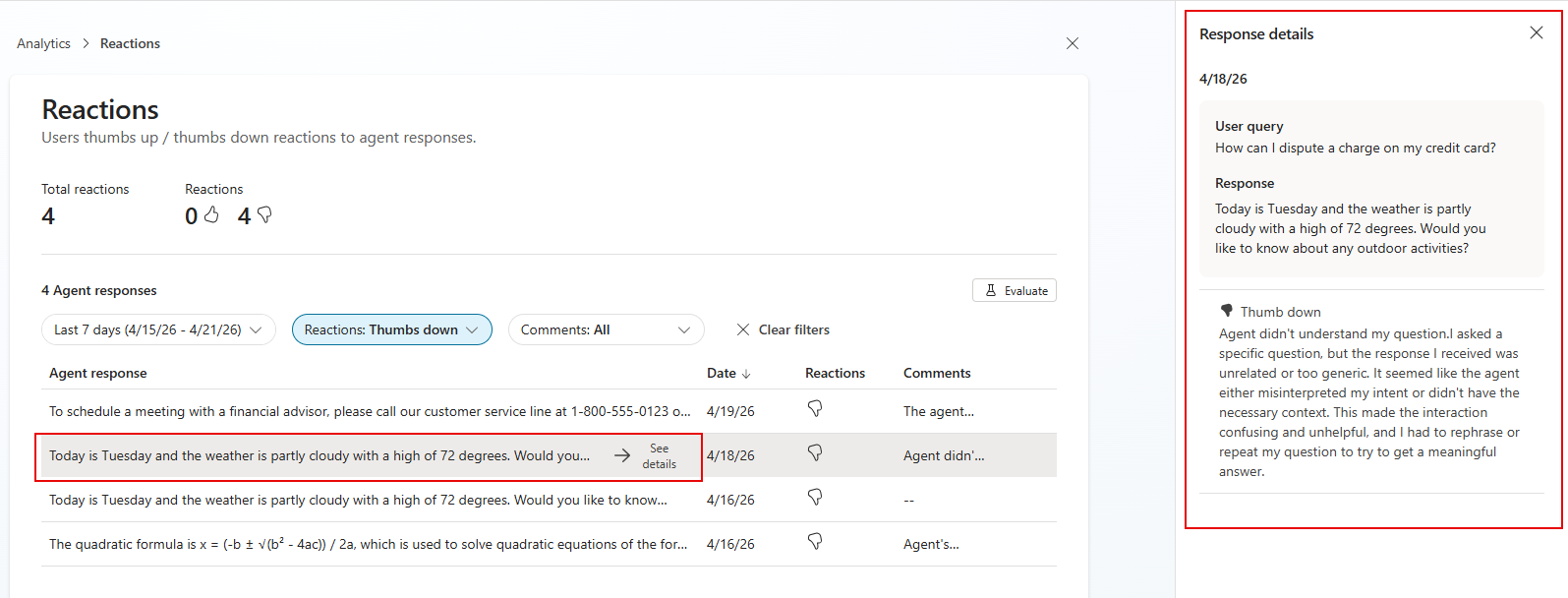
Available details vary depending on your list's context. Consult the following table for support details.
| Detail | Reaction list context | Question list context | Comment list context | Description |
|---|---|---|---|---|
| Time stamp | Yes | Yes | Yes | Date and time the question and response occurred. |
| User query | Yes | Yes | Yes | User query underlying this list item. |
| Response | Yes | Yes | Yes | Agent response underlying this list item. |
| Reaction | Yes | Yes | Yes | The thumbs up/thumbs down reaction value for this list item. |
| Comment | Yes | Yes | Yes | The user comment associated with this list item. |
| Status (Answered/Unanswered) | No | Yes | No | Whether the question was answered. |
| Response quality | No | Yes | No | Quality of the response. |
| Reason | No | Yes | No | Reason for the response quality. |
| Knowledge sources cited | No | Yes | No | List of knowledge sources cited for the selected list item. |
Create an evaluation test set for items in the list
Use the Evaluation tool to evaluate the listed items according to criteria you define in the evaluation's test method.
Select Evaluate on the list page to start the test configuration process for a new evaluation, with the listed items automatically configured as the dataset. Once you are on the Evaluation > New evaluation page, you can add or change the test set configuration for your evaluation. For more information about setting up a new evaluation, see Create a new test set.
Download underlying data to a csv file
Note
- This functionality isn't supported in the Reactions context.
- This feature is only available for makers with Bot transcript viewer privileges.
In the question list context, to download the list of questions as a .csv file, select Download questions.
In the comments list context, to download the list of reactions as a .csv file, select Download reactions.