Note
Access to this page requires authorization. You can try signing in or changing directories.
Access to this page requires authorization. You can try changing directories.
Note
This article applies to multiple harnesses. The harness you use affects the billing, features, and capabilities of what you build.
When an agent interacts with an end user (or with a maker using the test chat), the system retains a record of the conversation as a transcript and saves it in Dataverse. This transcript includes the conversation between the agent and the user. It also includes metadata about the conversation, such as the time it started and ended, and the triggered topic. In addition to Dataverse, session information is also temporarily stored in Copilot Studio storage for up to 28 days to support proper agent functionality.
Note
Transcript data is retained in Copilot Studio storage for up to 28 days to support proper agent functionality and is automatically deleted after this period.
If you turn off the ability for makers to view or download transcripts, and you need to export or obtain a copy of this data, create a new support ticket.
The system automatically saves transcripts to Dataverse. By default, makers in your organization can view and download transcripts for agents they can access. Makers can download transcripts from Copilot Studio or download transcripts from Power Apps.
However, you might need to prevent the retention, access, or download of transcripts for specific environments. For example, you might have business needs and organizational requirements for your agents to act on or retrieve sensitive data and information and don't want that information to be downloaded. You might also want to control the size of the conversation transcript table in Dataverse, which can grow quickly as agents are used.
For agents created in Copilot Studio, you can control whether the system saves transcripts to Dataverse, and who can view them. You can also control how long transcripts are retained in Dataverse before they're deleted.
Important
Conversation transcripts aren't written to the Dataverse transcript table for:
- Microsoft Dataverse for Teams environments
- Microsoft Copilot agents
For details on what is included in the transcripts and more information on accessing and downloading them, see these articles:
- View and download conversation transcripts in Copilot Studio
- Download conversation transcripts in Power Apps
Important
- Makers with the Environment maker role don't automatically have access to transcripts.
- To view transcripts in Power Apps, makers need the Bot Transcript Viewer security role. Only admins can grant this role by assigning the Bot Transcript Viewer security role during agent sharing.
- If a maker doesn't have the Bot Transcript Viewer role, the controls to prevent viewing and downloading transcripts in Power Apps have no effect, as the maker is already unable to view or download transcripts in Power Apps.
Prerequisites
- The Environment administrator role to configure individual environments
- The System administrator role to configure environment rule groups
Learn more about security roles and managing high-privileged admin roles in Power Platform.
Important
If a System administrator configures an environment rule group to control transcript access and retention, the group settings take precedence over the settings for individual environments.
Configure transcript recording and download
In the Power Platform admin center, you control whether makers can view and download transcripts, and whether to save transcripts at all. You can configure these settings individually for each environment, or use environment groups to apply the same settings to multiple environments.
Configure transcript settings for a single environment
In Copilot Studio, on the side bar, select the three dots (…), and then select Power Platform admin center.
In the Power Platform admin center, select Manage on the sidebar, and then select Environments. A list of environments appears.
Select the environment you want to configure. The environment's details page opens.
On the top menu bar, select Settings.
Expand Product, and then select Features.
Scroll to the Copilot Studio agents section. Set or clear these settings, and then select Save at the bottom of the Settings page.
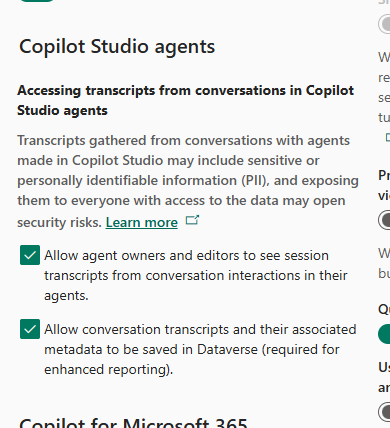
Allow agent owners and editors to see session transcripts from conversation interactions in their agents. When turned on, makers and admins can see and download transcripts in Copilot Studio for agents in the environment. When turned off, the option to see or download transcripts isn't available.
Allow conversation transcripts and their associated metadata to be saved in Dataverse (required for enhanced reporting). When turned on, conversation transcripts and their associated metadata are saved in Dataverse and can be viewed and downloaded in Power Apps. When turned off, transcripts aren't saved in Dataverse for future conversations. As a result, the option to see or download transcripts isn't available in Copilot Studio for those conversations.
Caution
If transcripts aren't being saved, dashboards that use metadata from conversation transcripts, such as the Omnichannel Summary dashboard, might break.
Conversation transcripts and associated metadata can continue to save to Dataverse for up to 24 hours after you turn saving off. You can delete conversational transcripts records that might be saved during this time.
Configure transcript settings for an environment group
If you're a tenant admin and use environment groups, you can configure transcript settings for all environments in the group at once.
The environment group rule Accessing transcripts from conversations in Copilot Studio agents provides the same controls as those in the individual environment settings.
The group rule prevents environment admins for individual environments within the group from changing the settings for their environments. The settings you configure for the environment group override any settings configured for the individual environments.
To configure group rules in the Power Platform admin center, see Environment groups documentation.