Note
Access to this page requires authorization. You can try signing in or changing directories.
Access to this page requires authorization. You can try changing directories.
[This article is prerelease documentation and is subject to change.]
Note
This article describes features used in agents or agent flows powered by the standard harness.
You can show a link to your organization's privacy policy at the start of Microsoft Copilot Studio agent conversations. A Power Platform administrator configures the privacy statement link at the environment level. You can configure the privacy policy URL, but you can't customize the privacy message shown to users.
Important
If an agent is accessible to external users, make sure the privacy policy URL is also accessible to those users.
Important
This article contains Microsoft Copilot Studio preview documentation and is subject to change.
Preview features aren't meant for production use and may have restricted functionality. These features are available before an official release so that you can get early access and provide feedback.
If you're building a production-ready agent, see Microsoft Copilot Studio Overview.
Prerequisites
To configure a privacy statement link, you need:
- A Power Platform administrator account with access to the environment.
- A conversational (text) agent in the environment.
- A valid privacy policy URL that your intended users can access.
Configure a privacy statement link
Configure a privacy statement link either for managed environments or by using rules in environment groups.
Configure a privacy statement link for managed environments
To configure a privacy statement link for a managed environment:
Sign in to the Power Platform admin center.
On the sidebar, select Manage, and then select Environments. A list of environments appears.
Select the environment where you want to configure the privacy statement link.
On the top menu, select Edit managed environments. The Edit Management Environment panel opens.
Scroll to Privacy statement link (preview), and select Show privacy link to end users.
In Privacy policy URL, enter the URL of your organization's existing privacy policy file or webpage.
Review the message that appears to users.
Note
The privacy message is predefined and can't be edited.
Save your changes.
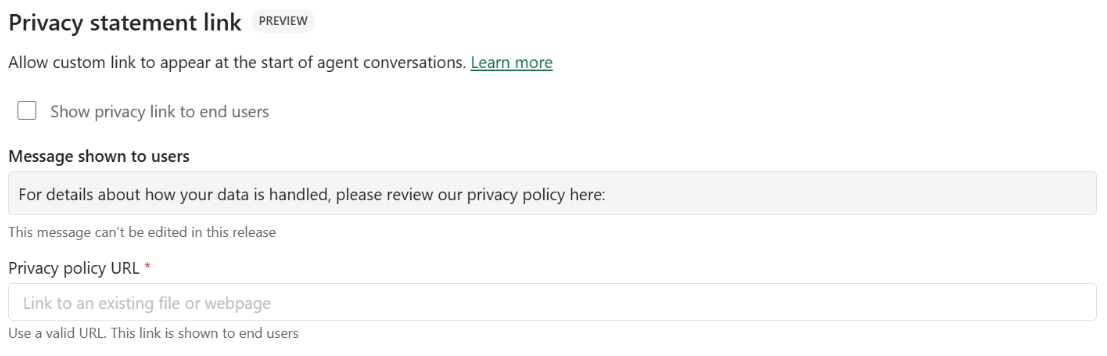
After you save your changes, open an agent in the configured environment and start a new test conversation. Verify that:
- The privacy message appears.
- The privacy policy link is clickable.
- The link opens the intended privacy policy.
Configure a privacy statement link by using rules in environment groups
To configure a privacy statement link by using rules in environment groups:
Sign in to the Power Platform admin center.
On the sidebar, select Manage, and then select Environment groups. A list of environment groups appears.
Select the environment group where you want to configure the privacy statement link.
On the top menu, select Edit group. The environment group opens.
Select the Rules tab. A list of existing rules appears.
If the Privacy statement link rule is already added, select it. If it isn't added, then on the top menu, select Add rules and add the Privacy statement link rule from the rules gallery.
In the Privacy statement link (preview) panel, select Show privacy link to end users.
In Privacy policy URL, enter the URL of your organization's existing privacy policy file or webpage.
Review the message that appears to users.
Note
The privacy message is predefined and can't be edited.
Save your changes.
What to expect
Here's what you can expect when you configure a privacy statement link.
For makers
Makers see the configured privacy message and a clickable privacy policy link in test web chat.
An administrator manages the privacy statement link at the environment level. Makers don't configure a separate privacy statement link for each agent.
For end users
In supported conversational experiences, the privacy message and a clickable link to the privacy policy appear at the start of a conversation.
The following message displays:
For details about how your data is handled, please review our privacy policy here:
The behavior can vary depending on the conversational experience:
- Group chats: The privacy message appears when the agent is added to the chat. Mentioning the agent later in the same chat doesn't display the message again.
- Connected agents: The privacy message appears once at the start of the conversation. It doesn't appear again when a child or connected agent is invoked later in the conversation.
Conversation session duration can vary by channel.
Update the privacy statement link
Depending on where you configure the privacy statement link, you can update it either for managed environments or by using rules in environment groups.
Update the privacy statement link for managed environments
To change the privacy policy URL for a managed environment:
- Sign in to the Power Platform admin center.
- On the sidebar, select Manage, and then select Environments. A list of environments appears.
- Select the environment where you configured the privacy statement link.
- On the top menu, select Edit managed environments. The Edit Management Environment panel opens.
- Scroll to Privacy statement link (preview), and replace the URL in Privacy policy URL.
- Save your changes.
- Start a new test conversation and verify that the updated link opens the intended privacy policy.
Update the privacy statement link by using rules in environment groups
To change the privacy policy URL by using rules in environment groups:
- Sign in to the Power Platform admin center.
- On the sidebar, select Manage, and then select Environment groups. A list of environment groups appears.
- Select the environment group where you configured the privacy statement link.
- On the top menu, select Edit group. The environment group opens.
- Select the Rules tab. A list of existing rules appears.
- Select the Privacy statement link rule. The Privacy statement link (preview) panel opens.
- Replace the URL in Privacy policy URL.
- Save your changes.
- Start a new test conversation and verify that the updated link opens the intended privacy policy.
Turn off the privacy statement link
Depending on where you configured the privacy statement link, you can turn off the privacy statement link either for managed environments or by using rules in environment groups.
Turn off the privacy statement link for managed environments
To stop displaying the privacy statement link for a managed environment:
- Sign in to the Power Platform admin center.
- On the sidebar, select Manage, and then select Environments. A list of environments appears.
- Select the environment where you configured the privacy statement link.
- On the top menu, select Edit managed environments. The Edit Management Environment panel opens.
- Scroll to Privacy statement link (preview), and clear Show privacy link to end users.
- Save your changes.
Turn off the privacy statement link by using rules in environment groups
To stop displaying the privacy statement link by using rules in environment groups:
- Sign in to the Power Platform admin center.
- On the sidebar, select Manage, and then select Environment groups. A list of environment groups appears.
- Select the environment group where you configured the privacy statement link.
- On the top menu, select Edit group. The environment group opens.
- Select the Rules tab. A list of existing rules appears.
- Select the Privacy statement link rule. The Privacy statement link (preview) panel opens.
- Clear Show privacy link to end users.
- Save your changes.
Limitations
The following limitations apply while the feature is in preview:
- You can't edit the privacy message displayed to users.
- The setting applies at the environment level. You can't configure it for an individual agent or across an entire tenant.
- Only conversational (text) agents are supported; voice agents aren't currently supported.