Note
Access to this page requires authorization. You can try signing in or changing directories.
Access to this page requires authorization. You can try changing directories.
The Decisions API is an experimental web API that allows you to classify text, by asking questions about the text and getting structured answers, from your website's or browser extension's JavaScript code. The API uses a model that's built into Microsoft Edge and that runs on the device.
Detailed contents:
- Introduction
- Availability of the Decisions API
- Alternatives to and benefits of the Decisions API
- Decisions API model
- Disclaimer
- Model availability
- Enable the Decisions API
- See a working example
- Use the Decisions API
- Send feedback
- See also
Introduction
Use the Decisions API to quickly make decisions about unstructured text, such as:
Understanding user intent:
- Does this search mean the user wants to buy something?
- Which feature is the user trying to find?
Sorting and routing content:
- Which team should handle this request?
- What topic is this article about?
- Is this message a question, a complaint or feedback?
Scoring and ranking:
- How relevant is this result to the user's search?
- How urgent is this message?
- How positive is this review?
Checking content quality:
- Does this bug report include steps to reproduce the bug?
- Is this review about the product, or the delivery of the product?
- Is this form entry missing key details?
Unlike language models that generate text, the Decisions API scores the answers that you provide, and returns the most likely answer along with the probability of each answer and a confidence value. The result always matches the structure of the questions that you defined.
For introductory information about the Decisions API, see Explainer for the Decisions API.
Availability of the Decisions API
The Decisions API is available as a developer preview in Microsoft Edge Canary, by setting a flag.
The Decisions API is optimized to make structured decisions about text, with a predefined set of possible answers. To learn more about alternatives for more custom prompt engineering scenarios that might not be served by this API, see Prompt a built-in language model with the Prompt API.
The design of the Decisions API is still evolving, and the API may change before it ships.
Alternatives to and benefits of the Decisions API
To leverage AI capabilities in websites and browser extensions, you can also use the following methods:
Send network requests to cloud-based AI services, such as Azure AI solutions.
Run local AI models using the Web Neural Network (WebNN) API or ONNX Runtime for Web.
Prompt a built-in language model to generate a classification, by using the Prompt API and its
responseConstraintoption.
The Decisions API uses a model that runs locally, on the same device where the inputs to, and the outputs of, the model are used. This has the following benefits compared to cloud-based solutions:
Reduced cost: There's no cost that's associated with using a cloud AI service.
Network independence: Beyond the initial model download, there's no network latency when making decisions, and the API can also be used when the device is offline.
Improved privacy: The data that's input to the model never leaves the device, and isn't collected (such as to train AI models).
The Decisions API uses a model that's provided by Microsoft Edge and built into the browser, which comes with the additional benefits over custom local solutions such as those based on WebGPU, WebNN, or WebAssembly:
Shared one-time cost: The browser-provided model is downloaded when the API is used for the first time, and then the model is shared across all websites that run in the browser, reducing network costs for developers and users.
Simplified usage for web developers: The built-in model can be run by using a straightforward web API, and doesn't require AI/ML expertise or using third-party frameworks.
Compared to using the Prompt API to classify text, the Decisions API has the following benefits:
Type safety: The model scores the answers that you provide, instead of generating text. The model can't return a label that you didn't define, and you don't need to parse the result.
Probabilities and confidence: The result includes the probability of each possible answer, and a confidence value, so your code can act automatically when the model is confident, and ask the user when it isn't.
Speed: The model answers all of the questions about an input in a single pass, instead of generating text token by token.
Decisions API model
The Decisions API uses the Aion Instruct small language model. To learn more about Aion Instruct and hardware requirements, see The Aion Instruct model in Prompt a built-in language model with the Prompt API.
Disclaimer
Like other machine learning models, the model that's used by the Decisions API can potentially produce results that are inaccurate, unfair, or unreliable. The confidence value reflects the certainty of the model, but isn't a guarantee that the answer is correct.
Don't rely on the model alone to make high-consequence decisions or to perform state-changing actions. Ask the user to confirm such actions, regardless of the confidence value.
Model availability
An initial download of the model is required the first time a website calls a built-in AI API. To monitor the downloading of the model, use the monitor option when creating a new Decisions API session. See Monitor the progress of the model download, below.
Due to the experimental nature of the Decisions API, you might observe issues on specific hardware configurations. If you notice any issues, please report them on the repo.
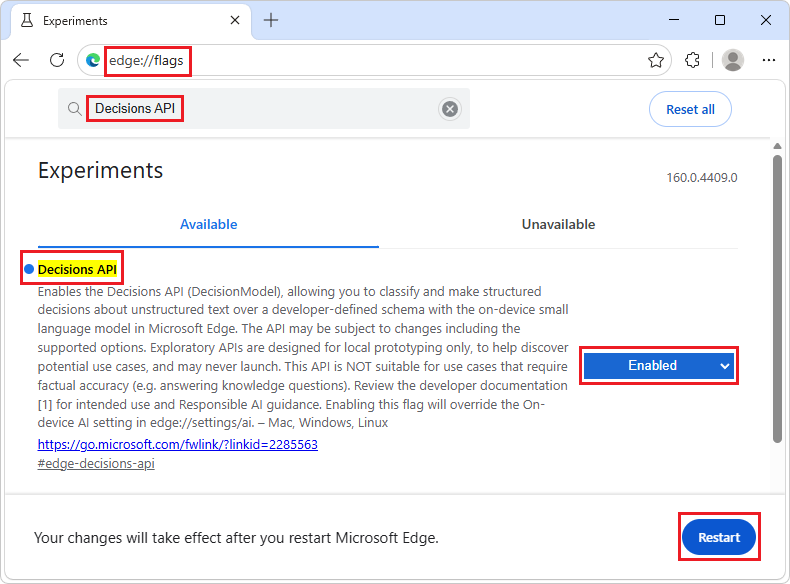
Enable the Decisions API
To use the Decisions API in Microsoft Edge:
Make sure you're using the latest version of Microsoft Edge Canary. See Become a Microsoft Edge Insider.
In Microsoft Edge Canary, open a new tab or window, and then go to
edge://flags.In the search box, at the top of the page, enter Decisions API.
The page is filtered to show the matching flag.
Select Enabled next to the Decisions API flag.
Restart Microsoft Edge Canary.
See a working example
To see the Decisions API in action, and review existing code that uses the API:
Enable the Decisions API, as described above.
In Microsoft Edge Canary, open a new tab or window, and then go to the Decisions API playground.
In the information banner at the top, check the status. If the model hasn't been downloaded yet, the banner indicates that the model will be downloaded the first time the API is used.
If the model doesn't start downloading, restart Microsoft Edge and try again.
Optionally change the content in the Text to classify, Context, or Questions (JSON) text boxes.
Click the Decide button, at the bottom of the page.
For each question, the output lists the answer, with the probability of each option. To see the full result object, expand Raw JSON.
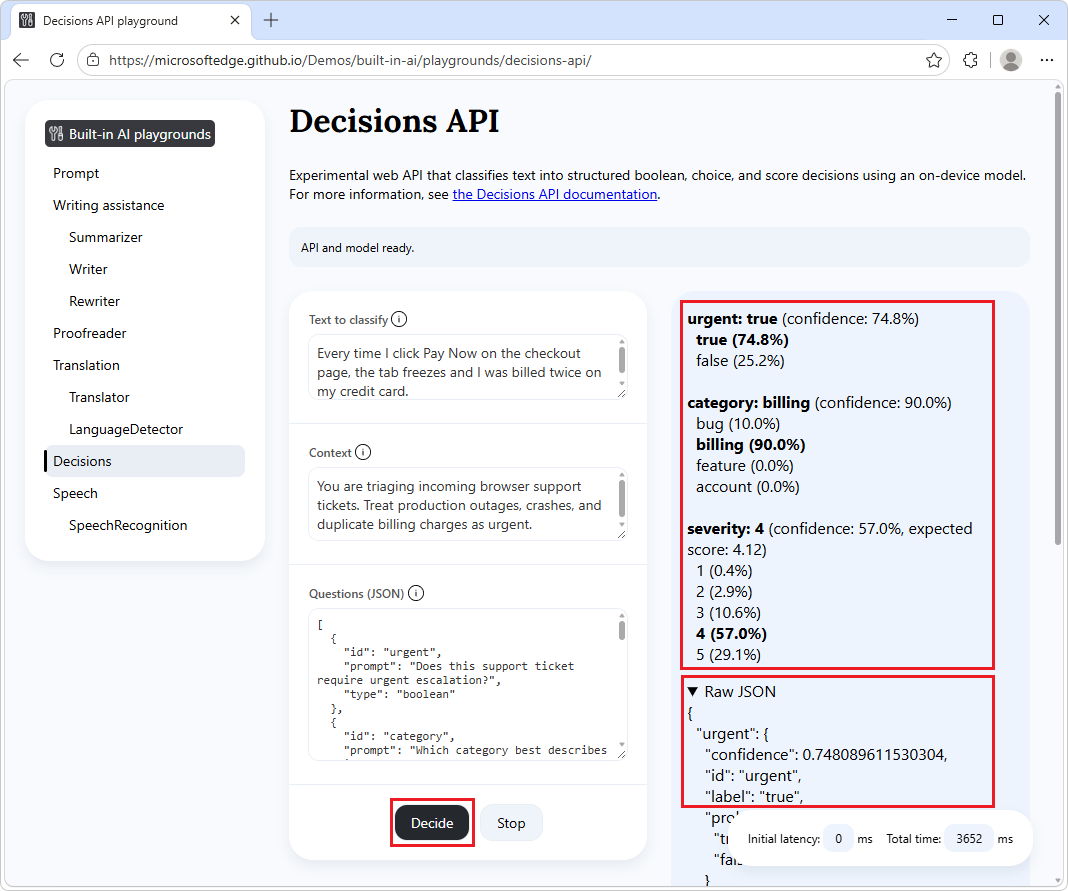
- The Text to classify, Context, and Questions input text boxes are filled in.
- The Decide button is highlighted.
- The output section (on the right) shows the results, including the raw JSON data that's returned by the API.
See also:
- /built-in-ai/ - Readme and source code for the Built-in AI playgrounds demo.
Use the Decisions API
Check whether the API is enabled
Before using the Decisions API in your website's code, confirm that the API is enabled, by testing for the presence of the DecisionModel object:
if (!window.DecisionModel) {
  // The Decisions API is not available.
}
Define the questions
To use the Decisions API, first define the questions that you want the model to answer about a piece of text. Each question is an object that has the following properties:
| Property | Description |
|---|---|
id |
A string that identifies the question. The result of the API is keyed by question id, so each id must be unique. |
prompt |
A string that describes the question to answer. |
type |
The type of the question: "boolean", "choice", or "score". |
options |
An array of the possible answers. Each option is an object that has a label string and an optional description string. Required for "choice" questions, optional for "score" questions (see Score questions), and not used for "boolean" questions. |
The options descriptions help the model understand what each option means.
Pass an array of questions to the API when checking availability and when creating a session, by using the questions option of the create() method.
Boolean questions
Use a boolean question to check whether a condition is met. The possible answers are "true" and "false":
const questions = [
  {
    id: "urgent",
    type: "boolean",
    prompt: "Does this support ticket require urgent escalation?"
  }
];
Choice questions
Use a choice question to assign the text to one of several categories. Provide the categories by using the options property:
const questions = [
  {
    id: "category",
    type: "choice",
    prompt: "Which category best describes the issue?",
    options: [
      { label: "bug", description: "Crash, freeze, or broken functionality" },
      { label: "billing", description: "Duplicate charge, invoice, or payment issue" },
      { label: "feature", description: "Request for new capability" },
      { label: "account", description: "Password reset or login help" }
    ]
  }
];
The Decisions API works best with a limited number of options per question. To handle a larger set of categories, consider organizing them in a hierarchy and using the Decisions API in multiple stages. To handle inputs that don't match any category, include a catch-all option, such as "other" or "none".
Score questions
Use a score question to rate the text along an ordered scale. Provide the scale by using the options property, ordered from the lowest to the highest value. The following example provides a custom scale:
const questions = [
  {
    id: "severity",
    type: "score",
    prompt: "Rate the customer impact from 1 (minimal) to 5 (critical).",
    options: [
      { label: "1", description: "Minimal impact" },
      { label: "2", description: "Low impact" },
      { label: "3", description: "Moderate impact" },
      { label: "4", description: "High impact" },
      { label: "5", description: "Critical impact" }
    ]
  }
];
When all of the option labels are numbers, the resulting score is calculated from the numeric labels. Otherwise, the resulting score is calculated from the position of the options on the scale, starting at 1.
The options property and the option descriptions are both optional for score questions. The browser fills in what's missing:
If you omit
options, the browser creates a 5-point scale, labeled"1"through"5", which goes from "very low, strongly negative" ("1"), through "moderate, medium, neutral" ("3"), to "very high, strongly positive" ("5").If you provide
optionswith numerical labels but nodescriptionvalues, the browser assigns a built-in description to each option, based on the position of the option on the scale. The descriptions go from low and negative to high and positive. Scales that have an odd number of options get a neutral midpoint. For example, for a 7-point scale, the descriptions go from "very low, strongly negative" for the first option, to "moderate, medium, neutral" for the fourth option, to "very high, strongly positive" for the last option. Built-in descriptions are available for scales of 2 to 11 options.
To control how the model interprets each value of the scale, provide your own descriptions.
Check whether the model can be used
The Decisions API can only be used if the device supports running the model, and after the model and model runtime have been downloaded by Microsoft Edge.
To check if the API can be used, use the DecisionModel.availability() method. To also validate the schema of your questions, pass the questions option:
const availability = await DecisionModel.availability({ questions });

if (availability == "unavailable") {
  // The model is not available.
}

if (availability == "downloadable" || availability == "downloading") {
  // The model can be used, but it needs to be downloaded first.
}

if (availability == "available") {
  // The model is available and can be used.
}
You can also call availability() with no arguments.
Create a new session
Creating a session instructs the browser to load the model in memory, so that it can be used. Before you can make decisions about text, create a new session by using the DecisionModel.create() method, using the questions option to pass in the questions that you defined:
// Create a DecisionModel session.
const session = await DecisionModel.create({ questions });
The DecisionModel.create() method takes the following options:
| Option | Description |
|---|---|
questions |
An array of questions that the model answers about the text. See Define the questions, above. |
context |
A string that contains instructions that apply to all of the questions. See Provide the model with context, below. |
monitor |
A function that's used to monitor the progress of the model download. See Monitor the progress of the model download, below. |
signal |
An AbortSignal that's used to cancel the creation of the session, or to destroy the session after it's created. See Destroy a session by using an AbortController, below. |
Monitor the progress of the model download
To follow the progress of the model download, use the monitor option of the DecisionModel.create() method. This is useful when the model hasn't yet been fully downloaded onto the device on which it will be used, to inform users of your website that they need to wait.
// Create a DecisionModel session with the monitor option to monitor the model
// download.
const session = await DecisionModel.create({
  questions,
  monitor: m => {
    // Use the monitor object argument to add a listener for the
    // downloadprogress event.
    m.addEventListener("downloadprogress", event => {
      // The event is an object with the loaded and total properties.
      if (event.loaded == event.total) {
        // The model is fully downloaded.
      } else {
        // The model is still downloading.
        const percentageComplete = (event.loaded / event.total) * 100;
      }
    });
  }
});
Provide the model with context
To give the model instructions to use when answering all of the questions, use the context option of the DecisionModel.create() method. This is useful to explain the situation in which the text is evaluated, or to define what the options mean for your use case:
const session = await DecisionModel.create({
  questions,
  context: "You are triaging incoming browser support tickets. Treat production outages, crashes, and duplicate billing charges as urgent."
});
Run the Decisions API
To make decisions about a piece of text, after you have created the corresponding model session, use the session.decide() method. This method returns a promise that resolves after the model has answered all of the questions about the text.
The model answers all of the questions in a single pass.
// Create a DecisionModel session.
const session = await DecisionModel.create({ questions });

// Make decisions about the text and wait for the result.
const result = await session.decide(
  "Every time I click Pay Now on the checkout page, the tab freezes and I was billed twice on my credit card."
);

// Use the result.
console.log(result);
To cancel a decision call that's in progress, pass an AbortSignal by using the signal option of the session.decide() method. Cancelling a decision call doesn't destroy the session.
const controller = new AbortController();

const resultPromise = session.decide(ticketText, { signal: controller.signal });

// Later, cancel this decision call only.
controller.abort();
Use the result of the Decisions API
The session.decide() method returns a promise that resolves to an object that has one property per question. The name of each property is the id of the question. Each property is an object that has the following properties:
| Property | Description |
|---|---|
id |
The id of the question. |
label |
The label of the most likely option. For boolean questions, this is "true" or "false". |
probabilities |
An object that contains the probability of each option, between 0 and 1, keyed by option label. |
confidence |
A number between 0 and 1 that indicates how confident the model is in the answer. Use this value to decide whether your code should act on the answer. |
expectedScore |
A number that's only present for score questions. It's the average of the scores of the options, weighted by the probability of each option. Use it to get a more precise value than the most likely label. |
For example, the result for the above questions might be:
{
  "urgent": {
    "id": "urgent",
    "label": "true",
    "confidence": 0.97,
    "probabilities": { "true": 0.97, "false": 0.03 }
  },
  "category": {
    "id": "category",
    "label": "billing",
    "confidence": 0.62,
    "probabilities": { "bug": 0.35, "billing": 0.62, "feature": 0.01, "account": 0.02 }
  },
  "severity": {
    "id": "severity",
    "label": "5",
    "expectedScore": 4.8,
    "confidence": 0.84,
    "probabilities": { "1": 0.0, "2": 0.01, "3": 0.04, "4": 0.11, "5": 0.84 }
  }
}
The values above are only illustrative.
The following example:
- Uses the result to act on confident decisions.
- Asks the user, when the model isn't confident.
const { urgent, category } = await session.decide(ticketText);

// Act automatically when the model is confident.
if (urgent.label === "true" && urgent.confidence > 0.85) {
  escalateTicket();
}

if (category.confidence > 0.85) {
  setCategory(category.label);
} else {
  // Otherwise, let the user choose, and show the most likely options first.
  showSuggestedCategories(category.probabilities);
}
Destroy a session
To let the browser know that the model isn't needed anymore and can be unloaded from memory, destroy the session.
You can destroy a session either of the following ways:
- By using the
session.destroy()method. - By using an
AbortControllerobject.
Details are below.
Destroy a session by using the destroy() method
To destroy a DecisionModel session, you can use the session.destroy() method:
const session = await DecisionModel.create({ questions });

// Later, destroy the session by using the destroy method.
session.destroy();
Destroy a session by using an AbortController
Alternatively, to destroy a DecisionModel session, you can create an AbortController object, create a DecisionModel session, and then call abort():
// Create an AbortController object.
const controller = new AbortController();

// Create a DecisionModel session and pass the
// AbortController signal object by using the signal option.
const session = await DecisionModel.create({
  questions,
  signal: controller.signal
});

// Later, such as when the user interacts with the UI, destroy the session by
// calling the abort() function of the AbortController object.
controller.abort();
To cancel a single decision call without destroying the session, use the signal option of the session.decide() method:
const controller = new AbortController();

const resultPromise = session.decide(ticketText, { signal: controller.signal });

// Later, cancel this decision call only.
controller.abort();
Send feedback
We're interested in learning about:
- Scenarios for which you want to use the Decisions API.
- Whether the API design meets your needs.
- Issues with the API.
- Issues with the model.
If you notice any issues when using the API, please report them on the repo.
You can also contribute to the discussion about the design of the Decisions API at the Decisions API explainer repository.
See also
- Explainer for the Decisions API
- Prompt a built-in language model with the Prompt API
- Summarize, write, and rewrite text with the Writing Assistance APIs
- Correct grammar and spelling with the Proofreader API
- Translate text with the Translator API
- Detect languages with the Language Detector API
- /built-in-ai/ - Source code and Readme for the Built-in AI playgrounds demo.