Note
Access to this page requires authorization. You can try signing in or changing directories.
Access to this page requires authorization. You can try changing directories.
Note
Socket mode is in public preview and only available for newly created bots and agents. We recommend using an HTTPS messaging endpoint for agents in production. Preview features can change before general availability.
After choosing your agent's delivery method, specify it in two places. The settings must match:
- In the agent's bot registration, configured in Teams Developer Portal or with the Teams CLI. This setting controls how Agent Communication Service (ACS) delivers activities to your agent.
- In the agent's runtime code. This controls how your agent receives the activities delivered by ACS.
Choose the delivery method when you create an agent with teams app create. To change it later, use teams app update or the Teams Developer Portal. Update your agent's runtime configuration to match.
# Set up the Teams CLI
npm install -g "@microsoft/teams.cli@>=3.1.0"
teams login
teams --version # Expected output is 3.1.0 or higher

# Create an agent that uses socket mode
teams app create --name "My agent" --messaging-mode socket

# Switch an existing agent to socket mode
teams app update <app-id> --messaging-mode socket

# Switch an existing agent back to HTTP (will use previously saved messaging endpoint)
teams app update <app-id> --messaging-mode http

# Switch an existing agent back to HTTP (will use the specified messaging endpoint)
teams app update <app-id> --messaging-mode http --endpoint <https-url>
Socket mode requires Teams CLI version 3.1.0 or later.
Configure the agent's bot registration
In Teams Developer Portal:
- Go to Tools > Bot management and select your bot.
- Select Configure.
- Under Delivery method, select Socket mode, and then select Save.
To switch back, select HTTPS endpoint and enter your agent's messaging endpoint URL. It must be an https:// URL.
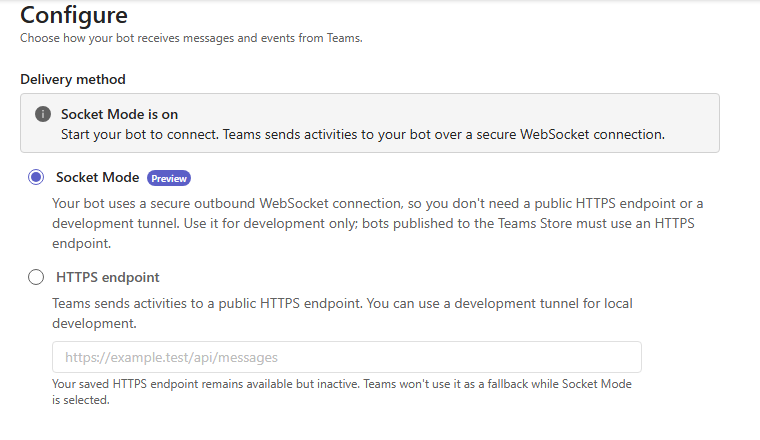
When Socket Mode is on appears, start your bot to establish the outbound WebSocket connection. A public HTTPS endpoint or development tunnel isn't required. Bots published to the Teams Store must use an HTTPS endpoint.
Using an Azure Bot? See Manage Azure bots in Developer Portal for Teams for guidance on managing your Azure bot in Teams Developer Portal.
What changes when you switch. ACS picks up a change to the registration within about a minute.
- Turning socket mode on. ACS delivers activities only over connected sockets, not to the messaging endpoint. ACS won't deliver any activities to your agent until it establishes a socket connection.
- Turning socket mode off. ACS sends each socket a
SocketClosingnotice, closes the sockets, and resumes delivery to the saved HTTPS messaging endpoint if there is one. ACS rejects new connect requests with an HTTP status code of403 Forbidden.
Configure the agent's runtime
Teams SDK
In your agent's code, specify socket mode when you create the application object. In the socket mode options, use the geos property to specify the regions in which to establish connections, or omit it to connect in all supported regions (the default). Your agent will establish one independent socket per region. All sockets must connect for start() to succeed, after which each socket is managed and reports its status independently.
After changing the delivery method in your bot registration, update your agent’s runtime configuration and restart it.
Socket mode requires Teams SDK version 2.2.1 or later. Pick the language that suits you best:
import { App } from '@microsoft/teams.apps';
import { ConsoleLogger } from '@microsoft/teams.common';

/**
 * Socket mode echo bot.
 *
 * This sample shows how to run a bot entirely over inbound **socket mode** — no
 * public HTTP endpoint or dev tunnel required — and how to observe the socket
 * lifecycle. By default a single bot opens one connection per geo
 * (`amer`, `emea`, `apac`), so lifecycle events are reported per geo.
 * We recommend socket mode only for development and testing of agents.
 * Socket mode is currently only available for new bots.
 */
const app = new App({
  logger: new ConsoleLogger('@examples/socket', { level: 'debug' }),

  // Receive activities over the Teams backend service-negotiated WebSocket.
  // Socket mode starts no HTTP listener or public endpoint, so tabs, remote
  // functions, OAuth callbacks, and other browser routes are unavailable.
  socketMode: true,
});

// --- Socket lifecycle events -------------------------------------------------
// `app.socketMode` is the inbound transport; subscribe to its events to observe
// each geo's connection independently. These are purely observational — inbound
// delivery keeps working across reconnects without any handler changes.

app.socketMode?.events.on('ready', ({ geo, frame }) => {
  app.log.info(`[socket] geo '${geo}' ready (connectionId=${frame.connectionId ?? 'n/a'})`);
  app.log.info(`[socket] aggregate status: ${app.socketMode?.status}`);
});

app.socketMode?.events.on('disconnected', ({ geo, error, terminal }) => {
  if (terminal) {
    // Negotiate rejected the bot with HTTP 401/403 (a `NegotiateError`). This geo
    // will not reconnect until the bot's credentials are fixed or socket mode is enabled,
    // and the app is restarted.
    app.log.error(`[socket] geo '${geo}' stopped: ${error?.message}`);
    return;
  }
  // Inbound delivery for this geo is paused while it reconnects; the other geos
  // keep serving. No action needed — the supervisor reconnects automatically.
  app.log.warn(`[socket] geo '${geo}' disconnected${error ? `: ${error.message}` : ''}; reconnecting…`);
});

app.socketMode?.events.on('reconnected', ({ geo }) => {
  app.log.info(`[socket] geo '${geo}' reconnected; inbound delivery resumed`);
});

// --- Bot logic ---------------------------------------------------------------
// Handlers are transport-agnostic: the exact same code works over HTTP or socket mode.
app.on('message', async ({ reply, activity }) => {
  await reply({ type: 'typing' });
  await reply(`you said "${activity.text}"`);
});

(async () => {
  await app.start();

  // Snapshot the per-geo status once we're up.
  app.log.info(`[socket] connected geos: ${app.socketMode?.geoList.join(', ')}`);
  for (const { geo, status } of app.socketMode?.geoStatuses ?? []) {
    app.log.info(`[socket]   ${geo}: ${status}`);
  }
})();
import asyncio
import logging

from dotenv import find_dotenv, load_dotenv
from microsoft_teams.api import MessageActivity
from microsoft_teams.api.activities.typing import TypingActivityInput
from microsoft_teams.apps import (
    ActivityContext,
    App,
    SocketModeDisconnectedEvent,
    SocketModeReadyEvent,
    SocketModeReconnectedEvent,
)

load_dotenv(find_dotenv(usecwd=True))

logging.basicConfig(level=logging.INFO, format="%(asctime)s %(levelname)-7s %(name)s: %(message)s")
# Negotiate, handshake, readiness, and per-geo lifecycle all log under this namespace.
logging.getLogger("microsoft_teams.apps.socket_mode").setLevel(logging.DEBUG)
logger = logging.getLogger(__name__)

app = App(socket_mode=True)


# Handlers are transport-agnostic: the exact same code works over HTTP or socket mode.
@app.on_message
async def handle_message(ctx: ActivityContext[MessageActivity]) -> None:
    await ctx.send(TypingActivityInput())
    await ctx.send(f'you said "{ctx.activity.text}"')


# `app.socket_mode` is the inbound transport; subscribe to its events to observe each
# geo's connection independently. These are purely observational — inbound delivery
# keeps working across reconnects without any handler changes.


def on_ready(event: SocketModeReadyEvent) -> None:
    logger.info("[socket] geo '%s' ready (connection_id=%s)", event.geo, event.frame.connection_id)

    # `app.start()` blocks until shutdown, so the per-geo snapshot is taken here rather
    # than after the call.
    if app.socket_mode:
        logger.info("[socket] aggregate status: %s", app.socket_mode.status)
        for geo, status in app.socket_mode.geo_statuses:
            logger.info("[socket]   %s: %s", geo, status)


def on_disconnected(event: SocketModeDisconnectedEvent) -> None:
    if event.terminal:
        logger.error(
            "[socket] geo '%s' stopped: %s; check bot credentials and that socket mode is enabled, then restart the app",
            event.geo,
            event.error,
        )
        return
    logger.warning("[socket] geo '%s' disconnected: %s; reconnecting...", event.geo, event.error)


def on_reconnected(event: SocketModeReconnectedEvent) -> None:
    logger.info("[socket] geo '%s' reconnected; inbound delivery resumed", event.geo)


if app.socket_mode:
    app.socket_mode.events.on("ready", on_ready)
    app.socket_mode.events.on("disconnected", on_disconnected)
    app.socket_mode.events.on("reconnected", on_reconnected)


if __name__ == "__main__":
    asyncio.run(app.start())
// Copyright (c) Microsoft Corporation.
// Licensed under the MIT License.

using Microsoft.Extensions.DependencyInjection;
using Microsoft.Extensions.Hosting;
using Microsoft.Extensions.Logging;
using Microsoft.Teams.Apps;
using Microsoft.Teams.Apps.SocketMode;

// Socket mode receives activities over an outbound WebSocket, so the bot runs on a
// generic host with no web server and no public messaging endpoint.
// Socket mode is currently only available for new bots.
HostApplicationBuilder builder = Host.CreateApplicationBuilder(new HostApplicationBuilderSettings
{
    Args = args,
    ContentRootPath = AppContext.BaseDirectory,
});
builder.Services.AddTeamsBotApplication(options => options.UseSocketMode());
using IHost host = builder.Build();

TeamsBotApplication teamsApp = host.UseTeamsBotApplication();
ILogger logger = host.Services.GetRequiredService<ILoggerFactory>().CreateLogger("SocketModeBot");

if (teamsApp.SocketMode is { } socketMode)
{
    socketMode.Events.Ready += (_, e) =>
    {
        logger.LogInformation("[socket] Geo {Geo} ready (connectionId={ConnectionId}).", e.Geo, e.Frame.ConnectionId);
        logger.LogInformation("[socket] Aggregate status: {Status}.", socketMode.Status);
    };

    socketMode.Events.Disconnected += (_, e) =>
    {
        if (e.Terminal)
        {
            logger.LogError(
                "[socket] Geo {Geo} stopped: {Error}; check bot credentials and that socket mode is enabled, then restart the app.",
                e.Geo, e.Error?.Message);
        }
        else
        {
            logger.LogWarning("[socket] Geo {Geo} disconnected: {Error}; reconnecting.", e.Geo, e.Error?.Message);
        }

        logger.LogInformation("[socket] Aggregate status: {Status}.", socketMode.Status);
    };

    socketMode.Events.Reconnected += (_, e) =>
        logger.LogInformation("[socket] Geo {Geo} reconnected; inbound delivery resumed.", e.Geo);
}

teamsApp.OnMessage(async (context, cancellationToken) =>
{
    // ReplyAsync quotes the user's message above the reply.
    await context.ReplyAsync($"You said: {context.Activity.Text}", cancellationToken);
});

await host.StartAsync();

if (teamsApp.SocketMode is { } startedSocketMode)
{
    logger.LogInformation("[socket] Connected geos: {Geos}.", string.Join(", ", startedSocketMode.GeoList));
    foreach ((string geo, SocketModeStatus status) in startedSocketMode.GeoStatuses)
    {
        logger.LogInformation("[socket] Geo {Geo}: {Status}.", geo, status);
    }
}

await host.WaitForShutdownAsync();
Without an SDK
To implement socket mode yourself, see Connect an agent to Teams without an SDK.
Error codes
If your agent can't connect, check the status code that the connect request returns:
| Status | Error message | Cause and fix |
|---|---|---|
401 |
Unauthenticated request |
The request has no token, or the token is invalid or expired. Get a token for the scope https://api.botframework.com/.default with the agent's own app registration. |
403 |
WebSocket connect requires an authenticated bot. |
The token isn't the agent's own bot token, for example, because it was issued to another app or to an agentic user. Use the credentials of the agent's own app registration. |
403 |
Socket mode is not enabled for this bot. |
Socket mode isn't turned on in the agent's bot registration, or isn't available for your tenant yet. Turn it on, and allow about a minute for the change to take effect. The Teams SDK stops retrying after a 403; restart your agent after you fix the cause. |
429 |
This bot already has ... socket connections open ... |
The agent already has the maximum number of sockets in this region. Wait for the number of seconds in the Retry-After header, then retry. The Teams SDK retries automatically. Check for instances that open more sockets than they need. |
503 |
Socket mode is not available for this bot. or Unable to allocate WebSocket session. |
A temporary problem in ACS. Retry with backoff. The Teams SDK retries automatically. |
Confirm that your agent connects successfully in every configured region. If you use the Teams SDK, the SDK manages connection readiness. If you implement socket mode yourself, wait for a SocketReady message on each socket before considering it ready to receive activities.
To test activity delivery, send your agent a message in Teams and confirm that it receives the message.
Troubleshooting
If your agent connects but doesn't receive activities, check the following:
| Symptom | Cause and fix |
|---|---|
| Activities still go to the messaging endpoint. | The change to the bot registration hasn't taken effect everywhere yet. Wait about a minute. |
| Some conversations reach the agent and others don't. | The agent isn't connected in every region. Connect in amer, emea, and apac. |
| Activities arrive but the user sees an error, or the activity is reported as failed. | The agent's reply was late (more than 25 seconds) or invalid. See Step 4: Handle activities and reply in Connect an agent to Teams without an SDK. |
The socket connects but never gets SocketReady. |
Another socket already used the same access token. Call connect again for every socket. |
Code sample
| Sample name | Description | TypeScript | Python | .NET |
|---|---|---|---|---|
| Teams SDK socket mode sample | This sample shows how to receive activities from ACS using socket mode. | View | View | View |