Note
Access to this page requires authorization. You can try signing in or changing directories.
Access to this page requires authorization. You can try changing directories.
Overview
This guide explains how to authenticate and validate webhook requests sent by the Microsoft Pro Management Portal service. All webhook requests include a JWT (JSON Web Token) in the Authorization header, which you must validate to ensure the authenticity and integrity of incoming requests.
Authentication Flow
The webhook authentication process follows these steps:
- Token Generation and Delivery: The Microsoft Pro Management Portal service generates a JWT token signed with our private certificate and sends an HTTP request to your webhook endpoint with the JWT token included in the Authorization header as a Bearer token.
- Configuration and Key Retrieval: Your webhook endpoint’s JWT library automatically fetches the OpenID Connect configuration and retrieves the public keys (JSON Web Key Set) needed to verify token signatures from our well-known endpoint.
- Token Validation: Your webhook endpoint validates the received JWT token by:
- Verifying the token signature using the public key from JWKS
- Validating the issuer claim matches the expected issuer
- Validating the audience claim matches your tenant ID
- Verifying the token is current
- Checking the not-before time
- Ensuring the algorithm is RS256
- Request Processing: If validation succeeds, your endpoint processes the webhook payload. If validation fails, return an appropriate HTTP error response (typically 401 Unauthorized).
Prerequisites
Before implementing webhook authentication, ensure you have:
Your Tenant ID: This is used as the audience claim in the JWT token
OpenID Configuration Endpoints: The OpenID configuration endpoint provides the issuer information and JWKS URI needed for token validation. Select the appropriate regional endpoint based on your tenant’s region, or retrieve this URL directly from your Pro Management Portal.
- Regional Endpoints:
- NOAM (North America): https://devices.teams.cloud.microsoft/api/notifications/prd/noam/v1/.well-known/openidconfiguration
- EMEA (Europe, Middle East, and Africa): https://devices.teams.cloud.microsoft/api/notifications/prd/emea/v1/.well-known/openidconfiguration
- APAC (Asia Pacific): https://devices.teams.cloud.microsoft/api/notifications/prd/apac/v1/.well-known/openidconfiguration
- Government Community Cloud (GCC) (does not include GCC-High and DoD): https://devices.teams.cloud.microsoft/api/notifications/prd/gcc/v1/.well-known/openidconfiguration
Note
The JWKS (JSON Web Key Set) endpoint URI is returned in the OpenID configuration response as jwks_uri. You don't need to hardcode the JWKS endpoint URL.
- Regional Endpoints:
Option A: Building a custom HTTP endpoint
Step 1: Choose JWT Library for Your Language
You can choose JWT libraries according to your programming language, which help in handling the complexity of signature verification, token parsing, claim validation, and key management. Examples of libraries you can use:
- For .NET/C#: Microsoft.IdentityModel.Protocols.OpenIdConnect, System.IdentityModel.Tokens.Jwt
- For Node.js: jsonwebtoken, jwks-rsa
- For Python: pyjwt, cryptography, requests
Step 2: Implement Token Extraction
Extract the JWT token from the Authorization header of incoming webhook requests:
Authorization: Bearer <JWT_TOKEN>
Step 3: Initialize Your Library's Configuration Manager
Initialize your JWT library’s configuration manager with the OpenID Connect endpoint. The library will automatically handle fetching the OpenID configuration and retrieving the public keys (JWKS) needed for token validation. You don’t need to manually call these endpoints.
The following responses are provided for your understanding of what the library retrieves behind the scenes:
OpenID Configuration (automatically fetched by library):
URL: GET https://devices.teams.cloud.microsoft/api/notifications/prd/{region}/v1/.well-known/openidconfiguration
{
  "issuer": "https://devices.teams.cloud.microsoft", "jwks_uri":" https://devices.teams.cloud.microsoft/api/notifications/prd/{region}/v1/.well-known/keys",
  "id_token_signing_alg_values_supported": ["RS256"] }
JWKS Public Keys (automatically fetched by library):
URL: GET https://devices.teams.cloud.microsoft/api/notifications/prd/{region}/v1/.well-known/keys
{
  "keys": [
    {
      "kty": "RSA",
      "use": "sig",
      "kid": "ABC123...",
      "alg": "RS256",
      "n": "0vx7agoebGcQSuuPi...",
      "e": "AQAB",
      "x5c": ["MIIDnzCCAoe..."],
      "x5t": "kriMPbDHROxTIBJ...",
      "x5t#S256": "M6pX7RHoUKxTS..."
    }
  ]
}
Important
Most libraries automatically cache the configuration and keys, and refresh them periodically. You typically don’t need to implement caching yourself.
Step 4: Validate the JWT Token
When using the JWT libraries mentioned in Step 1, most validations are performed automatically. You typically only need to configure the validation parameters, and the library handles the actual verification.
Configure your library with the following validation parameters:
Required Validations:
- Signature Verification: The library automatically verifies the token signature using the public key from JWKS
- Issuer Validation (iss claim): The library automatically validates the issuer using the value from the OpenID configuration
- Audience Validation (aud claim): Configure your tenant ID as the expected audience
- Expiration Validation (exp claim): Enabled by default - verifies the token hasn’t expired
- Not Before Validation (nbf claim): Enabled by default - verifies the token is valid from the specified time
- Algorithm Validation: Configure to accept only RS256 algorithm
The library will return a validation result indicating success or failure. On failure, return an HTTP 401 Unauthorized response to the webhook request.
Option B: Using Azure API Management
You can use Azure API Management to authenticate/validate the incoming webhook notifications from Teams Rooms Pro Management Portal, apply security/compliance policies, and orchestrate integrations with existing enterprise software systems declaratively (without custom development). This alternative makes use of an existing Microsoft Azure subscription.
Step 1: Ensure provisioning of an Azure API Management Instance
The following guide describes how to deploy a new Azure API Management resource to an existing Microsoft Azure subscription: Quickstart - Create Azure API Management instance - Portal.
Step 2: Add a new API to Azure API Management
Follow these steps to create a new API: Manually Add an API by Using the Azure portal.
When following the steps, consider the following as example:
- In Create an API step:
- Display Name: Microsoft Teams Rooms Pro Management notifications
- Name: teams-rooms-pro-management-notifications
- API URL suffix: mtrpro/notifications
- In Add an operation step:
- Display Name: Incidents
- Name: incidents
- Url:
- POST
- /incidents
- Description: Incoming notifications of incidents (webhook) from the Microsoft Teams Rooms Pro Management portal. Requests are authenticated using OpenID / JWKs.
Step 3: Edit the API operation to enforce JWT token validation
Apply the validate-jwt policy (reference Azure API Management policy reference - validate-jwt) to ensure that only incoming requests from Teams Rooms Pro Management portal are authorized:
Select the newly created API operation Incidents.
Under Inbound processing tile, click + Add Policy and select the policy named validate-jwt.
- Header name: Authorization
- Failed validation error message: Invalid token
- Add audience (type the PMP customerid as audience)
Tip
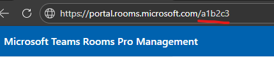
You can find your organization’s PMP customer id as a 6-character code in the URL of the homepage of the Pro Management portal Example in the image below, the PMP customerid (audience) would be: a1b2c3
- Add OpenID URLs: https://devices.teams.cloud.microsoft/api/notifications/prd/{region}/v1/.well-known/openidconfiguration
Tip
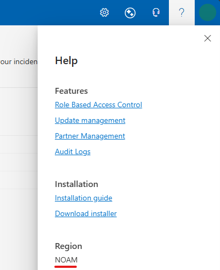
You can find the region of your tenant in the Pro Management portal, by accessing the ? section in the top-left navigation:
For more information, see Option A Step 3: Initialize Your Library’s Configuration Manager.
- Press Save.
Under Inbound processing tile, click + Add Policy and select policy named set-header.
- Name column, type: Authorization
- Action column, select: delete
- Press Save.
Example of a validation policy for a customer with customerid a1b2c3 and the tenant homed in North America (NOAM).
(...)
<validate-jwt header-name="Authorization" failed-validation-httpcode="401" failed-validation-error-message="Invalid token">
  <openid-config url="https://devices.teams.cloud.microsoft/api/notifications/prd/noam/v1/.well-known/openidconfiguration" />
  <audiences>
    <audience>a1b2c3</audience>
  </audiences>
</validate-jwt>
<set-header name="Authorization" exists-action="delete" />
(...)
As authentication is provided via JWT tokens, use the following steps to disable the default Subscription header requirement for incoming requests:
- Select the newly created API Microsoft Teams Rooms Pro Management notifications and disable the Subscription required checkbox.
Step 4: Responding to PMP (sample for end-to-end testing)
An API operation in Azure API Management implies the integration with a downstream/backend customer API (Pro Management Portal -> customer’s APIM -> customer’s backend system). Please refer to Azure API Management documentation for more information - Azure API Management Backends. For testing purposes only, consider adding a direct response (instead of invoking a backend API):
Under Inbound processing tile, click + Add Policy and select Other Policies
Add the following content after the <set-header... element:
(...)

<return-response>
  <set-status code="200" reason="OK" />
  <set-header name="Content-Type" exists-action="override">
    <value>application/json</value>
  </set-header>
  <set-body>{ "message": "Teams Devices incident was received by Azure API Management (example)." }</set-body>
</return-response>

(...)
Press Save.
Review the complete configuration for the API operation under Policy code editor should now be:
<!--
    - Policies are applied in the order they appear.
    - Position <base/> inside a section to inherit policies from the outer scope.
    - Comments within policies are not preserved.
-->
<!-- Add policies as children to the <inbound>, <outbound>, <backend>, and <on-error> elements -->
<policies>
  <!-- Throttle, authorize, validate, cache, or transform the requests -->
  <inbound>
    <base />
    <validate-jwt header-name="Authorization" failed-validation-httpcode="401" failed-validation-error-message="Invalid token">
      <openid-config url="https://devices.teams.cloud.microsoft/api/notifications/prd/noam/v1/.well-known/openidconfiguration" />
      <audiences>
        <audience>a1b2c3</audience>
      </audiences>
    </validate-jwt>
    <set-header name="Authorization" exists-action="delete" />
    <return-response>
      <set-status code="200" reason="OK" />
      <set-header name="Content-Type" exists-action="override">
        <value>application/json</value>
      </set-header>
      <set-body>{ "message": "Teams Devices incident was received by Azure API Management (example)." }</set-body>
    </return-response>
  </inbound>
  <!-- Control if and how the requests are forwarded to services  -->
  <backend>
    <base />
  </backend>
  <!-- Customize the responses -->
  <outbound>
    <base />
  </outbound>
  <!-- Handle exceptions and customize error responses  -->
  <on-error>
    <base />
  </on-error>
</policies>
Select the Test tab and take note/copy the Request URL, which will be configured in the Pro Management Portal (next steps). It should be similar to: https://myapimtestservice.azure-api.net/mtrpro/notifications/incidents
In the Pro Management Portal, execute the following steps:
- From the left menu, select Settings > Integrations.
- In the Integrations page, select the option Add incident webhook.
General step:
- Type a Name for your test.
- Select Next.
Endpoint configuration step:
- Type/paste the Endpoint URL of the API operation _E.g, https://myapimtestservice.azure-api.net/mtrpro/notifications/incidents.
- For Choose HTTP method select POST.
- Select Validate.
When executing Validation of the API operation in the section of the Pro Management Portal, the operation is expected to succeed, and the expected response should be visible in the Response Body.

This confirms that the Pro Management Portal was able to send a webhook notification to the API operation published in the Azure API Management service.