Note
Access to this page requires authorization. You can try signing in or changing directories.
Access to this page requires authorization. You can try changing directories.
Note
CSP Authorization Eligibility Requirements - Effective October 1, 2025
Beginning October 1, 2025, updated Cloud Solution Provider (CSP) authorization eligibility requirements will be enforced for direct bill partners, distributors (formerly indirect provider), and indirect resellers. The changes are designed to help strengthen the security posture and operational readiness of partners across the ecosystem. As part of this update, all partners must meet the following mandatory security requirements:
- Enable multifactor authentication (MFA) for all administrative users in the CSP tenant
- Designate a security contact within Partner Center
- Respond to security alerts within 24 hours or less (doesn't apply to indirect reseller partners)
For existing CSP partners, these requirements are validated annually during the anniversary month of the partner’s original CSP onboarding, starting January 2026.
Download the CSP authorizations one-pager for more details about the changes. More detailed info is available in the CSP Authorization partner FAQ.
Appropriate roles: Admin Agent, Security Administrator, Security Reader
The Security Requirements dashboard in Partner Center helps direct-bill partners, distributors, and indirect resellers (available in November) assess and improve their security posture. It offers a consolidated security score, actionable recommendations, and visibility into completed and pending requirements - enabling proactive alignment with Zero Trust principle and with security best practices.
Key features
Here's an example of the Security requirements dashboard.

Overview
The top of the dashboard shows two overview boxes:
- Security Score: A 0 - 100 score that reflects a partner’s overall security posture based on completed security requirements.
- Mandatory Requirements: Actions that must be implemented to maintain CSP authorization.
- Recommended Requirements: Actions that still enhance overall security, improve the score, but aren't mandatory for CSP Authorization.
Security requirements section
The Security requirements section shows a curated table of security requirements and recommendations. These requirements and recommendations can help you identify areas of improvement in security health, address concerns, mitigate risk, and enhance your overall security posture.
The table has these columns:
Requirement Type: Outlines if a requirement is Mandatory or Recommended
Security requirements: A brief description of the security requirement.
Description: A detailed explanation of the security requirement.
Status: An indication of whether the requirement is completed or not.
Insights: Actionable data tailored to individual requirements, offering further insights on areas that require attention.
Score: The score for each requirement, which contributes to your overall security score.
Instructions: Direct links to step-by-step guides that help you understand and implement each recommendation so that you can elevate your security. These links also appear in the Additional resources section.
Action: Links to a page where you can resolve the requirement.
Note
If you don't have the right role or access, contact the right person in your organization.
Future requirements section
The Future requirements section shows a preview of requirements that will be implemented soon. Requirements that aren't complete will deduct points from the overall score at a future date.
Calculation of the security score
The security score is a decimal (floating point integer) value from 0 to 100. The score reflects your tenant's security posture.
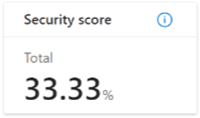
Partner Center computes the security score by using the security scores of individual security requirements. Every security requirement gets a maximum score from 0 to 20. The maximum score for a security requirement is based on the relative weight of that requirement compared to the other requirements. The maximum score is subject to change based on shifting business priorities.

The current calculation algorithm grants a maximum score for a compliant requirement. Otherwise, the score is 0.
The calculation of the overall security score uses the following formula: (Sum of individual security requirement scores) / (sum of individual security requirement max scores) * 100.
Security requirements and implementation instructions
Note
Microsoft Entra ID now supports external authentication methods in public preview, enabling integration of third-party MFA solutions like Okta, Ping, and Duo into Conditional Access and other identity policies. This expands flexibility for organizations implementing Zero Trust strategies while maintaining centralized control. To learn more about accepted third-party MFA providers, see External authentication providers in Microsoft Entra ID.
Note
Service principal accounts aren't considered in the calculation of Enable MFA for all Administrators on the CSP tenant. For any human-based service accounts, it's recommended to migrate these to Managed Identities. Learn more in the article Require phishing-resistant multifactor authentication for administrators.
Mandatory Requirement: Enable MFA for all Administrators on the CSP tenant
Security score points: 20
Requiring MFA for administrative roles makes it harder for attackers to access accounts. Administrative roles have higher permissions than typical users have. If any of those accounts are compromised, your entire organization is exposed.
At a minimum, you should protect the following roles:
- Global Administrators
- SharePoint Service Administrators
- Exchange Service Administrators
- Help Desk Administrators
- Security Administrators
- Billing Administrators
- Application Administrators
- Authentication Administrators
- Privileged Authentication Administrators
- User Account Administrators
- Conditional Access Administrators
- App Proxy Service Administrators
However, it’s a good practice to protect all the privileged roles in your tenant.
Implementation steps
Note
To be considered complete for this requirement, you need to ensure that every admin user is covered by the MFA requirement via security defaults, Conditional Access, or per-user MFA. You also need to ensure that each admin user sets up additional verification factors (for example, a device of their choice for verification prompts).
Compliance means full coverage and registration: all in-scope roles must be actively enrolled and capable of completing MFA challenges.
This requirement includes emergency access accounts. To learn more, see Manage emergency access accounts in Microsoft Entra ID.
- Microsoft provides step-by-step guidance to select and enable the right MFA method for your organization in the Microsoft 365 admin center. Go to the Microsoft 365 MFA wizard.
- If you want to perform the implementation yourself and you're using Microsoft Entra ID Free, turn on security defaults. Keep in mind that security defaults and Conditional Access can't be used side by side. To learn more, see Security defaults in Microsoft Entra ID.
- If you've invested in Microsoft Entra ID P1 or P2 licenses, you can create a Conditional Access policy from scratch or by using a template. Follow the steps to create a Conditional Access policy.
- Keep track of your admin's progress of registering authentication methods by going to Microsoft Entra ID > Security > Authentication methods > User registration details (requires Microsoft Entra ID P1 or P2 licenses). Go to User registration details.
Recommendations
Here are three actionable recommendations to help you meet this requirement:
- Limit and review privileged roles regularly
Minimize the number of users assigned to administrative roles. Conduct periodic reviews to ensure only those who truly need elevated permissions retain them. - Ensure immediate MFA registration for new admins and privileged roles
When assigning a privileged role, require the user to register for MFA immediately and sign in to Partner Center to complete the setup. - Remove or reassign stale and inactive accounts
Identify and eliminate inactive or unused admin accounts, including emergency access accounts that are no longer needed.
Resources
- How MFA works
- Plan a Microsoft Entra multifactor authentication deployment
- Security defaults in Microsoft Entra ID
- Manage emergency access accounts in Microsoft Entra ID
Mandatory requirement: Response to alerts is 24 hours or less on average
Security score points: 10
You must triage and respond to alerts within 24 hours of their appearing in Partner Center, with a goal of responding within one hour. This requirement helps provide immediate protection for customer tenants and minimize financial loss. Response time is measured from the time that an alert appears in Partner Center to the time that a partner user makes a change to the alert, such as updating its status or reason code. The average response time is calculated based on the last 30 days of activity.
Implementation steps
- Ensure that you have a Partner Center security contact configured. By default, this email address receives alert notifications. You can use a secure, shared mailbox or a mailbox that feeds a ticketing system.
- Maintain an incident response playbook that defines the roles, responsibilities, response plans, and contact information.
- Specify a reason code for each alert. Microsoft uses your feedback to measure the efficacy of the generated alerts.
Resources
- Partner Center alerts
- Azure fraud detection and notification
- Cloud Solution Provider security contact
Mandatory requirement: Provide a security contact
Security score points: 20
When any security-related issue happens on a Cloud Solution Provider (CSP) partner tenant, Microsoft should be able to communicate the issue and recommend appropriate steps to a designated security contact in a partner organization. That contact should act to mitigate and remediate security concerns as soon as possible.
Certain roles within Partner Center might not have the necessary expertise or reach to act on important security-related incidents. All partners should update the security contact for their partner tenant.
The security contact is either an individual or a group of people who are accountable for security-related issues within the partner organization.
Implementation steps
Populate the email, phone number, and name of the individual or group that's responsible for responding to security incidents in your company.
Resources
Recommended requirement: Users with administrative roles in the customer tenants must use MFA
Security score points: 20
Requiring MFA for administrative roles in the customer tenant makes it harder for attackers to access accounts. Administrative roles have higher permissions than typical users have. If any of those accounts are compromised, the entire organization is exposed.
At a minimum, protect the following roles:
- Global administrator
- Authentication administrator
- Billing administrator
- Conditional Access administrator
- Exchange administrator
- Helpdesk administrator
- Security administrator
- SharePoint administrator
- User administrator
Implementation steps
Go to Customer MFA statistics. This page highlights key information about each customer's MFA security posture:
- Customer: The customer's name.
- Admins with MFA enabled: The number of admins in the customer's tenant who have MFA enabled.
- Non-admins with MFA enabled: The number of non-admin users in the customer's tenant who have MFA enabled.
- Total users: The total number of users in the customer's tenant.
You can search for statistics of a specific customer on the same page by using the Search box.
For detailed steps, see Manage a customer's MFA security posture.