Note
Access to this page requires authorization. You can try signing in or changing directories.
Access to this page requires authorization. You can try changing directories.
Tip
Recommended: Start with Work IQ Dev Tools for supported pro-code declarative-agent and plugin scenarios. See the WIQD quickstart. Toolkit-based instructions remain available for existing projects and workflows that require them. Check capability and target-experience support before choosing a tool: WIQD doesn't target custom engine agents.
Important
In tenants that use Microsoft Purview Information Barriers (IB), admins can deploy declarative agents with skills, but end users can't add skills to declarative agents they create.
A skill is a modular component that you add to a declarative agent to package instructions, resources, and scripts for a specific task. During Build or reuse, use this article when your chosen project already uses Microsoft 365 Agents Toolkit (ATK). You finish with a skill registered in the agent, saved task instructions, and a provisioned test version.
For a new professional-developer plugin project, start with Work IQ Dev Tools and a documented environment. Keep this Toolkit procedure when its project controls fit your selected agent route; it isn't a requirement for every plugin.
To learn what skills are, why to use them, and the full support matrix, supported file types, sandbox behavior, and governance, see Skills in declarative agents.
This guide adds agent-scoped skills. To distribute a skill for use directly in Copilot Chat through a plugin, see Build skills for Copilot Chat.
Important
This guide assumes you completed the Create declarative agents by using Microsoft 365 Agents Toolkit and JSON tutorial. Adding a skill requires declarative agent manifest version 1.9. If you're using an agent created with an older version of Agents Toolkit, you might need to update the version of your agent manifest. For more information, see Declarative agent manifest reference.
Prerequisites
Enable agent skills
Agent skills support is controlled by the TEAMSFX_AGENT_SKILLS environment variable. Set it before you launch the CLI or Visual Studio Code.
Windows (PowerShell) - To persist the variable across sessions, add it to your user environment variables:
[System.Environment]::SetEnvironmentVariable("TEAMSFX_AGENT_SKILLS", "true", "User")macOS or Linux - Set the variable:
export TEAMSFX_AGENT_SKILLS=trueTo persist the variable, add the
exportline to your~/.bashrc,~/.zshrc, or equivalent shell profile.
If you set the variable after you install the Visual Studio Code extension, restart Visual Studio Code completely.
Verify: The restarted tool process sees TEAMSFX_AGENT_SKILLS set to true. A user-level Windows setting doesn't change a process that was already running.
Add a skill to your agent
In your existing project, add a skill. To create a new skill, provide a name and description:
atk add skill --name skill-name --description descriptionTo add an existing skill folder, use the
--fromoption:atk add skill --from PATH_TO_SKILLVerify: The project contains the skill directory and
SKILL.md, and the declarative-agent manifest references that skill. Follow the support matrix; this import option doesn't establish reuse across agents.Edit the skill's
SKILL.mdwith the task instructions, resources, and supported scripts.Verify: The saved file retains its required metadata and describes the task, expected output, and boundaries.
Provision the declarative agent to make it available in your environment:
atk provision --env localVerify: Provisioning succeeds for the intended tenant and environment. Test the skill's task in the intended agent; provisioning success doesn't establish runtime behavior.
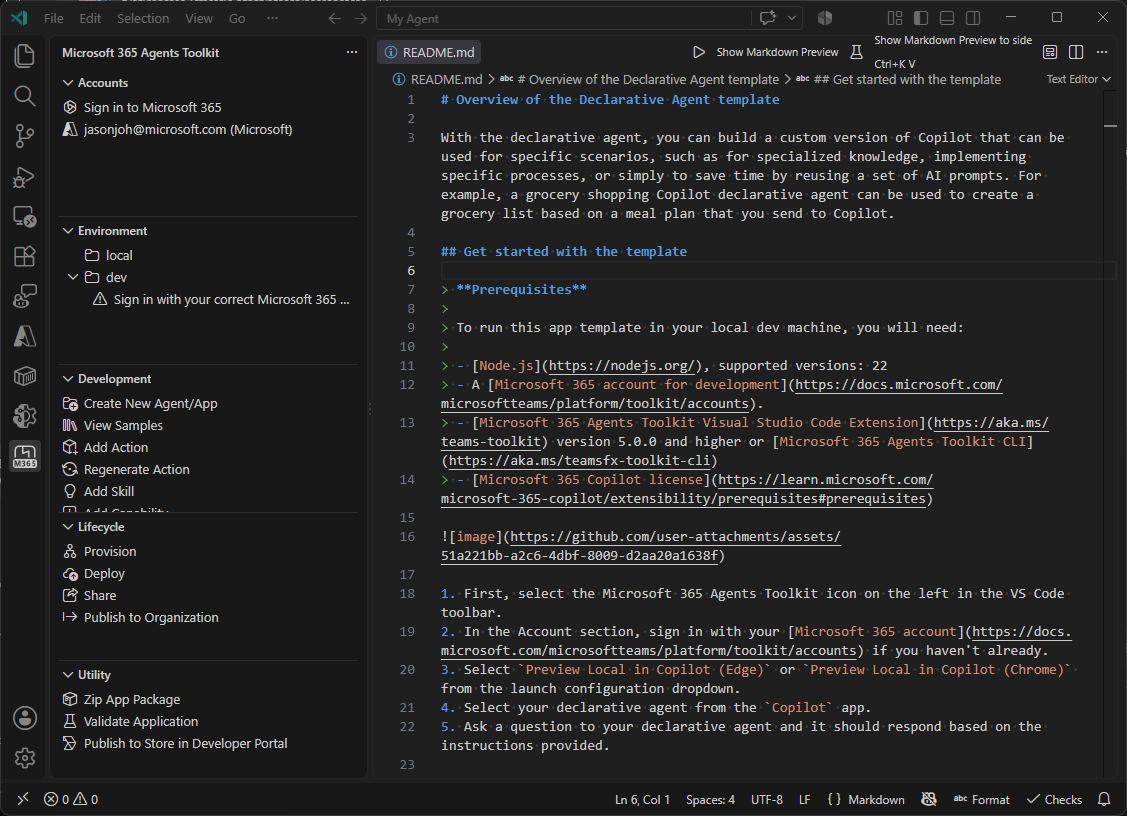
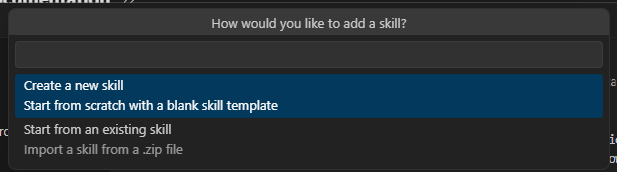
Limits
In the Agents Toolkit, you add a skill as a directory (you can't use .zip), and the complete app package is limited to 10 MB. You can add up to eight skills per agent, with a maximum directory depth of three and up to 350 files across all skills. For the full support matrix, see Skills in declarative agents.
Publish your agent
Independent software vendors (ISVs) can submit declarative agents that include skills to Microsoft Marketplace. Use Work IQ Dev Tools to validate and build the submittable package from an existing declarative agent project. For plugin packages, wiqd publish pc can create the Partner Center offer, populate the draft listing, upload the package and images, submit for certification with separate authorization, and track status. Partner Center account enrollment and verification remain portal steps, and Microsoft controls certification and publication.
Follow Publish to Partner Center with WIQD for prerequisites, package validation, listing setup, submission, and status tracking. Portal submission remains an alternative; see the Microsoft Marketplace submission guide. Follow the confirmed agent submission route, not an Office Add-in example or an assumed offer type for composed plugins.
Next step
Enter Package & test with Integrate and test your components. When the agent is ready for public distribution, continue to Publish through Microsoft Marketplace.