Note
Access to this page requires authorization. You can try signing in or changing directories.
Access to this page requires authorization. You can try changing directories.
Microsoft 365 Copilot connectors enable organizations to build tailored integrations to enhance their AI systems and services. AI Administrators can manage Copilot connectors, but application registration and consent to Microsoft Graph application permissions can require additional privileges. This article describes how to delegate those privileges for custom synced connectors by using a Microsoft Entra custom role and app consent policy.
Note
Delegating administrative rights to AI Administrators is an optional step for Copilot connector management.
Prerequisites
- Microsoft Entra ID P1 or P2 licensing for custom roles. See Create a custom role in Microsoft Entra ID.
- A Privileged Role Administrator to create the app consent policy, create the custom role, and assign it to users.
- The target users who need the extra privileges, and the Microsoft Graph application permissions required by their connectors.
- For the automated procedure, PowerShell 5.1 or later and access to PowerShell Gallery. The script installs and imports the Microsoft Graph PowerShell modules it needs.
What administrative rights can be delegated?
To enable AI Administrators to independently manage the setup and operation of custom connectors, delegate the following administrative rights:
Application registration permission - Granting this permission allows AI Administrators to register applications from the Microsoft Entra admin center to set up custom connectors. Application registration permissions are enabled by default for all users in an organization. Grant this permission only if the permission is disabled for the organization.
Consent privileges - Grant this privilege to allow AI Administrators to grant tenant-wide admin consent for selected Microsoft Graph application permissions, such as
ExternalItem.ReadWrite.OwnedByandExternalConnection.ReadWrite.OwnedBy, for creating connections and ingesting items. The policy controls which permissions they can approve; it doesn't grant those permissions to a connector application automatically.
Grant application registration permissions
If application registration permissions are enabled for all users within the organization, no extra configuration is required. If registration is restricted, follow Delegate app registration permissions in Microsoft Entra ID to grant the required users permission to register applications. For a custom-role procedure, see Create a custom role with permissions to create app registrations.
Application registration permission and admin consent permission are separate. Granting one doesn't grant the other.
Grant consent privileges
Use this manual procedure when you need a policy limited to the permissions required by your connectors, rather than the full permission set configured by the script.
Select the required application permissions from the Microsoft Graph permissions reference. For a connector that creates connections and ingests items, start with
ExternalConnection.ReadWrite.OwnedByandExternalItem.ReadWrite.OwnedBy. Don't include broader permissions unless the connector requires them.Follow Create a custom app consent policy using PowerShell. Configure the include conditions for your connector scenario, rather than copying the example's delegated-permission conditions:
- Set
PermissionTypetoapplication. - Set
ResourceApplicationto the Microsoft Graph application ID,00000003-0000-0000-c000-000000000000. - Set
Permissionsto the application permission IDs you selected. The IDs forExternalConnection.ReadWrite.OwnedByandExternalItem.ReadWrite.OwnedByaref431331c-49a6-499f-be1c-62af19c34a9dand8116ae0f-55c2-452d-9944-d18420f5b2c8, respectively. - Add client application restrictions and exclude conditions as required by your organization.
- Set
Follow the PowerShell procedure in Create a custom role. Include
microsoft.directory/servicePrincipals/managePermissionGrantsForAll.{id}in the role'sallowedResourceActions, replacing{id}with your policy ID. See App consent permissions for custom roles.Follow Assign Microsoft Entra roles to users to assign the custom role to the intended AI Administrators at directory scope. This scope enables tenant-wide admin consent, subject to the policy's conditions.
Complete Confirm results with a test application before using the delegation for production connectors.
Note
The Microsoft Entra admin center doesn't support adding app consent permissions to a custom role definition. Use Microsoft Graph PowerShell to create the consent role; you can then manage its user assignments in the admin center.
Use PowerShell to grant administrative rights
The GrantAppConsentAndManagementPermissionToAiAdmin function in Connector.Cmd 2.3 automates policy creation and role assignment. The following scope is based on the published function source. Review the source again before using a different version.
Permissions configured by the script
By default, the script creates or reuses the app consent policy Grant-Consent-Permissions-To-AIAdmins. It adds include conditions for the following six Microsoft Graph application permissions, not delegated permissions or a wildcard permission set:
| Application permission | Access the AI Administrator can approve for an app |
|---|---|
ExternalConnection.ReadWrite.OwnedBy |
Create connections and read or write connections the app is authorized to access. |
ExternalItem.ReadWrite.OwnedBy |
Read or write items in connections the app is authorized to access. |
ExternalConnection.Read.All |
Read all external connections. |
ExternalConnection.ReadWrite.All |
Read and write all external connections. |
ExternalItem.Read.All |
Read all external items. |
ExternalItem.ReadWrite.All |
Read or write items in all external datasets the app is authorized to access. |
For the full definitions, see the Microsoft Graph permissions reference.
The script creates the Custom Connector Management for Copilot role with these actions:
microsoft.directory/applications/create: Create application registrations.microsoft.directory/applications/permissions/update: Update the API permissions requested by application registrations.microsoft.directory/servicePrincipals/managePermissionGrantsForAll.Grant-Consent-Permissions-To-AIAdmins: Grant tenant-wide admin consent subject to the policy. If you supply a differentPolicyName, the action uses that policy ID instead.
The script assigns the role at directory scope (/), not at the scope of one application or connection. It lists current AI Administrator role assignments and resolves user principals; it doesn't expand group membership or assign the custom role to users who only have an eligible, inactive role assignment.
Important
This delegation is broader than permission to approve only the two .OwnedBy permissions. It also permits consent to the .All permissions in the table, and the application-management actions apply at directory scope. If that scope exceeds your requirements, use Grant consent privileges to create a narrower policy instead.
If a policy with the same ID already exists, the script adds missing include conditions without removing existing conditions. If a custom role with the same display name exists, the script reuses it without updating its definition. Inspect existing policies and roles before running the script; their effective permissions can differ from a new configuration.
Run the script
Install and import the version described in this article in a new PowerShell session.
Install-Module -Name Connector.Cmd -RequiredVersion 2.3 -Scope CurrentUser
Import-Module -Name Connector.Cmd -RequiredVersion 2.3
Use the following command to invoke the script.
GrantAppConsentAndManagementPermissionToAiAdminAt the sign-in prompt, confirm that you want to proceed, and sign in as a Privileged Role Administrator. The script requests the delegated Microsoft Graph permissions
RoleManagement.ReadWrite.Directory,Policy.ReadWrite.PermissionGrant, andUser.Read.All. These permissions let the setup session manage roles and policies and read users; they aren't connector permissions granted to an app by the custom policy.Review the displayed users and permissions. Continue only if both match the delegation you intend to approve.
Review the completion summary and any assignment failures, and then complete Confirm results.
The script delegates the ability to grant consent. An AI Administrator must still review and grant consent to each connector application's required permissions.
Confirm results
First, as the administrator who configured the delegation, verify the policy's include and exclude conditions, the custom role's actions, and its user assignments. See List existing app consent policies and Assign Microsoft Entra roles to users.
Then use a test application and an AI Administrator account with the custom role, but without another role that independently grants admin consent:
Note
The following test uses the two .OwnedBy application permissions. It doesn't verify every permission included by the script. Querying connections in Graph Explorer uses a separate delegated permission, ExternalConnection.Read.All; the script's application-permission policy doesn't include that delegated permission. See Find your connector's ID by querying connectors in Graph Explorer.
- Sign in to the Microsoft Entra admin center as an AI Administrator.
- Go to Entra ID > App registrations and create a test application.
- In the application's API permissions, select Add a permission > Microsoft Graph > Application permissions. Add
ExternalItem.ReadWrite.OwnedByandExternalConnection.ReadWrite.OwnedByif both are included in your policy. - Select Grant admin consent for your tenant and verify that the permissions show as granted.
Record the policy ID, role ID, assigned users, approved permission set, and test results. A successful test confirms delegation for the tested permissions; it doesn't verify connector ingestion or all permissions in the policy.
Frequently asked questions
Does the PowerShell script grant consent to all Microsoft Graph API permissions?
No. For a new policy, version 2.3 allows assigned AI Administrators to grant consent to the six application permissions listed in Permissions configured by the script. An AI Administrator must still review and grant consent separately for each connector application. The policy doesn't automatically include every current or future permission with an ExternalItem or ExternalConnection prefix, or their delegated equivalents. The .All permissions are broader than the two .OwnedBy permissions, so review whether all six are appropriate for your organization.
What if the connector application requires permissions outside the policy?
An administrator authorized to consent to those permissions must review the request. Don't broaden the policy solely to bypass a consent failure. If your organization approves extending the delegation:
- Update the policy's include conditions with the specific permission type, resource API, and permission IDs, following Manage app consent policies.
- If you create a different policy, update the custom role's consent action to reference its ID. Changes to an existing policy apply to roles that already reference it.
- Review affected role assignments and repeat the consent test for the approved permissions.
How can I revoke privileges granted to AI Administrators?
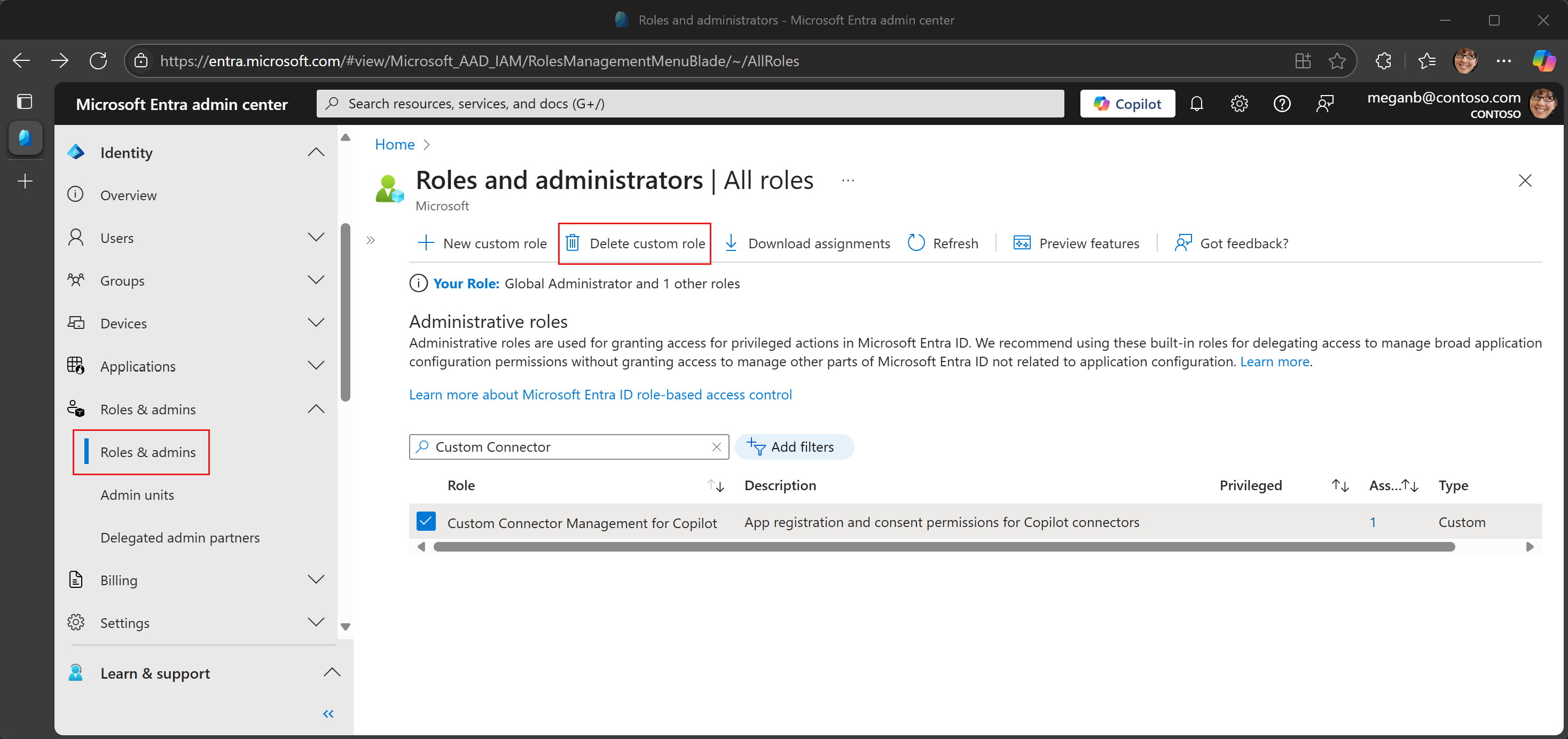
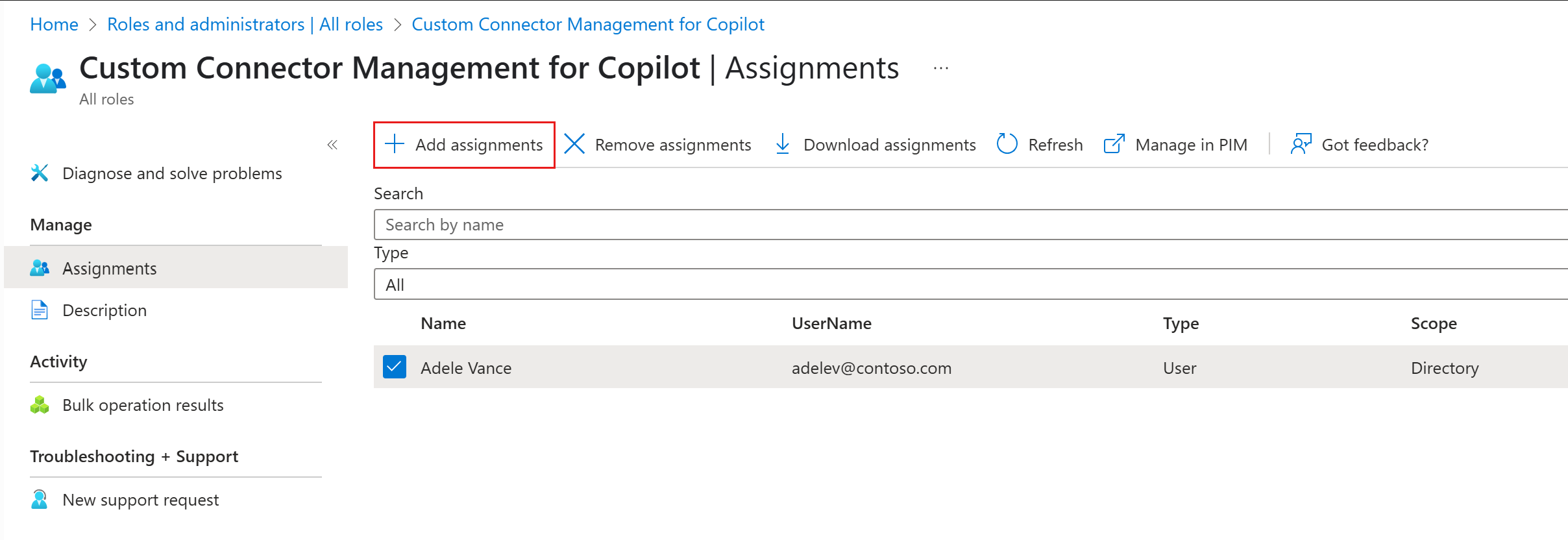
To remove the delegated privileges from a user, remove their custom role assignment in Entra ID > Roles & admins in the Microsoft Entra admin center. Delete the custom role only if no users should retain it. See Assign and remove role assignments.
Removing the role assignment doesn't revoke permissions already consented to for connector applications. Review and, if necessary, revoke the applications' existing permission grants separately.
Do privileges automatically apply to newly assigned AI Administrators?
No. The script assigns a separate custom role to the users it finds at execution time. For new AI Administrators, review the intended users and permissions before rerunning the script, or assign the custom role manually. Removing a user's AI Administrator role also doesn't remove their separate custom role assignment; review and remove that assignment when the delegation is no longer needed.
Is it mandatory to grant these privileges to AI Administrators?
No, granting these privileges is optional. Organizations can choose whether to delegate permissions based on their internal processes. If centralized control is preferred, Global Administrators can retain responsibility for these tasks.
Related content
- Manage app consent policies
- App consent permissions for custom roles
- Create a custom role in Microsoft Entra ID
- Delegate app registration permissions in Microsoft Entra ID
- Application registration permissions for custom roles in Microsoft Entra ID
- Query existing Copilot connectors in Graph Explorer (ExternalConnection.Read.All)