Note
Access to this page requires authorization. You can try signing in or changing directories.
Access to this page requires authorization. You can try changing directories.
The pop-out formula bar opens the Power Fx editor in a separate browser window. Use it to work with longer formulas or move the editor to another monitor while keeping your app visible in Power Apps Studio.
Prerequisites
- Create a canvas app or open an existing canvas app for editing.
- Allow pop-up windows for Power Apps Studio in your browser.
Open the Formula editor in a separate window
In Power Apps Studio, select the control or screen that you want to configure.
In the property list, select the property that you want to edit.
On the right side of the formula bar, select the Open formula bar in new window icon button.

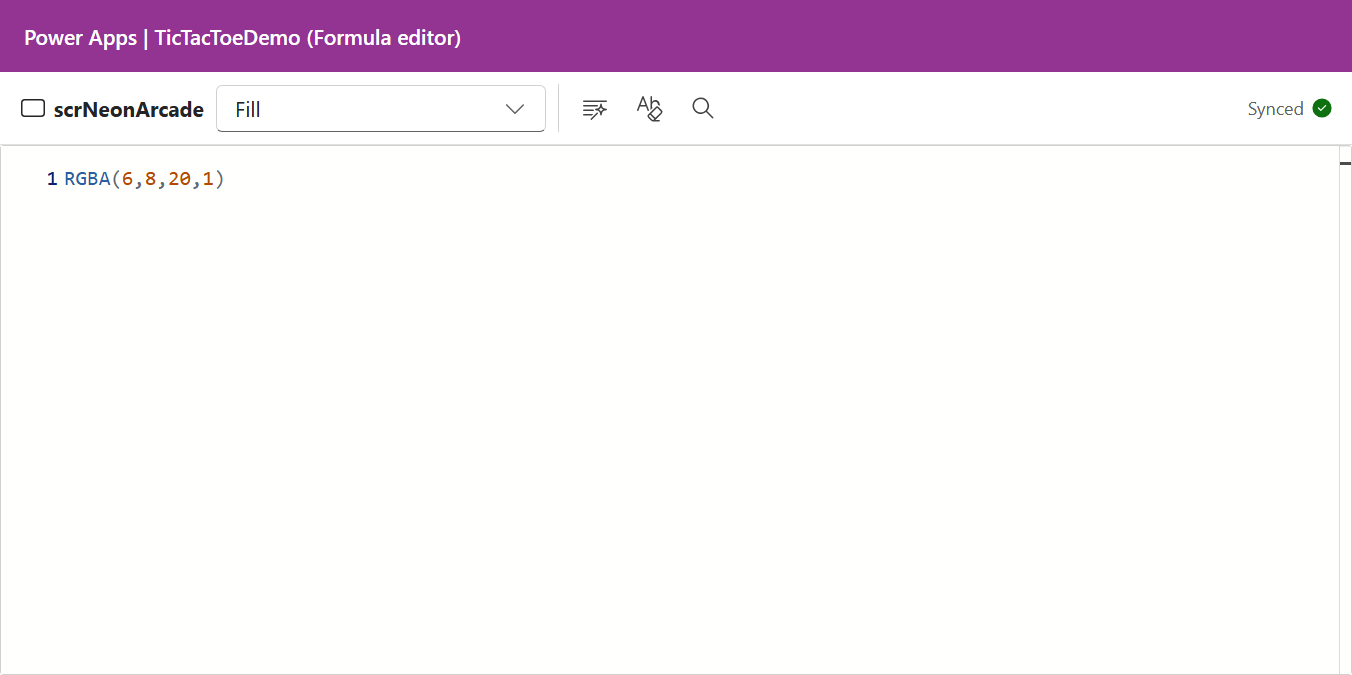
The Formula editor window opens with the selected control and property, and displays the formula.
Tip
Move or resize the Formula editor window like any other browser window. On a multimonitor setup, place Power Apps Studio on one monitor and the Formula editor on another.
Work between Studio and the Formula editor
Power Apps Studio and the Formula editor stay synchronized:
- Select a different control in the canvas or Tree view to show that control in the Formula editor.
- Select a property in the Formula editor to edit it.
- Edit the formula in the Formula editor. Formula changes are shared with Studio.
The Formula editor doesn't include a separate control tree. Continue to select controls and screens in Power Apps Studio.
If you pin the Formula editor, it stays focused on the current control and property while you select other controls in Power Apps Studio. Unpin the Formula editor to resume following the current Studio selection. You can still select a different property inside the pinned Formula editor.
Keep the Power Apps Studio window open while you use the Formula editor. The Synced status indicates that formula changes are being shared with Studio.
Note
The Formula editor doesn't include separate save or publish controls. Use the normal save, autosave, and publish controls in Power Apps Studio.
Use formula editing tools
The Formula editor provides editing tools for the current formula:
- IntelliSense suggestions and function help.
- Syntax and error highlighting.
- Line numbers.
- Format text.
- Remove formatting.
- Find and replace.
Find and replace applies to the formula currently open in the editor. It doesn't search formulas across the entire app. For more information, see Use Find and Replace in the formula bar.
Work in a coauthored app
The Formula editor follows the editing permissions and locks in Power Apps Studio. If the selected formula is read-only, you can view and search the formula, but you can't change or format it.
To edit another formula, select an available control or property in Power Apps Studio.
Troubleshoot the Formula editor
The Formula editor doesn't open
Your browser might be blocking the pop-up window. Allow pop-ups for Power Apps Studio, and then select the Open formula bar in new window icon button again.
The Formula editor shows a connection error
Keep the Power Apps Studio window open. If the Formula editor can't reconnect, close it and open it again from the formula bar.