Note
Access to this page requires authorization. You can try signing in or changing directories.
Access to this page requires authorization. You can try changing directories.
[This article is prerelease documentation and is subject to change.]
This article explains how to open, configure, and fine-tune the Dataverse semantic model to improve agent accuracy and Copilot experiences over your Dataverse data.
Important
- This is a preview feature.
- Preview features aren’t meant for production use and might have restricted functionality. These features are subject to supplemental terms of use, and are available before an official release so that customers can get early access and provide feedback.
Prerequisites
- Dataverse Intelligence is enabled for your environment. For setup information, see Dataverse data in Microsoft 365 Copilot prerequisites.
- The semantic model has completed its initial generation. More information: How the semantic model works
- Dataverse version with Dynamics 365 apps enabled must be 9.2.26054.00125 or later version.
- You need either of the following security roles to manage the semantic model:
- System Administrator -or-
- Semantic Model and Environment Maker
Important
After Dataverse Intelligence is first enabled, an initial sync runs automatically and can take up to two hours to complete. During this initial sync, the semantic model page displays a generating state. Wait until the initial sync is finished before proceeding.
Select a semantic model
The Semantic model page is the central hub for managing all semantic models in your environment. From the page, you can view, manage, and edit a semantic model that powers agent experiences across Microsoft, including Dataverse MCP, Copilot in Power Apps, Microsoft 365 Copilot, Sales Agent, and any agent built with Microsoft Copilot Studio over Dataverse data.
- Sign in to Power Apps, and open the environment where Dataverse Intelligence is enabled.
- In the left navigation pane, select More, and if not in the More list, select Discover all, and then select Semantic model.
- The Semantic model page lists all semantic models available in your environment. Select a semantic model from the list to view and manage its signals, AI-generated concepts, and glossary.
The list shows the following columns for each semantic model:
| Column | Description |
|---|---|
| Name | The identifier of the semantic model. The name reflects the source that provisioned it. More information: Naming conventions |
| Associated apps or agents | Apps or agents that have access to this semantic model. |
Tip
Pin the Semantic model page to the left navigation pane for quick access.
Naming conventions
Semantic models are named based on the source that provisioned them. Use the name to identify which experience a semantic model belongs to.
| Source | Name format | Associated apps or agents |
|---|---|---|
| Add Dataverse tables as a knowledge source | User-configured Dataverse knowledge name | custom agent name (user configurable) |
| Add Microsoft 365 Copilot for app users in model-driven apps -or- Dataverse data in Microsoft 365 Copilot |
M365_Secondary_model_<App_name> |
Connected app display name (user configurable) |
| Set up Sales agent in Microsoft 365 Copilot -or- Copilot in Dynamics 365 Sales overview |
SalesSpecificQnA |
Copilot in Dynamics 365 Sales |
Note
Changes you make to a semantic model, including signal settings, table-level controls, and glossary entries, only apply to that specific semantic model. They don't affect other semantic models in your environment. If multiple apps or agents share the same semantic model (for example, Sales Agent and Copilot in Dynamics 365 Sales both use SalesSpecificQnA), changes to that model apply to all experiences associated with it.
Manage the semantic model
The semantic model overview page shows:
- Sync status. Whether the model is active and the timestamp of the last successful sync in local time.
- How your data is understood. Displays which system-inferred signal types are enabled.
- Configuration. Select Configuration to fine-tune model items per table.
- Glossary. Select Glossary to view and manage domain-specific terms and synonyms added by makers or included out of the box.
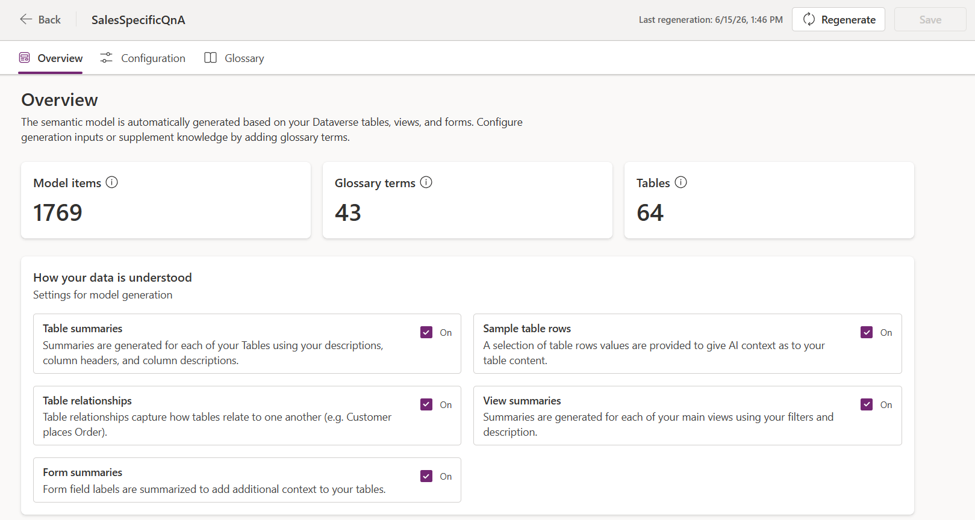
You can control semantic models at multiple levels:
| Control level | Scope |
|---|---|
| Environment level | Enable or disable a semantic model generation across the entire environment via Power Platform admin center. |
| Signal-type level | Enable or disable specific signal types across all tables (for example, disable sample data rows globally). |
| Table level | Enable or disable semantic understanding for a specific table. |
| Item level | Enable or disable a specific view or relationship within a table to improve relevance. |
Important
Computed signals are read-only. You can't directly edit an artifact generated by the system. To override system-generated understanding, use the Glossary to add a corrected definition. Disabling a signal type or table is the only way to remove its contribution to the semantic model.
Enable or disable a signal type
You can turn off a signal type, such as table or form summaries, across all tables in the semantic model.
- From the semantic model overview page, in the How your data is understood area, turn a signal On or Off.
- Select Save.
Enable or disable a specific table
When a table contains sensitive, regulated, or irrelevant data, you can exclude it from the semantic model without disabling the entire signal type.
- From the semantic model overview page, select Configuration, and search for the table display name that you want to enable or disable.
- Select the table, and then check or clear Include in semantic model.
- Select Save and sync.
Tip
You can also turn off table summary, sample table rows, or forms summary, for a table on the configuration page.
Enable or disable a specific table item
Views and relationships within a table can be individually disabled when they contain outdated, incorrect, or misleading data that negatively affects agent responses.
- From the semantic model overview page, select Configuration, and search for the table display name that you want to disable or enable a view or relationship.
- Select Views or select Relationships to see the table's associated views and relationships.
- Find the item you want to exclude and turn it On or Off.
- Select Save.
Add and manage glossary entries
The glossary lets you add business vocabulary that system signals can't infer automatically. Use glossary definitions to clarify the terminology used in your Dataverse tables, so agents better understand user questions and respond more accurately. More information: Manage semantic model glossary entries (preview)
Trigger a manual regeneration
The semantic model automatically regenerates every 12 hours. If you want changes to take effect immediately — such as updates to signal settings, or Dataverse metadata changes like adding or updating views and column descriptions — you can trigger a manual regeneration instead of waiting for the next scheduled run. More information: Regenerate the semantic model (preview)
Enable sample data rows
The sample data rows signal is disabled by default. When enabled, the system uses sample data to read and extract the metadata contained in the sample data rows.
- From the semantic model overview page, in the How your data is understood area, turn the Sample table rows signal to On.
- Select Save.