Note
Access to this page requires authorization. You can try signing in or changing directories.
Access to this page requires authorization. You can try changing directories.
This article walks you through importing event data laid out as a star schema (one Event table + optional Case table + lookup tables) into Power Automate Process Mining, from the UX side. You can find details about authoring the JSON configuration that drives the ingestion in Normalized schema JSON authoring.
Prerequisites
Make sure you have:
A Power Automate environment where Process Mining is enabled, and a user account with rights to create processes in it.
Respective prerequisites are met:
- OneLake: Learn more in Ingest data from Fabric OneLake
- ADLS Gen2: Learn more in Bring your own Azure Data Lake Storage Gen2 or Bring your own network isolated Azure Data Lake Storage Gen2
Your event data is already published as tables or files in one of the supported sources:
- OneLake / Microsoft Fabric: A lakehouse with managed Delta tables, or loose Parquet or CSV files under the
Files/area. - Azure Data Lake Storage Gen2: A container with CSV, Parquet, or Delta-Parquet folders.
- OneLake / Microsoft Fabric: A lakehouse with managed Delta tables, or loose Parquet or CSV files under the
A JSON config file describing your tables and how they map to Process Mining attributes. Learn how to write it in authoring guide.
The JSON also carries the storage backend details (workspace/lakehouse IDs for OneLake, or subscription/resource group/storage account/container for ADLS Gen2). You don't pick the backend in the UI—it's read from the JSON.
Step 1: Open Process Mining and start a new process
- Go to make.powerautomate.com and sign in.
- Choose your environment from the environment picker (top right).
- In the left navigation, select Process mining.
- On the Process mining home page, select + Start from blank.
The New Process dialog opens.
Step 2: Fill in the New Process dialog
Perform the steps in this section in the New Process window.
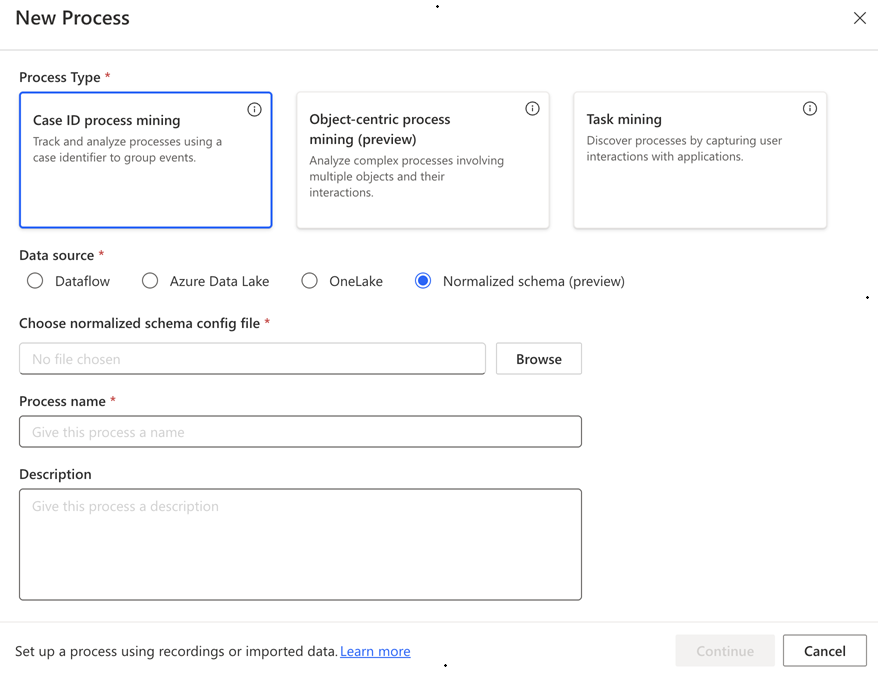
Process type: Select Case ID process mining.
Data source: Select Normalized schema (preview).
As soon as you select this option, the dialog shows a Choose normalized schema config file field with a Browse button.
Choose normalized schema config file: Select Browse and select the
.jsonfile you authored. Only the JSON file is required here—the storage backend, the file format, the dataset paths, and the attribute roles all come from inside it.Process name: Give the process a clear, identifying name.
(Optional) Description: Short context about what this process tracks.
Select Continue.
The service parses the JSON and runs the normalized-schema validator end-to-end before continuing. This step takes a few seconds.
If the JSON fails to load, fix the JSON locally, browse the corrected file again, and select Continue. The full validation checklist is in Normalized schema JSON authoring.
Step 3: Review and adjust the attribute mapping
When the JSON passes validation, the Mapping screen opens. It's prepopulated from your JSON—every entry in miningMetadata.ImportConfiguration.Attributes becomes a row here, already paired with its physical column (either a direct column or one surfaced through a join's ExportName).
Use this screen to review and adjust the mapping.
If you find something that you can't fix here, cancel out, fix the JSON, and restart from Step 1: Open Process Mining and start a new process.
Step 4: Save and analyze
When the mapping looks correct, select Save and analyze.
Get details on a field or error in the corresponding section of Normalized schema JSON authoring.