Note
Access to this page requires authorization. You can try signing in or changing directories.
Access to this page requires authorization. You can try changing directories.
The new process intelligence experience is the next-generation interface for process analysis in Power Automate Process Mining. It delivers a comprehensive, customizable dashboard for exploring process intelligence insights. The new experience enhances the previous process overview.
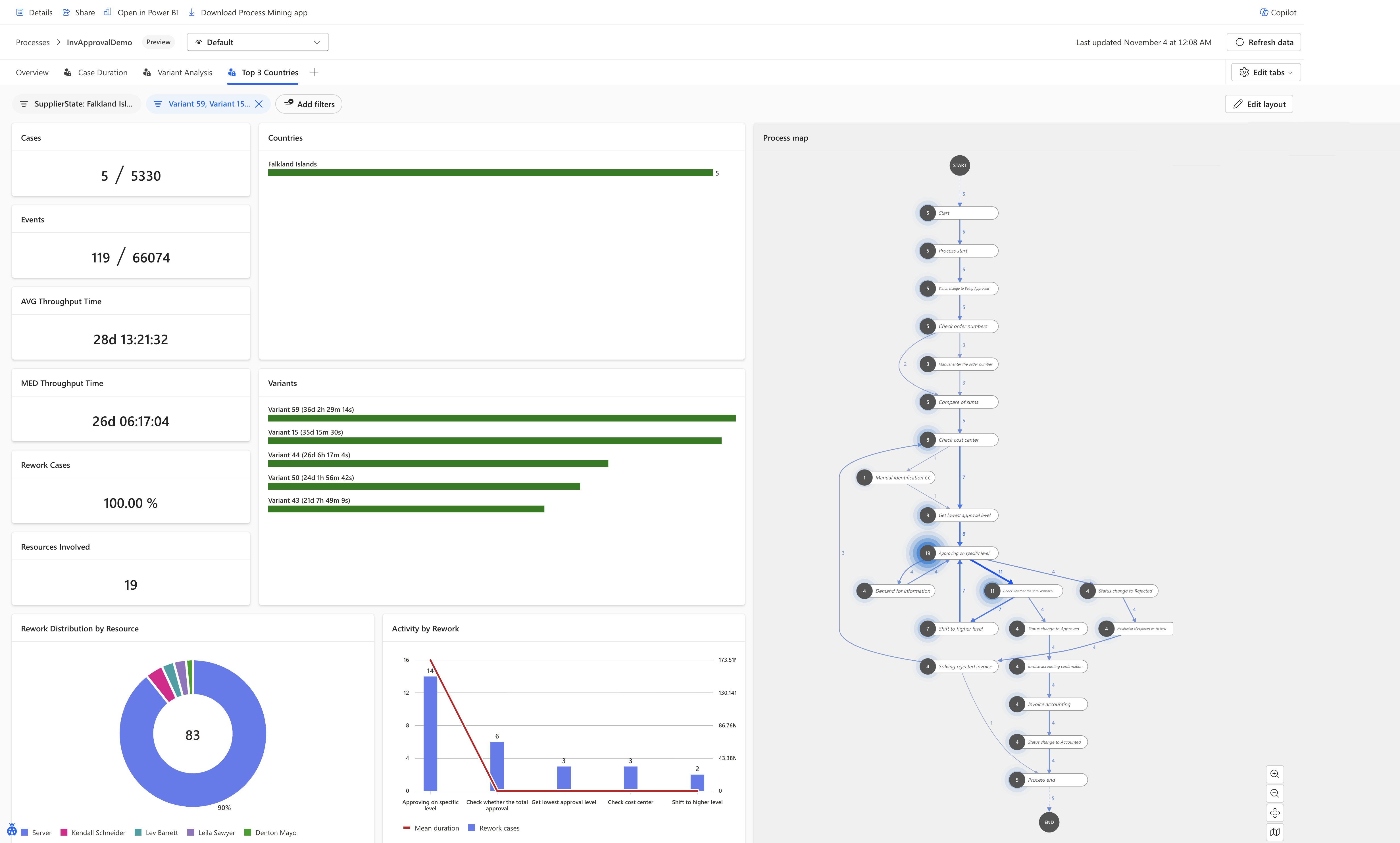
As shown in the following screenshot, the process intelligence experience provides a comprehensive analytical workspace with multiple components working together.
Benefits of the process intelligence experience
The process intelligence experience transforms how you interact with process mining data by offering:
- A flexible, card-based dashboard system that adapts to your analysis needs
- Multiple tabs for organizing different analytical perspectives
- Dynamic filtering capabilities that apply across all visualizations
- Real-time data refresh to ensure you're working with current information
- Customizable layouts where you can arrange, resize, and configure cards
Unlike the previous process overview, the process intelligence experience gives you complete control over what you see and how you see it, enabling you to create personalized analytical workspaces for different stakeholders and use cases.
Key components of the interface
The main interface consists of several key areas:
Active process view
Name of the process and the selected process view. Process views can be defined in the Process Mining desktop application. You can have an independent set of analytical tabs per view. Default view is provided automatically after the creation of the process.
Tab bar
The tab bar organizes your analytical views. It's located at the top of the interface.
- Multiple tabs such as Overview, Case Duration, Variant Analysis, and Top 3 Countries/Regions.
- Each tab can display a different set of cards and visualizations.
- A (+) button on the right allows you to create more tabs.
- Edit tabs button in the top-right corner provides tab management capabilities.
Filter bar
The filter bar enables data refinement. It's positioned below the tab bar.
- Active filters displayed as removable pills (for example, SupplierState: Falkland Isl..., Variant: 55, Variant 15...).
- Each filter pill includes an X button for quick removal.
- Add Filters button to apply more filtering criteria.
- Filters apply to all cards and visualizations on the current tab.
Dashboard area
The main canvas displays multiple cards arranged in a grid layout.
Control bar
The top-right section provides key controls.
- Timestamp of the last data refresh.
- Refresh data button to update with latest process data.
- Edit tabs button for tab management.
- Edit layout button to enter customization mode.
How the process intelligence experience enhances process analysis
The process intelligence experience improves upon the traditional process overview with these key enhancements:
- Flexibility: Create multiple tabs with different card configurations instead of a single fixed view.
- Personalization: Arrange and size cards to match your specific analysis workflow.
- Organization: Group related metrics and visualizations together logically.
- Efficiency: Switch between preconfigured analytical perspectives instantly.
- Collaboration: Share specific tabs or entire dashboard configurations with team members.
Get started
To begin using the process intelligence experience, do the following steps.
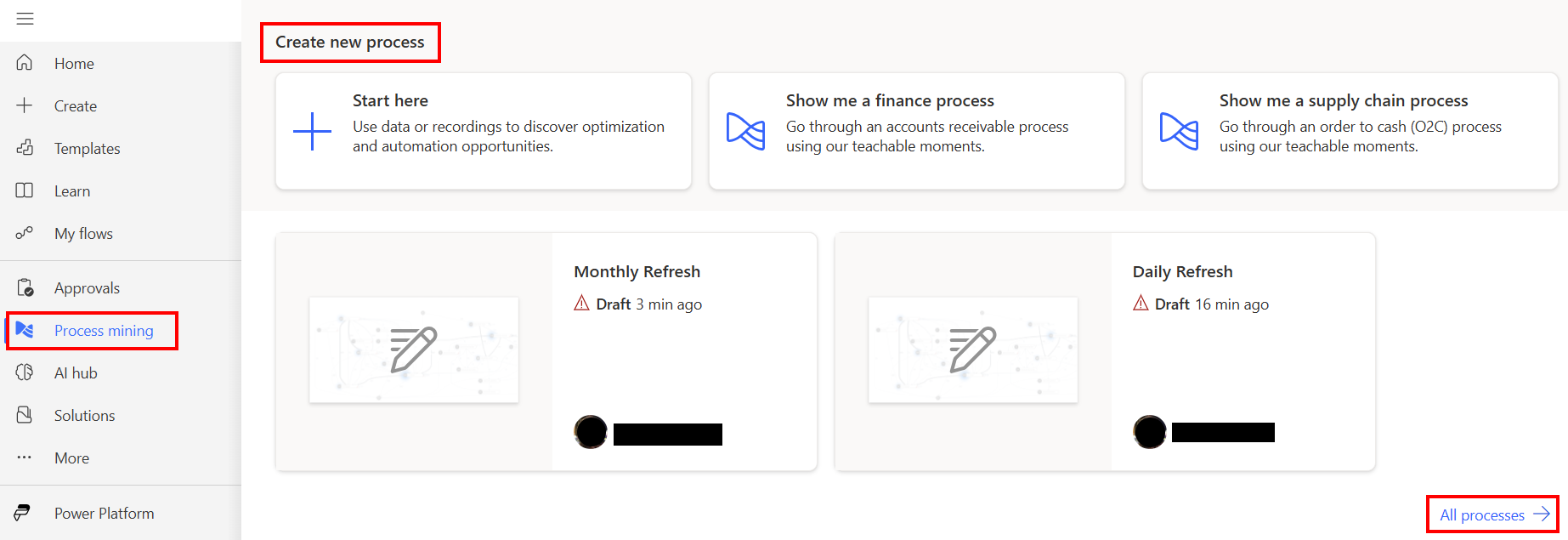
Navigate to your process in Power Automate Process Mining:
Sign in to Power Automate.
On the navigation to the left, select Process mining.
Under Create new process, select your process.
If your process doesn't appear, select All processes and select a process from the list.
Use Edit layout to customize card arrangements.
Create new tabs for specific analytical scenarios.
Apply filters to focus on particular process segments.