Note
Access to this page requires authorization. You can try signing in or changing directories.
Access to this page requires authorization. You can try changing directories.
Applies to: ✅ Power BI service
Power BI is updating how it sends subscription emails to improve reliability. When emails are sent through the subscription owner's Exchange Online mailbox, recipients see the owner's address as the sender. Recipient replies and some out-of-office responses can arrive in that mailbox, and sent messages use mailbox storage.
Your subscriptions move automatically, and your existing settings stay the same. You don't need to recreate subscriptions or change their schedules or recipients. Use this article to prepare your mailbox, mail rules, and any processes that handle subscription emails. For other subscription issues, see Troubleshoot email subscriptions for Power BI reports and dashboards.
What changes
During the migration, subscriptions in the same organization might temporarily use different delivery methods. You might notice a different sender address, changes to how emails and notifications look, and changes to the formatting of Copilot-generated summaries.
For Power BI report subscriptions sent through the updated platform, the report snapshot appears only in the email body, not as a separate PNG attachment. The previous delivery method included the snapshot both in the email body and as a separate PNG attachment. An automated workflow that expects the separate PNG attachment can fail even when the subscription email arrives. You can still include PDF or PowerPoint attachments of the full report and export attachments for paginated reports.
If you use a process that saves or reads the attached PNG, update it to handle snapshots that appear only in the email body. During the migration, it also needs to handle emails from the previous delivery method. Recreating a subscription doesn't restore the separate PNG attachment on the updated platform.
How to recognize a subscription selected for migration
In the Subscriptions pane, an information icon can show that a subscription is selected for migration or uses the updated delivery method. The migration banner and the icon's tooltip also explain the sender change.
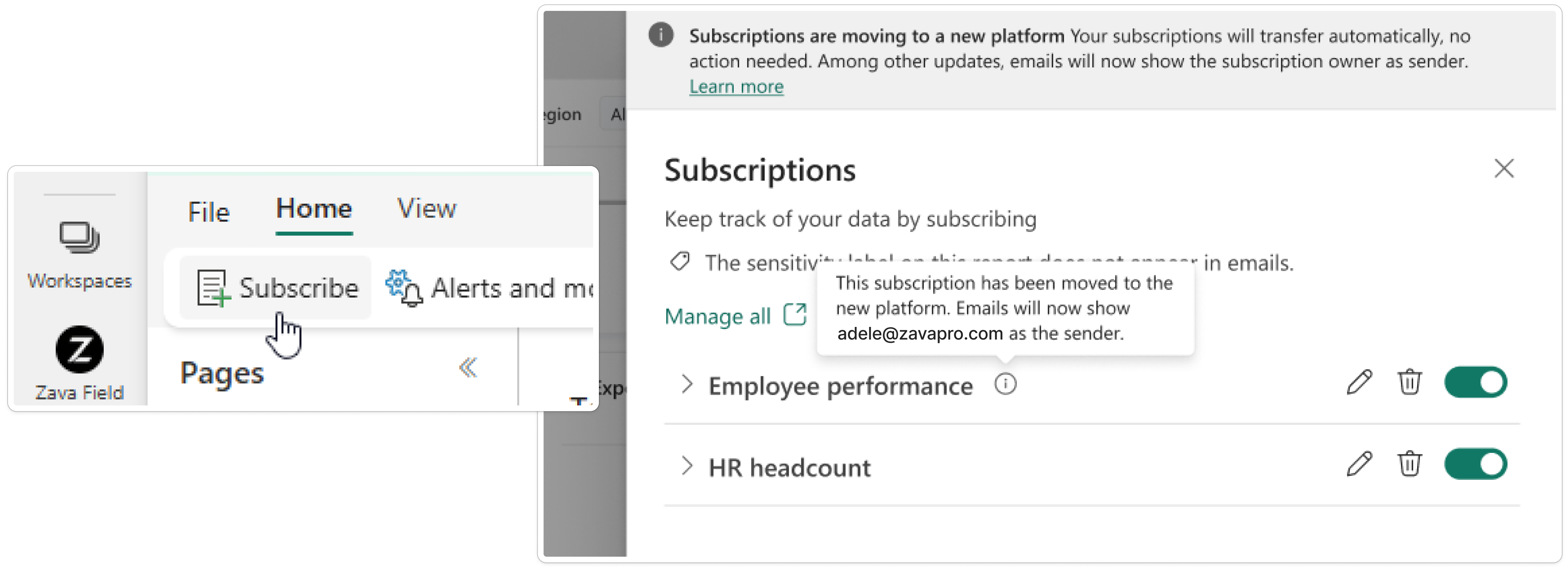
The icon shows the subscription's migration status, but it doesn't mean that every email from that subscription uses the updated platform. To see which method sent an email you received, check its sender address as described in the next section.
Who subscription emails come from
Check the sender address on each email you receive:
- When the updated delivery method sends from the subscription owner's mailbox in Exchange Online, the owner appears as the sender, for example,
adele_b@zava.com. - For owners whose mailboxes are hosted on an on-premises Exchange server rather than in Exchange Online, the updated delivery method uses a service address, such as
no-reply@powerbi.mail.microsoft, instead of the owner's mailbox. - An email from
no-reply-powerbi@microsoft.comcan come from a subscription that hasn't moved to the updated method yet, or it can use the previous delivery method as a fallback.
For owners with on-premises mailboxes, Power BI uses a service address automatically. You can't select it as a sender option. These emails still use the updated platform, not the previous delivery method.
Power BI can use the previous delivery method when the updated method is unavailable, can't send an email, or isn't eligible to send it. If emails are missing, follow the troubleshooting steps even though Power BI can sometimes use the previous delivery method.
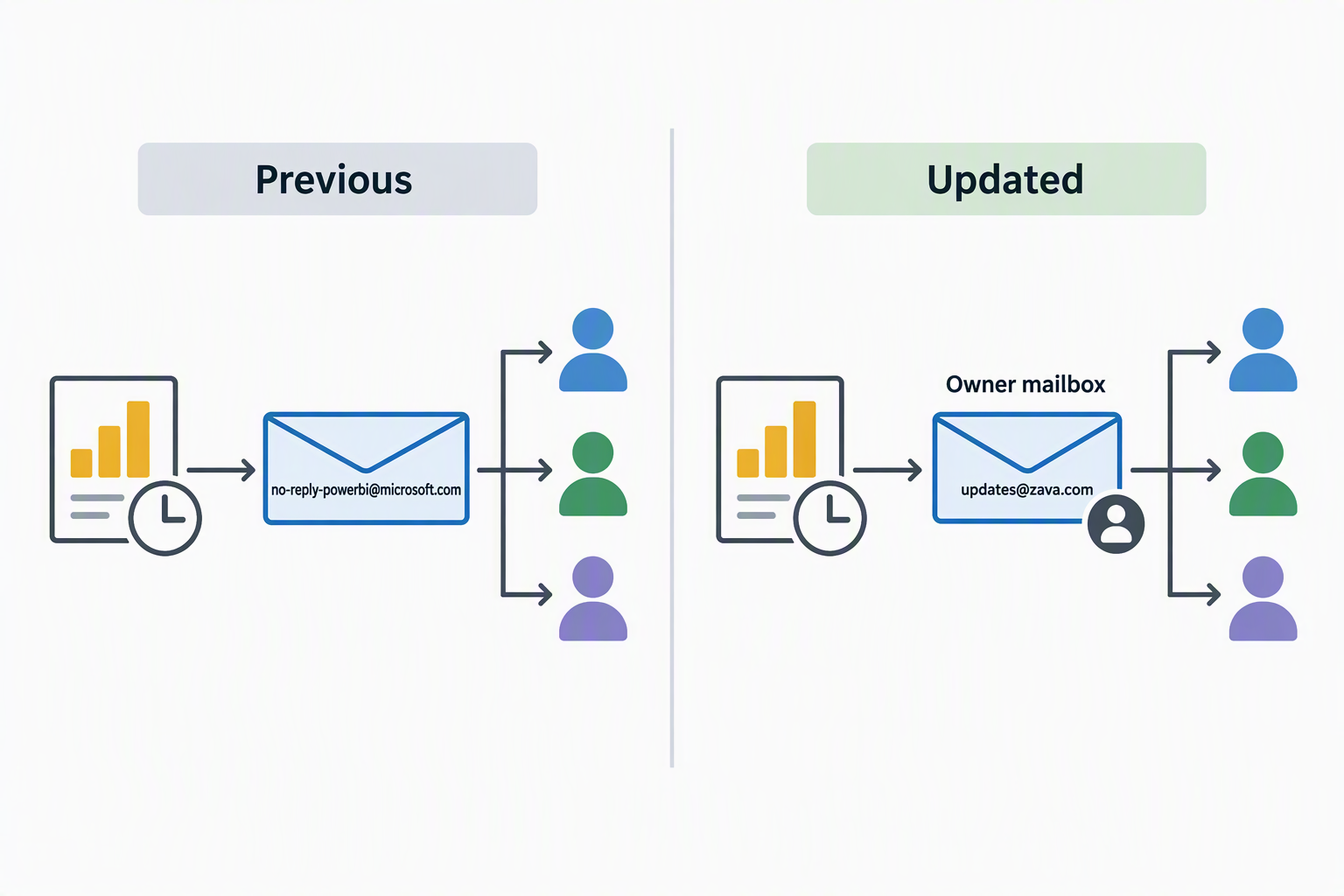
This comparison shows the owner Exchange Online mailbox sending route, with updates@zava.com as a fictional subscription owner. The updated platform also uses a service address for owners with on-premises mailboxes, and the previous sender can still appear during migration or fallback.
Why owners receive copies when Power BI uses a service address
When the updated method uses the service address for an owner with an on-premises mailbox, Power BI includes the owner in Cc so they know an email was sent on their behalf. This copy replaces the record that would appear in the owner's Sent Items if the email were sent from their mailbox.
For this sending path, Power BI addresses each subscription email to one recipient, so the owner receives a separate copy for each recipient. If the owner is also a recipient, they receive their own subscription email plus copies of the other recipients' emails. More recipients mean more copies for the owner.
These owner copies are required for this sending method. To organize them, the owner can create a mailbox rule that moves subscription messages with their address in Cc to a folder they choose. Moving messages to another folder in the same mailbox doesn't reduce mailbox storage.
What subscription owners and recipients need to do
Before and during the migration, check who sends your subscriptions, who reads replies, and whether any processes depend on the sender address or attached PNG. Continue to manage subscriptions as usual.
Review sender identity and ownership
When subscription emails are sent from your Exchange Online mailbox, recipients see your email address as the sender. Their replies, including some out-of-office responses, can arrive in that mailbox, and the messages you send are saved in Sent Items.
Check who owns your subscriptions and who looks after that mailbox. If you manage subscriptions for a large audience, plan who will monitor replies and how you'll manage mailbox storage. Consider whether the current subscription owner is the right account for that responsibility. Let recipients know whose address they should expect to see.
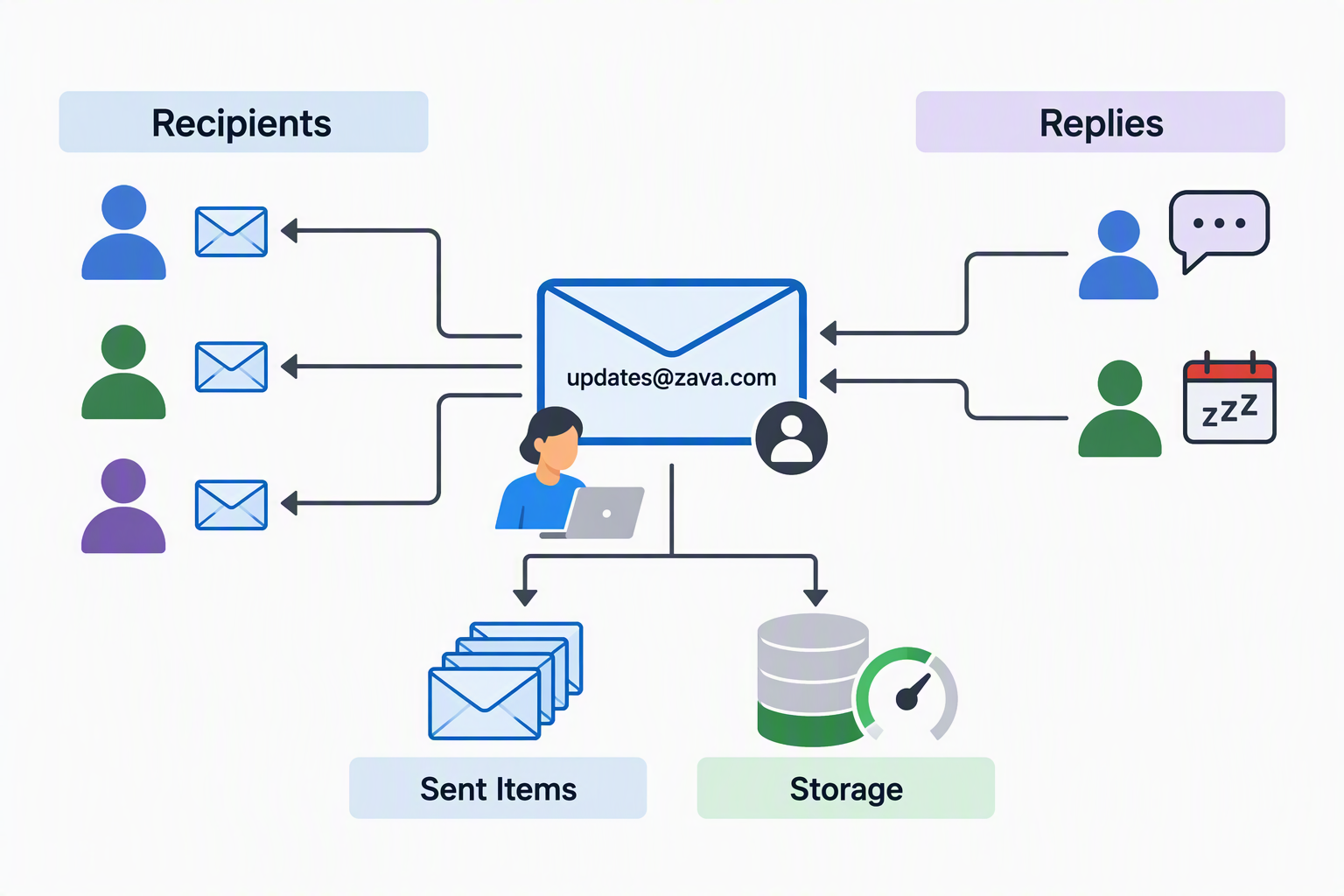
For high-volume subscriptions sent from an owner's Exchange Online mailbox, plan who monitors recipient replies and any automatic responses, and how Sent Items and mailbox storage are managed. The fictional address updates@zava.com represents the subscription owner, not a configurable From address. Automatic responses depend on recipients' mail systems and configuration.
If ownership needs to change, use the supported workspace administrator subscription management process. Users assigned the Admin role in a workspace can take over subscriptions in that workspace. Only the user who created subscriptions can manage subscriptions for reports and dashboards in an app or those hosted in My workspace. Review the subscription requirements before planning an ownership change.
Review mail rules and automatic replies
If your organization uses inbox rules, safe sender settings, or other mail processing rules, make sure they allow emails from the subscription owner, no-reply@powerbi.mail.microsoft, and no-reply-powerbi@microsoft.com during the migration. Keep existing rules that allow the previous sender because Power BI can still use it for fallback delivery.
Work with your Exchange administrator on approved inbox rules to organize recipient replies and out-of-office (OOF) messages that arrive in the sender mailbox. Ensure the person who monitors replies knows where to find them.
Also review the owner's automatic-reply and forwarding rules with your Exchange administrator, especially if the mailbox is also used for personal correspondence. For details about how Exchange handles automatic replies, see Understand and troubleshoot Out of Office replies.
Check delivery during the change
Check received emails against the three sender patterns and confirm that your mail rules and automated processes handle the messages. If an email arrives but a process fails, check whether it expects the removed separate PNG attachment.
Sender identity alone doesn't prove that an email is legitimate. If an email is unexpected, confirm the subscription with its owner or your Power BI administrator and follow your organization's email-security guidance.
For emails sent from your Exchange Online mailbox, check its storage regularly. The following section explains how to prevent a full mailbox from stopping those sends.
Manage sender mailbox storage
When the updated delivery method sends subscription emails from the owner's Exchange Online mailbox, a full mailbox prevents subscription emails from being sent from that mailbox. This condition applies to the owner mailbox sending path, not to the service address used for owners with on-premises Exchange mailboxes.
Messages sent from the owner's mailbox are saved in Sent Items and count toward mailbox storage. Attachments increase the storage used by those messages. If your organization uses one account, such as adele_b@zava.com, to create subscriptions for many reports, dashboards, or other items and many recipients, subscription messages can fill that account's mailbox.
Monitor storage for these sender mailboxes before they fill up. Work with your Exchange administrator to decide how long sent messages need to be kept and which supported archiving, deletion, or cleanup rules or jobs meet your organization's retention and security policies. For example, an Exchange archive policy can move eligible messages to a separate archive mailbox. Moving messages to another folder in the same mailbox only organizes them; it doesn't free mailbox storage.
Your Exchange administrator manages these settings. Power BI doesn't automatically clean up the mailbox. For details, see Exchange Online mailbox storage limits and Retention tags and retention policies in Exchange Online.
What tenant administrators need to review
Most tenant administrators don't need to change subscription settings. Review the following items with the people who manage email in your organization:
- Mail processing and routing rules.
- Allow lists and inbox rules.
- Safe sender settings.
- Mailbox storage alerts and supported archive, deletion, or cleanup processes, especially for accounts that manage many subscriptions.
- Processes that check the sender address or save a separate report snapshot PNG attachment.
- Other processes that assume every Power BI subscription email comes from
no-reply-powerbi@microsoft.com.
Check that these rules handle all three sender patterns, including the previous sender used for fallback.
If messages are missing or delayed, review spam filtering and mail-processing rules for all three sender patterns. For other causes, see missing subscription emails and delayed subscriptions.
A required service principal is disabled
A disabled service principal for a required enterprise application in your Microsoft Entra tenant can block the updated email delivery method. If your administrator or Microsoft support finds error AADSTS500014, Microsoft Entra ID can't issue tokens for the resource named in the error because its service principal is disabled. This error isn't the same as a disabled Power BI subscription or an email blocked by an inbox rule.
Ask your Microsoft Entra administrator to investigate:
- Identify the exact resource and affected enterprise application from the authentication error or sign-in logs. Don't enable unrelated applications.
- Review why the service principal is disabled and whether restoring access is appropriate under your organization's security policies. A disabled service principal isn't the same as a missing service principal or a Conditional Access block. See Microsoft Entra authentication error codes.
- If the administrator confirms that tenant-local sign-in was disabled and should be restored, follow Restore tenant-local sign-in for that application. This setting doesn't override a disabled app registration or disablement by Microsoft.
If the application is missing, the cause is unclear, or the error continues, use the support ticket link in the next section. Include the error code, failure time, tenant ID, resource identifier, and correlation ID, when available. Recreating the Power BI subscription doesn't resolve a tenant authentication block.
When to contact support
If emails are still blocked, routed incorrectly, or disrupting an automated workflow after you check all three sender patterns and update workflows to handle snapshots in the email body, contact your Power BI administrator or IT help desk. If the issue continues, create a support ticket. Include the subscription name, expected delivery time, sender address, affected recipients, and relevant mail routing details. Don't rely on the sender address alone to determine whether an email is legitimate.
Preparation and review checklist
Start with For everyone, then read the column for the subscription owner's mailbox location, not the recipients'. A hyphen (-) means no extra steps beyond For everyone. Follow the topic links for details.
| Consideration | For everyone | Exchange Online mailbox owners | On-premises mailbox owners |
|---|---|---|---|
| Existing subscriptions | Keep your subscriptions and settings. They move automatically. | - | - |
| Who sends the email? | Check each email, not just the migration icon. Fallback isn't guaranteed. | Expect your address when Power BI sends through your mailbox. | Power BI automatically uses a service address on the updated platform. |
| Who owns the subscriptions? | Check ownership and supported takeover options before making changes. | Decide who looks after the mailbox recipients see. | Decide who monitors the owner's email copies. |
| Mail rules and security | Review all three sender patterns without weakening email-security checks. | Include your address in the review. | Include the service address in the review. |
| Report images and attachments | Update processes that expect a separate PNG. Supported full-report and paginated export attachments remain available. | - | - |
| Who receives replies? | Review inbox, automatic-reply, and forwarding rules with your administrator. | Decide who reads replies and any out-of-office responses. | Review rules that organize the owner's received copies. |
| Copies for the owner | Check how owner copies work for your sending method. | - | Plan for a required Cc copy of each recipient's email. |
| Mailbox space | Agree on retention and cleanup. Moving mail between folders doesn't free space. | Watch Sent Items and available space. A full mailbox blocks sends from it. | Include received owner copies when planning mailbox space. |
| Missing or delayed emails | Check received mail, routing rules, and automated processes. | Check the sender mailbox's available space too. | Check where owner copies arrive. |
| Authentication errors | If logs show AADSTS500014, ask your Entra administrator to investigate before changing application settings. |
- | - |
| Get help | Share the subscription, sender, expected time, affected recipients, and relevant routing or authentication details. | Include what you found in the sender mailbox. | Include what you found about service-sender emails and owner copies. |