Note
Access to this page requires authorization. You can try signing in or changing directories.
Access to this page requires authorization. You can try changing directories.
APPLIES TO:  Power BI Desktop
  Power BI service
Goals in Power BI let you curate your goals and track them against key business objectives in a single pane. Subgoals make scorecards more readable by collecting related goals together under a single parent goal. You can expand and collapse the parent goal. Subgoals can either be standalone values, unrelated to the parent value, or they can roll up to the parent value. For more information, see rollups later in this article.
Create a subgoal
You can define one or more subgoals for a goal. Like their parent goals, subgoals can be either connected or set manually. Use one of the following methods to create a subgoal.
Open a scorecard.
Create a subgoal by using one of these methods:
Select the goal you want to create a subgoal for, and then select New > Add subgoal.

Hover over the goal you want to create a subgoal for, and then select More options (...) > New subgoal.

Repeat the previous step as needed to create more subgoals.
For more information about creating manual or connected goals, see:
Create subgoals that roll up to the goal
You can also create rollup subgoals, whose values automatically aggregate up to a parent goal. These aggregations recalculate anytime the subgoal values change and capture the history. Rollups are a great way to keep a parent goal up to date without a report connection. Rollups work when subgoals are manual or connected, so you can always roll up whatever the current value is, regardless of where it's coming from.
Create rollup subgoals
Create rollup subgoals from within the edit mode of the parent goal.
Select the pencil icon to enter inline editing of a goal.

Next to the Current value and Final target fields, select Use subgoals.

Choose the aggregation type for your subgoal values:
- SUM: A sum of the subgoal values
- AVERAGE: An average of the subgoal values
- MIN: Reflects the lowest subgoal value
- MAX: Reflects the largest subgoal value
The option you choose automatically calculates the appropriate value and shows it in the Current value or Final target field. You can set up different rollup aggregation types on the current and target value for maximum flexibility.
Preserve historical values
When you switch a goal type from connected to rollup, you might want to preserve historical values.
In Edit mode for the scorecard, select More options (...) > See details next to the goal.
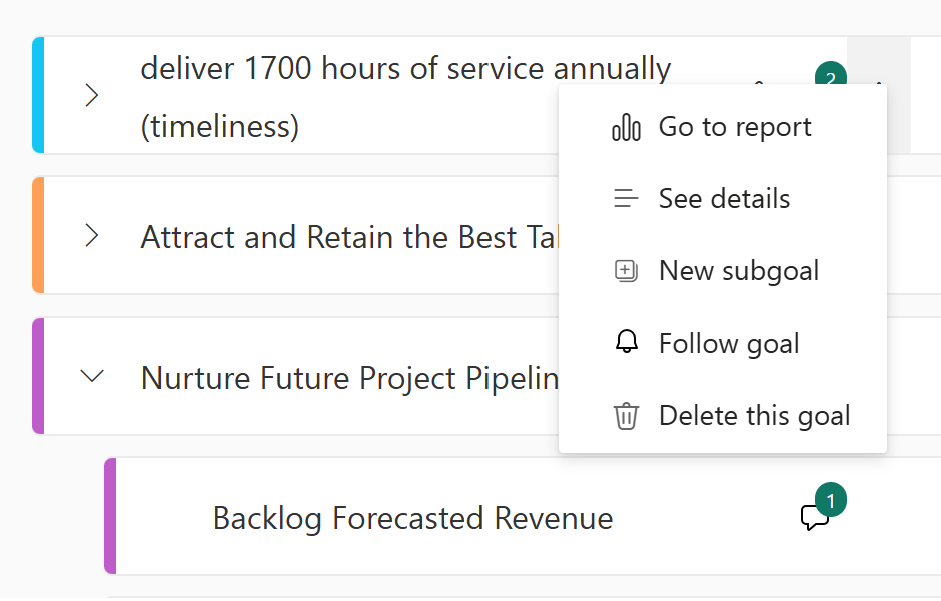
On the Connections tab, turn off the toggle labeled Clear goal values when connecting to a new report.

Rollup considerations
- Rollups take place from the day you set them up moving forward. In most scenarios, they don't remove, recalculate, or override historical data with retroactive rollup values.
- If the person creating the rollup isn't the goal connection owner, connected historical data is deleted. To preserve the history, ensure that the goal connection owner is the same person as the rollup creator.
- If a scorecard author changes a goal from a rollup to a connected goal and they bring in the history via report connection, the report history overrides historical rollup values.
- New rollup types calculate with the new aggregation moving forward but don't replace the history.
- Rollups always show the same aggregation value of all subgoals, regardless of goal level permissions. If a person only has view access to three out of five subgoals, they still see the same parent goal value as someone who has access to all subgoals.
Related content
- Get started with goals in Power BI
- Create scorecards and manual goals in Power BI
- Create connected goals in Power BI
More questions? Try the Power BI Community.