Note
Access to this page requires authorization. You can try signing in or changing directories.
Access to this page requires authorization. You can try changing directories.
With Power Automate, you can automate the export and distribution of Power BI paginated reports to supported formats and scenarios. In this article, you learn which templates you can use to build your own flows to export your paginated reports.
Power Automate is a no-code way to interact with the Export To File API in the user interface. See the connector reference article for the Power BI REST API to start interacting with the API directly.
Prerequisites
To follow along, make sure you have:
- At least one workspace in your Power BI tenant backed by a Premium capacity (also known as reserved capacity). This capacity can be any of the A4–A6 or P1/F2 and above SKU. Read more about Premium capacities.
- Access to the standard connectors in Power Automate, which come with any Microsoft 365 subscription.
Note
You can also follow along if you have a Power BI Premium Per User (PPU) license but you're limited to one export within a five-minute window.
Create a flow from a template
Go to flow.microsoft.com and sign in to Power Automate.
Select Templates, and search for paginated reports.
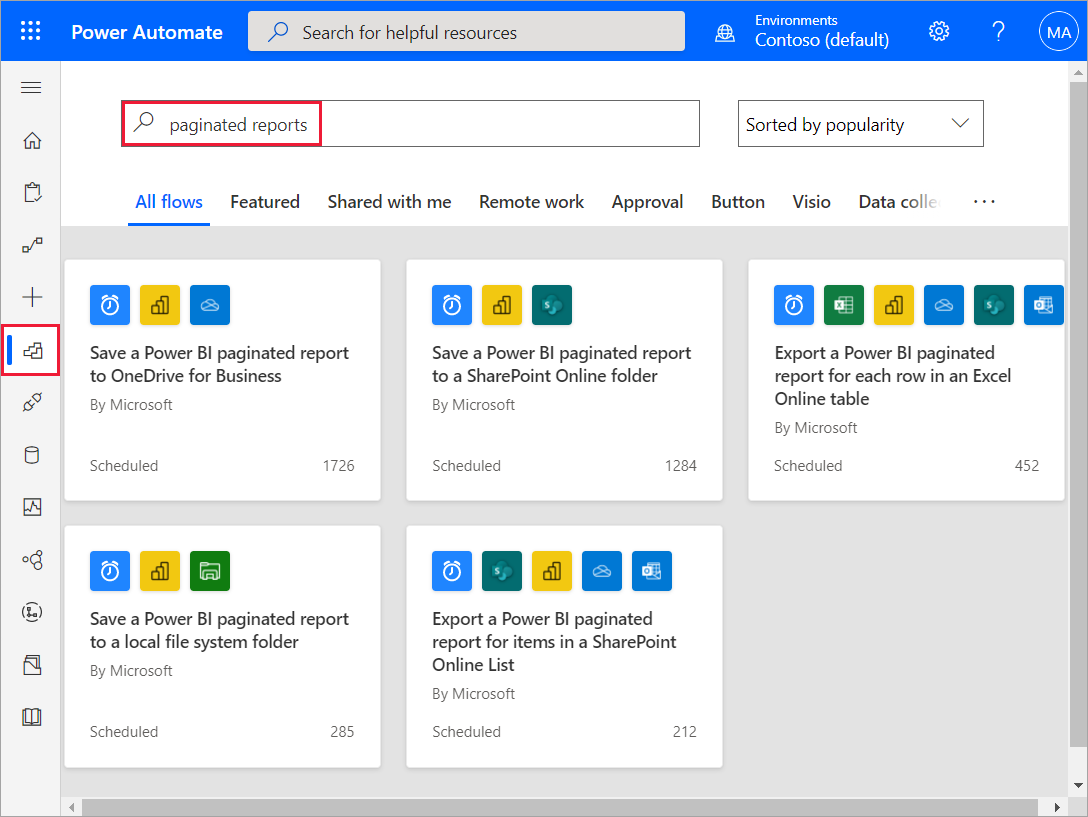
Select a template
Select a template from the following list to start the step-by-step walkthrough.
- Save a Power BI paginated report to OneDrive for work or school or a SharePoint Online folder.
- Export a Power BI paginated report for items in a SharePoint Online List, or for each row in an Excel Online table.
- Save a Power BI paginated report to a local system folder.
Implement custom retry logic
When you use the Export to File API to export paginated reports through Power Automate - especially at scale, such as looping over many reports or parameter sets - a few simple habits go a long way toward building reliable, resilient flows. The guidance in this section helps your flows handle the occasional hiccup gracefully.
Every now and then, a report export briefly can't reach its underlying data source. This condition is normal and temporary in any cloud service. In most cases, a later attempt simply succeeds. By default, the export action uses an exponential retry policy, where the number of retries is based on your performance profile. For paginated report exports, this default often isn't enough on its own. The service can take a little while to recover, and the default attempts happen too close together to give it that time. For that reason, configure a longer retry policy:
- Fixed interval - Use a fixed interval policy with a count of 5 and an interval of PT5M (5 minutes). The wider spacing gives the service enough time to recover, so the next attempt is far more likely to succeed, or
- Exponential backoff - Use a count of at least 5, with a minimum interval of PT30S and a maximum interval of at least PT5M. This spacing keeps attempts far enough apart to be effective.
Note
Retries help with temporary failures only. If the same report fails every time, even after retrying, the cause is usually something specific to that report - such as an incorrect connection string, or a sign-in or permissions problem. In that case, fixing the underlying report or data source resolves the problem, whereas retrying doesn't.
Considerations and limitations
When you use Power Automate to export a paginated report that takes more than two minutes to download, the export fails due to a Power Automate outbound synchronous request limitation.
Additional notes
- Split very large exports into smaller batches. Reducing the size and memory footprint of each export improves both reliability and performance.
- Review the performance and scalability considerations for Paginated Reports.
- Power BI now supports Dynamic per recipient subscriptions and sending large report subscriptions to OneDrive SharePoint.