Note
Access to this page requires authorization. You can try signing in or changing directories.
Access to this page requires authorization. You can try changing directories.
Power Query Editor in Power BI Desktop lets you connect to one or more data sources, shape and transform the data, and load it into your model. The Export query results feature helps you send this data to an online destination without manually exporting queries. This feature is in Preview and requires some setup.
Turn on the preview feature
To enable this feature:
- Go to File > Options and settings > Options.
- Under GLOBAL options, select Preview Features.
- Check Export Queries from Power Query.
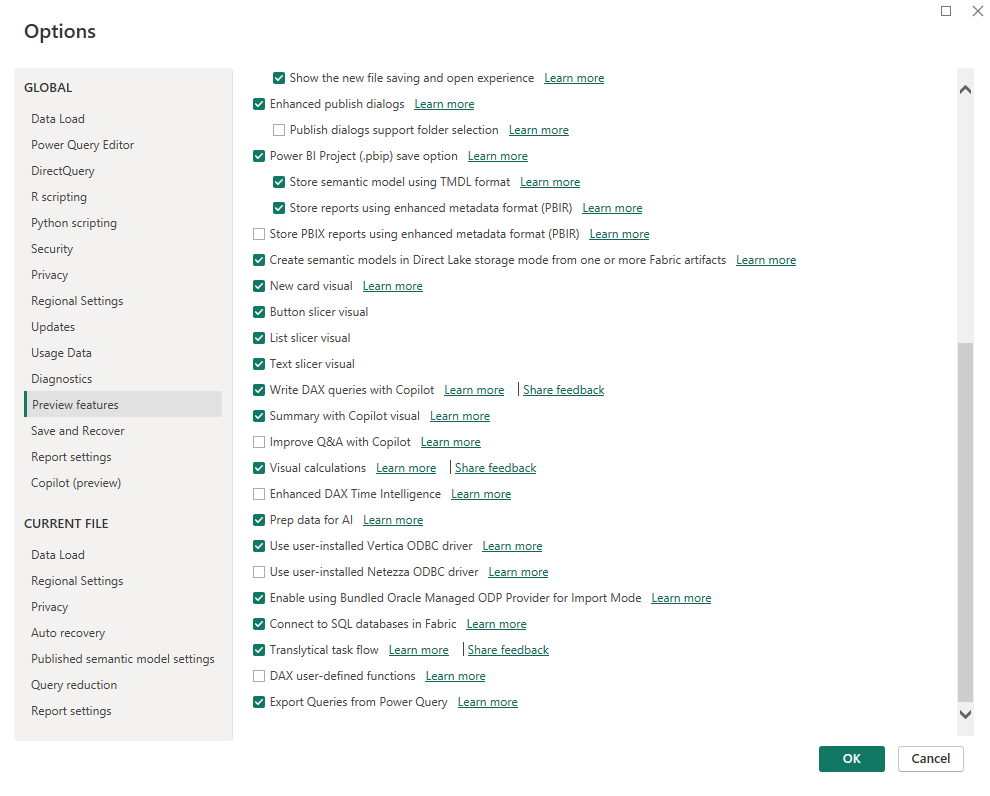
Open the Export query results feature
After enabling the preview:
- Open Power Query Editor from the ribbon (Transform) or the query menu (Edit Query).
- In the ribbon, select Export Query Results.

Check Fabric access
To use this feature:
- You need access to Microsoft Fabric.
- Your My Workspace must be assigned to a Fabric or trial capacity.
If these conditions aren’t met, you’ll see an error message.
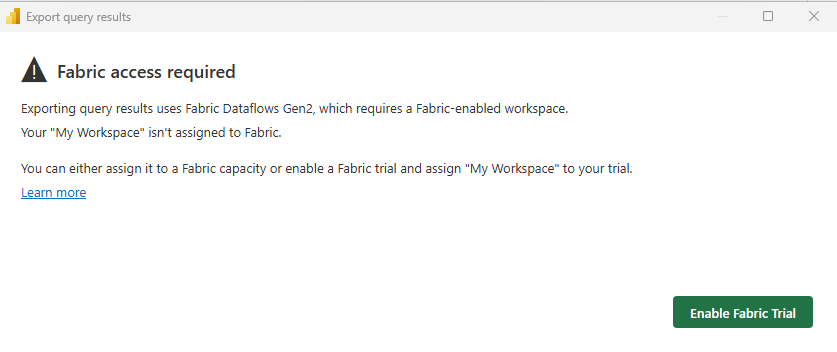
Options:
- Sign up for a Fabric trial and assign your workspace.
- Assign My Workspace to a Fabric capacity in your organization.
If you can’t enable Fabric, contact your Fabric admin.
Select a destination
Once your workspace is assigned to Fabric, choose an online destination:
- Supported destinations match those in Fabric Dataflows.
- You can also pick existing OneLake destinations.
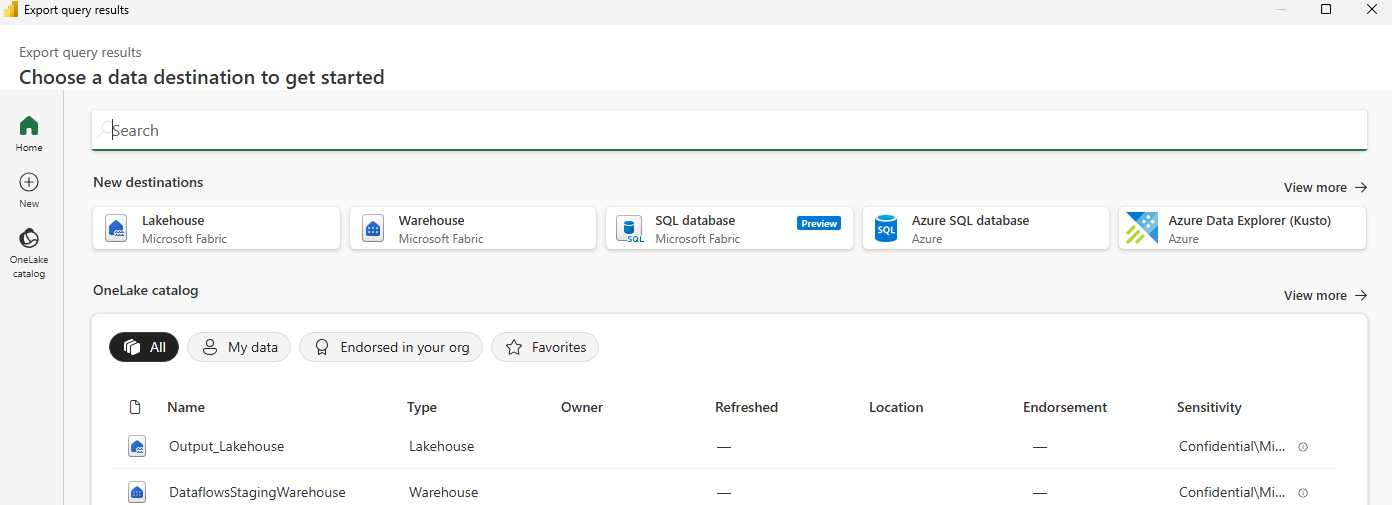
Enter credentials
After selecting a destination:
- Enter your credentials.
- Select Connect, then Choose.
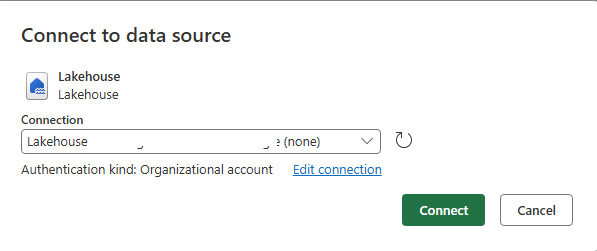
Confirm and export
You see a summary screen:
A Fabric Dataflow Gen2 is created in My Workspace.
You can rename the dataflow but can’t change the workspace yet.
Expand Manage Connections to check or fix query connections.
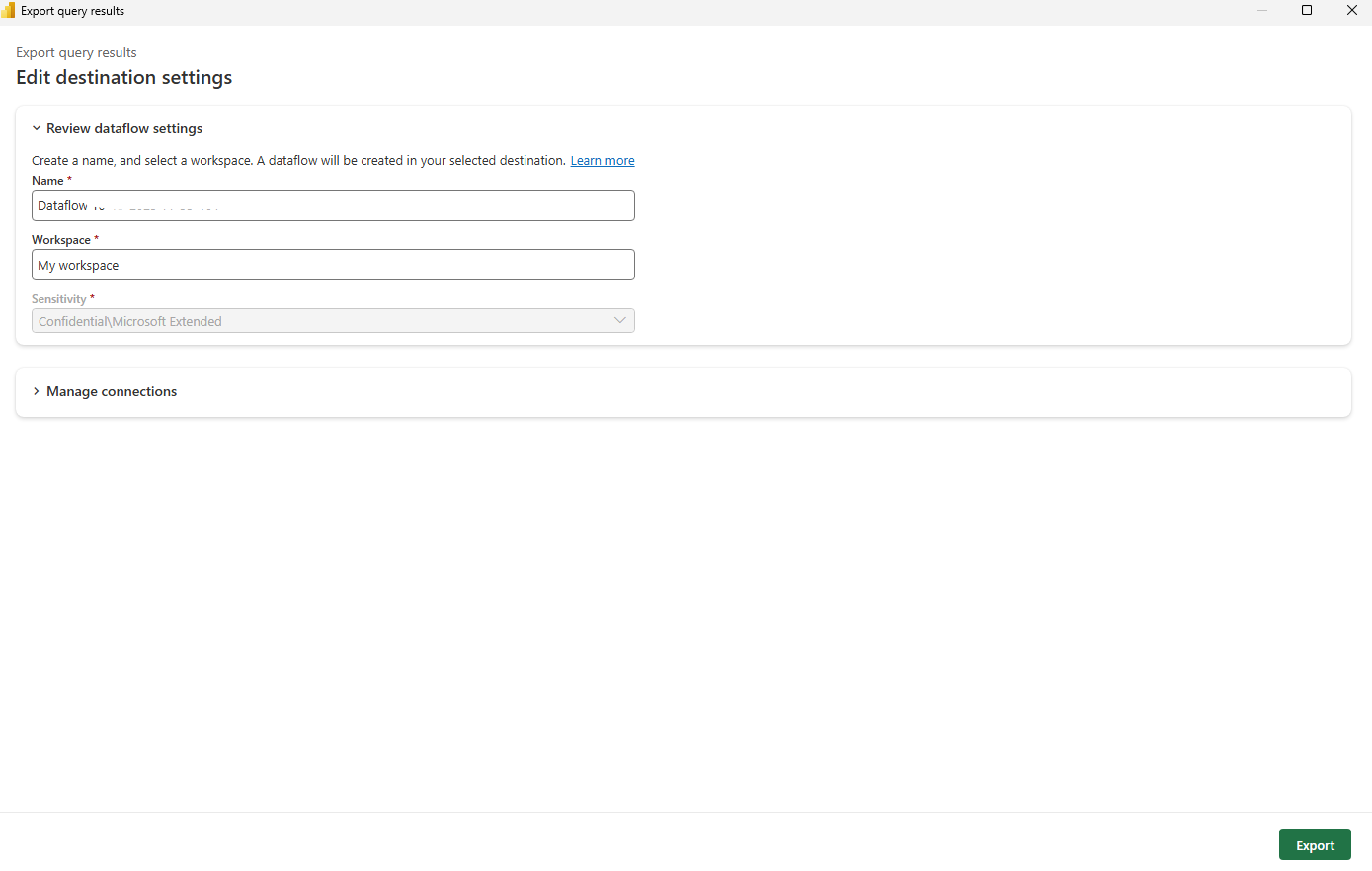
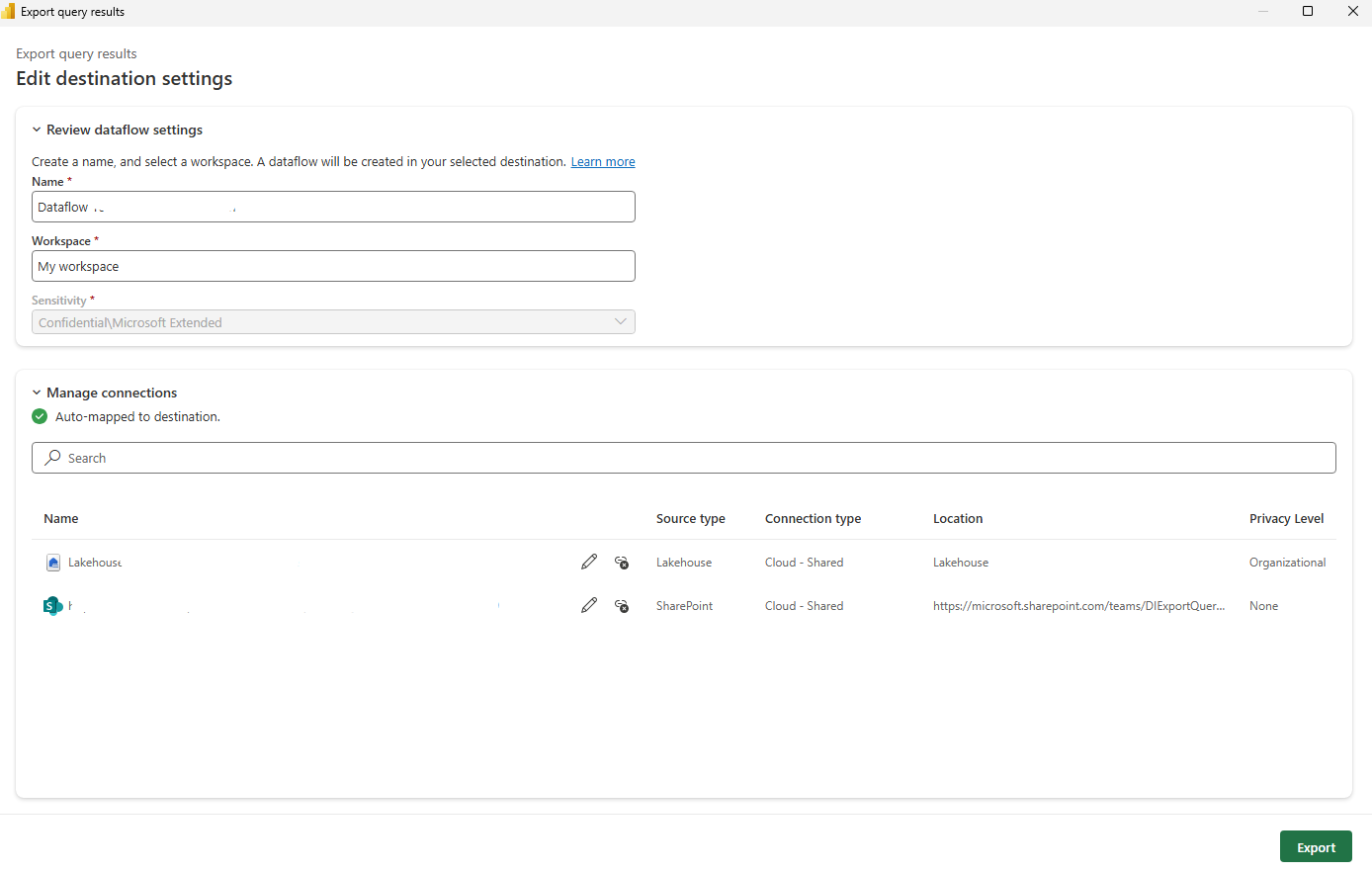
When ready, select Export.
The next screen shows export progress.
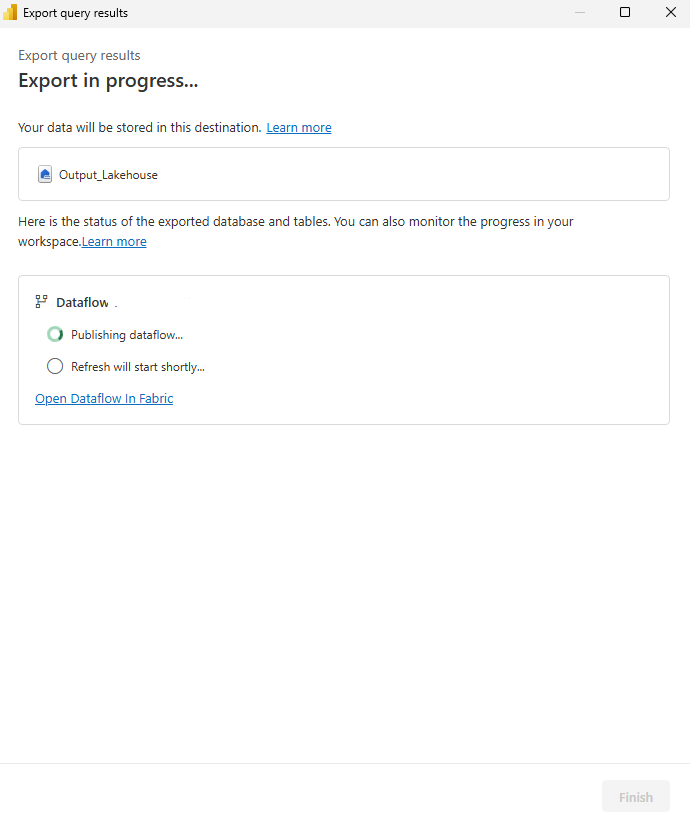
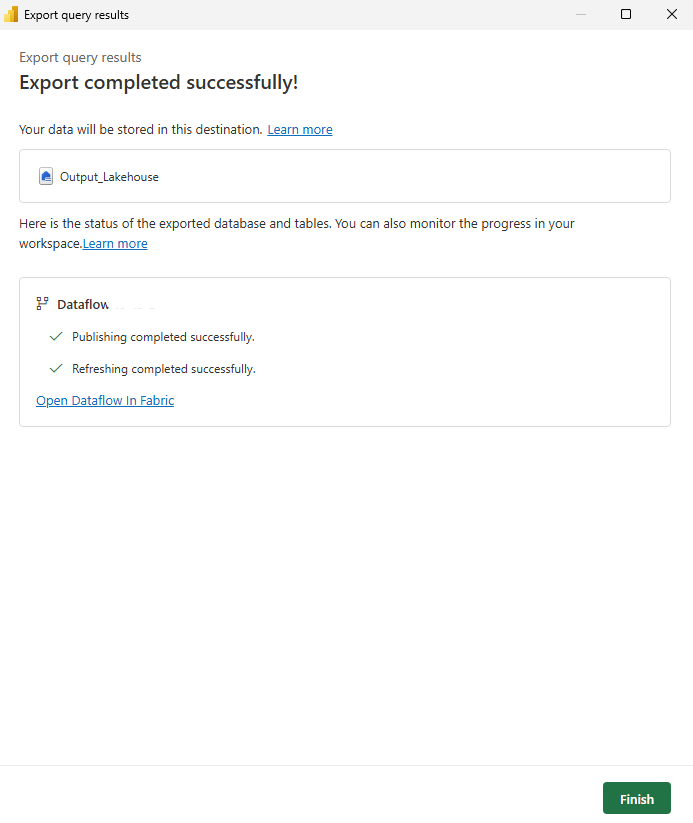
After completion, review your dataflow in Fabric.
If errors occur, open the dataflow in Fabric and run it to debug.
Troubleshooting
Not all errors appear in Power BI Desktop. Validate and fix issues in Fabric. Learn more about running a Fabric Dataflow.
Considerations and limitations
- You must sign in to Microsoft Fabric.
- Dataflows are created in My Workspace, which needs Fabric or trial capacity. Future updates will allow workspace changes.
Related Content
Explore more Power BI Desktop features: