Note
Access to this page requires authorization. You can try signing in or changing directories.
Access to this page requires authorization. You can try changing directories.
Use server-side synchronization to synchronize Exchange Online mailboxes that reside on different Exchange Online tenants. Follow the steps in this article to complete the prerequisites before you set up an Exchange Online server profile that uses OAuth cross-tenant authentication. For more information, see Create an email server profile for Exchange Online.
Note
The following limitations apply to connecting cross-tenant:
- Dynamics 365 App for Outlook isn't supported.
- A global tenant admin or an Exchange admin of the primary tenant must approve Dynamics 365 mailbox records.
Configuration
Sign in to the Azure portal, create the app registration, and then configure the email server profile.
Register your app
Register your app on the Azure portal on the tenant where Exchange Online resides. To create the app registration, follow the steps in Register an application.
Note
You don't need to enter anything for Redirect URI because it's not needed.
When you register your app, note the Application (client) ID and Directory (tenant) ID; you need this information later to configure the email server profile.
Add a client Secret
A client secret is a string value your app uses to identify itself. Dynamics 365 uses it to authenticate to your app.
To create a client secret, follow the steps in Add a client secret. Remember to note the Secret Value, because you need this information later to configure the email server profile.
Add API permissions
To give your app access to Exchange Online, grant the Office 365 Exchange Online API permission.
Select API permissions > Add a permission.
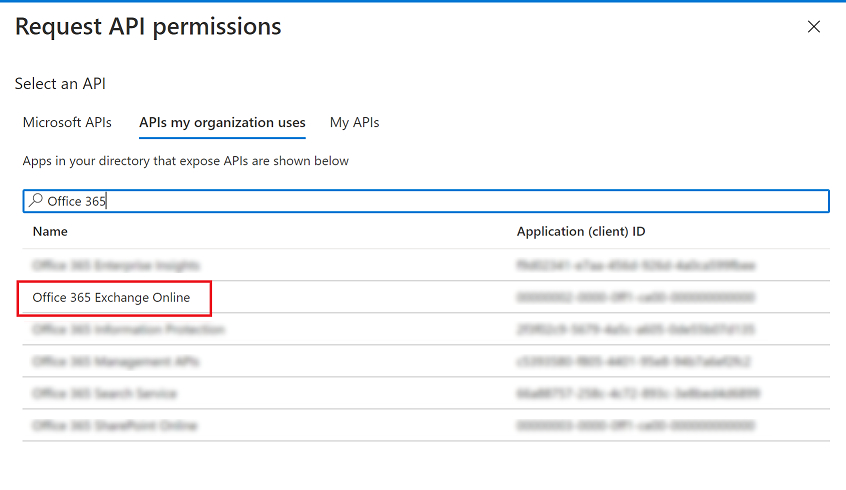
Select the APIs my organization uses tab, and then select Office 365 Exchange Online.
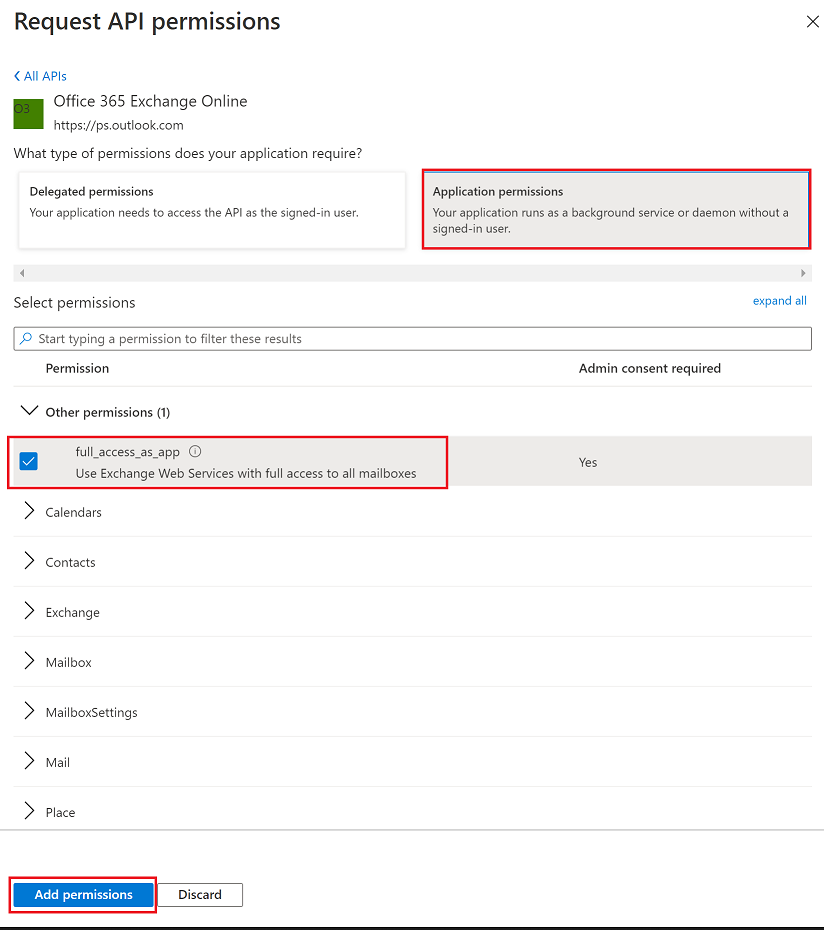
For the type of permissions, select Application permissions, and then select the checkbox for full_access_to_app. When you're done, select Add permissions.
Note
If it doesn't align with your business requirements to have an app with full access on all mailboxes, the Exchange Online admin can scope the mailboxes that the app can access by using an Application Access Policy. Learn more in Scoping application permissions to specific Exchange Online mailboxes.
On the Configured permissions screen, select Grant admin consent for tenant name.
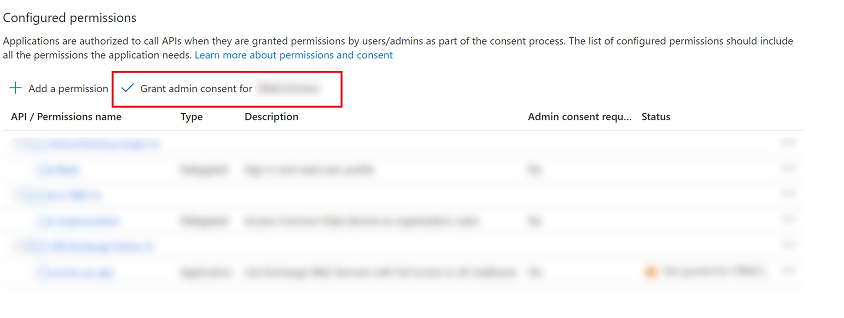
In the confirmation dialog, select Yes.
Allow list the application with Exchange Web Services and configure Graph permissions.
Exchange Online is retiring EWS service in phases. Starting October 2026, only traffic from allowlisted tenants is allowed. EWS service is completely retired by April 2027. Power Platform is transitioning support for cross-tenant email sync functionality from EWS to Graph by April 2027. Customers need to configure the following settings to ensure service continuity and a smooth transition during this phase.
Allow list the tenant with EWS. Follow the instructions.
Configure permissions for Graph API for all applications created for cross-tenant email sync. Some customers have multiple applications configured.
To configure the permissions by using PowerShell, use the Grant-SssGraphApplicationPermissions script. A Global Administrator must run the script.
Or, to configure permissions manually in the Azure portal, do the following:
Select API permissions > Add a permission.
Select Microsoft Graph.
Select Application permissions.
Search for and add the following permissions:
Permission Mail.ReadWriteMail.SendMailboxSettings.ReadWriteCalendars.ReadWriteContacts.ReadWriteTasks.ReadWrite.AllMailboxConfigItem.ReadWriteChat.Read.AllOnlineMeetings.ReadWrite.AllCallRecords.Read.AllOn the Configured permissions page, select Grant admin consent for tenant name.
Email server profile for Exchange Online with authentication type Oauth (cross-tenant)
To create an email server profile for Exchange Online that uses Oauth (cross-tenant) authentication, collect the following information from the Azure portal:
- Tenant ID: The tenant ID of the tenant where Exchange Online is configured
- Application ID: The app ID used by Dynamics 365 to connect to Exchange Online
- Client secret: The client secret value used by Dynamics 365 to authenticate as the app