Note
Access to this page requires authorization. You can try signing in or changing directories.
Access to this page requires authorization. You can try changing directories.
[This article is prerelease documentation and is subject to change.]
Use channel publishing and connected agent access controls to enforce governance for Copilot Studio agents. Set these controls at the environment group or environment level to help you apply consistent security and compliance policies in your organization. Channel access controls determine which channels users can publish to, while connected agent settings determine whether users can connect agents across environments.
This article explains how to configure each setting and how to verify that restrictions are enforced for users.
Important
- This is a preview feature.
- Preview features aren’t meant for production use and might have restricted functionality. These features are subject to supplemental terms of use, and are available before an official release so that customers can get early access and provide feedback.
Configure agent channel access in the Power Platform admin center
Channel admin controls let administrators specify which channels are available for agents created in Copilot Studio. This feature helps enforce organizational publishing policies. You can't add channels through alternative methods, such as code editing, which helps ensure policies are consistently enforced.
To configure channel access:
Sign in to the Power Platform admin center.
On the navigation bar, select Security.
In the Security pane, select Identity and access. The Identity and access management page is displayed.
Select Agent access channels to open the Agent access channels pane.
Select the environment group or environment for which you want to configure channel access rights. Then select Set up at the bottom of the pane.
Select or clear the channel checkbox to grant or limit access to that channel.
Select Save to apply the changes.
Note
To learn more about blocking publishing to specific channels, see Agent access channels. Policies set at the environment group level take precedence over environment-level policies. To configure this setting at the environment level, first disable the environment group policy.
When users in your organization try to authorize an agent for a restricted channel, they receive an on-screen notification about the policy restriction. If a policy change affects a channel where an agent is already published, users see an error message in the channel area that explains the channel is now blocked. Attempts to use that channel then fail at runtime.
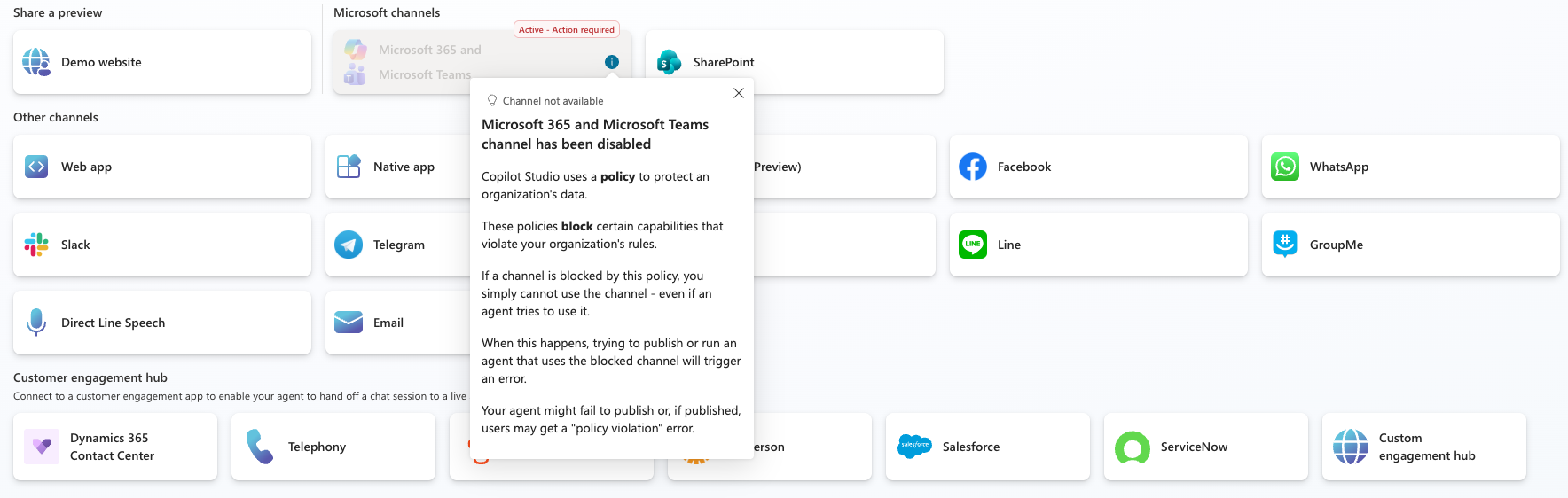
To confirm:
In Copilot Studio, open an agent in an environment where channel access is restricted.
Try configuring a restricted channel. If the channel access setting is enforced, you can't publish to that channel, and the channel appears grayed out.
Configure connected agents for an environment
Connected agents enable agents created in Copilot Studio to connect and interact with other agents across environments. Use this setting to control whether agents in an environment can establish these inter-environment connections.
To configure connected agent access:
Sign in to the Power Platform admin center.
On the sidebar, select Copilot, select Settings, and then locate the Connected Agents Copilot Studio setting for Copilot Studio. The Connected Agents Copilot Studio panel opens with a list of environments where you can apply your connected agent policy.
Select the target environments you want to configure, and then select Edit settings at the bottom of the panel.
A new panel appears with a radio button to toggle Connected Agents on or off. Select Save.
After you save the setting, refresh the Copilot Studio environment where you set the policy, and confirm that the settings apply.
When you disable connected agents for an environment, users can't add or connect another agent. Existing connected agents remain visible but can't be invoked, and users receive an administrator error.
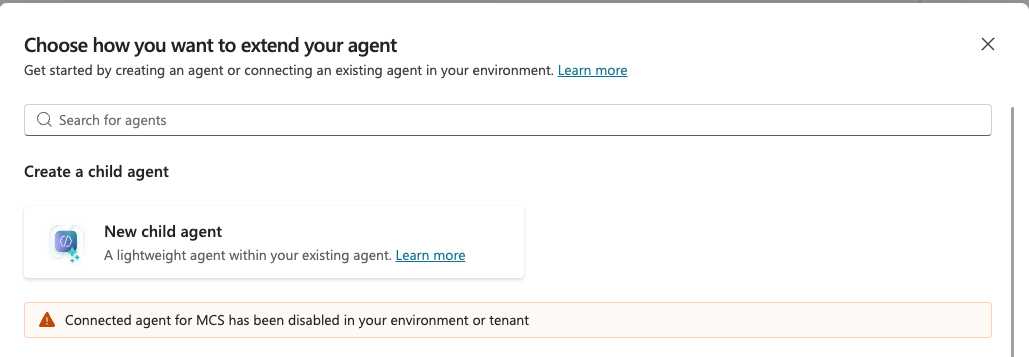
To confirm:
In Copilot Studio, open an agent in an environment where connected agents are disabled.
Go to the Agents tab at the top of the page.
Select Add an agent. A pop-up page appears with agents to connect to.
If the setting is enforced, agent selection is unavailable and options are grayed out. A warning appears on the pop-up: "Connected agents for Microsoft Copilot Studio has been disabled in your environment or tenant."