Note
Access to this page requires authorization. You can try signing in or changing directories.
Access to this page requires authorization. You can try changing directories.
[This section is prerelease documentation and is subject to change.]
Note
This article describes features used in agents or agent flows powered by the standard harness.
On the Overview page, the Agent status summary provides a single view of issues that affect your agent's readiness, publishing, and runtime behavior. It groups issues by severity and shows the status of tools and connectors blocked by data policies or Advanced Connector Policies, so you can quickly scan for governance, security, and readiness signals.
Important
This article contains Microsoft Copilot Studio preview documentation and is subject to change.
Preview features aren't meant for production use and may have restricted functionality. These features are available before an official release so that you can get early access and provide feedback.
If you're building a production-ready agent, see Microsoft Copilot Studio Overview.
The Agent status summary helps you quickly understand:
- Whether an agent has blocking, warning, or no issues
- Which issues apply to draft, published, or both agent states
- Which tools, connectors, or channels are restricted by organization policies
- What action, if any, is required before publishing or using the agent
Note
The Agent status summary doesn't replace admin-level governance or compliance reporting.
Some detailed diagnostics might still be available in other experiences, such as exported reports or admin-focused tools.
How agent status works
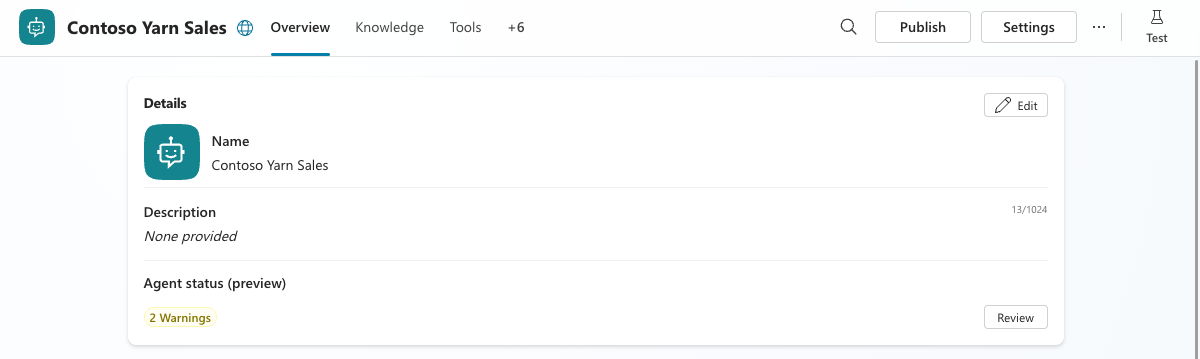
The Agent status summary appears on the overview page for an agent, under the Copilot details card.
The summary displays:
- A count of issues by severity
- A status badge that reflects overall agent readiness
When no blocking or warning issues are present, the agent is marked ready (green).
Severity levels
When you select Review in the Agent status summary, you see agent issues grouped by severity:
| Severity | Description |
|---|---|
| Blocking | Issues that prevent publishing or normal operation of the agent |
| Warning | Issues that don't block the agent but might affect behavior or compliance |
| Info | Advisory messages that don't affect readiness |
Agents with no issues or only informative issues are marked ready (green).
Agent issues
The Agent status table consolidates and categorizes messages that previously appeared across multiple pages. It helps you focus on the highest priority issues first by sorting issues by severity and providing a concise message for each issue.
For blocking-severity issues, Agent status shows the specific admin policy causing the block, helping you understand the root cause. If a resource (such as a knowledge source) was previously allowed but later blocked by a new policy, Agent status indicates which state (draft, published, or both) is affected. This information helps you identify required actions before publishing.
Each issue in the Agent status table is categorized into the following attributes:
| Attribute | Description |
|---|---|
| Severity | The level of the issue affecting the agent: Blocking, Warning, or Info |
| Message | A clear description of the issue |
| State | The state the issue applies to, showing whether it affects the draft agent, the published agent, or both |
| Source | The originating area of the issue; for example, External, Authentication, Models, or Permissions |
| Category | The type of issue and its effect |
| Action | The required action, if one is available, to resolve the issue |
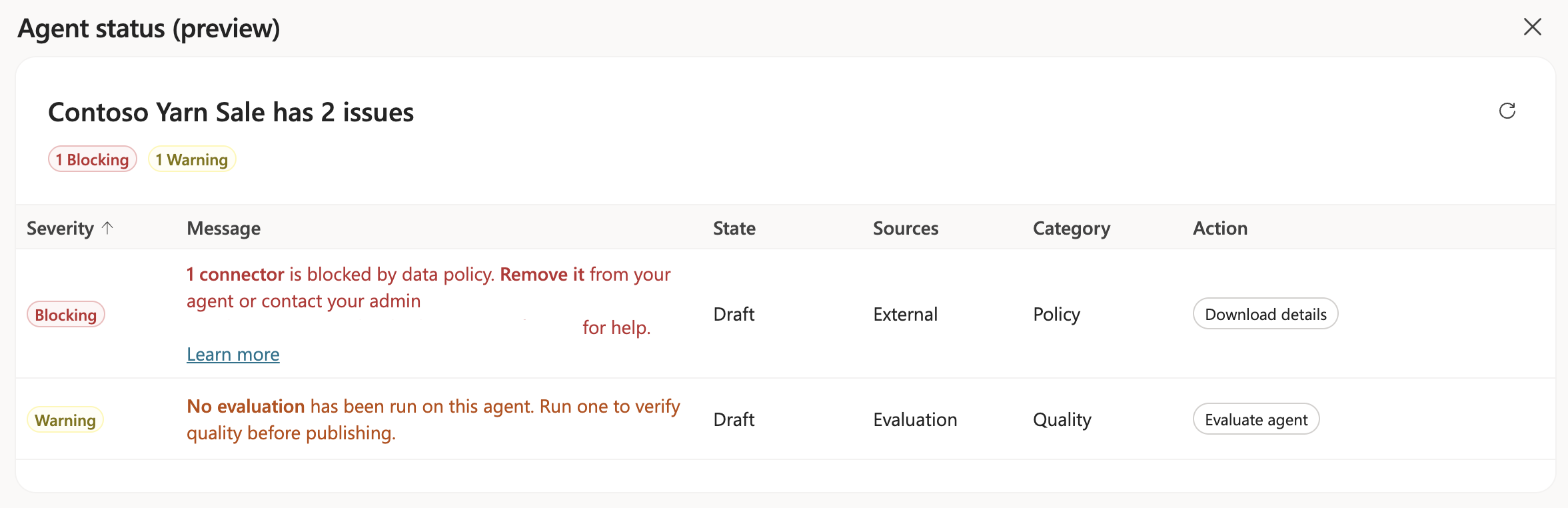
For example, a channel-related governance issue might appear as a single, clear message indicating that a Teams channel is blocked due to organizational policy.
Blocked status
Policy restrictions appear on both the Tools page and the Channels tab.
On the Tools page, tools blocked by policy appear as disabled cards. Users can only select tools that the policy allows. An information icon appears on the disabled card. Select the icon to see why the tool is disabled.
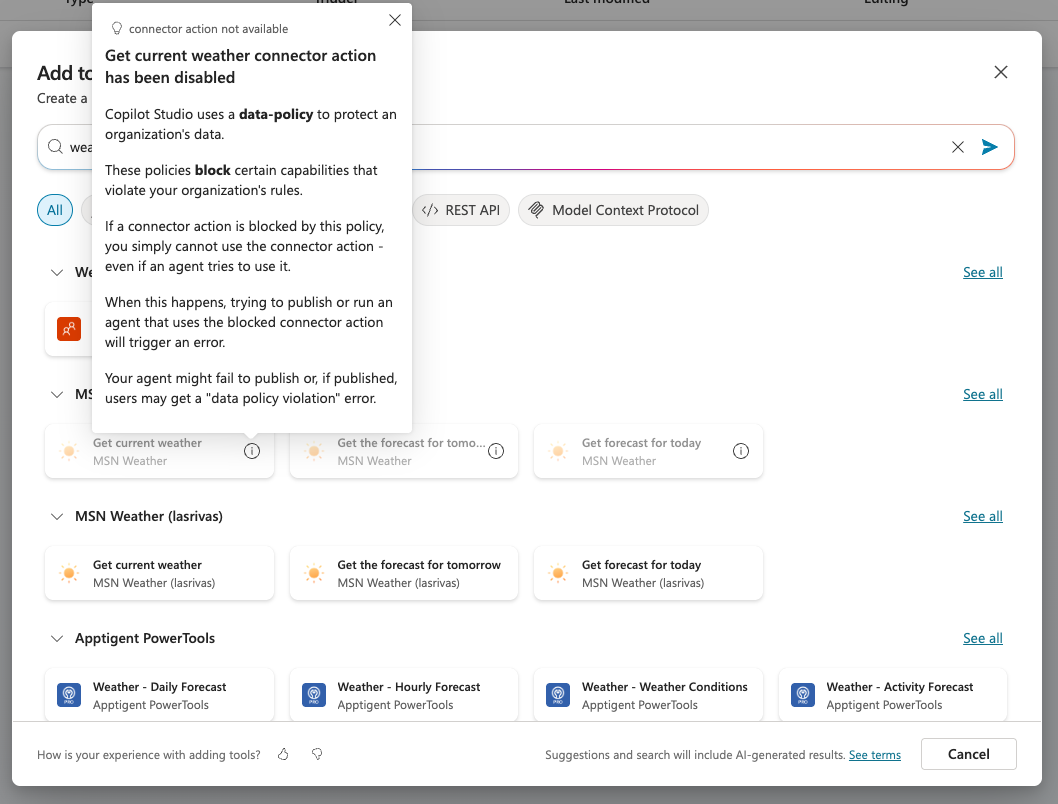
Policies can also block specific connector actions. When a policy blocks some actions for a connector, the portal shows the blocked actions as disabled action cards. Available actions stay enabled, making it clear which actions you can use.
Existing tools and connectors that have policy changes show a blocked status indicator in the Blocked column on the tools table. A blocked status indicator appears directly in the tools or channels panels on the overview page.
To learn how to block publishing to specific tools and connectors, see How to configure a data policy in the Power Platform admin center.
On the Channels tab, channel cards blocked by policy appear grayed out. An information icon appears on the disabled card. Select the icon to see a popover message explaining why the channel is disabled.
Custom guidance message (preview)
As an admin, you can set an environment-level guidance message for users when they encounter a blocked or disabled capability. This plain-text message replaces the default Contact your admin prompt.
Use this custom guidance message to provide organization-specific instructions, such as the rationale behind restrictions, links to guidance and help desk forms, and contact emails. You can configure different messages for different environments and environment groups to tailor guidance by governance zone. For example, you might use one message for sandbox environments and another for production environments.
Note
Custom guidance messages support plain text only and can be up to 400 characters.
You can set custom link text to direct your users. Only HTTPS links are supported for the URL link field. Mailto links and rich content, such as images, videos, and Markdown formatting, aren't supported. Link functionality remains available even if the destination URL is unreachable. Maintain valid links for the best experience.
Important
Custom guidance messages aren't localized. The message appears exactly as configured, regardless of users' language settings.
The environment group message overrides the environment-level message.
To configure a custom guidance message:
Sign in to the Power Platform admin center.
On the sidebar, select Copilot, and then select Settings.
From the Settings menu, under the Copilot Studio section, select Maker guidance. The Maker guidance panel opens.
In the panel, select the environments or environment groups you want to configure a custom guidance message for. Select Edit setting at the bottom of the panel to confirm your choice. A panel for configuring a custom message opens.
Under Agent status, select either or both of the Display guidance messaging when makers select View on Agent status and Display guidance messaging in popovers for blocked items check boxes. These settings determine where the custom guidance message appears.
In the text fields, set your desired message:
In the Your message field, set the custom guidance message.
In the URL name and URL link fields, set the display name for the custom URL and the link URL respectively.
In the Contact email field, enter a contact email address for user inquiries.
Select Save to publish the configuration.
The custom guidance message appears in the affected environments within minutes. If you remove the guidance message, the experience reverts to the default behavior.