Note
Access to this page requires authorization. You can try signing in or changing directories.
Access to this page requires authorization. You can try changing directories.
Note
On February 29, 2024, Azure Data Lake Storage Gen1 was retired. For more information, go to the official announcement. If you use Azure Data Lake Storage Gen1, make sure to migrate to Azure Data Lake Storage Gen2 before that date. To learn how, go to Migrate Azure Data Lake Storage from Gen1 to Gen2.
Unless you already have an Azure Data Lake Storage Gen1 account, you can't create new ones.
Summary
| Item | Description |
|---|---|
| Release State | General Availability |
| Products | Excel Power BI (Semantic models) Analysis Services |
| Authentication Types Supported | Organizational Account |
| Function Reference Documentation | AzureStorage.DataLake AzureStorage.DataLakeContents |
Note
Some capabilities might be present in one product but not others due to deployment schedules and host-specific capabilities.
Prerequisites
An Azure subscription. Go to Get Azure free trial.
An Azure Data Lake Storage Gen1 account. Follow the instructions at Get started with Azure Data Lake Storage Gen1 using the Azure portal. This article assumes that you already created a Data Lake Storage Gen1 account, called myadlsg1, and uploaded a sample data file (Drivers.txt) to it. This sample file is available for download from Azure Data Lake Git Repository.
Capabilities supported
- Import
- Advanced options
- Page size in bytes
Connect to Azure Data Lake Storage Gen1
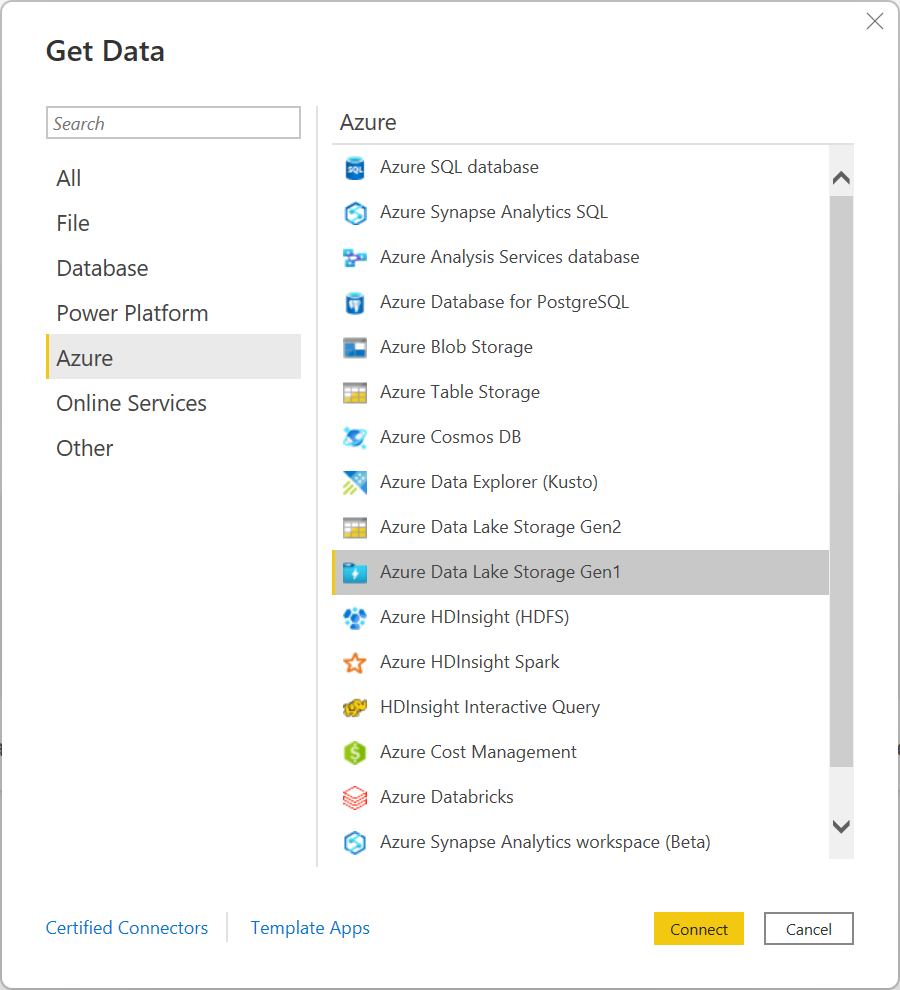
Select the Azure Data Lake Storage Gen1 option in the Get Data selection, and then select Connect. More information: Where to get data
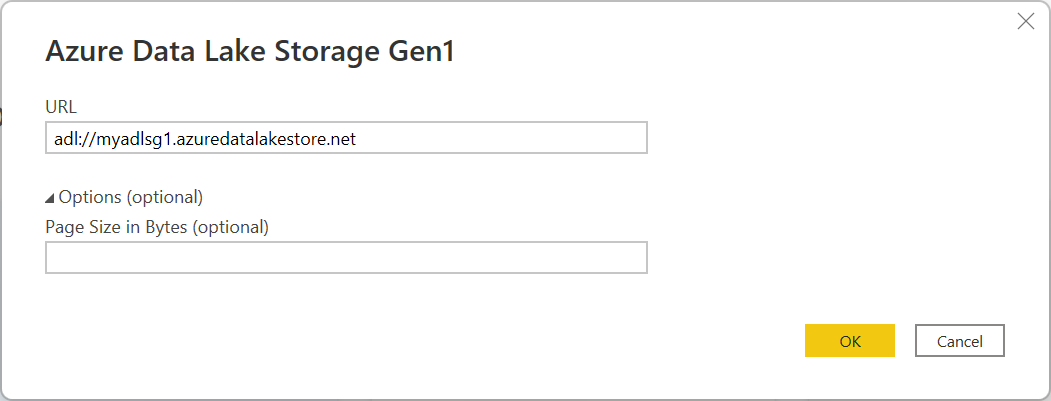
In the Azure Data Lake Store dialog box, provide the URL to your Data Lake Storage Gen1 account. Optionally, enter a value in Page Size in Bytes. Then select OK.
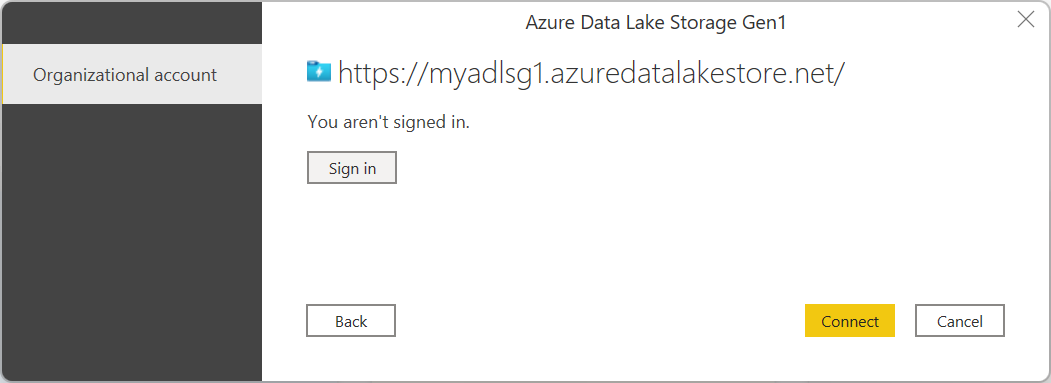
If you're connecting to this database for the first time, select Sign in to sign into the Azure Data Lake Storage Gen1 account. You're redirected to your organization's sign-in page. Follow the prompts to sign in to the account.
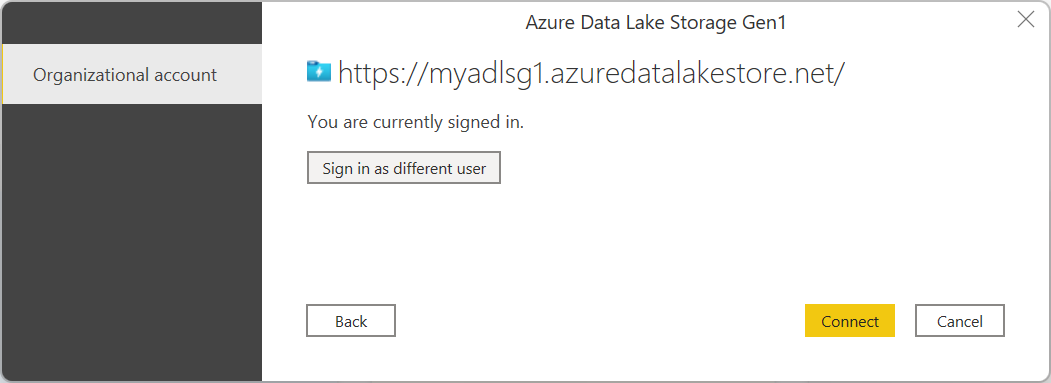
After you successfully sign in, select Connect.
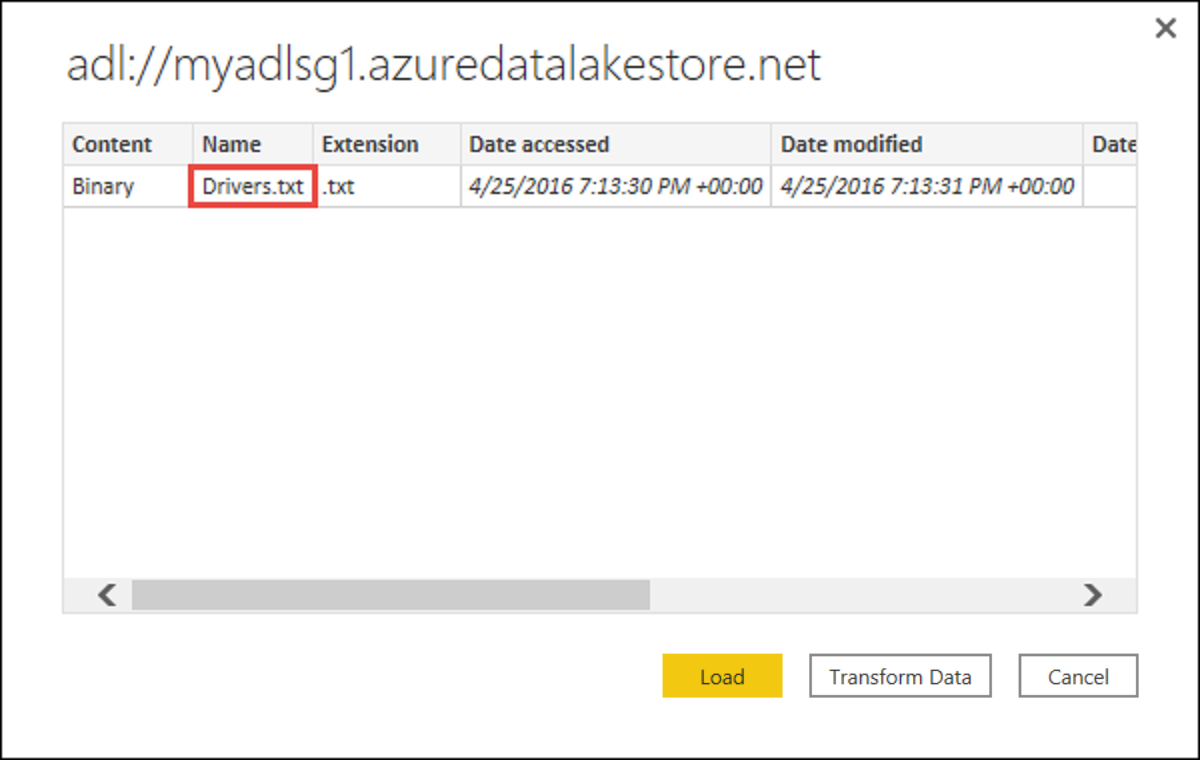
The Navigator dialog box shows the file that you uploaded to your Azure Data Lake Storage Gen1 account. Verify the information and then select either Transform Data to transform the data in Power Query or Load to load the data in Power BI Desktop.
Connect using advanced options
Power Query provides an advanced option that you can add to your query if needed.
| Advanced option | Description |
|---|---|
| Page Size in Bytes | Used to break up large files into smaller pieces. The default page size is 4 MB. |