Note
Access to this page requires authorization. You can try signing in or changing directories.
Access to this page requires authorization. You can try changing directories.
Summary
| Item | Description |
|---|---|
| Release State | General Availability |
| Products | Excel Power BI (Semantic models) Power BI (Dataflows) Fabric (Dataflow Gen2) Power Apps (Dataflows) Dynamics 365 Customer Insights Analysis Services |
| Authentication Types Supported | Windows (desktop/online) Database (desktop) Basic (online) Microsoft account (desktop) |
| Function Reference Documentation | Oracle.Database |
Note
Some capabilities might be present in one product but not others due to deployment schedules and host-specific capabilities.
Prerequisites
Supported Oracle versions:
- Oracle Database Server 12c (12.1.0.2) and later
- Oracle Autonomous Database - all versions
Starting with the April 2025 version of Power BI Desktop and the May 2025 version of on-premises data gateway, you can use the built-in Oracle managed ODP.NET driver to connect to the Oracle database. When you enable this feature, you don't need to install the OCMT manually. Starting in June 2026, you can also create a cloud connection to Oracle Autonomous Database or other Oracle cloud endpoints without a gateway. Learn more about this feature.
If you don't use the new built-in Oracle driver, you must use an enterprise on-premises data gateway and install the 64-bit Oracle Client for Microsoft Tools (OCMT) on the computer running the gateway or Power BI Desktop. For more information, see Manage your data source - Oracle.
Supported capabilities
- Import
- DirectQuery (Power BI semantic models)
- Advanced options
- Command timeout in minutes
- SQL statement
- Include relationship columns
- Navigate using full hierarchy
Connect from Power Query Desktop
On-premises database
To make the connection, take the following steps:
Select the Oracle database option in the connector selection.
Specify the Oracle net service name/TNS alias or Easy Connect (Plus) connection string to connect to in Server. Easy Connect is the simplest to use by setting the Server value to your Oracle Database server Hostname/ServiceName, where ServiceName is the global database name. The following screenshot uses a net service name.
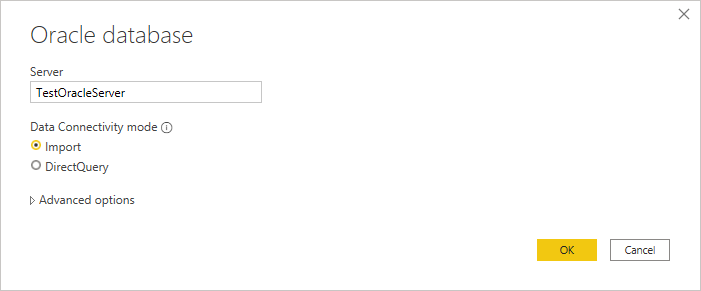
If you're connecting from Power BI Desktop, select either the Import or DirectQuery data connectivity mode. The rest of these example steps use the Import data connectivity mode. To learn more about DirectQuery, go to Use DirectQuery in Power BI Desktop.
If you're connecting to this Oracle database for the first time, select the authentication type you want to use, and then enter your credentials. The authentication types available are:
- Windows (Windows authentication)
- Database (Username and password)
- Microsoft account (Microsoft Entra ID)
For more information about authentication, go to Authentication with a data source.

In Navigator, select the data you require, then either select Load to load the data or Transform Data to transform the data.
Connect from Power Query Online
On-premises database
To make the connection, take the following steps:
From Power Query Online, select the Oracle database option in the data sources selection.
In the Oracle database dialog that appears, specify the Oracle net service name/TNS alias, Easy Connect Plus connection string, or connect descriptor to connect to in Server.
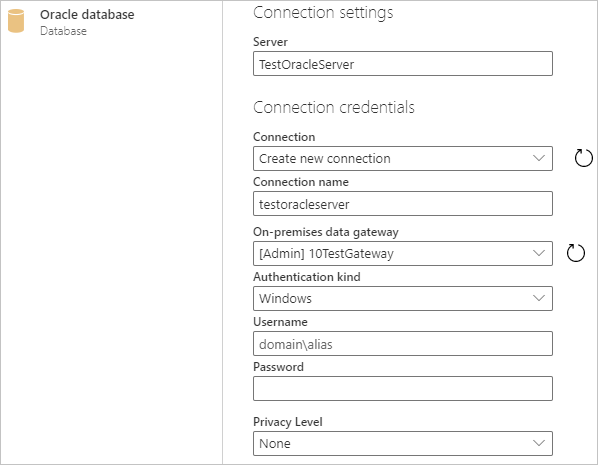
Provide a Connection name, such as "testoracleserver".
Select the name of your on-premises data gateway.
If you're connecting to this Oracle database for the first time, select the type of credentials for the connection in Authentication kind. Choose Basic if you plan to sign in with an Oracle username and password. Choose Windows when using Windows operating system authentication and with both the Oracle client and server running on Windows.
Enter your credentials.
Select Next to continue.
In Navigator, select the data you require, then select Transform data to transform the data in Power Query Editor.
Additional information
Using Oracle Client for Microsoft Tools (OCMT) option
Oracle Client for Microsoft Tools installs and configures Oracle Data Provider for .NET (ODP.NET) to support 32-bit and 64-bit Microsoft tool connections with Oracle on-premises and cloud databases, including Oracle Autonomous Database (ADB). OCMT is a graphical installer that automates the Oracle Database Client setup process. It supports connecting with Power BI Desktop, Power BI service, Fabric (Dataflow Gen2), Excel, SQL Server Analysis Services, SQL Server Data Tools, SQL Server Integration Services, SQL Server Reporting Services, and BizTalk Server.
OCMT is free software. It can be downloaded from the Oracle Client for Microsoft Tools page. For 64-bit Power BI Desktop and Power BI service, use 64-bit OCMT. For 32-bit Power BI Desktop, use 32-bit OCMT.
Even if you already have an Oracle Client or ODP.NET installed on your Power BI client, we highly recommend you use the OCMT installer to properly complete all the configuration steps Power BI requires to work with Oracle database.
Connect to an Oracle Autonomous Database
Note
Currently, you can connect to an Oracle Autonomous Database from Excel, Power BI Desktop, Power BI service, Fabric (Dataflow Gen2), Power Apps, SQL Server Analysis Services, and BizTalk Server using the procedures in this section. These tools use unmanaged ODP.NET to connect. Other Microsoft tools, including SQL Server Data Tools, SQL Server Integration Services, and SQL Server Reporting Services, use managed ODP.NET to connect to Oracle Autonomous Database using largely similar procedures.
To connect Power BI to an Oracle Autonomous Database, you need the following accounts and apps:
- An Oracle.com account (Oracle.com Account Signup)
- An Oracle Cloud account (Oracle Cloud Account Signup)
- An Oracle Autonomous Database (Get an Always Free Autonomous Database)
- Power BI Desktop (Get Power BI Desktop) or Power BI service account (Licensing the Power BI service for users in your organization)
Download your client credentials
The first step in setting up a connection to the Oracle Autonomous database is to download your client credentials.
To download your client credentials:
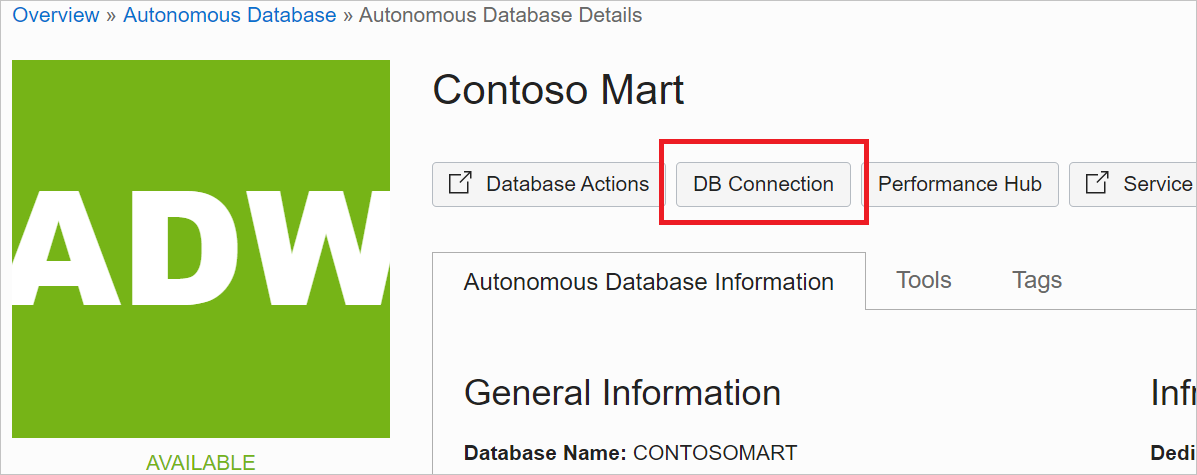
In your Oracle Autonomous database details page, select DB Connection.
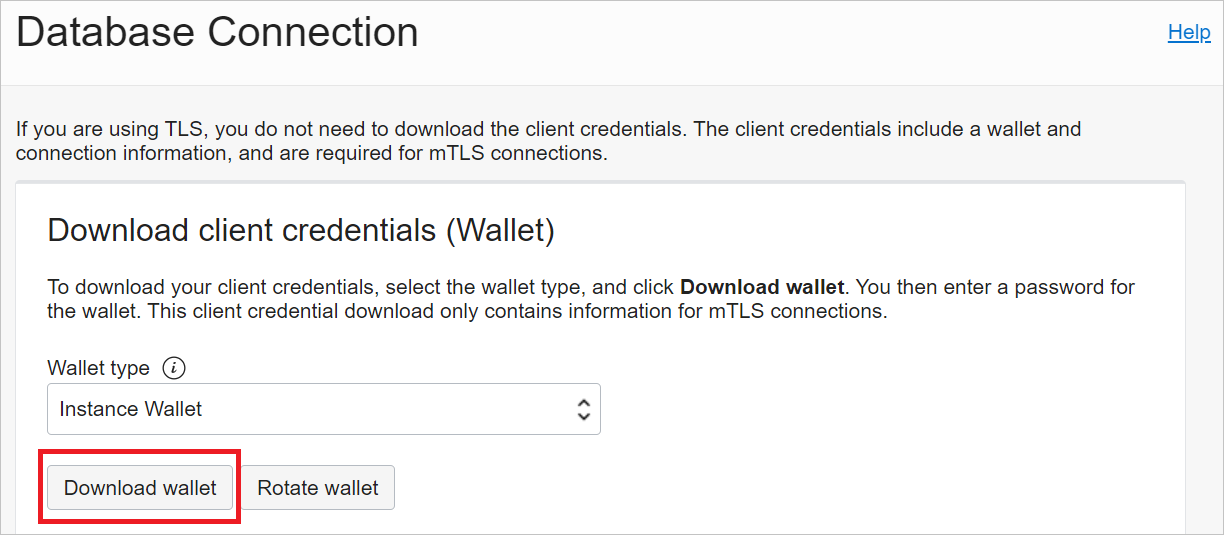
From the Database Connection page, select Download Wallet.
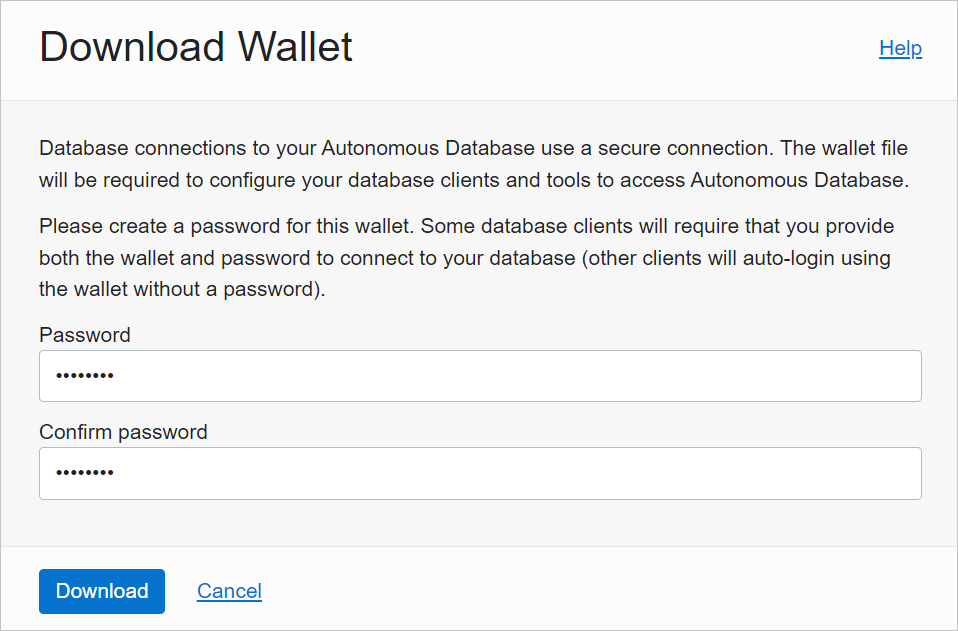
Enter a password you would like to use with this wallet, confirm the password, then select Download.
Configure Oracle ADB credentials
On your Windows machine, go to the folder where you downloaded your Oracle ADB credentials from Download your client credentials.
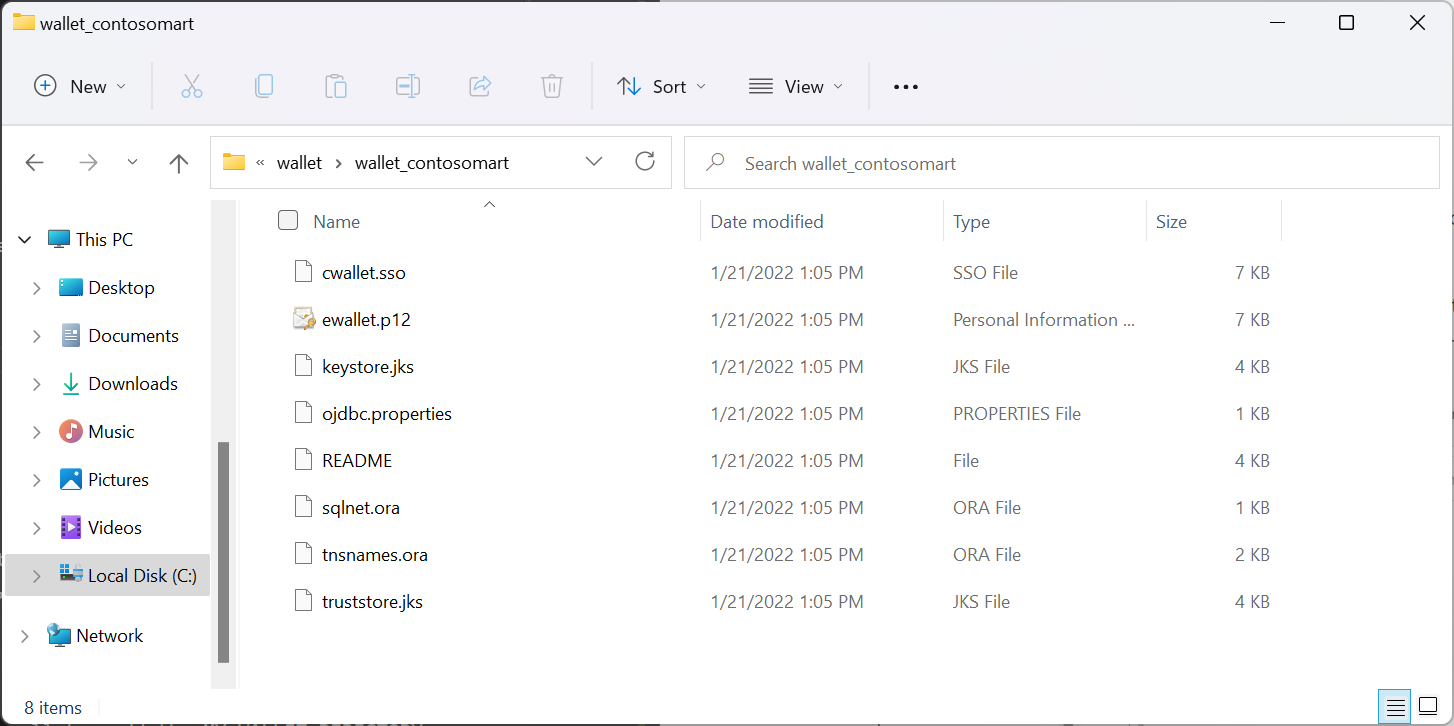
Unzip the credentials into the directory you specified in OCMT as the Oracle Configuration File Directory. In this example, the credentials are extracted to c:\data\wallet\wallet_contosomart.
Note
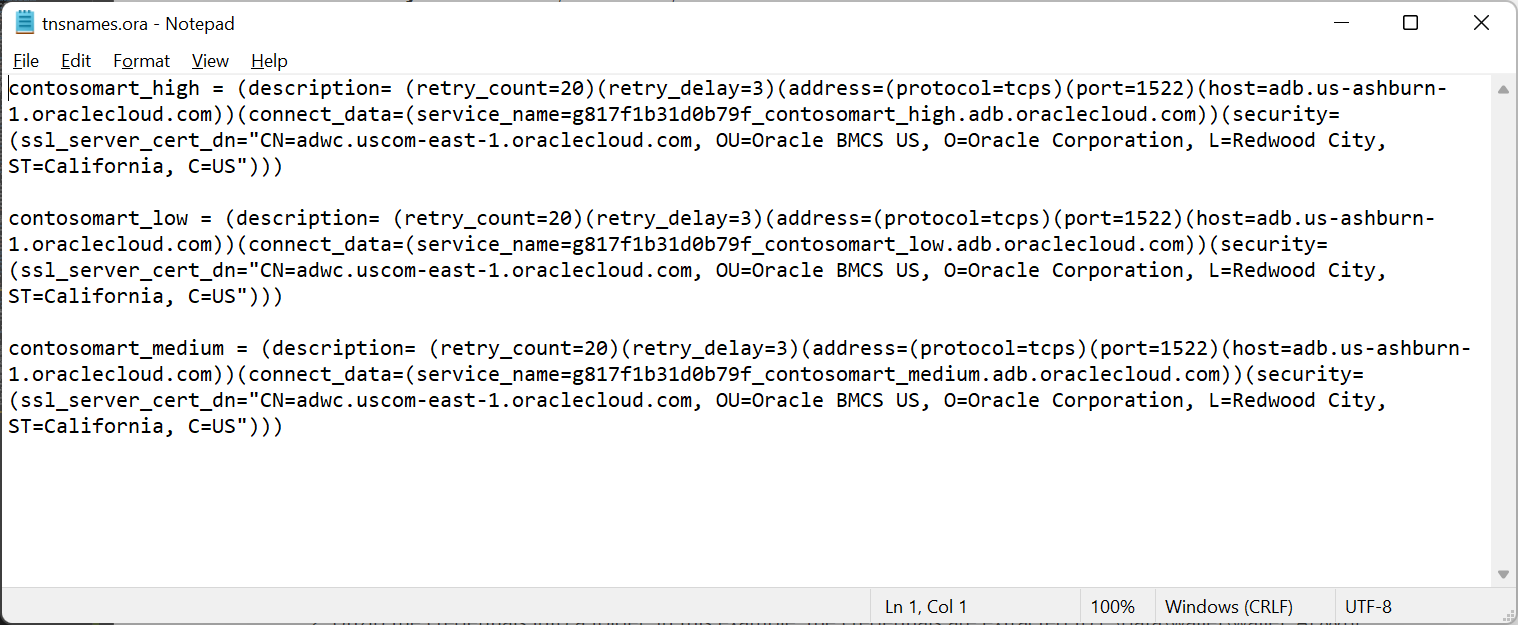
The tnsnames.ora file defines your Oracle Autonomous Database address and connection information.
Open sqlnet.ora in an editor, such as Notepad.
Under WALLET_LOCATION, change the path to your wallet folder under the Directory option. In this example:
WALLET_LOCATION = (SOURCE = (METHOD = file) (METHOD_DATA = (DIRECTORY=c:\data\wallet\Wallet_ContosoMart)))Save and close the sqlnet.ora file.
Open the tnsnames.ora file in the wallets folder. The file contains a list of ADB net service names that you can connect to. In this example, the names are contosomart_high, contosomart_low, and contosomart_medium. Your ADB net service names are different.
Connect Power BI Desktop to Oracle ADB
Open Power BI Desktop.
Select Get Data.
From Get Data, select Database > Oracle database.
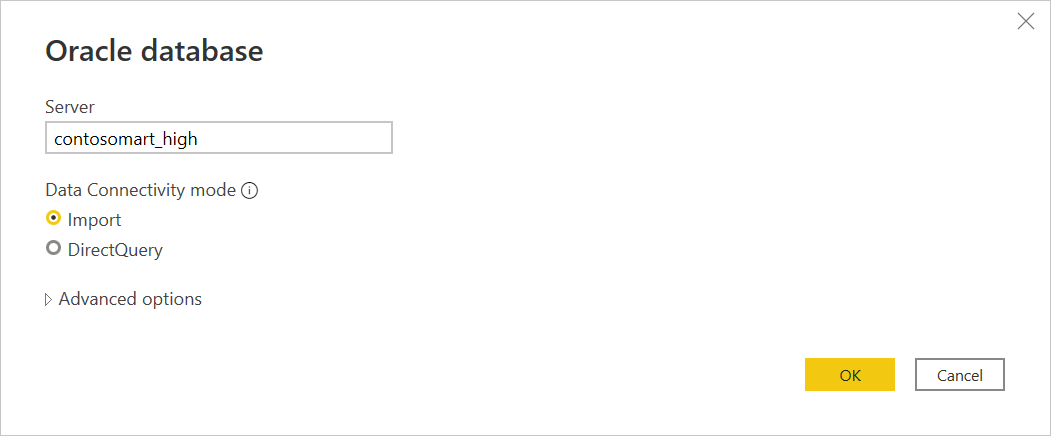
Enter the net service name of the Oracle Autonomous Database server you want to connect to. In this example, the Server is contosomart_high. Then select OK.
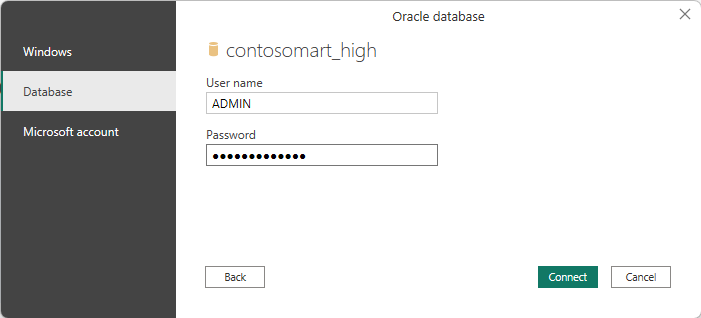
If you're signing in to this server from Power BI Desktop for the first time, you're asked to enter your credentials. Select Database, then enter the user name and password for the Oracle database. The credentials you enter here are the user name and password for the specific Oracle Autonomous Database you want to connect to. In this example, the database's initial administrator user name and password are used. Then select Connect.
Note
You can use Microsoft Entra ID authentication to sign on to Oracle Autonomous Database via the Microsoft account option.
At this point, the Navigator appears and displays the connection data.
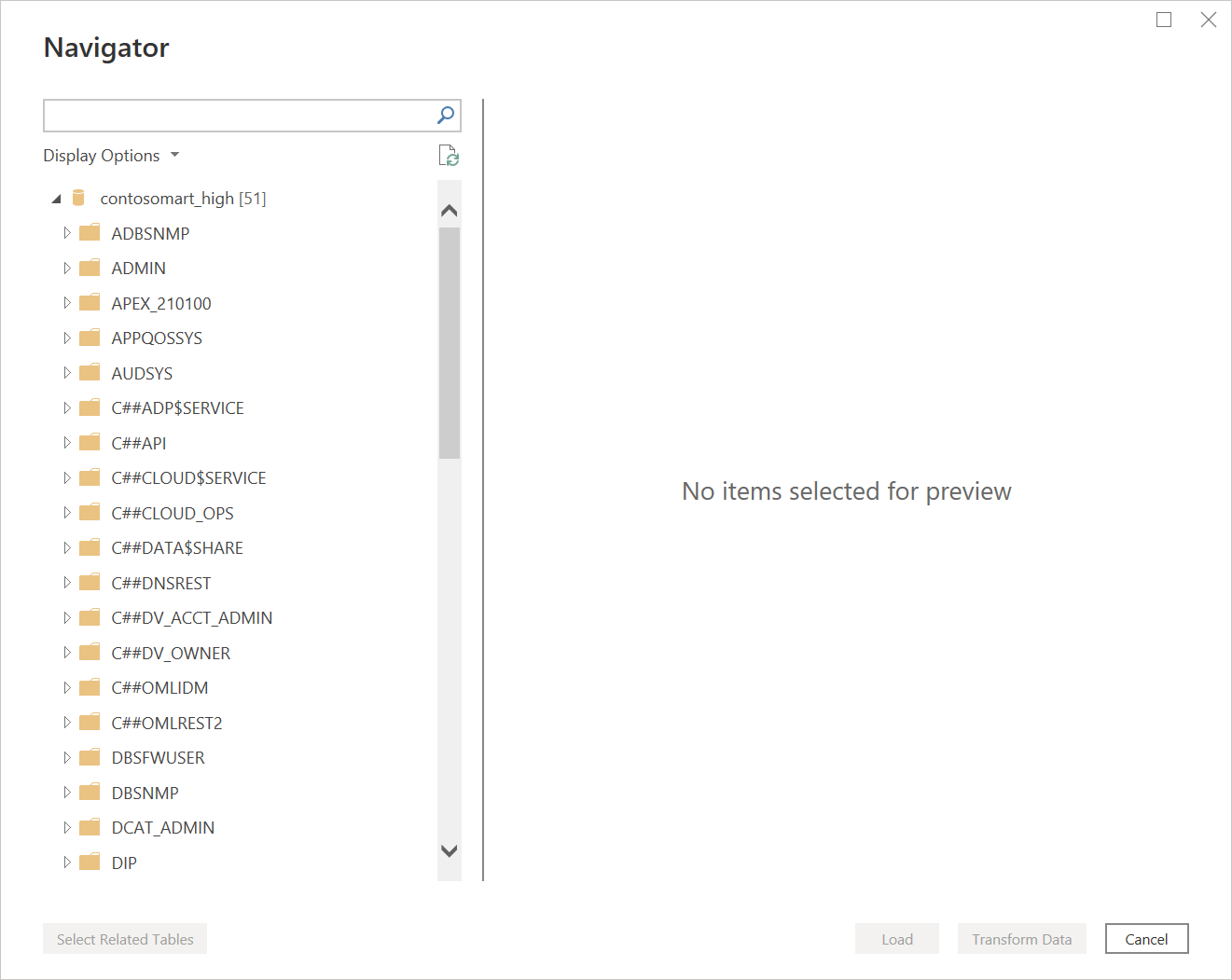
You might also come across one of several errors because the configuration isn't properly set up. These errors are discussed in Troubleshooting.
One error that might occur in this initial test takes place in Navigator, where the database appears to be connected, but contains no data. Instead, an Oracle: ORA-28759: failure to open file error appears in place of the data.
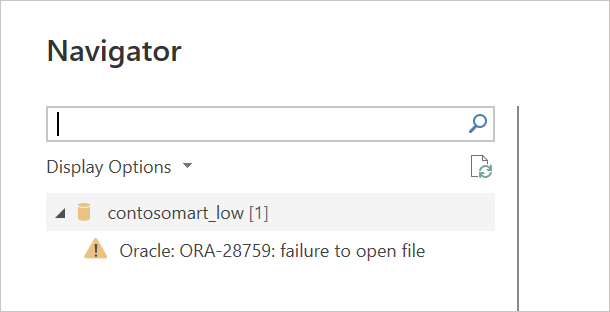
If this error occurs, be sure that the wallet folder path you supplied in sqlnet.ora is the full and correct path to the wallet folder.
Advanced options
Power Query Desktop and Power Query Online provide a set of advanced options that you can add to your query if needed.
The following table lists all of the advanced options you can set in Power Query Desktop and Power Query Online.
| Advanced option | Description |
|---|---|
| Command timeout in minutes | If your connection lasts longer than 10 minutes (the default timeout), you can enter another value in minutes to keep the connection open longer. This option is only available in Power Query Desktop. |
| SQL statement | For information, go to Import data from a database using native database query. |
| Include relationship columns | If checked, includes columns that might have relationships to other tables. If this box is cleared, these columns don't appear. |
| Navigate using full hierarchy | If checked, the navigator displays the complete hierarchy of tables in the database you're connecting to. If cleared, the navigator displays only the tables whose columns and rows contain data. |
Once you select the advanced options you require, select OK in Power Query Desktop or Next in Power Query Online to connect to your Oracle database.
Use the built-in Oracle driver
For Import Mode in Power BI Desktop
For the June 2026 version of Power BI Desktop or on-premises data gateway, the default is to use a built-in Oracle managed ODP.NET driver for connectivity. This feature removes the necessity for users to install and manage the driver. You can still opt out of this feature by using the following instructions.
To not use this built-in driver in Power BI Desktop, go to Options and settings (under the File tab) > Options > Preview features, and then clear the checkbox to enable the Enable using bundled Oracle Managed ODP Provider for Import Mode option.

For DirectQuery mode in Power BI Desktop (Preview)
For DirectQuery mode, using the built-in Oracle managed ODP.NET driver is still in preview. To opt in, use the following instructions.
To use this built-in driver in Power BI Desktop, go to Options and settings (under the File tab) > Options > Preview features, and then clear the checkbox to enable the Enable using bundled Oracle Managed ODP Provider for DirectQuery Mode option.
For Import mode in on-premises gateway
Starting with the June 2026 version, the on-premises data gateway uses the built-in Oracle managed ODP.NET driver for connectivity by default. To not use this built-in driver in the on-premises data gateway for Import mode, change the gateway configurations to update the MashupFlight_DisableOracleBundledOdacProviderV2 setting by using the following steps:
- On the local machine where the on-premises data gateway is installed, navigate to C:\Program Files\On-premises data gateway.
- Make a backup of the configuration file named Microsoft.PowerBI.DataMovement.Pipeline.GatewayCore.dll.config.
- Open the original Microsoft.PowerBI.DataMovement.Pipeline.GatewayCore.dll.config configuration file and locate the
MashupFlight_DisableOracleBundledOdacProviderV2entry. - Update the
MashupFlight_DisableOracleBundledOdacProviderV2value toTrue. - Restart your gateway.
<Microsoft.PowerBI.DataMovement.Pipeline.GatewayCore.GatewayCoreSettings>
   ...
   <setting name="MashupFlight_DisableOracleBundledOdacProviderV2" serializeAs="String">
      <value>True</value>
   </setting>
   ...
</Microsoft.PowerBI.DataMovement.Pipeline.GatewayCore.GatewayCoreSettings>
Note
Once you change the MashupFlight_DisableOracleBundledOdacProviderV2 setting in the Microsoft.PowerBI.DataMovement.Pipeline.GatewayCore.dll.config file, the configuration persists over on-premises data gateway upgrades.
Note
If your semantic models are still using a personal gateway to connect to on-premises Oracle data sources, upgrade to an enterprise on-premises data gateway or virtual network (VNET) gateway, or shift your cloud Oracle workloads to direct cloud connections. The updated Oracle connector doesn't support personal on-premises data gateways, this applies both to Import mode and DirectQuery mode. Existing semantic models can continue to use a personal gateway until you update the data connection binding. After you update the binding, you can't go back to the personal gateway. Plan your Oracle connection upgrades accordingly.
For DirectQuery mode in on-premises gateway (Preview)
The on-premises data gateway can use the built-in Oracle managed ODP.NET driver for DirectQuery. This feature is in preview.
To resolve a TNS alias for DirectQuery, use an environment variable. The gateway service account can't access user-scoped variables, so set TNS_ADMIN at the system (machine) scope, and then restart the on-premises data gateway service.
The built-in driver doesn't support Oracle proxy-user authentication. For more information and workarounds, see Oracle proxy-user authentication isn't supported.
Supported ways to specify TNS_ADMIN with the built-in Oracle driver
There are three options to specify TNS_ADMIN:
- Configure the TNS_ADMIN in OADC.config
- Use an environment variable
- Use settings from a previously installed OADC
Configure TNS_ADMIN in ODAC.config
If you are using the Built-in Oracle Driver and have access to modify program files, you can specify TNS_ADMIN in configuration file ODAC.config used by Built-in Oracle Driver. The file is located in Power BI Desktop or on-premises data gateway installed location under “ADO.NET Providers” subfolder. Following is an example of specifying TNS_ADMIN path that is "C:\network\admin".
This config value takes precedence over other options.
Example configuration
<configuration>
 ...
 <oracle.manageddataaccess.client>
  <version number="*">
   <settings>
    <setting name="TNS_ADMIN" value="C:\network\admin" />
   </settings>
  </version>
 </oracle.manageddataaccess.client>
 ...
</configuration>
Note that TNS_ADMIN configured in the ODAC.config takes precedence over a TNS_ADMIN setting in the environment.
Use an environment variable
If the user does not have access to modify ODAC.config, they can specify TNS_ADMIN by adding a TNS_ADMIN environment variable. The environment variable can be a system environment variable or a user environment variable for the user running Power BI Desktop or the On-premises Data Gateway. Set the TNS_ADMIN value to "C:\network\admin", for example.
Setting TNS_ADMIN in the environment (especially at the system level) can cause other applications running on this machine to pick up the network configuration files (such as tnsnames.ora) from the location pointed to by TNS_ADMIN.
Use settings from a previously installed ODAC
If ODAC is installed previously and TNS_ADMIN is configured, Power BI will automatically discover TNS_ADMIN.
The remaining configurations to connect to an Oracle database from Power Query Desktop are the same as described in the previous sections.
Allowed property list
Users can specify Oracle server names by using connect descriptors such as (DESCRIPTION=(ADDRESS=(PROTOCOL=TCP)(HOST=host_name)(PORT=1521))(CONNECT_DATA=(SERVICE_NAME=service_name))).
The system enforces which properties can be used in Desktop and Gateway. The default allowed properties in ODAC.config are listed in the following section.
<configuration>
 ...
  <AllowLists>
    <!--
      Oracle connection strings can contain connection properties, for example  CONNECT_TIMEOUT.   Only connection properties explicitly set to true in the list below will
      be allowed with Power BI Desktop and the On Premises Data Gateway. Using our example, you can add "CONNECT_TIMEOUT":true to the list to enable it. To disable it you
      can remove it from the list, or set the value to false. This list will be enforced on all connection string types including connect descriptors and aliases
      referencing a tnsnames.ora entry. The use of any disallowed property in a connection string will result in an ORA-50122 error. Restart Power BI Desktop or the On-premises
      Data Gateway service after applying ODAC.config changes.
      For more information see https://docs.oracle.com/en/database/oracle/oracle-database/26/odpnt/InstallConnectionConfigurationRestriction.html
    -->
    <OnPremAllowList>{"DataSource":{"HOST":true,"PORT":true,"PROTOCOL":true,"HTTPS_PROXY":true,"HTTPS_PROXY_PORT":true,"ENABLE":true,"EXPIRE_TIME":true,"FAILOVER":true,"LOAD_BALANCE":true,"RECV_BUF_SIZE":true,"SDU":true,"SEND_BUF_SIZE":true,"SOURCE_ROUTE":true,"TYPE_OF_SERVICE":true,"COLOCATION_TAG":true,"CONNECTION_ID_PREFIX":true,"FAILOVER_MODE":true,"GLOBAL_NAME":true,"HS":true,"INSTANCE_NAME":true,"POOL_BOUNDARY":true,"POOL_CONNECTION_CLASS":true,"POOL_NAME":true,"POOL_PURITY":true,"RDB_DATABASE":true,"SHARDING_KEY":true,"SHARDING_KEY_ID":true,"SUPER_SHARDING_KEY":true,"SERVER":true,"SERVICE_NAME":true,"SID":true,"TUNNEL_SERVICE_NAME":true,"SSL_CLIENT_AUTHENTICATION":true,"SSL_CERTIFICATE_ALIAS":true,"SSL_CERTIFICATE_THUMBPRINT":true,"SSL_VERSION":true,"SSL_SERVER_DN_MATCH":true,"SSL_SERVER_CERT_DN":true,"WALLET_LOCATION":true,"CONNECT_TIMEOUT":true,"RETRY_COUNT":true,"RETRY_DELAY":true,"TRANSPORT_CONNECT_TIMEOUT":true,"RECV_TIMEOUT":true,"COMPRESSION":true,"COMPRESSION_LEVELS":true,"USE_SNI":true,"AUTHENTICATION_SERVICE":true,"IGNORE_ANO_ENCRYPTION_FOR_TCPS":true,"OCI_CONFIG_FILE":true,"OCI_DATABASE":true,"OCI_IAM_URL":true,"OCI_PROFILE":true,"OCI_TENANCY":true,"PASSWORD_AUTH":true,"REDIRECT_URI":true,"TENANT_ID":true,"TLS_VERSION":true,"TOKEN_AUTH":true,"TOKEN_LOCATION":true}}
    </OnPremAllowList>
  </AllowLists>
 ...
</configuration>
Users can modify this allowed property list if they need to add new properties or remove properties from the list to enforce stricter rules.
Note
Important limitations
- Using the built-in Oracle managed ODP.NET driver for DirectQuery is in preview. For more information, see the preceding DirectQuery sections.
- The file ODAC.config may require administrator rights to edit and Power BI Store app doesn't allow modifying this file.
- The changes made to ODAC.config are overwritten during upgrade and you need to save the file to another location before upgrade.
- For the On-Premises Data Gateway to work properly, make sure that the user under which the gateway service is running has access to the folder pointed to by TNS_ADMIN.
- Restart Power BI Desktop or the On-premises Data Gateway service after applying config changes.
Limitations and considerations
Power BI sessions can still be active on your Oracle database for approximately 30 minutes after a semantic model refresh to that Oracle database. Only after approximately 30 minutes do those sessions become inactive/removed on the Oracle database. This behavior is by design.
Troubleshooting
You might come across any of several errors from Oracle when the naming syntax is either incorrect or not configured properly:
ORA-12154: TNS: could not resolve the connect identifier specified.ORA-12514: TNS: listener does not currently know of service requested in connect descriptor.ORA-12541: TNS: no listener.ORA-12170: TNS: connect timeout occurred.ORA-12504: TNS: listener was not given the SERVICE_NAME in CONNECT_DATA.
These errors might occur if the Oracle tnsnames.ora database connect descriptor is misconfigured, the net service name provided is misspelled, or the Oracle database listener isn't running or not reachable, such as a firewall blocking the listener or database port. Be sure you're meeting the minimum installation prerequisites. More information: Prerequisites
Visit the Oracle Database Error Help Portal to review common causes and resolutions for the specific Oracle error you encounter. Enter your Oracle error in the portal search bar.
When you use DirectQuery through the on-premises data gateway with the built-in Oracle driver, errors such as the following might indicate that a TNS alias can't be resolved:
ORA-12154: TNS name resolution failureORA-50201: Failed to connect to server
If you encounter these errors, verify that TNS_ADMIN is set at the system (machine) scope and that the gateway service account can access the folder it points to, then restart the on-premises data gateway service. For more information, see Supported ways to specify TNS_ADMIN with the built-in Oracle driver and Oracle's Troubleshooting Oracle Net Services guide.
Known issues with the built-in Oracle driver
The following known issues are specific to the built-in Oracle managed ODP.NET driver. Several of the workarounds fall back to the ODP.NET unmanaged driver by turning off the built-in driver. For the turn-off steps for each surface—Power BI Desktop Import and DirectQuery, and gateway Import and DirectQuery—see Use the built-in Oracle driver.
TNS aliases on a network share aren't resolved
Applies to the on-premises data gateway, in both Import and DirectQuery.
When your Oracle network configuration files (tnsnames.ora or the TNS_ADMIN directory) are stored on a network share (UNC path), the built-in driver consistently fails to resolve the net service name (TNS alias). You might see ORA-12154: TNS:could not resolve the connect identifier specified or ORA-50201: Failed to connect to server. The same alias resolves correctly with the ODP.NET unmanaged driver, or when the files are on a local path. The built-in managed driver doesn't reliably read Oracle network configuration files from a UNC location.
Use one of the following workarounds:
- Copy
tnsnames.ora(andsqlnet.oraif you use it) to a folder on a local drive, and then point the driver at that folder. See Supported ways to specify TNS_ADMIN with the built-in Oracle driver. For gateway DirectQuery, setTNS_ADMINat the system (machine) scope, because the gateway service account can't read user-scoped variables, and then restart the gateway service. - Ensure that the service account running the gateway has access to the network share.
- Enter an Easy Connect descriptor directly in Server (for example,
host:port/service_name) instead of atnsnames.oraalias, so no network configuration file is needed. - Turn off the built-in driver to fall back to the ODP.NET unmanaged driver, which can read the files from the share.
NLS_LANG is ignored
Applies to Power BI Desktop, the on-premises data gateway, and Power BI service cloud connections, in both Import and DirectQuery.
With the built-in driver, Oracle session language, territory, and number and date formats follow the machine's .NET culture (Windows regional and format settings), not the NLS_LANG environment variable. Setting or changing NLS_LANG has no effect. Depending on the machine's region, this behavior can cause numbers or dates to parse with the wrong separators or date order, queries to return zero rows or incorrect values, or errors such as ORA-01722, ORA-01858, ORA-01861, or ORA-01843. For example, a report authored on a machine set to English (United States) might return zero rows or errors on a machine set to English (United Kingdom). The managed ODP.NET driver derives its National Language Support (NLS) settings from the .NET thread culture rather than from NLS_LANG, unlike the ODP.NET unmanaged driver, which honors NLS_LANG.
Use one of the following workarounds:
- Match the machine's regional settings to the locale that your data and queries were designed for.
- Turn off the built-in driver to fall back to the ODP.NET unmanaged driver, which honors
NLS_LANG.
For background on the managed driver's globalization behavior, see Oracle's Globalization Support documentation.
FetchSize in the registry isn't used by the built-in driver
Applies to Power BI Desktop and the on-premises data gateway, for Oracle Import models.
After you switch to the built-in driver, Oracle Import models might refresh more slowly than with the ODP.NET unmanaged driver. The built-in managed ODP.NET provider doesn't read the FetchSize property from the registry. The default FetchSize for the ODP.NET unmanaged and managed providers is 128 KB in version 23.26.2 and earlier, including the 23.6 provider that Power BI includes. The managed provider ignores any FetchSize override configured in the registry.
Turn off the built-in driver to fall back to the ODP.NET unmanaged driver, which honors the registry FetchSize setting. On the on-premises data gateway, set MashupFlight_DisableOracleBundledOdacProviderV2 to True in the bundled-provider configuration in gateway settings.
Oracle proxy-user authentication isn't supported
Applies to the on-premises data gateway (June 2026 version and later), for Oracle Import and DirectQuery that use an Oracle proxy account.
After you upgrade to the June 2026 gateway, which defaults to the built-in managed provider, Power BI reports that connect to Oracle by using an Oracle proxy account fail in both Import and DirectQuery. The same data source works when the connection uses a non-proxy Oracle account. Oracle Database proxy-user authentication—connecting as one database user on behalf of another schema (for example, the User Id=proxy_user[target_schema] form)—isn't supported by version 23.6 of the built-in managed ODP.NET provider that currently ships with Power BI.
Use one of the following workarounds:
- Use a non-proxy Oracle account where possible.
- For Import, turn off the built-in driver for Import on the gateway by setting
MashupFlight_DisableOracleBundledOdacProviderV2toTrue, so the gateway falls back to the ODP.NET unmanaged driver, which supports proxy accounts. - For DirectQuery, the Import setting doesn't apply. Contact Microsoft Support to turn off the built-in driver for the gateway DirectQuery path. This configuration isn't self-service today.
Can't update Oracle personal cloud connection credentials
Applies to the Power BI service, for Oracle personal cloud connections.
On the Manage connections and gateways page in the Power BI service, updating the credentials of an Oracle personal cloud connection doesn't work. Instead, update the credentials from the semantic model settings pane:
- Open the semantic model settings pane and go to Gateway and cloud connections.
- Set the data source to use the personal cloud connection.
- Under Data source credentials, edit the credentials for the data source.
If you downloaded Power BI Desktop from the Microsoft Store, you might be unable to connect to Oracle databases because of an Oracle driver issue. If you come across this issue, the error message returned is: Object reference not set. To address the issue, download Power BI Desktop from the Download Center instead of Microsoft Store.
If the Object reference not set error message occurs in Power BI when you connect to an Oracle database using the on-premises data gateway, follow the instructions in Manage your data source - Oracle.
If you're using Power BI Report Server, consult the guidance in the Oracle Connection Type article.