Note
Access to this page requires authorization. You can try signing in or changing directories.
Access to this page requires authorization. You can try changing directories.
Tip
Power BI Dataflow Gen1 is now in a legacy state and won't receive new feature investment. Rather than configuring Power Automate flows for retry logic, Dataflow Gen2 integrates directly with Data Factory pipelines, which provide built-in retry policies, scheduling, and conditional execution. To learn about upgrading existing dataflows, see Upgrade from Dataflow Gen1 to Dataflow Gen2.
In the scenario where you want to automatically retry a dataflow when the refresh fails, the Power Automate Connector is probably the way to go. In this tutorial, we'll guide you step by step in setting up your Power Automate flow.
To automatically retry a dataflow on failure:
Navigate to Power Automate.
Select Create > Automated cloud flow.
Enter a flow name, and then search for the When a dataflow refresh completes connector. Select this connector from the list, and then select Create.
Customize the connector. Enter the following information on your dataflow:
- Group Type: Select Environment if you're connecting to Power Apps and Workspace if you're connecting to Power BI.
- Group: Select the Power Apps environment or the Power BI workspace your dataflow is in.
- Dataflow: Select your dataflow by name.
Select New step to add an action to your flow.
Search for the Condition connector, and then select it.
Customize the Condition connector. Enter the following information:
- In the first cell, add Refresh Status from the dataflow connector.
- Leave the second cell as is equal to.
- In the third cell, enter Failed.

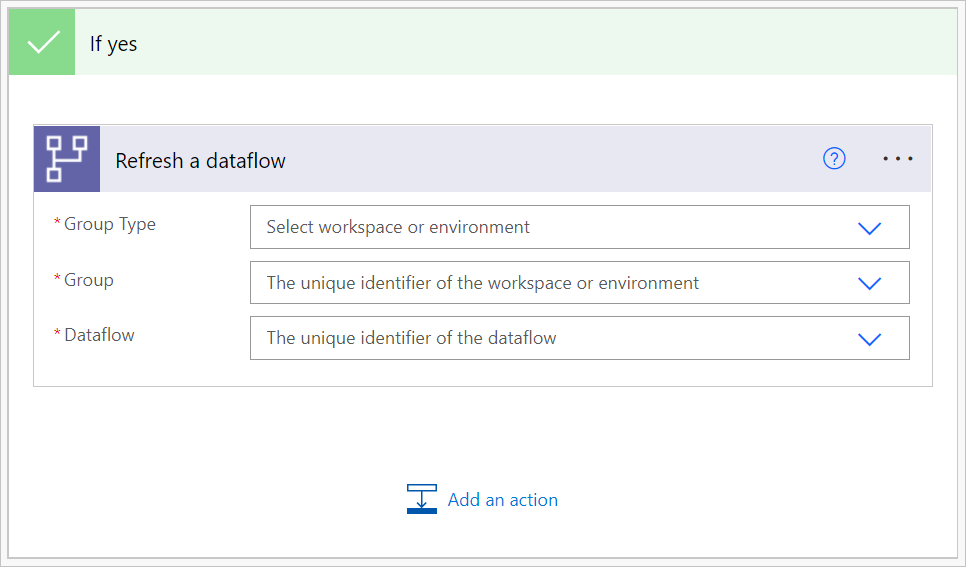
In the If Yes section, select Add an action.
Search for the Refresh a dataflow connector, and then select it.
Customize the connector:
- Group Type: Select Environment if you're connecting to Power Apps and Workspace if you're connecting to Power BI.
- Group: Select the Power Apps environment or the Power BI workspace your dataflow is in.
- Dataflow: Select the same dataflow as chosen in step 4.