Note
Access to this page requires authorization. You can try signing in or changing directories.
Access to this page requires authorization. You can try changing directories.
Working with text data can sometimes be messy. For example, the name of the city Redmond might be represented in a database using different casings ("Redmond", "redmond", and "REDMOND"). This could cause a problem when transforming the data in Power Query because the Power Query M formula language is case sensitive.
Thankfully, Power Query M provides functions to clean and normalize the case of text data. There are functions to convert text to lower case (abc), upper case (ABC), or proper case (Abc). In addition, Power Query M also provides several ways to ignore case altogether.
This article shows you how to change the capitalization of words in text, lists, and tables. It also describes various ways to ignore case while manipulating data in text, lists, and tables. In addition, this article discusses how to sort according to case.
Changing case in text
There are three functions that convert text to lower case, upper case, and proper case. The functions are Text.Lower, Text.Upper, and Text.Proper. The following simple examples demonstrate how these functions can be used in text.
Convert all characters in text to lower case
The following example demonstrates how to convert all characters in a string to lower case.
let
    Source = Text.Lower("The quick brown fox jumps over the lazy dog.")
in
    Source
This code produces the following output:
the quick brown fox jumps over the lazy dog.
Convert all characters in text to upper case
The following example demonstrates how to convert all characters in a text string to upper case.
let
    Source = Text.Upper("The quick brown fox jumps over the lazy dog.")
in
    Source
This code produces the following output:
THE QUICK BROWN FOX JUMPS OVER THE LAZY DOG.
Convert all words to initial caps
The following example demonstrates how to convert all words in the sentence to initial capitalization.
let
    Source = Text.Proper("The quick brown fox jumps over the lazy dog.")
in
    Source
This code produces the following output:
The Quick Brown Fox Jumps Over The Lazy Dog.
Changing case in lists
When changing case in lists, the most common function to use is List.Transform. The following simple examples demonstrate how this function can be used in lists.
Convert all items to lower case
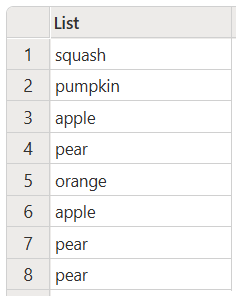
The following example shows how to change all items in a list to lower case.
let
    Source = {"Squash", "Pumpkin", "ApPlE", "pear", "orange", "APPLE", "Pear", "pear"},
    #"Lower Case" = List.Transform(Source, Text.Lower)
in
    #"Lower Case"
This code produces the following output:
Convert all items to upper case
The following example demonstrates how to change all items in a list to upper case.
let
    Source = {"Squash", "Pumpkin", "ApPlE", "pear", "orange", "APPLE", "Pear", "pear"},
    #"Upper Case" = List.Transform(Source, Text.Upper)
in
    #"Upper Case"
This code produces the following output:

Convert all items to proper case
The following exmaple demonstrates how to change all items in a list to proper case.
let
    Source = {"Squash", "Pumpkin", "ApPlE", "pear", "orange", "APPLE", "Pear", "pear"},
    #"Proper Case" = List.Transform(Source, Text.Proper)
in
    #"Proper Case"
This code produces the following output:

Changing case in tables
When changing case in tables, the most common function to use is Table.TransformColumns. There's also a function you can use to change the case of text that's contained in a row, called Table.TransformRows. However, this function isn't used as often.
The following simple examples demonstrate how the Table.TransformColumns function can be used to change the case in tables.
Convert all items in a table column to lower case
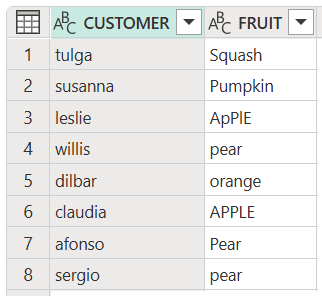
The following example demonstrates how to change all items in a table column to lower case, in this case, the customer names.
let
    Source = #table(type table [CUSTOMER = text, FRUIT = text],
    {
        {"Tulga", "Squash"},
        {"suSanna", "Pumpkin"},
        {"LESLIE", "ApPlE"},
        {"Willis", "pear"},
        {"Dilbar", "orange"},
        {"ClaudiA", "APPLE"},
        {"afonso", "Pear"},
        {"SErgio", "pear"}
    }),
    #"Lower Case" = Table.TransformColumns(Source, {"CUSTOMER", Text.Lower})
in
    #"Lower Case"
This code produces the following output:
Convert all items in a table column to upper case
The following example demonstrates how to change all items in a table column to upper case, in this case, the fruit names.
let
    Source = #table(type table [CUSTOMER = text, FRUIT = text],
    {
        {"Tulga", "Squash"},
        {"suSanna", "Pumpkin"},
        {"LESLIE", "ApPlE"},
        {"Willis", "pear"},
        {"Dilbar", "orange"},
        {"ClaudiA", "APPLE"},
        {"afonso", "Pear"},
        {"SErgio", "pear"}
    }),
    #"Upper Case" = Table.TransformColumns(Source, {"FRUIT", Text.Upper})
in
    #"Upper Case"
This code produces the following output:

Convert all items in a table to proper case
The following example demonstrates how to change all items in both of the table columns to proper case.
let
    Source = #table(type table [CUSTOMER = text, FRUIT = text],
    {
        {"Tulga", "Squash"},
        {"suSanna", "Pumpkin"},
        {"LESLIE", "ApPlE"},
        {"Willis", "pear"},
        {"Dilbar", "orange"},
        {"ClaudiA", "APPLE"},
        {"afonso", "Pear"},
        {"SErgio", "pear"}
    }),
    #"Customer Case" = Table.TransformColumns(Source, {"CUSTOMER", Text.Proper}),
    #"Proper Case" = Table.TransformColumns(#"Customer Case", {"FRUIT", Text.Proper})
in
    #"Proper Case"
This code produces the following output:

Ignoring case
In many cases when searching or replacing items, you might need to ignore the case of the item you're looking for. Because the Power Query M formula language is case sensitive, comparisons between items that are identical but have different cases results in identifying the items as being different, not identical. One method of ignoring case involves using the Comparer.OrdinalIgnoreCase function in functions that include either an equationCriteria parameter or a comparer parameter. Another method of ignoring case involves using the IgnoreCase option (if available) in functions that include an options parameter.
Ignoring case in text
Searches in text sometimes require that you ignore case to be able to find all the instances of the searched for text.Text functions generally use the Comparer.OrdinalIgnoreCase function in the comparer parameter to ignore case when testing for equality.
The following example shows how to ignore case when determining if a sentence contains a specific word, regardless of case.
let
    Source = Text.Contains(
        "The rain in spain falls mainly on the plain.",
        "Spain",
        Comparer.OrdinalIgnoreCase
    )
in
    Source
This code produces the following output:
true
The following example shows how to retrieve the initial position of the last occurrence of the word "the" in the sentence, regardless of case.
let
    Source = Text.PositionOf(
        "THE RAIN IN SPAIN FALLS MAINLY ON THE PLAIN.",
        "the",
        Occurrence.Last,
        Comparer.OrdinalIgnoreCase
    )
in
    Source
This code produces the following output:
34
Ignoring case in lists
Any list function that contains an optional equationCriteria parameter can use the Comparer.OrdinalIgnoreCase function to ignore case in the list.
The following example checks whether a list contains a specific item, while ignoring case. In this example, List.Contains can only compare one item in the list, you can't compare a list to a list. For that, you need to use List.ContainsAny.
let
    Source = List.Contains(
        {"Squash", "Pumpkin", "ApPlE", "pear", "orange", "APPLE", "Pear", "pear"},
        "apple",
        Comparer.OrdinalIgnoreCase
    )
in
    Source
This code produces the following output:
true
The following examples check whether a list contains all the specified items in the second parameter (value), while ignoring case. If any one item isn't contained in the list, such as cucumber in the second example, the function returns FALSE.
let
    Source = List.ContainsAll(
        {"Squash", "Pumpkin", "ApPlE", "pear", "orange", "APPLE", "Pear", "pear"},
        {"apple", "pear", "squash", "pumpkin"},
        Comparer.OrdinalIgnoreCase
    )
in
    Source
This code produces the following output:
true
let
    Source = List.ContainsAll(
        {"Squash", "Pumpkin", "ApPlE", "pear", "orange", "APPLE", "Pear", "pear"},
        {"apple", "pear", "squash", "pumpkin", "cucumber"},
        Comparer.OrdinalIgnoreCase
    )
in
    Source
This code produces the following output:
false
The following example checks whether any of the items in the list are apples or pears, while ignoring case.
let
    Source = List.ContainsAny(
        {"Squash", "Pumpkin", "ApPlE", "PEAR", "orange", "APPLE", "Pear", "peaR"},
        {"apple","pear"},
        Comparer.OrdinalIgnoreCase
    )
in
    Source
This code produces the following output:
true
The following example keeps only unique items, while ignoring case.
let
    Source = List.Distinct(
        {"Squash", "Pumpkin", "ApPlE", "PEAR", "orange", "APPLE", "Pear", "peaR"},
        Comparer.OrdinalIgnoreCase
    )
in
    Source
This code produces the following output:

In the previous example, the output displays the case of the first unique item found in the list. So, although there are two apples (ApPlE and APPLE), only the first example found is displayed.
The following example keeps only unique items while ignoring case, but also returns all lower case results.
let
    Source = List.Distinct(
        {"Squash", "Pumpkin", "ApPlE", "PEAR", "orange", "APPLE", "Pear", "peaR"},
        Comparer.OrdinalIgnoreCase
    ),
    #"Lower Case" = List.Transform(Source, Text.Lower)
in
    #"Lower Case"
This code produces the following output:

Ignoring case in tables
Tables have several ways to ignore case. Table functions such as Table.Contains, Table.Distinct, and Table.PositionOf all contain equationCriteria parameters. These parameters can use the Comparer.OrdinalIgnoreCase function to ignore case in tables, in much the same way as the lists in the previous sections. Table functions, such as Table.MatchesAnyRows that contain a condition parameter can also use Comparer.OrdinalIgnoreCase wrapped in other table functions to ignore case. Other table functions, specifically for fuzzy matching, can use the IgnoreCase option.
The following example demonstrates how to select specific rows that contain the word "pear" while ignoring case. This example uses the condition parameter of Table.SelectRows with Text.Contains as the conditional to make the comparisons while ignoring case.
let
    Source = #table(type table[CUSTOMER = text, FRUIT = text],
    {
        {"Tulga", "Squash"},
        {"suSanna", "Pumpkin"},
        {"LESLIE", "ApPlE"},
        {"Willis", "pear"},
        {"Dilbar", "orange"},
        {"ClaudiA", "APPLE"},
        {"afonso", "Pear"},
        {"SErgio", "pear"}
    }),
    #"Select Rows" = Table.SelectRows(
        Source, each Text.Contains([FRUIT], "pear", Comparer.OrdinalIgnoreCase))
in
    #"Select Rows"
This code produces the following output:

The following sample shows how to determine if any of the rows in a table contain a pear in the FRUIT column. This example uses Comparer.OrdinalIgnoreCase in a Text.Contains function using the condition parameter of the Table.MatchesAnyRows function.
let
    Source = #table(type table [CUSTOMER = text, FRUIT = text],
    {
        {"Tulga", "Squash"},
        {"suSanna", "Pumpkin"},
        {"LESLIE", "ApPlE"},
        {"Willis", "PEAR"},
        {"Dilbar", "orange"},
        {"ClaudiA", "APPLE"},
        {"afonso", "Pear"},
        {"SErgio", "peAR"}
        }),
    #"Select Rows" = Table.MatchesAnyRows(Source,
        each Text.Contains([FRUIT], "pear", Comparer.OrdinalIgnoreCase))
in
    #"Select Rows"
This code produces the following output:
true
The following example demonstrates how to take a table with values entered by users that contains a column listing their favorite fruits, using no set format. This column is first fuzzy matched to extract the names of their favorite fruit, which is then displayed in its own column, named Cluster. Then the Cluster column is examined to determine the different distinct fruits that are in the column. Once the unique fruits are determined, a final step is to change all of the fruit names to lower case.
let
    // Load a table of user's favorite fruits into Source
    Source = #table(type table [Fruit = text], {{"blueberries"},
        {"Blue berries are simply the best"}, {"strawberries"}, {"Strawberries = <3"},
        {"Apples"}, {"'sples"}, {"4ppl3s"}, {"Bananas"}, {"fav fruit is bananas"},
        {"Banas"}, {"My favorite fruit, by far, is Apples. I simply love them!"}}
    ),
    // Create a Cluster column and fuzzy match the fruits into that column
    #"Cluster fuzzy match" = Table.AddFuzzyClusterColumn(
        Source, "Fruit", "Cluster",
        [IgnoreCase = true, IgnoreSpace = true, Threshold = 0.5]
    ),
    // Find the distinct fruits from the Cluster column
    #"Ignore cluster case" = Table.Distinct(
        Table.SelectColumns(#"Cluster fuzzy match", "Cluster"),
        Comparer.OrdinalIgnoreCase
    ),
    // Set all of the distinct fruit names to lower case
    #"Set lower case" = Table.TransformColumns(#"Ignore cluster case",
        {"Cluster", Text.Lower}
    )
in
    #"Set lower case"
This code produces the following output:

Case and sorting
Lists and tables can both be sorted using either List.Sort or Table.Sort, respectively. However, sorting text depends on the case of the associated items in the list or table to determine the actual sort order (either ascending or descending).
The most common form of sorting uses text that is either all lower case, all upper case, or proper case. If there is a mix of these cases, the ascending sort order is as follows:
- Any text in the list or table column that begins with a capital letter is first.
- If there is matching text, but one is proper case and another is all upper case, the upper case version is first.
- Lower case is then sorted.
For descending order, the previously listed steps are processed in reverse.
For example, the following sample has a mixture of all lower case, all upper case, and proper case text to be sorted in ascending order.
let
    Source = { "Alpha", "Beta", "Zulu", "ALPHA", "gamma", "alpha",
        "beta", "Gamma", "Sierra", "zulu", "GAMMA", "ZULU" },
    SortedList = List.Sort(Source, Order.Ascending)
in
    SortedList
This code produces the following output:

Although not common, you might have a mix of upper and lower case letters in text to sort. The ascending sort order in this case is:
- Any text in the list or table column that begins with a capital letter is first.
- If there is matching text, the text with the maximum number of upper case letters to the left is done next.
- Lower case is then sorted, with the maximum number of upper case letters to the right done first.
In any case, it might be more convenient to convert the text to a consistent case before sorting.
Power BI Desktop normalization
Power Query M is case sensitive and distinguishes between different capitalizations of the same text. For example, "Foo", "foo", and "FOO" are treated as different. However, when the data is loaded into Power BI Desktop, the text values are normalized, meaning Power BI Desktop treats them as the same value regardless of their capitalization. Therefore, if you need to transform data while maintaining case sensitivity in your data, you should handle data transformation in Power Query before loading the data to Power BI Desktop.
For example, the following table in Power Query shows different cases in each row of the table.

When this table is loaded into Power BI Desktop, the text values become normalized, resulting in the following table.

The first instance of "foo" and the first instance of "too" determine the case of "foo" and "too" throughout the rest of the rows in the Power BI Desktop table. In this example, all instances of "foo" are normalized to the value "Foo" and all instances of "too" are normalized to the value "TOO".