Google ADK Sample Agent - Python
This sample demonstrates how to build an agent using Google ADK in Python with the Microsoft Agent 365 SDK. It covers:
- Observability: End-to-end tracing, caching, and monitoring for agent applications
- Notifications: Services and models for managing user notifications
- Tools: Model Context Protocol tools for building advanced agent solutions
- Hosting Patterns: Hosting with Microsoft 365 Agents SDK
This sample uses the Microsoft Agent 365 SDK for Python.
For comprehensive documentation and guidance on building agents with the Microsoft Agent 365 SDK, including how to add tooling, observability, and notifications, visit the Microsoft Agent 365 Developer Documentation.
Observability S2S export
OBS attribution uses recipient.agentic_app_id, or the explicitly configured
AGENT365_OBS_AGENT_ID when instance metadata is absent. It never treats the
agent-user object ID as the application client ID. Business authentication and
the caller's user metadata are not changed.
When enabling A365 export, provide these dedicated settings in .env or deployment
secrets. Leaving the exporter disabled retains console-only observability.
ENABLE_A365_OBSERVABILITY_EXPORTER=true
AGENT365_OBS_TENANT_ID=<<YOUR_TENANT_ID>>
AGENT365_OBS_AGENT_ID=<<YOUR_AGENT_INSTANCE_CLIENT_ID>>
AGENT365_OBS_BLUEPRINT_CLIENT_ID=<<YOUR_BLUEPRINT_CLIENT_ID>>
AGENT365_OBS_BLUEPRINT_CLIENT_SECRET=<<YOUR_BLUEPRINT_CLIENT_SECRET>>
Use the actual instance client ID, never AGENTIC_USER_ID, a blueprint, or a
service-principal object ID. Permissionless S2S export is conditional on eligible
agent instance registration and authorization, not merely Entra identity
creation or selecting the S2S endpoint. This sample does not provision identities or
grant OBS permissions; workload MCP/Graph/OBO permissions remain independent.
This sample provider is single-instance: one configured tenant and agent instance, plus a separate blueprint secret. It has no managed-identity option and requests tokens from login.microsoftonline.com, so sovereign clouds need provider changes. Multi-instance or multi-tenant deployments should cache per agent/tenant and reuse the hosting connection credential.
Absent or empty roles are accepted only with idtyp=app, or without idtyp when
oid equals sub. Valid nonempty roles also support legacy app tokens without
idtyp; any scp claim is rejected.
observability_token_service.py adapts the autonomous sample's
two-step FMI flow:
blueprint credentials + fmi_path=agent instance client ID acquire T1 for
api://AzureADTokenExchange/.default; the instance uses T1 as its client assertion
to request api://9b975845-388f-4429-889e-eab1ef63949c/.default. Both grants are
client_credentials. Business MCP/Graph/OBO authentication and original user/agent
baggage are not changed.
Missing/placeholder settings fail when export is enabled; with export disabled, placeholders do not block local/Playground startup. Export tenant/agent and returned
token identity must match the configured instance, and delegated scp tokens are
rejected. The OBS-only cache uses real expires_in/exp with a 60-second refresh margin.
Token failures produce safe errors without stale, empty, delegated or legacy-route
fallback. On 401/403, check IDs, blueprint credentials, instance registration and authorization
for the exact agent instance.
If existing instrumentation supplies an agent-user/object ID as agent baggage, export
fails closed: do not put that ID in the dedicated client-ID setting or rewrite baggage
merely to bypass the check.
The provided secret flow is for development. Production should use the documented certificate/managed-identity blueprint assertion flow through your approved provider.
Prerequisites
- Python 3.11+
- uv package manager (recommended) or pip
- Google API key with Gemini access (paid tier recommended — free tier has low rate limits)
- Microsoft Agent 365 SDK credentials (for production / MCP tools)
- Node.js (for Agents Playground)
Quick Start — Local Development
1. Clone and set up the environment
cd python/google-adk/sample-agent

# Create virtual environment and install dependencies
uv venv
uv sync

# Bootstrap pip (required by the a365 CLI and some tools)
.venv/Scripts/python.exe -m ensurepip --upgrade   # Windows
.venv/bin/python -m ensurepip --upgrade            # Linux / macOS
2. Configure environment variables
Copy the template and fill in your values:
cp .env.template .env
Minimum required for local/Playground testing:
GOOGLE_API_KEY=<your-google-api-key>
GEMINI_MODEL=gemini-2.5-flash
AUTH_HANDLER_NAME=              # leave empty for Playground/local dev
Note:
AUTH_HANDLER_NAMEmust be empty for Agents Playground. Setting it toAGENTICrequires a real AAD token that Playground does not provide.
3. Initialize A365 configuration
The fastest way is the AI-guided setup — attach the instruction file to GitHub Copilot Chat (agent mode) and it walks you through every step automatically:
Follow the steps in #file:a365-setup-instructions.md
See AI-guided setup for Agent 365 for full instructions and to download
a365-setup-instructions.md.
Alternatively, run the CLI manually:
a365 config init
This creates a365.config.json with your agent configuration. For local dev or self-hosted servers (GCP, AWS), set "needDeployment": false to tell the CLI not to deploy to Azure:
{
  "messagingEndpoint": "https://<your-tunnel-or-server-url>/api/messages",
  "needDeployment": false
}
"needDeployment": false— I host my own server; don't deploy to Azure. Use this for local dev tunnels, GCP Cloud Run, AWS, or any non-Azure hosting.
"needDeployment": true— Deploy my code to Azure App Service. Use this when you wanta365 deployto package and upload your agent.
You can also run a365 setup all to provision all cloud resources in one step.
4. Run the agent
# Activate the virtual environment
.venv/Scripts/activate          # Windows
source .venv/bin/activate       # Linux / macOS

# Start the server (listens on localhost:3978)
python main.py
You should see:
INFO  main: Listening on localhost:3978/api/messages
INFO  main: No auth handler configured — anonymous mode (Playground/local dev)
INFO  main: No token and no auth handler — skipping MCP tools, running bare LLM
5. Get a bearer token for MCP tools (optional)
To enable MCP tool access locally, get a fresh token using the A365 CLI:
a365 develop get-token -o raw
Copy the output and set it in .env:
BEARER_TOKEN=<paste token here>
The token expires in ~90 minutes. The agent detects expiry automatically and falls back to bare LLM mode.
Testing with Agents Playground
The Agents Playground is a local testing tool that connects directly to your running agent — no tunnel or deployment required.
Install
# Via npm (recommended)
npm install -g @microsoft/m365agentsplayground

# Or via winget (Windows)
winget install agentsplayground
Run locally (anonymous mode)
- Start your agent:
python main.py
- In a separate terminal, launch the Playground:
agentsplayground -e "http://localhost:3978/api/messages" -c "emulator"
- The Playground opens in your browser — start chatting with your agent.
Run with authentication
agentsplayground -e "http://localhost:3978/api/messages" -c "emulator" \
  --client-id "<your-client-id>" \
  --client-secret "<your-client-secret>" \
  --tenant-id "<your-tenant-id>"
Key CLI options
| Option | Description |
|---|---|
-e |
Agent endpoint (e.g. http://localhost:3978/api/messages) |
-c |
Channel type: emulator, webchat, or msteams |
--client-id |
Entra ID client ID (for auth mode) |
--client-secret |
Client secret (for auth mode) |
--tenant-id |
Tenant ID (for auth mode) |
Run agentsplayground --help for all options.
For full setup documentation see Test your agent locally in Agents Playground.
Testing checklist
| Test | How |
|---|---|
| Basic message | Send any text message in the Playground chat |
| Install/uninstall | Agents Playground → Mock an Activity → Install application |
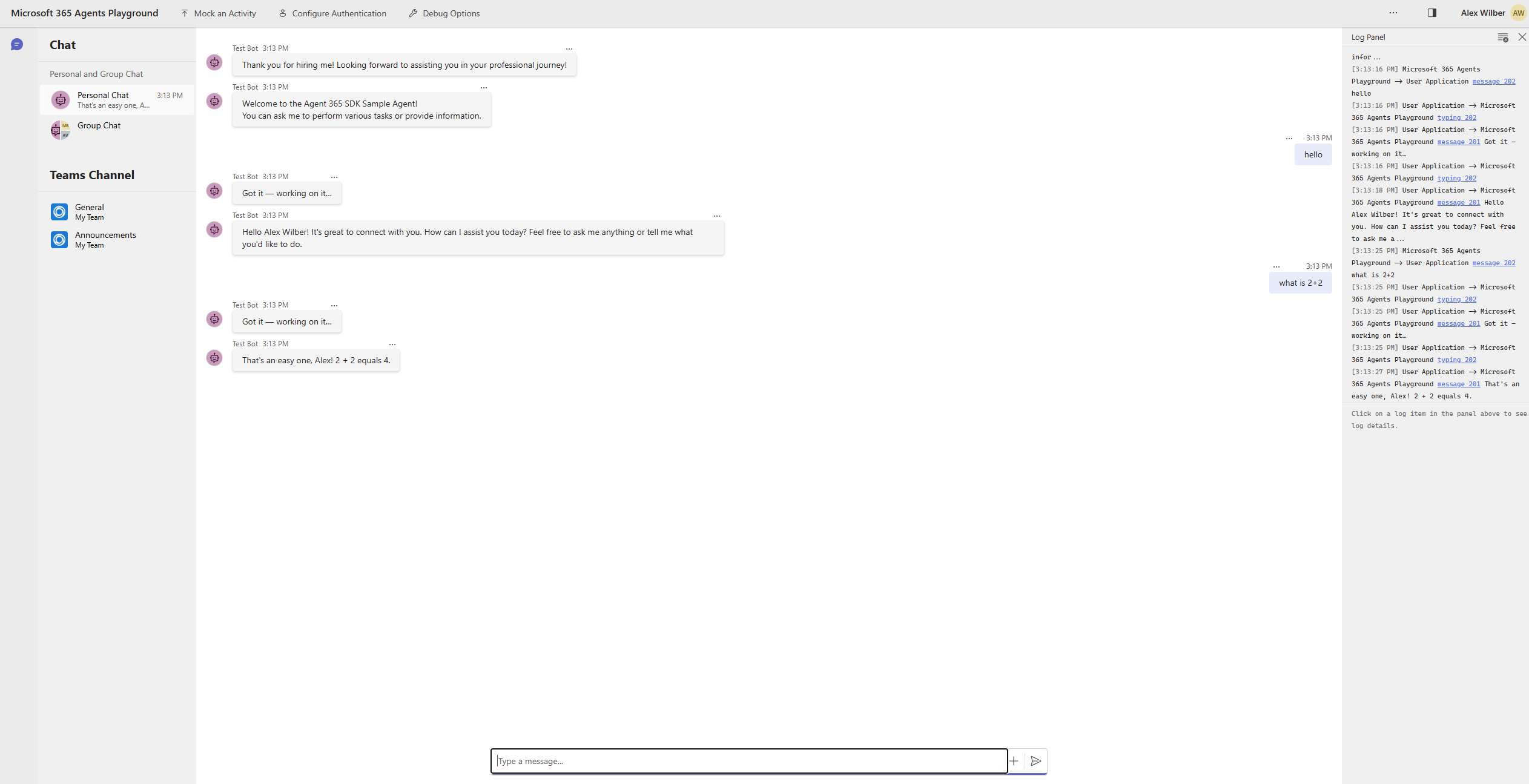
| Typing indicator | Send a message — you should see "Got it — working on it…" then "..." animation |
| MCP tools | Set BEARER_TOKEN in .env and restart — tools listed in server logs |
| User identity | Check server logs for Turn received from user — DisplayName: |
Expected Playground behavior
- You send a message
- Agent immediately replies: "Got it — working on it…"
- Typing indicator (
...) appears while Gemini processes - Agent sends the final response
Deploying to Production
Full lifecycle with A365 CLI
# 1. Initialize config (first time only)
a365 config init

# 2. Provision all cloud resources and set up the blueprint
a365 setup all

# 3. Deploy agent code to Azure
a365 deploy

# 4. Publish agent to Microsoft 365 admin center
a365 publish
Running on Azure App Service
See Deploy agent to Azure for full instructions.
Set messagingEndpoint in a365.config.json to your Azure Web App URL and "needDeployment": true (see configuration reference above).
Set the Azure App Service startup command to:
python main.py
Port: Azure App Service injects
PORT=8000automatically. The app reads it from the environment — do not hardcode3978in any startup command.
Configure Application Settings
The .env file is not deployed. Set all variables as Azure App Service Application Settings.
All values below come from a365.config.json and a365.generated.config.json (produced by a365 setup all). Run a365 config display -g to view the decrypted generated values.
| Key | Source | Value |
|---|---|---|
GOOGLE_API_KEY |
Google AI Studio | Your Google API key |
GOOGLE_GENAI_USE_VERTEXAI |
— | FALSE |
GEMINI_MODEL |
— | gemini-2.5-flash |
CONNECTIONS__SERVICE_CONNECTION__SETTINGS__CLIENTID |
a365.generated.config.json → agentBlueprintId |
Blueprint App ID |
CONNECTIONS__SERVICE_CONNECTION__SETTINGS__CLIENTSECRET |
a365.generated.config.json → agentBlueprintClientSecret |
Blueprint client secret |
CONNECTIONS__SERVICE_CONNECTION__SETTINGS__TENANTID |
a365.config.json → tenantId |
Azure tenant ID |
CONNECTIONS__SERVICE_CONNECTION__SETTINGS__SCOPES |
a365.generated.config.json → agentBlueprintId + /.default |
<blueprintId>/.default |
AGENTAPPLICATION__USERAUTHORIZATION__HANDLERS__AGENTIC__SETTINGS__TYPE |
— | AgenticUserAuthorization |
AGENTAPPLICATION__USERAUTHORIZATION__HANDLERS__AGENTIC__SETTINGS__SCOPES |
— | https://graph.microsoft.com/.default |
AUTH_HANDLER_NAME |
— | AGENTIC |
AGENTIC_UPN |
a365.config.json → agentUserPrincipalName |
Agent user principal name |
AGENTIC_NAME |
a365.config.json → agentUserDisplayName |
Agent display name |
AGENTIC_APP_ID |
a365.generated.config.json → agentBlueprintId |
Blueprint App ID |
AGENTIC_TENANT_ID |
a365.config.json → tenantId |
Azure tenant ID |
AGENTIC_USER_ID |
a365.generated.config.json → AgenticUserId |
Populated after Teams admin approves the agent instance |
ENABLE_OBSERVABILITY |
— | true |
OBSERVABILITY_SERVICE_NAME |
— | GoogleADKSampleAgent |
Running on GCP (Cloud Run)
See Deploy agent to GCP for full instructions.
# Deploy to Cloud Run
gcloud run deploy gcp-a365-agent --source . --region us-central1 --platform managed --allow-unauthenticated
Set a365.config.json with your Cloud Run URL and needDeployment: false:
{
  "messagingEndpoint": "https://gcp-a365-agent-XXXX-uc.run.app/api/messages",
  "needDeployment": false
}
"needDeployment": false— tells the CLI "I host my own server; don't deploy to Azure." Use this for GCP, AWS, or any self-hosted server.
Register only the messaging endpoint (skip Azure deploy):
a365 setup blueprint --endpoint-only
Messaging endpoint reference
See Configure messaging endpoint for all hosting options.
| Hosting | messagingEndpoint format |
needDeployment |
|---|---|---|
| Azure App Service | https://<app>.azurewebsites.net/api/messages |
true |
| GCP Cloud Run | https://<service>.run.app/api/messages |
false |
| AWS | https://<api-gateway>.amazonaws.com/api/messages |
false |
| Dev Tunnel (local) | https://<id>.devtunnels.ms:3978/api/messages |
false |
After Publishing — Post-Deployment Steps
After a365 deploy and a365 publish complete, the following steps require browser interaction and cannot be automated by the CLI.
Step 1: Configure in Teams Developer Portal
Get your blueprint App ID:
a365 config display -gCopy the
agentBlueprintIdvalue from the output.Open your blueprint configuration page:
https://dev.teams.microsoft.com/tools/agent-blueprint/<blueprint-id>/configurationSet Agent Type to
Bot BasedSet Bot ID to your
agentBlueprintIdClick Save
See Configure agent in Teams Developer Portal and Publish agent for full instructions.
Step 2: Upload manifest to M365 Admin Center
- Go to https://admin.microsoft.com > Agents > All agents > Upload custom agent
- Upload
manifest/manifest.zip(created bya365 publish)
Step 3: Create agent instance
- In Microsoft Teams, go to Apps and search for your agent name
- Select your agent and click Request Instance
- A tenant admin must approve the request at:
https://admin.cloud.microsoft/#/agents/all/requested
Step 4: Update AGENTIC_USER_ID after approval
Once the admin approves the agent instance, the agent user is created. Update AGENTIC_USER_ID in two places:
Find the value in
a365.generated.config.json→AgenticUserIdUpdate
.env:AGENTIC_USER_ID=<AgenticUserId from a365.generated.config.json>Update the Azure App Service Application Setting:
az webapp config appsettings set \
  --name gemini-buddy-agent-webapp \
  --resource-group AgentSDKTestRG \
  --settings AGENTIC_USER_ID=<AgenticUserId>
Note: The agent user creation is asynchronous — it can take a few minutes to a few hours to become searchable in Teams after the instance is approved.
Configuration Reference
All configuration is via environment variables (.env for local, App Settings for Azure):
| Variable | Default | Description |
|---|---|---|
GOOGLE_API_KEY |
— | Required. Google Gemini API key |
GEMINI_MODEL |
gemini-2.5-flash |
Gemini model to use |
GOOGLE_GENAI_USE_VERTEXAI |
FALSE |
Set TRUE to use Vertex AI instead of Gemini API |
AUTH_HANDLER_NAME |
(empty) | Empty = anonymous (Playground/local), AGENTIC = production |
BEARER_TOKEN |
(empty) | Token for MCP tool access. Get with a365 develop get-token -o raw |
AGENTIC_APP_ID |
— | Agent App ID from A365 portal |
AGENTIC_TENANT_ID |
— | Azure tenant ID |
AGENTIC_USER_ID |
— | Agent User ID from A365 portal |
PORT |
3978 |
Server port (Azure sets this to 8000 automatically) |
ENABLE_OBSERVABILITY |
true |
Enable OpenTelemetry tracing |
ENABLE_A365_OBSERVABILITY_EXPORTER |
false |
Send traces to A365 backend (true for production) |
LOG_LEVEL |
INFO |
Logging level (DEBUG, INFO, WARNING, ERROR) |
Working with User Identity
On every incoming message, the A365 platform populates activity.from_property with basic user information — always available with no API calls or token acquisition:
| Field | Description |
|---|---|
activity.from_property.id |
Channel-specific user ID (e.g., 29:1AbcXyz... in Teams) |
activity.from_property.name |
Display name as known to the channel |
activity.from_property.aad_object_id |
Azure AD Object ID — use this to call Microsoft Graph |
The sample logs these fields at the start of every message turn and injects the display name into the LLM system instructions for personalized responses.
Handling Agent Install and Uninstall
When a user installs (hires) or uninstalls (removes) the agent, the A365 platform sends an InstallationUpdate activity. The sample handles this in on_installation_update in hosting.py:
| Action | Description |
|---|---|
add |
Agent was installed — send a welcome message |
remove |
Agent was uninstalled — send a farewell message |
To test with Agents Playground, use Mock an Activity → Install application.
Sending Multiple Messages in Teams
Agent365 agents can send multiple discrete messages in response to a single user prompt. This is the recommended pattern for agentic identities in Teams.
Important: Streaming (SSE) is not supported for agentic identities in Teams. Instead, call
send_activitymultiple times.
Pattern
- Send an immediate acknowledgment so the user knows work has started
- Run a typing indicator loop — each indicator times out after ~5 seconds, so re-send every ~4 seconds
- Do your LLM work, then send the response
Typing Indicators
- Typing indicators show a progress animation in Teams
- They have a built-in ~5-second visual timeout — re-send every ~4 seconds for long operations
- Only visible in 1:1 chats and small group chats (not channels)
Code Example
# Multiple messages: send an immediate ack before the LLM work begins.
# Each send_activity call produces a discrete Teams message.
await context.send_activity("Got it — working on it…")

# Send typing indicator immediately (awaited so it arrives before the LLM call starts).
await context.send_activity(Activity(type="typing"))

# Background loop refreshes the "..." animation every ~4s (it times out after ~5s).
# asyncio.create_task is used because all aiohttp handlers share the same event loop.
async def _typing_loop():
    while True:
        try:
            await asyncio.sleep(4)
            await context.send_activity(Activity(type="typing"))
        except asyncio.CancelledError:
            break

typing_task = asyncio.create_task(_typing_loop())
try:
    response = await agent.invoke(user_message)
    await context.send_activity(response)
finally:
    typing_task.cancel()
    try:
        await typing_task
    except asyncio.CancelledError:
        pass
Troubleshooting
Agent not responding in Playground
Symptom: Messages sent, no response appears.
Cause: AUTH_HANDLER_NAME=AGENTIC is set. Playground does not provide a real AAD token, so the OBO exchange hangs and the handler never fires.
Fix: Set AUTH_HANDLER_NAME= (empty) in .env for local/Playground testing.
"Retrieving agentic user token" in logs — agent hangs
Cause: Same as above — AUTH_HANDLER_NAME=AGENTIC with no valid AAD token.
Fix: Clear AUTH_HANDLER_NAME for Playground. For production with MCP tools, provide a fresh BEARER_TOKEN.
"Failed to create MCP session" error
Cause: Expired or missing BEARER_TOKEN with no auth handler configured — the agent tries to connect to MCP servers with invalid credentials.
Fix: Either refresh BEARER_TOKEN with a365 develop get-token -o raw, or set AUTH_HANDLER_NAME= to skip MCP tools entirely and run in bare LLM mode.
Getting HTTP 201 instead of 202 from /api/messages
Cause: Python on Windows defaults to WindowsProactorEventLoopPolicy, which can break aiohttp socket writes. The run_app() call in main.py uses the correct event loop — no manual policy override needed.
Fix: Ensure you are using run_app() from aiohttp (not asyncio.run()). Do not override the event loop policy manually.
Azure container startup timeout (230s)
Cause: Port hardcoded to 3978 — Azure App Service injects PORT=8000 and the app binds to the wrong port.
Fix: Already handled in main.py — port = int(os.getenv("PORT", 3978)).
pip not found during a365 deploy
Cause: uv venv / uv sync does not install pip by default.
Fix:
.venv/Scripts/python.exe -m ensurepip --upgrade   # Windows
.venv/bin/python -m ensurepip --upgrade            # Linux / macOS
Note: Re-run this after every uv sync as uv removes pip.
AttributeError: 'dict' object has no attribute 'TENANT_ID'
Cause: JWT middleware received a plain dict instead of a typed AgentAuthConfiguration object.
Fix: Already handled in main.py — AgentAuthConfiguration is built explicitly from env vars.
Gemini model 404 error
Cause: gemini-2.0-flash is deprecated for new API key users.
Fix: Use GEMINI_MODEL=gemini-2.5-flash (default) in .env.
For a detailed explanation of the agent code and implementation, see the Agent Code Walkthrough.
Support
For issues, questions, or feedback:
- Issues: Please file issues in the GitHub Issues section
- Documentation: See the Microsoft Agents 365 Developer documentation
- Security: For security issues, please see SECURITY.md
Contributing
This project welcomes contributions and suggestions. Most contributions require you to agree to a Contributor License Agreement (CLA) declaring that you have the right to, and actually do, grant us the rights to use your contribution. For details, visit https://cla.opensource.microsoft.com.
When you submit a pull request, a CLA bot will automatically determine whether you need to provide a CLA and decorate the PR appropriately (e.g., status check, comment). Simply follow the instructions provided by the bot. You will only need to do this once across all repos using our CLA.
This project has adopted the Microsoft Open Source Code of Conduct. For more information see the Code of Conduct FAQ or contact opencode@microsoft.com with any additional questions or comments.
Additional Resources
- Microsoft Agent 365 SDK - Python repository
- Microsoft 365 Agents SDK - Python repository
- Google ADK API documentation
- Configure messaging endpoint
- Deploy agent to Azure
- Deploy agent to GCP
- Publish agent
- Configure agent in Teams Developer Portal
- Configure Agent Testing
- Test your agent locally in Agents Playground
Trademarks
Microsoft, Windows, Microsoft Azure and/or other Microsoft products and services referenced in the documentation may be either trademarks or registered trademarks of Microsoft in the United States and/or other countries. The licenses for this project do not grant you rights to use any Microsoft names, logos, or trademarks. Microsoft's general trademark guidelines can be found at http://go.microsoft.com/fwlink/?LinkID=254653.
License
Copyright (c) Microsoft Corporation. All rights reserved.
Licensed under the MIT License - see the LICENSE file for details.