Note
Access to this page requires authorization. You can try signing in or changing directories.
Access to this page requires authorization. You can try changing directories.
Overview
WorkshopPLUS is a specialized training experience designed to provide you with immersive, instructor-led learning about Microsoft products and technologies. WorkshopPLUS sessions include hands-on labs, where you engage directly with real-world scenarios in a secure virtual environment.
To access these labs, you need to use the Redeem Training Key feature in Engage Center—a streamlined process that connects your organizational account to the Learning Campus. Connecting your account ensures you're recognized as an authorized attendee, your progress is tracked, and your experience is both secure and compliant with Microsoft's standards.
By following this article's instructions to redeem your training key, you'll enjoy seamless entry to your labs and maximize the value of your WorkshopPLUS training.
Note
Learn more about WorkshopPLUS.
How the Engage Center Redeem Training Key works—and why it matters
The Redeem Training Key feature in Engage Center is your secure access to WorkshopPLUS hands-on labs. Here’s how it works:
Simple Access: After you register for a WorkshopPLUS session, your instructor will provide you with a unique training key. During the workshop, sign in to Engage Center with your work (Entra) account, navigate to the Learning > My Learning page, and select "Redeem Training Key" on your My Learning Dashboard.
Seamless Lab Entry: Your instructor will provide you with your training key. Enter your training key on Engage Center, and you'll be directed to the Learning Campus, where your enrolled course and its associated labs will appear. This process ensures you're recognized as an authorized participant and launches your virtual lab environment with just a click.
Security First: Using the Redeem Training Key feature through Engage Center—rather than accessing labs directly—ensures that you use your organization's secure work account. Using your secure work account is critical for protecting your data and aligning with Microsoft's security standards. Due to these enhanced security requirements, personal accounts are not recommended for lab access.
Importance: Redeeming your training key in Engage Center guarantees a streamlined, secure experience. It connects your lab activity to your organizational profile, supports compliance, and helps track your participation and completion. Skipping this step or using a personal account can lead to access issues and may prevent you from receiving credit for your training.
Redeem your training key
During the workshop, sign in to Engage Center with your work (Entra) account.
In the left navigation menu, locate the Learning section, then select the My Learning tab.
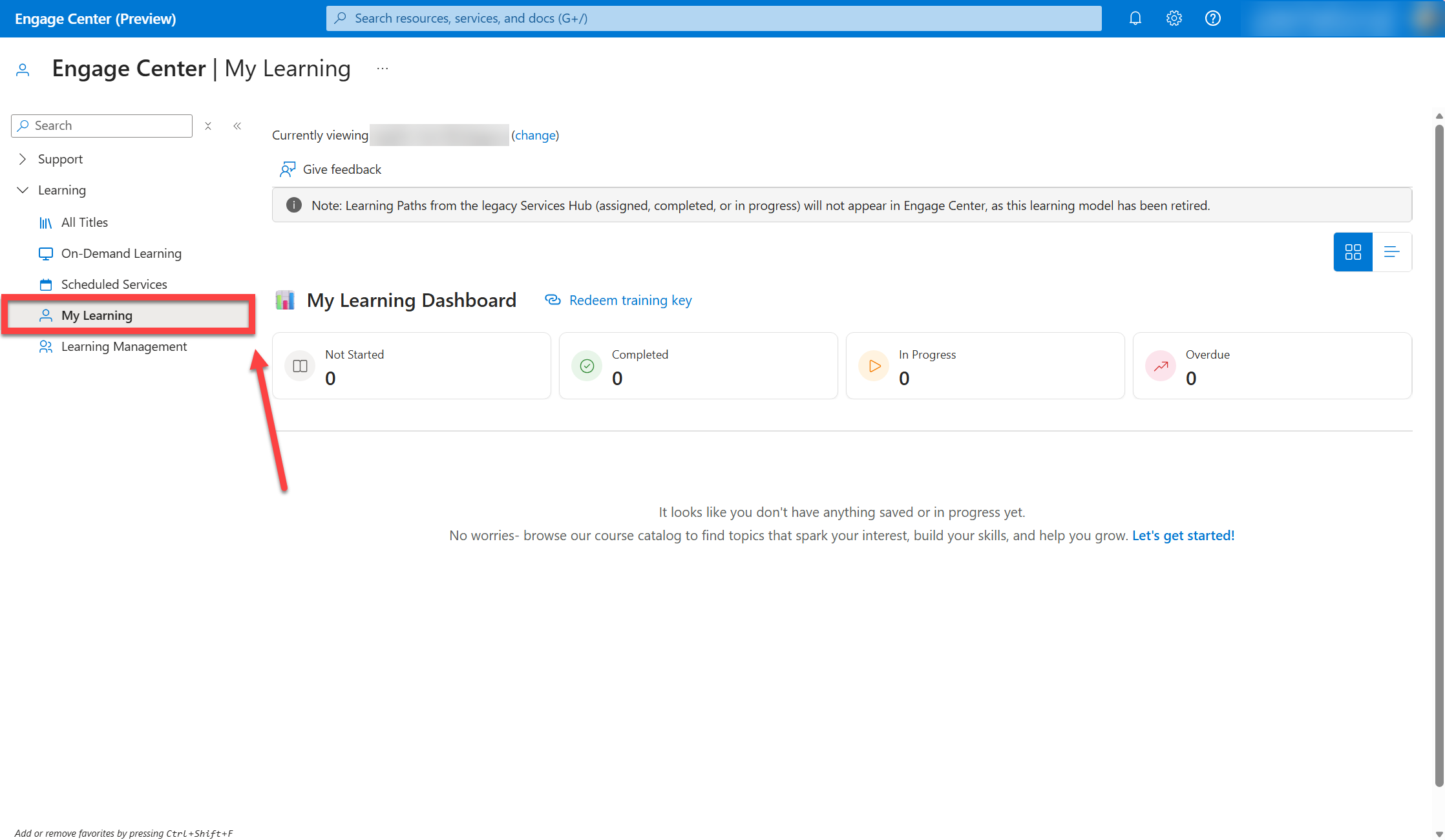
In your My Learning Dashboard:
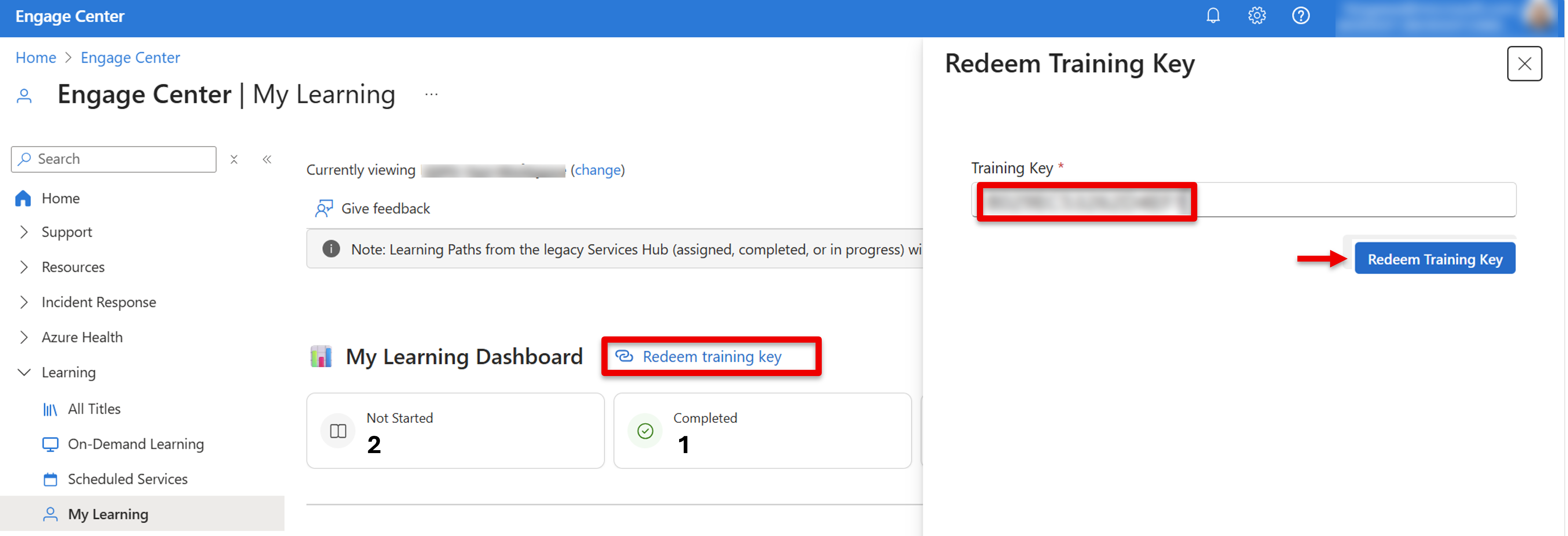
Select "Redeem training key".
Input the training key your instructor provided.
Select the "Redeem Training Key" button to submit your training key.
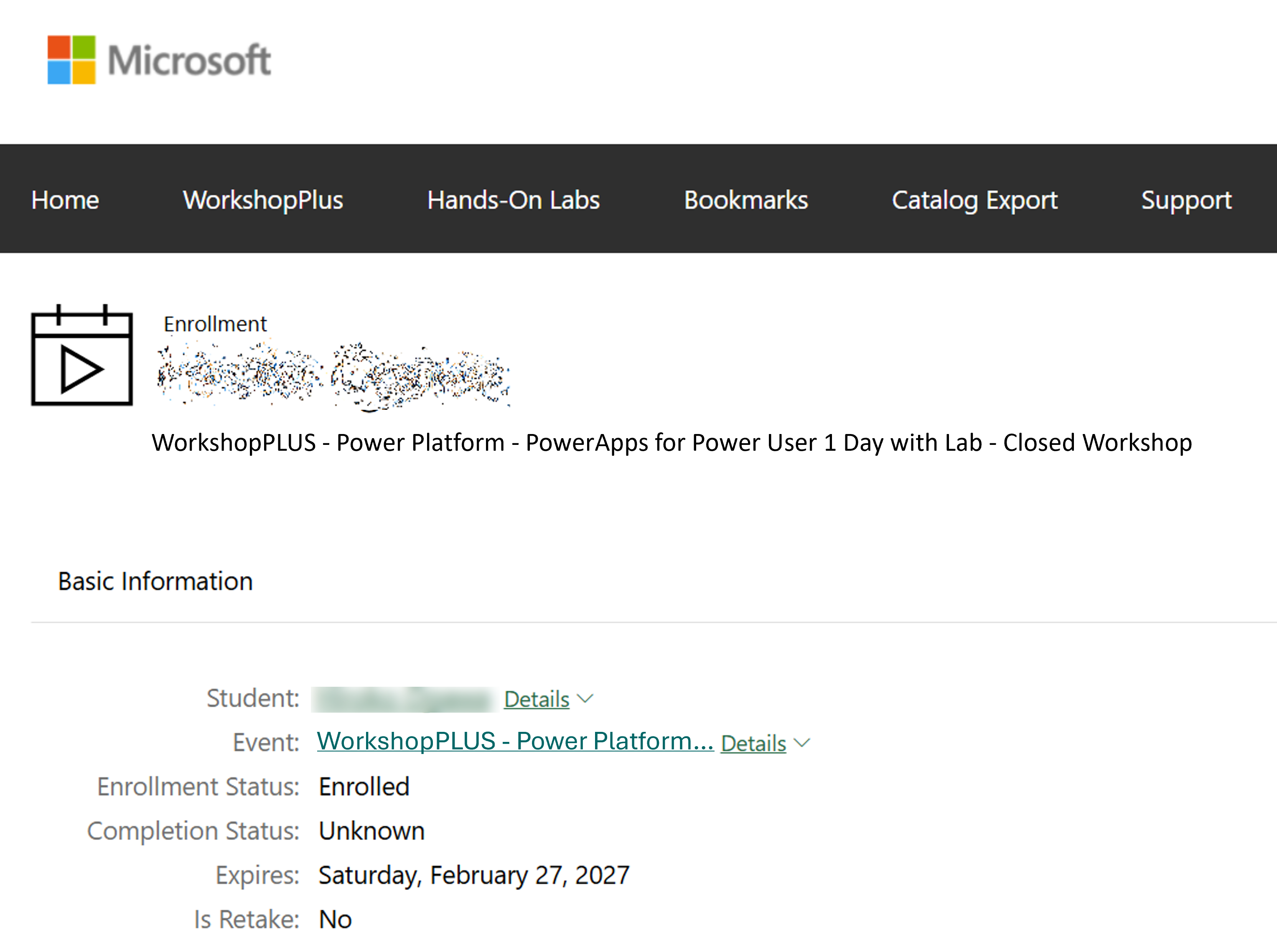
View your enrolled course and its associated labs in the Learning Campus.
Tip
Make sure your Entra (work) account is set up before your workshop and that you've been granted permission to access Learning on Engage Center. If you need help, check Group Management in Microsoft Engage Center.
This approach not only simplifies your access to hands-on labs but also ensures your learning journey is secure and properly tracked for your organization.