Note
Access to this page requires authorization. You can try signing in or changing directories.
Access to this page requires authorization. You can try changing directories.
A Copilot UX component gets the same SharePoint Framework (SPFx) clients as a web part through this.context. SPFx gets the access tokens for these clients, so the component doesn't need any authentication code.
| Client | Use it for |
|---|---|
this.context.spHttpClient |
SharePoint REST API |
this.context.msGraphClientFactory |
Microsoft Graph |
This article uses code from the Access data companion sample. Check the sample's declared package versions before using it as a GA baseline.
Automatic hosting and sign-in don't grant permission to business data. API consent, the signed-in user's access, and server-side authorization still apply. Backend services can have costs separate from the Copilot UX component capability.
Choose where to load data
The onInit() method runs once before the first render, and the component shows nothing until it finishes. Loading data in onInit() delays the whole component. Load data in the view instead so the component renders right away with a loading state.
The sample creates the service in onInit():
protected async onInit(): Promise<void> {
  this._service = new SharePointListsService(this.context.spHttpClient);
}
The React view loads the data in an effect. It runs again when the site changes, and it ignores results that arrive after the effect is cleaned up:
// Load the lists when the component starts and when the site changes.
React.useEffect(() => {
  let cancelled: boolean = false;
  setSelection(undefined);

  if (site.error.length > 0) {
    setLists({ status: 'error', message: site.error });
    return undefined;
  }

  setLists({ status: 'loading' });
  service.getLists(site.url).then(
    (data: ISharePointList[]) => {
      if (!cancelled) {
        setLists({ status: 'ready', data });
      }
    },
    (error: unknown) => {
      if (!cancelled) {
        setLists({ status: 'error', message: toErrorMessage(error, strings.GenericErrorMessage) });
      }
    }
  );

  return () => {
    cancelled = true;
  };
}, [service, site, strings]);
Call the SharePoint REST API
Call spHttpClient.get() with SPHttpClient.configurations.v1. Check response.ok before reading the body, because a failed request doesn't throw.
public async getLists(siteUrl: string): Promise<ISharePointList[]> {
  const url: string =
    `${siteUrl}/_api/web/lists` +
    '?$select=Id,Title,ItemCount&$filter=Hidden eq false&$orderby=Title';
  const data: IListResponse = await this._getJson<IListResponse>(url);

  return data.value.map((list) => ({
    id: list.Id,
    title: list.Title,
    itemCount: list.ItemCount
  }));
}
private async _getJson<T>(url: string): Promise<T> {
  const response: SPHttpClientResponse = await this._spHttpClient.get(
    url,
    SPHttpClient.configurations.v1
  );

  if (!response.ok) {
    throw new Error(
      `SharePoint returned ${response.status}. ` +
        'Check that the URL is a SharePoint site and that you have access to it.'
    );
  }

  return (await response.json()) as T;
}
When the agent doesn't pass a site, the sample uses this.context.pageContext.web.absoluteUrl. In Microsoft 365 Copilot, that's the root site of the tenant. In the Copilot Workbench, it's the site the Workbench is opened on.
Pass the site from the agent
Each property in the component's properties schema becomes a tool parameter. The agent fills the parameter from the conversation, and the component reads it from this.properties. The describe() text tells the agent when to set the parameter.
const propertiesSchema = z.object({
  siteUrl: z
    .string()
    .optional()
    .describe(
      'Absolute HTTPS URL of the SharePoint site whose lists to show, for ' +
        'example https://contoso.sharepoint.com/sites/hr. Set it only when ' +
        'the user gives a site URL. Omit it to use the current site. Never ' +
        'guess a URL from a site name.'
    )
});
A tool parameter is text that the agent wrote, so validate it before you use it in a request:
export function resolveSiteUrl(siteUrl: string | undefined, fallbackUrl: string): string {
  const trimmed: string = (siteUrl ?? '').trim();
  const candidate: string = trimmed.length > 0 ? trimmed : fallbackUrl;

  let parsed: URL;
  try {
    parsed = new URL(candidate);
  } catch {
    throw new Error(`"${candidate}" is not a valid site URL.`);
  }

  if (parsed.protocol !== 'https:') {
    throw new Error('The site URL must start with https://.');
  }

  return `${parsed.origin}${parsed.pathname}`.replace(/\/+$/, '');
}
Call Microsoft Graph
Get a client with msGraphClientFactory.getClient('3'). The sample creates the client once and reuses it for every call:
private _getClient(): Promise<MSGraphClientV3> {
  if (!this._clientPromise) {
    this._clientPromise = this._msGraphClientFactory.getClient('3');
  }
  return this._clientPromise;
}
Use select() to return only the fields the component shows:
public async getProfile(): Promise<IUserProfile> {
  const client: MSGraphClientV3 = await this._getClient();
  const user: IGraphUser = await client
    .api('/me')
    .select('displayName,jobTitle,mail,userPrincipalName')
    .get();

  return {
    displayName: user.displayName ?? '',
    jobTitle: user.jobTitle ?? '',
    mail: user.mail ?? user.userPrincipalName ?? ''
  };
}
The calendarView endpoint returns the events in a time range. The sample asks for the next seven days:
public async getEvents(now: Date): Promise<ICalendarEvent[]> {
  const client: MSGraphClientV3 = await this._getClient();
  const end: Date = new Date(now.getTime() + DAYS_AHEAD * MS_PER_DAY);
  const response: { value: IGraphEvent[] } = await client
    .api('/me/calendarView')
    .query({ startDateTime: now.toISOString(), endDateTime: end.toISOString() })
    .select('id,subject,start,end,location')
    .orderby('start/dateTime')
    .top(25)
    .get();

  return response.value.map((event: IGraphEvent) => ({
    id: event.id,
    subject: event.subject || NO_SUBJECT,
    start: toUtcIso(event.start),
    end: toUtcIso(event.end),
    location: event.location?.displayName ?? ''
  }));
}
Request Microsoft Graph permissions
Declare the Microsoft Graph permissions the component needs in the webApiPermissionRequests section of ./config/package-solution.json:
"webApiPermissionRequests": [
  {
    "resource": "Microsoft Graph",
    "scope": "User.Read"
  },
  {
    "resource": "Microsoft Graph",
    "scope": "Mail.Read"
  },
  {
    "resource": "Microsoft Graph",
    "scope": "Calendars.Read"
  }
],
After the package is deployed, an administrator approves the requests:
- Upload the .sppkg file to the app catalog and select Enable app.
- Go to the API access page in the SharePoint admin center.
- Select each pending request for the solution, and then select Approve.
The approved permissions apply to every SPFx solution in the tenant, not only to this one. The API access page lists only the requests that aren't already approved in the tenant, so it might show fewer requests than the solution declares. For more information, see Connect to Azure AD-secured APIs in SharePoint Framework solutions.
Handle loading, empty, and error states
The host shows the component as soon as it renders. Show a loading state while data loads, a short message when there is no data, and the error when a call fails. The sample keeps each request's state in one value:
export type LoadState<T> =
  | { status: 'loading' }
  | { status: 'ready'; data: T }
  | { status: 'error'; message: string };
The LoadStatus component renders the loading and error states, and the view renders the data:
export function LoadStatus(props: ILoadStatusProps): React.ReactElement {
  if (props.state.status === 'loading') {
    return <Spinner size="small" label={props.loadingLabel} />;
  }

  if (props.state.status === 'error') {
    return (
      <MessageBar intent="error">
        <MessageBarBody>{props.state.message}</MessageBarBody>
      </MessageBar>
    );
  }

  return <></>;
}
When the Microsoft Graph permissions aren't approved, tell the user what to do instead of showing the raw error. The sample checks for this case:
export function isPermissionError(error: unknown): boolean {
  if (typeof error !== 'object' || !error) {
    return false;
  }

  const candidate = error as { statusCode?: number; message?: string };
  if (candidate.statusCode === 401 || candidate.statusCode === 403) {
    return true;
  }

  return /AADSTS65001|consent/i.test(candidate.message ?? '');
}
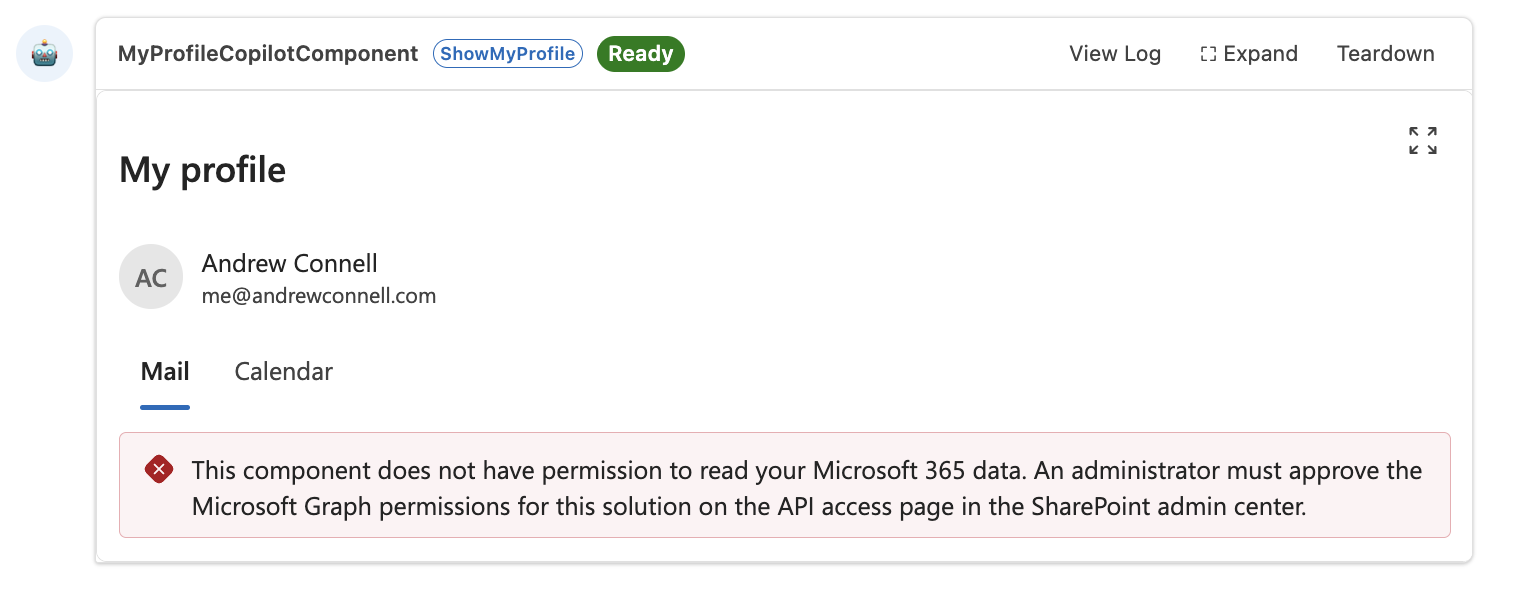
Resize the frame when content changes
The host sets the height of the component frame from the content at startup. In the Copilot Workbench, content that loads later, such as list items, doesn't resize the frame, so the rest of the content is cut off. Watch the size of the content and pass each new size to requestSizeChangeAsync():
export function watchContentSize(element: HTMLElement, onSize: ContentSizeHandler): () => void {
  const view: (Window & typeof globalThis) | null = element.ownerDocument.defaultView;
  if (!view || typeof view.ResizeObserver !== 'function') {
    return () => undefined;
  }

  let lastWidth: number = -1;
  let lastHeight: number = -1;
  const observer: ResizeObserver = new view.ResizeObserver(() => {
    const rect: DOMRect = element.getBoundingClientRect();
    const width: number = Math.ceil(rect.width);
    const height: number = Math.ceil(rect.height);
    if (width !== lastWidth || height !== lastHeight) {
      lastWidth = width;
      lastHeight = height;
      onSize(width, height);
    }
  });

  observer.observe(element);
  return () => observer.disconnect();
}
The sample watches a div that wraps the view's content, and the component class passes the size to the host:
private _handleContentResize = (width: number, height: number): void => {
  this.requestSizeChangeAsync(width, height).catch(() => undefined);
};
Test the component
Start the local development server:
heft start --nobrowserOpen the Copilot Workbench at
https://yourtenantname.sharepoint.com/_layouts/15/copilotworkbench.aspx.Activate a component from the left side of the screen, enter the properties JSON, and select Fire turn.
For SharePointLists, leave out
siteUrlto use the current site, or set it to another site:{ "siteUrl": "https://contoso.sharepoint.com/sites/hr" }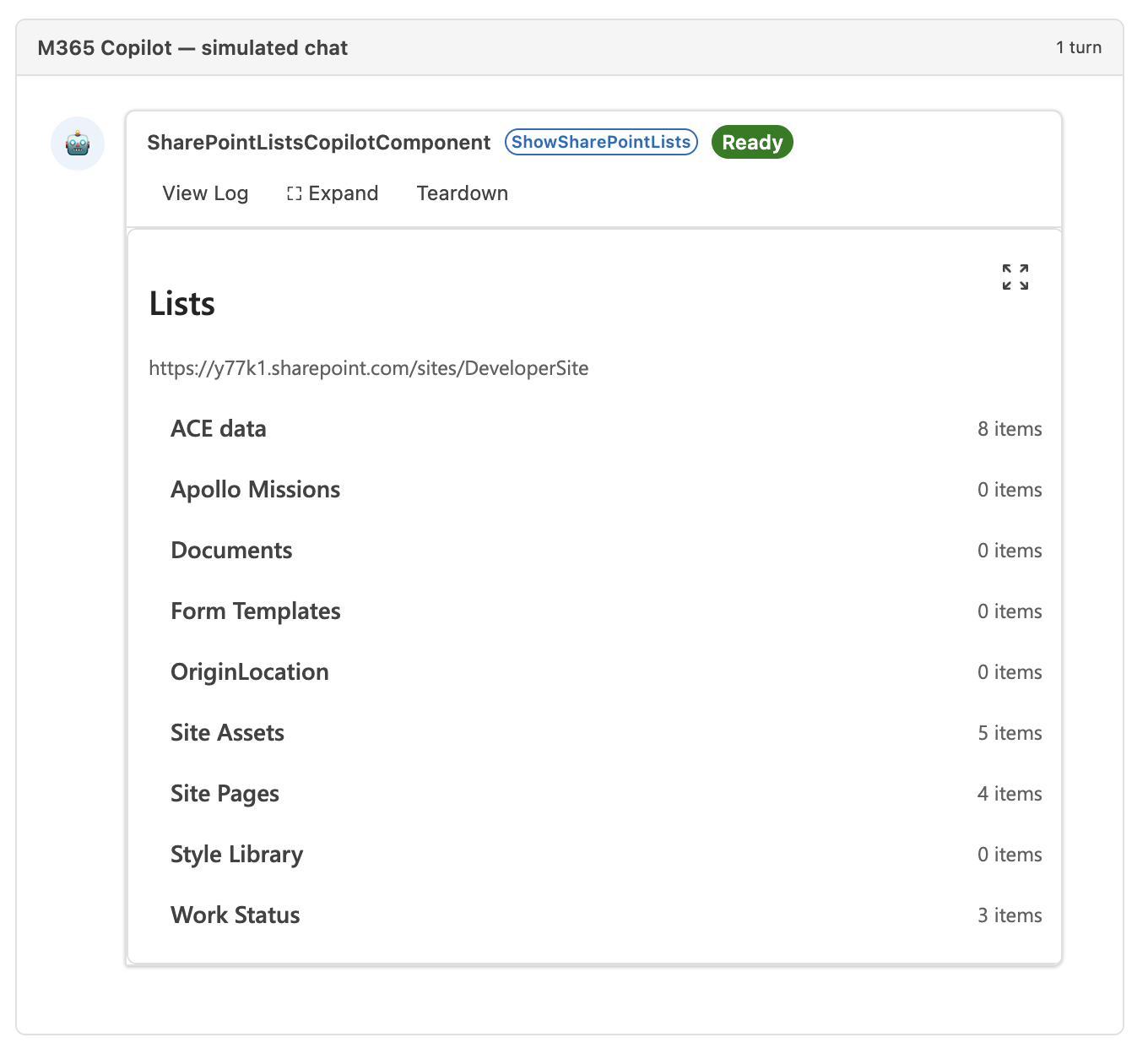
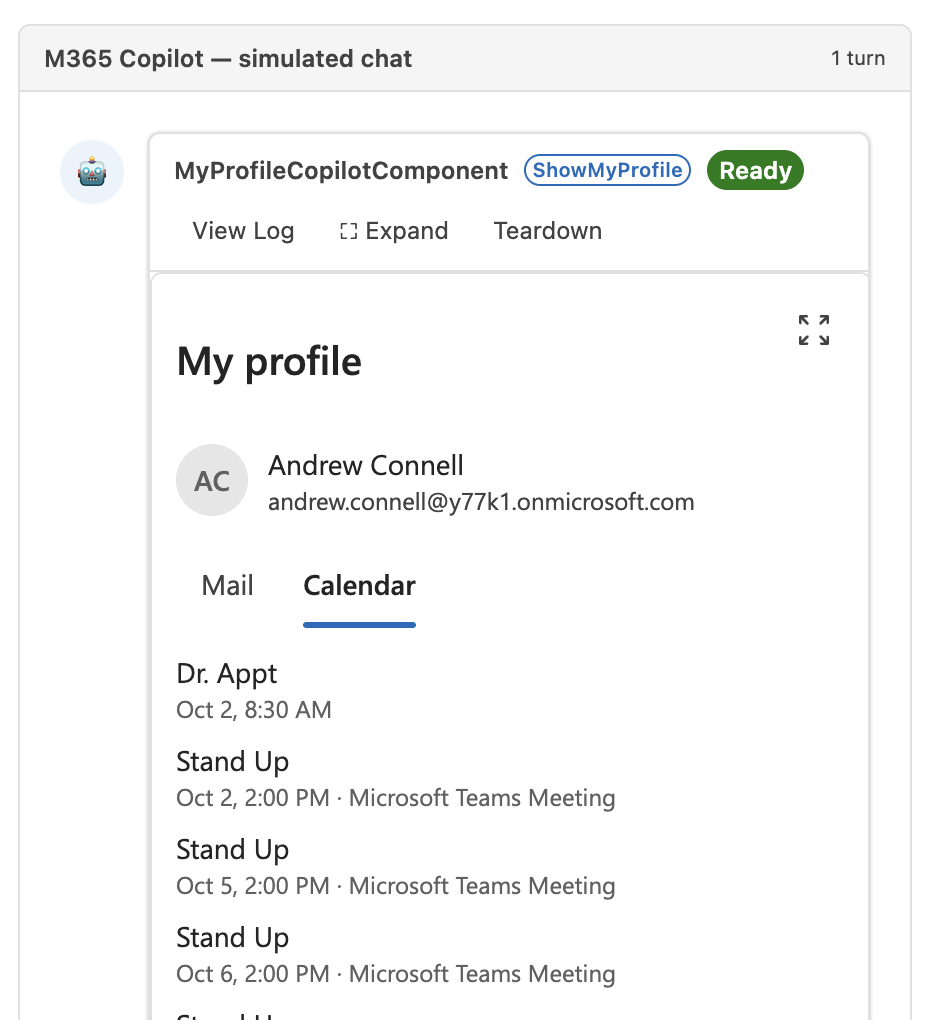
For MyProfile, set
viewtomailorcalendar:{ "view": "calendar" }
In the Workbench, Microsoft Graph calls succeed only for permissions that are already approved in the tenant. A permission the solution requests for the first time is approved after the package is deployed.
To package and deploy the solution, follow the steps in Build your first Copilot UX component. After the agent is deployed, search for it by name in the Agent Store, add it, and then ask it for data. Copilot calls the tool that matches the request and renders the component in the conversation.
Next steps
Supply context and confirm consequential actions
Use createCopilotTextContent to describe the data currently visible in the component, such as the selected list, displayed rows, and current filter. The GA limit for text context supplied using this helper is 10 KB; larger text context blocks sending the message. See Provide Copilot with context from your component for model-context updates versus user-triggered follow-ups.
For actions that change business data, let the user review the target and values before confirming. Enforce authorization and validation in the backend, prevent duplicate submissions, and report the actual operation result. Copilot's tool selection and contextual text don't supply those safeguards automatically.
- Display modes in Copilot UX components
- Develop and deploy Copilot UX components
- Access data companion sample
See also
The this.context.aadHttpClientFactory and this.context.httpClient clients are also available for other APIs.