Work with variables in your Copilot Studio agent
Microsoft Copilot Studio allows you to store important information entered by the customer for later use by using variables. For example, you can save a customer's name in a variable called varName. This variable can be inserted into conversation nodes to create a more personal experience for the customer, such as inserting it into a message node to allow the agent to address the customer by name as the conversation continues.
Variables can be used to dynamically route customers down different conversation paths. They can also be fed into workflows as input parameters. For example, the city the customer lives in could be stored in a variable. When a workflow is executed, the variable could be passed through as an input parameter to ensure the weather service is getting the correct forecast.
Many variable types are associated with out-of-the-box and custom entities defined in the agent. For your reference, a complete list of variable types are available.
Creating variables
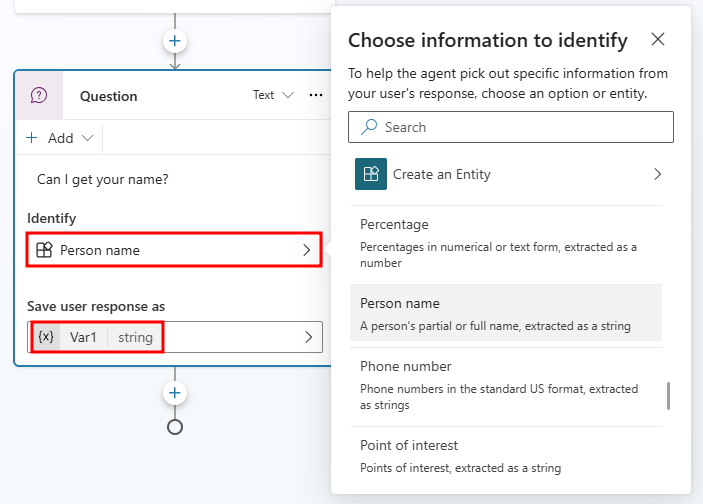
Variables are created automatically when you add a question node to a topic and can be edited under the Save user response as section. By default, when a question node is inserted, it is created using Multiple choice options. However, any prebuilt or custom entity can be used by selecting it under Identify.
Rename a variable
When a variable is automatically created, it is given a default name like Var1, Var2, etc. which isn't descriptive. If desired, you can rename a variable by selecting it and entering a new name in the Variable properties pane. This makes it easier to identify later when needed.
Passing variables between topics
One common action in a Microsoft Copilot Studio agent is to redirect from one topic to another such as sending someone to the Store Hours topic after they're greeted. When you redirect to another topic, you can pass values into variables in the destination topic. You can also pass values back to variables in the original topic.
Passing variables between topics is especially useful when you already have information that the topic needs. Users appreciate not having to answer the questions again. For example, if you've already captured the user's name in the Greeting topic, and you know that the user's name is used in the Store Hours topic that you're redirecting to, you can easily pass the user's name to the Store Hours topic when you redirect to the topic.
Receive values from other topics
When you define a variable in a topic (for example, by inserting a question node), the user's answer to the questions is populated to the variable associated with that question. Since you already have the value, there's no reason to ask the question again. In these cases, you can define the variable to Receive values from other topics.
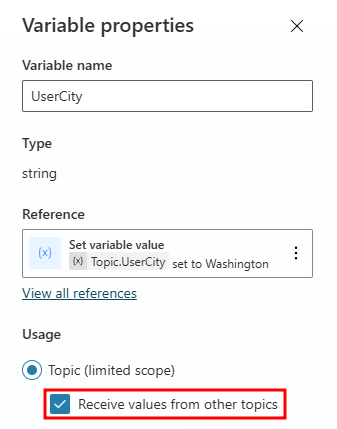
This means when another topic redirects to this one, it can pass a value into this variable and skip the question. The experience for the user when talking to the agent becomes seamless.
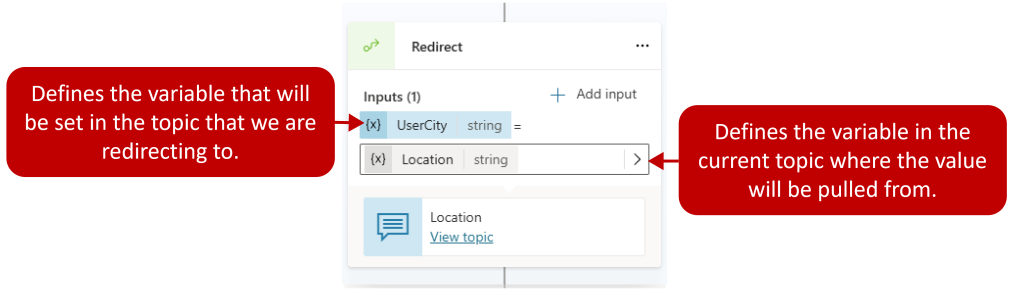
When configuring your redirect node, you'll need to define what variable you want to populate in the destination topic. After you specify which variable you want to set in the destination topic, you'll specify which value in the current topic is used. For example, in the image below, we're redirecting to a topic called Location. The UserCity variable in the Location topic is being set to a text variable called Location from the redirecting topic.
For more information and step-by-step instructions on receiving values from other topics, see Receive values from other topics.
Return values to original topics
When a topic asks a question or obtains a variable from an action in some other way, the variable can be returned to the original topic that redirected to it.
In this case, the variable also becomes part of the original topic and can be used like any other variable. This helps you construct the topic so that information the agent obtains is available across topics, reducing the need for global variables.
For more information and step-by-step instructions, see Return values to original topics.
To learn more about working with variables see Work with variables.
Global variables
By default, a variable's value can only be used in the topic where that variable is created. For example, if you create a variable UserCity in a Check Weather topic, you can only include it in items like message nodes within the Check Weather topic. These are referred to as Topic-level variables. However, there might be scenarios when you want to use the same value across multiple topics. Agents can remember a variable's context when conversations span multiple topics.
For example, a Welcome topic could ask for the customer's name and email. When the conversation goes to another topic, such as an Appointment booking topic, you might want the agent to remember the customer's name and email address.
In Microsoft Copilot Studio, these variables are referred to as Global variables. They can be accessed by any topic in the agent.
By default, global variables only apply during the current session. You can specify which variables should be treated as global variables to distinguish them from topic-level variables.
Define a global variable
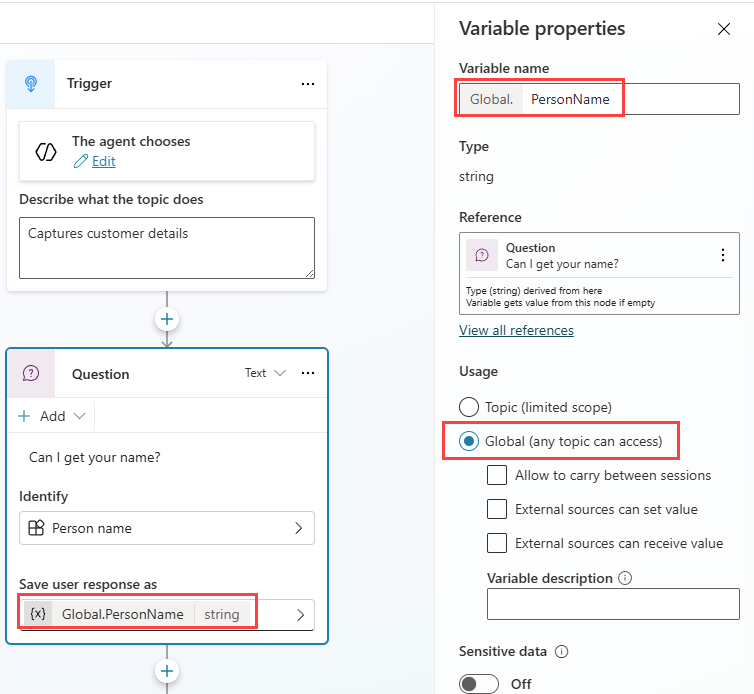
To define a variable as global, select the variable directly from a node or in the Variables menu within the top menu bar. Typically you would navigate to the Question node that first references the variable you want to work with.
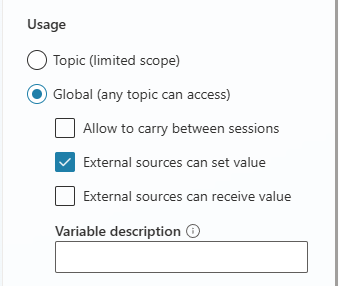
In the Variable properties pane, under Usage, select Global (any topic can access).
Note
The variable name gets a prefix string of Global to differentiate it from the topic-level variables.
For example, the variable UserName is now shown as Global.UserName. When you convert a topic variable to a global variable, make sure that the variable name is unique across all topics. If a name conflict is encountered, you need to rename the variable before saving your change.
Use global variables
Once a global variable is created, it's available to all topics. While working with a message or question node, select the {x} button and navigate to the Custom tab. This displays a list of all the variables available in the current topic. Variables are sorted in alphabetical order and grouped by their Usage type, i.e. Global and Topic.
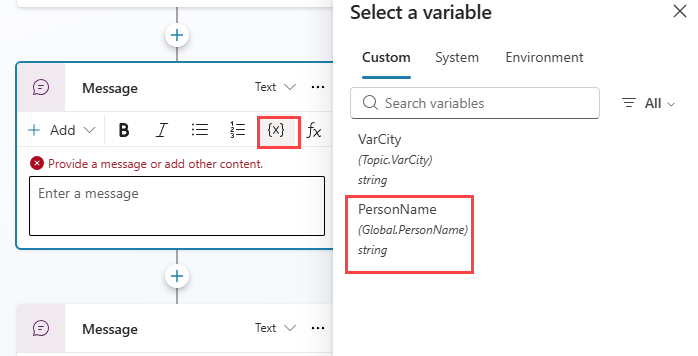
When you use a condition node, a workflow node, or a tool node, you can also see global variables available there.
Manage global variables
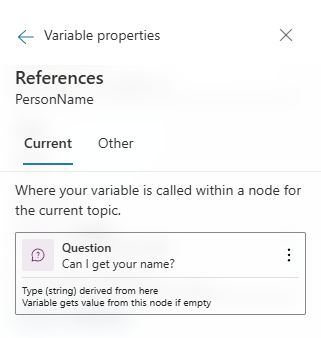
When you create a global variable for use across multiple topics, it's essential to understand where it is applied. You can easily locate where the variable was initially defined by checking Reference and identify other topics that use it by selecting View all references. This feature is especially helpful when developing a new agent or managing multiple variables within complex topic branches.
The References section provides two main options:
Reference: Shows where the variable is currently defined.
View All References: Lists all topics and nodes where the variable is used, allowing you to navigate directly to each referenced topic and node.
Set a global variable's value from external sources
You can set a global variable to be initialized with an external source. This lets the agent start the conversation with some context.
For example, a customer brings up a chat from your website. If the user is logged in to your website, you already know the customer's name. By passing that information to the agent before starting the conversation, it can have a more intelligent conversation with the customer without having to ask for their name again.
You can specify that a variable can get its values from an external source. Open the Variable properties pane, and in the Usage section, select the External sources can set value box.
For more information on working with global variables, see Work with global variables.
Next, we'll look at system topics.