Embed custom experiences with Power Apps
Dynamics 365 forms are built around a standard data entry and viewing experience. That covers most needs, but not all of them. Sometimes your users need something more: a visual product configurator, a custom intake form with complex branching logic, an asset inspection checklist, or a knowledge article search experience with richer filtering than what's built in. That's where Power Apps comes in, and there are three distinct approaches depending on what you're trying to achieve.
Choosing the right approach upfront saves time and avoids unnecessary complexity. Each has a different scope, authoring model, and deployment path.
Embedded canvas apps in forms
A canvas app embedded in a model-driven form renders as a component inside an existing Dynamics 365 form. The canvas app receives the current record's data as input context, so it can display related information, perform calculations, call external APIs, or provide an interactive experience that goes well beyond what standard form controls support.
Common uses include custom visualizations, interactive workflow guidance, and surfacing data from non-Dataverse sources alongside standard record fields. You author the canvas app in Power Apps Studio, then add it to a form as a component using the form designer in Power Apps. You control the size and placement of the component within the form layout, and you define which fields from the current record are passed to the canvas app as parameters.
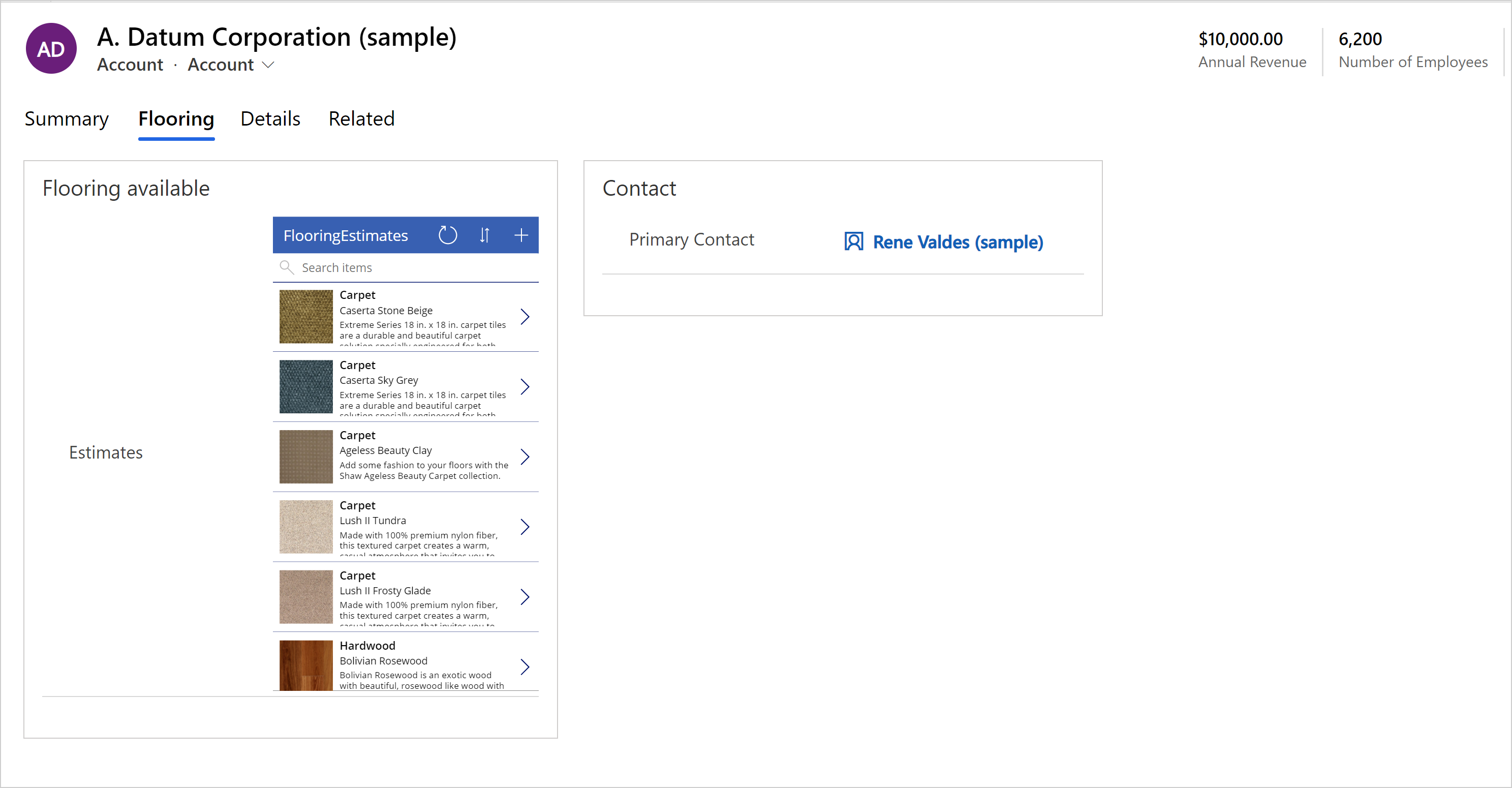
When to use this approach: choose an embedded canvas app when you need a rich, interactive experience within an existing form that's too complex for standard form controls, but you don't need to replace the entire page.
Learn more about embedding canvas apps in model-driven forms.
Power Apps Component Framework controls
Power Apps Component Framework (PCF) controls are custom UI components that replace or augment individual field-level controls in a model-driven form or view. While a canvas app occupies a section of a form, a PCF control is more surgical—it replaces how a specific field is rendered and interacted with.
Developers build PCF controls and deploy them as solutions. Once deployed, they appear in the control library and can be applied to any compatible field across multiple forms and apps within the environment.
Good candidates for PCF controls include: a star-rating control for a numeric field, a signature capture control for a binary field, a color-coded status badge for a status field, or a rich text editor for a plain text field. The key characteristic is that the customization is field-scoped: you're changing how one type of data is displayed, not building a whole experience.
When to use this approach: choose PCF when you need to customize how a specific field is displayed or interacted with, and you want that customization to be consistent wherever that field appears.
Note
Building PCF controls requires developer skills.. Functional consultants usually identify the use case and write the requirements, while developers build and deploy the control as a solution.
Learn more about Power Apps Component Framework.
Custom pages
Custom pages are full-page experiences added to a model-driven app's navigation, built using the canvas app authoring surface. They give you the layout flexibility of canvas apps within the navigation structure of a model-driven app—users navigate to a custom page the same way they navigate to a standard list or form page.
Custom pages fit naturally into scenarios that need a multi-step wizard, a purpose-built data entry experience, or a dashboard view that doesn't belong inside an existing record form. You author them in Power Apps Studio and add them to the model-driven app's sitemap.
When to use this approach: choose custom pages when you need an entirely new page experience in the app—not a component inside an existing form, but a destination users navigate to.
Learn more about custom pages for model-driven apps.
Use cases across Dynamics 365 apps
With these three approaches in mind, here's how they apply some of the Dynamics 365 customer experience apps:
| App | Approach | Use case |
|---|---|---|
| Dynamics 365 Sales | Embedded canvas app | A product configurator embedded in the Opportunity form lets sales reps select and configure products visually, then writes the selections back to the opportunity's product line items |
| Dynamics 365 Customer Service | Custom page | A multi-step case intake page with triage logic that captures structured symptom data before creating the case record, reducing miscategorized cases |
| Dynamics 365 Customer Insights | Embedded canvas app | A 360-degree customer view embedded in a journey record, pulling engagement history, segment membership, and preference data from both Customer Insights and external sources in a single panel |
Choosing the right approach
These three approaches aren't mutually exclusive. A single app can use all three simultaneously. Here are a few factors to help you decide:
- How much of the form or page do you want to replace?
- Do you have developer resources available?
- How broadly do you need to reuse the customization?
A canvas app embedded in one specific form is faster to build than a PCF control, but the PCF control scales better if you want the same behavior across 20 fields in 10 different forms. Custom pages make sense when the experience doesn't belong on an existing form at all.
Tip
Start with the simplest approach that meets the requirement. Embedded canvas apps are accessible to low-code makers with no developer support. Escalate to PCF controls or custom pages only when the scenario genuinely requires it.