Resolve sign-in risk and device compliance in Conditional Access
You still have the ticket from the last unit open: the same engineer, the same fully compliant, corporately managed laptop, blocked in Chrome minutes after signing in without issue in Microsoft Edge. The workflow you just built—Sign-in logs, Conditional Access tab, Sign-in diagnostic, What If—gives you everything you need to find out exactly what decided that outcome.
Confirm what actually blocked the sign-in
You open the Sign-in logs and filter to the two events: the successful Edge sign-in and the blocked Chrome sign-in, minutes apart, same user, same device. The Device Info tab on both events shows the device as Compliant—Intune agrees with itself. So the block isn't a compliance discrepancy at all; the device passes its own compliance check either way.
The difference shows up on the Conditional Access tab. On the Chrome sign-in, the policy requiring device to be marked as compliant shows as not satisfied, while every other condition—user, location, client app risk—matches the Edge sign-in exactly. Running the What If tool for the same user and resource, and switching only the browser, reproduces the split on demand: Edge satisfies the device-compliance grant control, Chrome doesn't. The Sign-in diagnostic's plain-language explanation confirms it—the sign-in didn't fail because the device isn't compliant. It failed because Conditional Access couldn't confirm the device's compliance state at all.
Guiding question: The laptop is the same, Intune's compliance record is the same, and the policy is the same. What's actually different about how Edge and Chrome each prove that device's compliance state to Entra ID?
Uncover the browser device-state gap
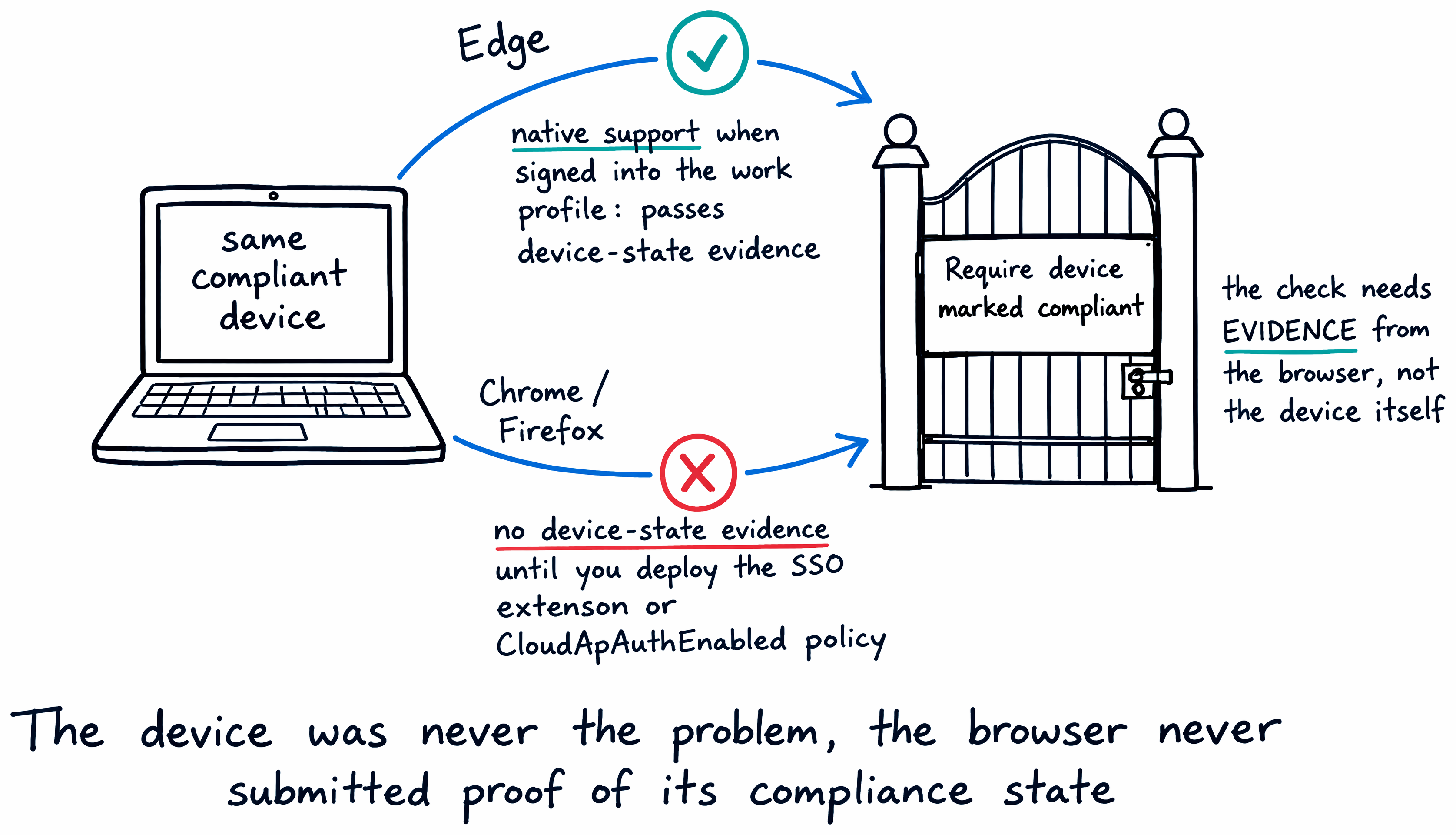
A Require device to be marked as compliant control doesn't inspect the device directly. It depends on the browser passing device-state information to Entra ID as part of the sign-in, and each browser handles that differently.
Microsoft Edge supports device-based Conditional Access natively on managed devices—no separate extension required. But that support depends on one condition: the user has to be signed into their Edge browser profile with their Microsoft Entra work or school account, so Edge has access to the device's primary refresh token when the policy evaluates. If a user isn't signed into that profile, which can happen without any prompt in some hybrid-join scenarios, Edge has no more device-state information to offer than an unconfigured Chrome does.
Chrome never has that ability by default. It needs either the Microsoft Single Sign On browser extension or the native CloudApAuthEnabled policy (Chrome 111 and later) configured before it can pass device-state information to Entra ID at all. Without one of those in place, Chrome can't prove device compliance, regardless of how compliant the device actually is in Intune. Firefox 91 and later needs the Allow Windows single sign-on for Microsoft, work, and school accounts setting enabled to do the same job, and on macOS, both Firefox and Safari need the Microsoft Enterprise SSO plug-in configured instead.
This is the answer to the puzzle this module opened with. The engineer's laptop was never the problem—its compliance state never changed between the two sign-ins. Edge could already prove that state, because the browser profile was signed in with the work account. Chrome had no way to prove the same state, because Relecloud never rolled out the Single Sign On extension or the CloudApAuthEnabled policy for Chrome. The device didn't fail the check. The browser never submitted evidence for it in the first place.
Learn more about browser device-state support for Conditional Access conditions and Microsoft Edge's native support for device-based Conditional Access.
Separate sign-in risk from user risk
Device compliance closes one gap in Relecloud's front door. Microsoft Entra ID Protection closes the other, by scoring risk on every sign-in and feeding that score into Conditional Access.
Sign-in risk is evaluated in real time, as part of the sign-in itself. During each sign-in, ID Protection analyzes hundreds of signals—an anonymous IP address, an impossible travel pattern, an unfamiliar sign-in property—and calculates a risk level before the sign-in completes. User risk works differently: it reflects the probability that the account itself is compromised, based on evidence like leaked or verified-compromised credentials, rather than any single sign-in attempt. Some user risk detections surface in real time, but others are offline and can take up to 48 hours to appear. An unresolved sign-in risk that isn't remediated quickly can itself escalate into user risk once that offline analysis catches up.
Because these two signals answer different questions—is this sign-in suspicious, versus is this account compromised—Conditional Access treats them separately. Don't combine sign-in risk and user risk conditions in the same policy; create one policy for each. A sign-in risk policy typically requires MFA, which is self-remediating: once the user proves their identity, the risk clears. A user risk policy typically requires a secure password change, because the underlying concern is the credential itself, not one login attempt.
| Aspect | Sign-in risk | User risk |
|---|---|---|
| Question it answers | Is this sign-in suspicious? | Is this account compromised? |
| Timing | Real time, during the sign-in | Some real time; offline detections up to 48 hours |
| Based on | Anonymous IP, impossible travel, unfamiliar sign-in properties | Leaked or verified-compromised credentials |
| Typical policy | Require MFA (self-remediating) | Require a secure password change |
Learn more about configuring separate risk-based policies for sign-in risk and user risk and the difference between real-time and offline risk detections.
Bring the front door together
Trace the arc from the start of this module to here: you scoped and layered authentication methods, enforced Password Protection against weak and breached passwords, enabled self-service reset, evaluated how Conditional Access conditions target client apps, learned to investigate any sign-in with the logs and diagnostic tools, and now you can explain exactly why device compliance and risk each shape a sign-in decision. Every piece of Relecloud's front door—what you know, what you prove, what the policy demands, and what risk the sign-in carries—resolves down to one explainable outcome per sign-in.
The next unit puts all of it into practice: you build a single Conditional Access policy that responds to both sign-in risk and device compliance, then verify with the What If tool and the Sign-in logs that it enforces exactly the way you designed it to.