Configure trigger filter and retry policies
Unit 2 gives the Contoso equipment-provisioning flow expressions that catch malformed data and a Try/Catch pattern that recovers from errors instead of failing outright. Neither fix touches two problems still sitting in the flow. It runs every time someone touches a Request row, even for edits that have nothing to do with provisioning.
It also treats a device-availability service that's briefly unavailable the same way it treats one that's genuinely broken. This unit moves the flow away from running indiscriminately and giving up at the first sign of trouble. Instead, it triggers only on changes that matter and recovers automatically from short-lived service issues.
Decide whether a trigger fire deserves a flow run
Every time a cloud flow's trigger fires, it starts a flow run, and for connector-based triggers, that fire also counts as an API request against your environment's limits. A trigger that fires on every minor edit burns through those limits for no benefit. It also buries meaningful runs in a cluttered run history, making it harder to spot the run that actually needs attention.
Consider the Contoso Request table. A Dataverse row-trigger configured to fire on any update reacts the same way no matter what changed. An employee might edit their device category, a fulfillment coordinator might tweak an internal note, or the request's Status column might change to "Submitted."
Only that last change should start the provisioning logic; the rest are noise the flow currently can't tell apart from a real request. Trigger optimization guidance treats this kind of filtering as a first step in keeping a flow efficient, not an afterthought you add once limits start causing failures.
Filter trigger fires with a trigger condition
A trigger condition is an expression, prefixed with @ and added in the trigger's Settings, that Power Automate evaluates before the flow run starts. If the expression doesn't evaluate to true, the flow never runs at all, and no entry appears in run history for that trigger fire.
That's a meaningfully different outcome from a Condition action placed later in the flow: a Condition action still consumes a run and still shows up in history, even if it immediately branches to "If no" and does nothing further.
For the Contoso flow, a trigger condition can check whether the Status column has reached the submitted value, filtering out the unrelated edits described earlier at the source. When a trigger needs more than one check to pass, multiple trigger conditions combine with an implicit AND: every condition must evaluate true for the run to start.
When only one of several checks needs to succeed, an explicit @or(...) expression handles that case, such as treating a request as actionable whether its status reaches "Submitted" or "Resubmitted." Trigger configuration reference covers the full syntax for building these expressions.
Narrow Dataverse triggers at the column level
Trigger conditions aren't the only tool for cutting noise at the source. A Dataverse row-trigger can also be scoped to specific columns, so the trigger only evaluates update requests that include one of those named columns. For the Contoso flow, scoping the trigger to the Status column changes what the trigger even sees. An edit to an unrelated field, such as a description or internal note, never reaches the trigger-condition check in the first place.
Column scoping and trigger conditions work together rather than as alternatives: scoping narrows which updates the trigger even considers, and the trigger condition then confirms the new value is the one that matters. Dataverse trigger configuration details how to set both together.
Note
The Dataverse trigger card also exposes a built-in Filter expression property, separate from the Settings-based trigger condition covered above. Rather than an @-prefixed workflow expression, Filter expression uses OData syntax, such as statuscode eq 2. Power Automate evaluates it after the change is saved in Dataverse, and the outcome matches a trigger condition that doesn't match: no run starts, and nothing appears in run history.
Filter expression can combine with column scoping (the Filter columns/Select columns property) the same way a trigger condition does. Together, they narrow both which columns the trigger considers and which values on those columns start a run.
Guiding question: Think about a flow you maintain that triggers more often than it needs to, or one that gives up the moment a dependency it calls has a bad moment. Which of the ideas in this unit (a trigger condition, column scoping, or a retry policy) addresses that flow's specific problem?
Recover from transient failures with a retry policy
Filtering triggers solves when a flow starts. It doesn't help once a run is already in progress and an action inside it depends on something unreliable. The Contoso flow's call to the external availability service occasionally times out or returns a 503-style "service unavailable" response.
That's a transient fault that often resolves itself within seconds, not a permanent failure. Treating that response the same way you'd treat a genuinely broken call sends the flow straight to the Catch scope built in unit 2. Even so, waiting a moment and trying again would likely succeed.
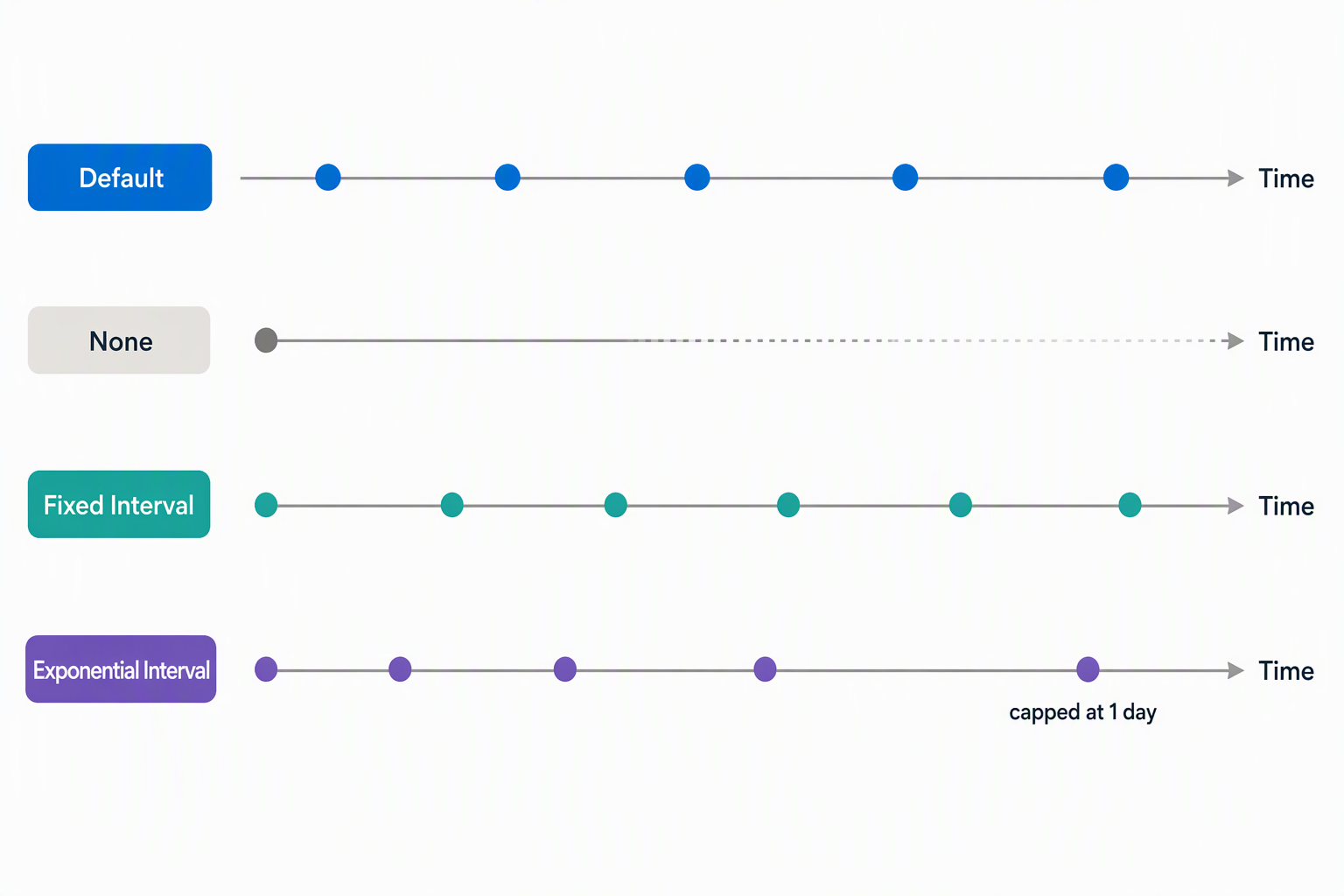
A retry policy, configured in a connector action's Settings, tells Power Automate how to respond when that action fails with a transient-looking error. Examples include a timeout or a 429 or 5xx-style response. You control both how many times the action retries and how long it waits between attempts, and the policy type determines how those waits are spaced:
| Retry policy | Behavior |
|---|---|
| Default | Applies a built-in retry pattern without custom settings |
| None | Fails immediately on the first error, with no retry |
| Fixed Interval | Retries a set number of times, waiting the same interval each time |
| Exponential Interval | Retries a set number of times, with each wait longer than the last |
An Exponential Interval policy spaces retries out increasingly. That avoids hammering a struggling dependency with requests at the same rate that may have contributed to its trouble in the first place. A Fixed Interval policy is simpler and predictable, which suits a dependency that tends to recover quickly and consistently.
For the Contoso availability-service call, an exponential retry policy gives the service room to recover before the flow falls back to the Catch scope. Only an error that persists through every retry attempt reaches that fallback at all.
Error and exception handling in the underlying workflow engine covers how retry policies interact with run history and the information available for troubleshooting. Flow troubleshooting guidance builds on that when a run still fails after every retry.
Note
A retry policy supports up to 90 retry attempts, with an interval of at least 5 seconds and no more than 1 day between attempts. The Default policy's own behavior depends on the environment's performance profile. A Low profile retries up to 2 times, with waits that scale up to around 10 minutes. Medium and High profiles retry up to 12 times, with waits that scale up to around 1 hour.
Trigger conditions and retry policies now make the Contoso flow's own logic hold up: it starts only when a request is genuinely ready to act on, and it rides out a dependency's bad moment instead of failing at the first sign of trouble.
That still leaves one problem untouched: the allowance check, availability call, and routing logic built up across these units looks nearly identical in several related flows across Contoso, copied and maintained separately in each one. Reusable logic is where that duplication gets addressed next.