Create incident types
After you define the reusable records for a job, combine them in an incident type. Use the annual HVAC inspection example to connect the work order category, products, services, tasks, and required skills.
To create incident types, you need the Field Service - Administrator security role. Prepare the products, services, and service task types before adding them to the template.
Create the incident type
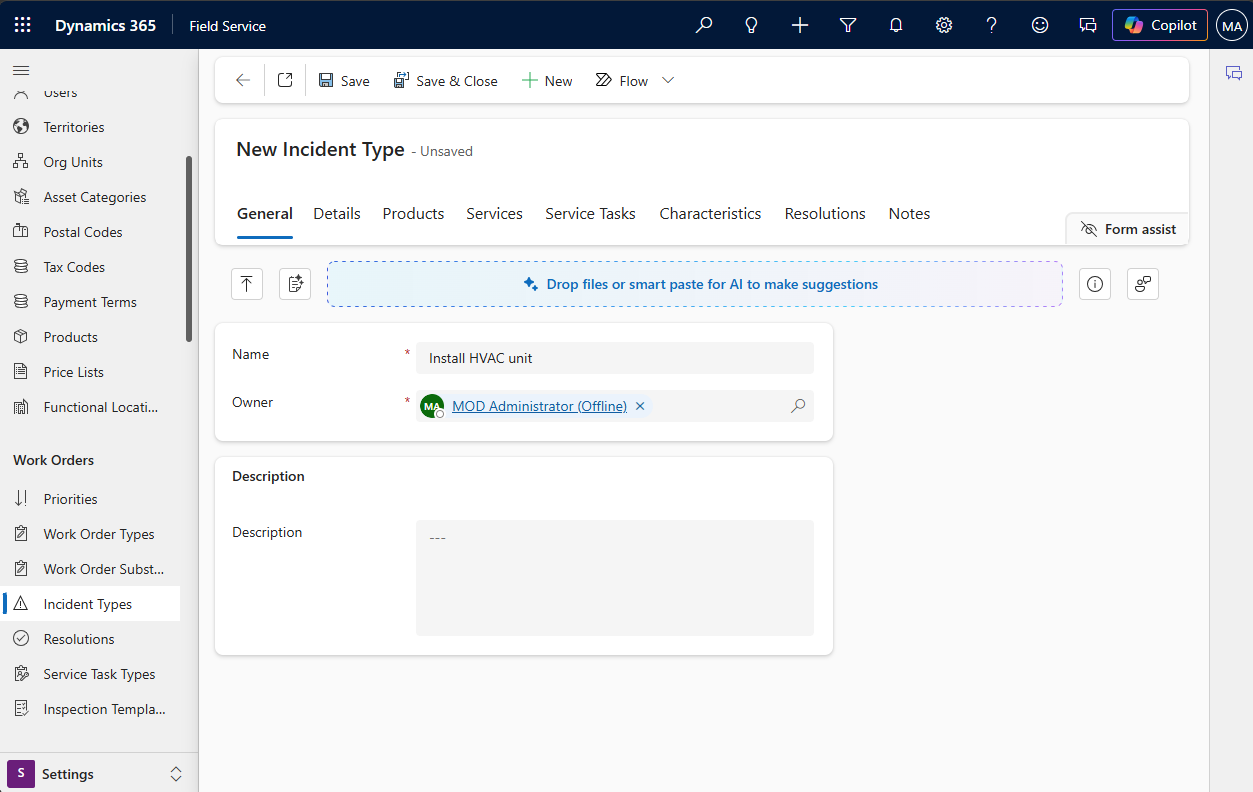
In the Field Service app, go to Settings > Work Orders > Incident Types, and select New. On the General tab, enter a Name, such as Annual HVAC inspection, and a Description that explains when to use the template.
On the Details tab, review these settings:
- Default Work Order Type: Select the category of work, such as Preventive maintenance. This setting supplies the work order type when you use the incident type on a work order.
- Estimated Duration: Specify the expected time for the incident when there are no service tasks with durations. When related service tasks have durations, their total determines the incident type's duration.
- Copy Incident Items to Agreement: Decide how agreements use the template's
related items:
- Yes copies the incident details into the agreement when you activate it. Use this option when the agreement needs to retain an agreed scope even if the incident type changes later.
- No uses the current incident type details when the agreement generates work orders. Use this option when future work should follow updated procedures.
Select Save before adding related records. Choose the agreement-copy setting deliberately: a fixed contractual checklist and a procedure that follows later template updates have different requirements.
You can also create an incident type from a work order form by selecting the Incident type lookup and then New. Enter the new template's details and review its related records rather than assuming it contains everything needed for the job. For current procedures, see Create work order templates with incident types.
Add products and services
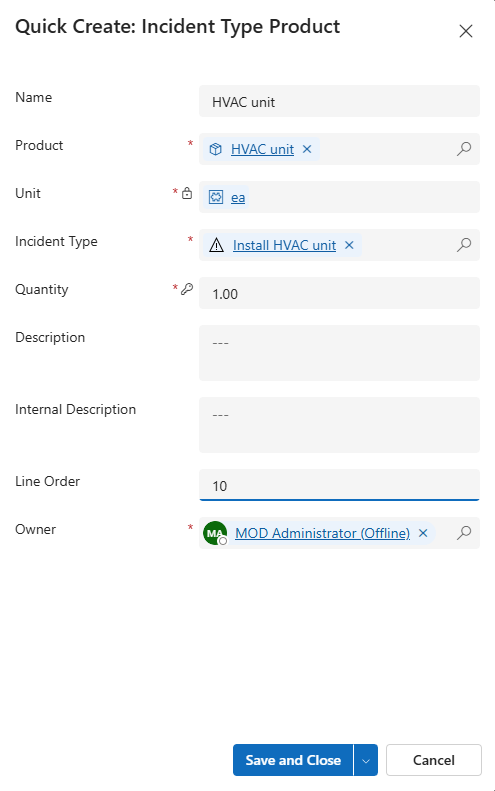
On the Products tab, select New Incident Type Product. Select the Product, specify its Quantity, and provide the other details needed for the line, such as its name and description. Select Save and Close.
For the HVAC example, add one replacement filter. Only products with Field Service Product Type set to Inventory or Non-Inventory belong in the product lines.
On the Services tab, select New Incident Type Service. Select the Service, Unit, and Duration, then select Save and Close. Use an item with Field Service Product Type set to Service, such as preventive maintenance labor.
Product quantity describes the planned number of items; service duration describes the planned labor time on that service line. Review both against the standard job. Don't treat the template's planned values as proof of actual consumption or completed work.
The duration on a service entry describes planned labor for that service; it isn't the same as the work order's overall scheduling estimate.
When you use the incident type on a work order, review the resulting lines for the visit. For example, a second HVAC unit can require a different filter quantity or another incident. Keep these visit-specific decisions separate from changes to the reusable template.
Add service tasks and review duration
On the Service Tasks tab, select New Incident Type Service Task. Choose the Task Type and review the Estimated Duration and Description. Adjust the task's estimate for this incident type as needed, then select Save and Close.
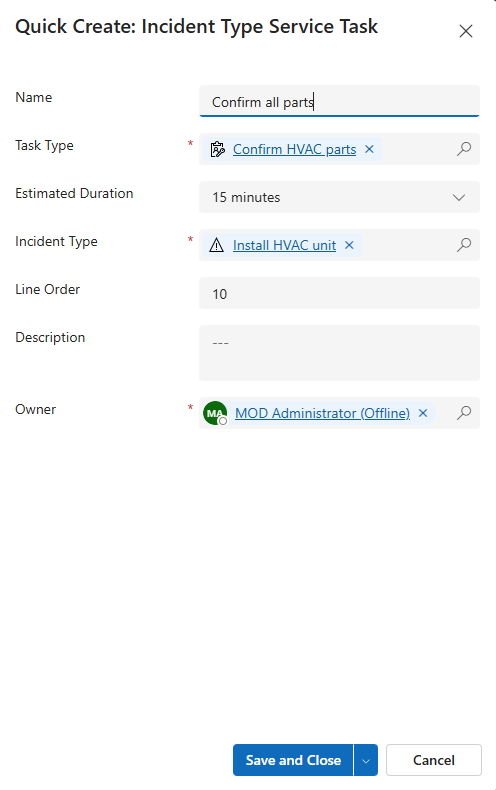
Use Line Order to put tasks in the intended sequence. For example:
| Line order | Task | Estimated duration |
|---|---|---|
| 1 | Review asset service history | 10 minutes |
| 2 | Complete HVAC inspection | 30 minutes |
| 3 | Record findings | 15 minutes |
| 4 | Capture customer acknowledgment | 5 minutes |
These estimates total 60 minutes. If Complete HVAC inspection uses an inspection, confirm that its service task type references the correct published template. The incident type includes the task; the inspection template contains the questions.
When service tasks have durations, Field Service calculates the incident type's duration from those tasks. You can enter the incident estimate manually only if there are no service tasks or the related tasks have no durations. Review the total after changing the tasks.
Work order duration isn't supplied only by the primary incident:
- When you add multiple incidents, their durations contribute to the work order's estimated duration.
- You can also add service tasks directly to a work order.
- If a work order has neither service tasks nor an incident type, Field Service uses the default booking duration configured in booking setup metadata.
For more information about the fallback, see Create a work order.
Add skills, resolutions, and verify the template
On the Characteristics tab, select New Incident Type Characteristic. Choose a Characteristic and, if needed, a Rating Value, then select Save and Close. For the HVAC inspection, select the appropriate certification.
A rating specifies the required level of a characteristic. If you leave the rating blank, any rating level is acceptable for a resource with that characteristic. For multi-resource work that uses a requirement group template, define the required characteristics on that template instead of the incident type.
In the incident type's related resolutions, select New Incident Type Resolution, choose a resolution, and select Save and Close. Add the outcomes that apply to the job, such as Inspection completed.
Before using the template, verify that:
- The work order type and agreement-copy setting match the intended process.
- The planned products and services are appropriate, and the relevant price list includes them.
- Service tasks appear in the intended order and have reasonable estimates.
- Inspection tasks reference the correct published templates.
- Characteristics describe the necessary qualifications and resolutions describe useful outcomes.
Next, apply the incident type to a work order and review the records it creates.