Exercise - Use JavaScript to find the last day of the current month
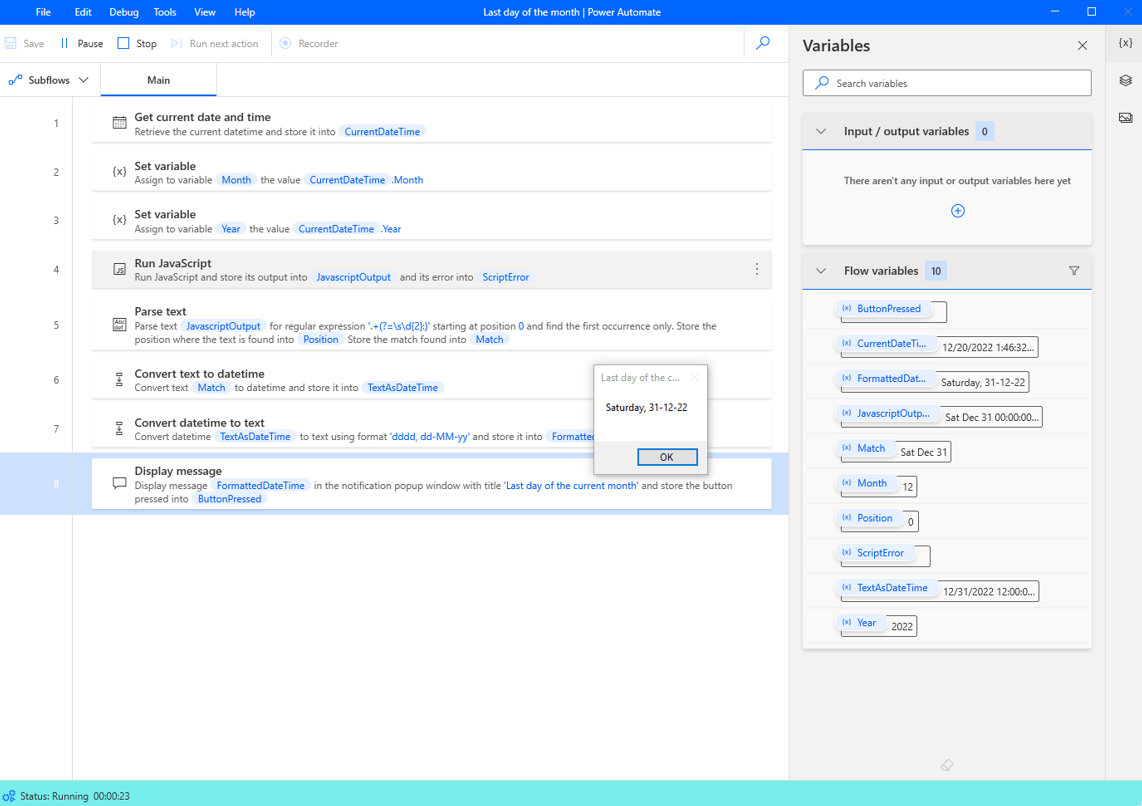
In this exercise, you create a flow that calculates the last day of the current month by using JavaScript code.
Launch the Power Automate desktop app console and create a new flow named Last day of the month.

Under Actions, search for get current. Then select Get current date and time.
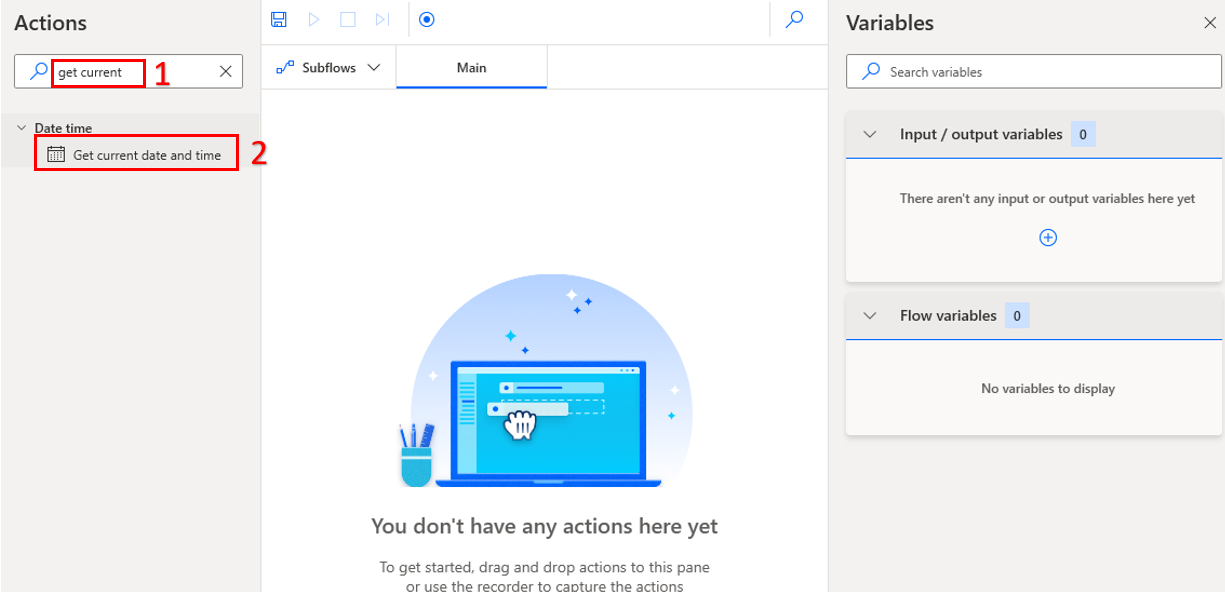
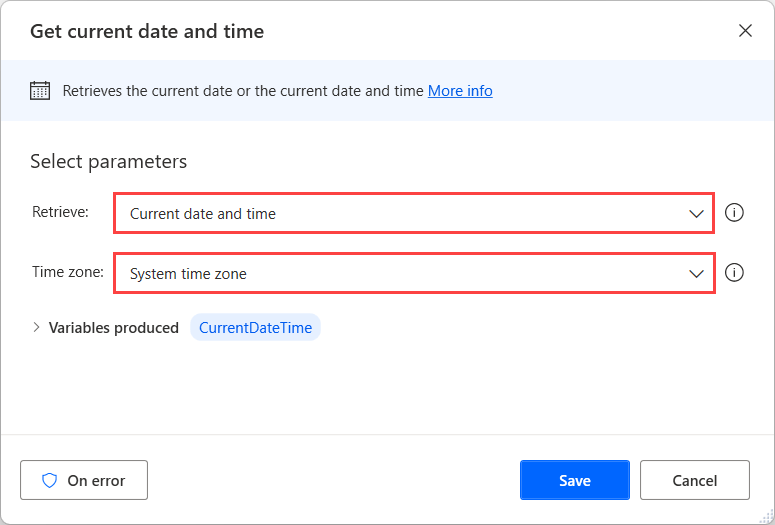
Use a Get current date and time action to store the current date in a datetime variable.
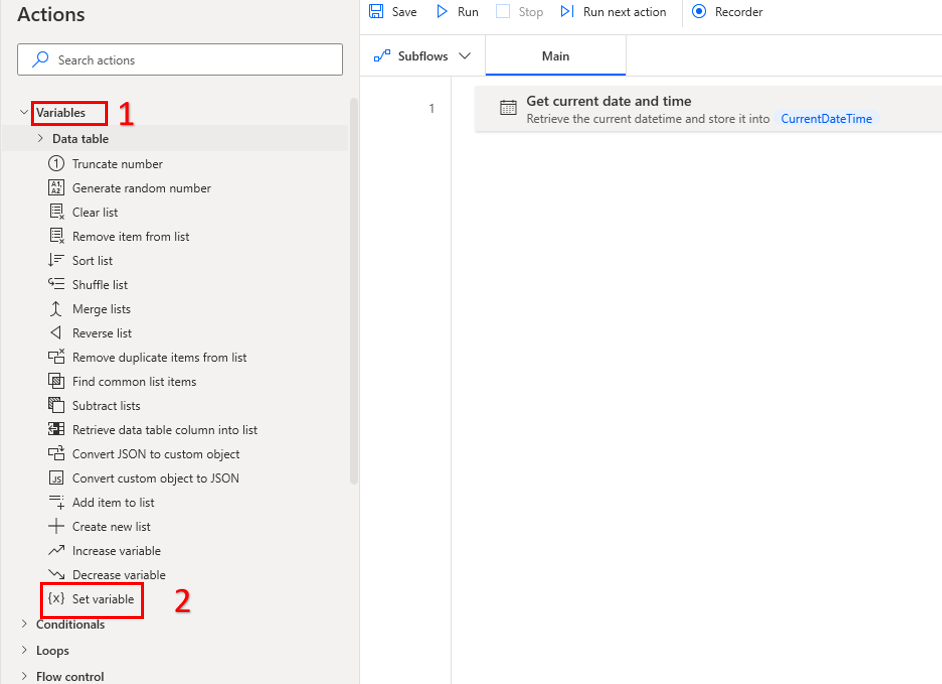
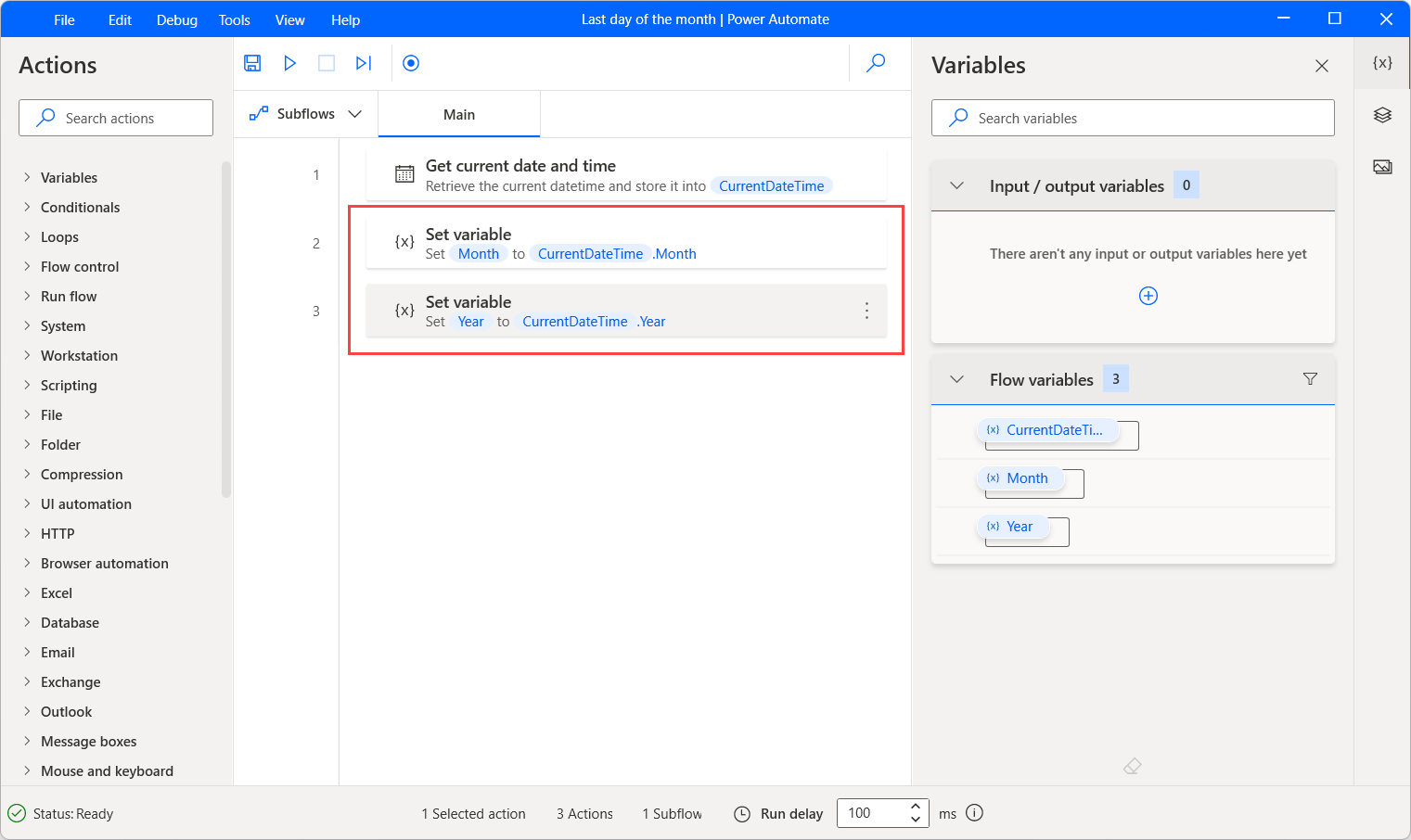
The next actions include variables. Expand Variables and double-click Set variable.
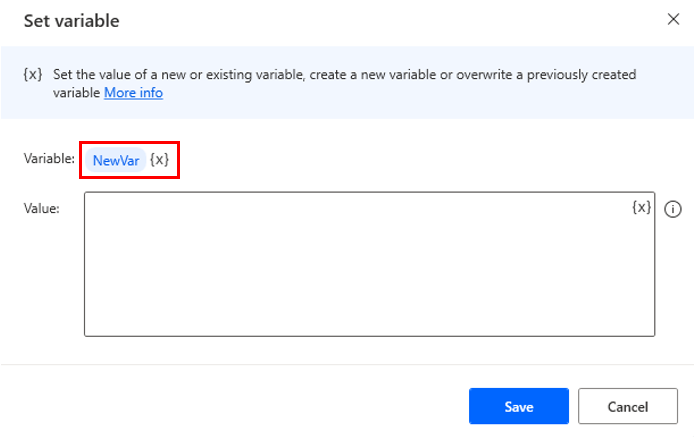
Double-click the default NewVar and change it to Month.
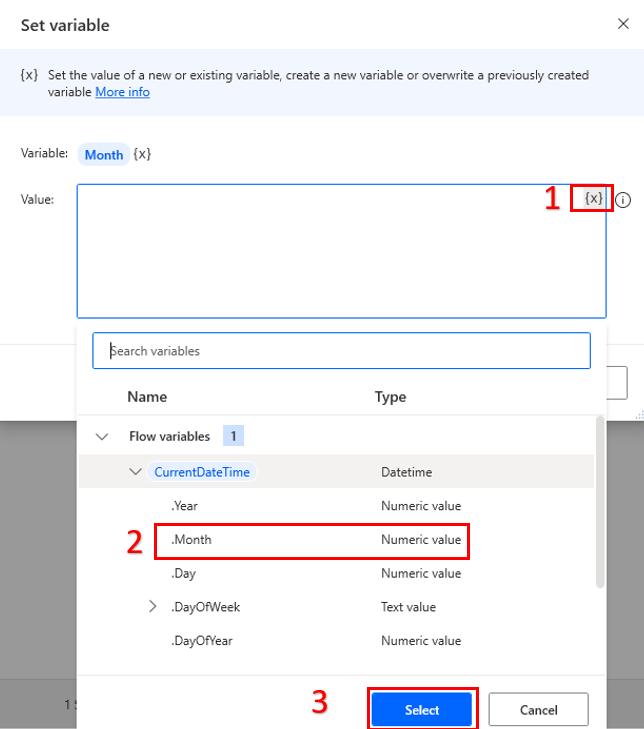
Next, select {x}. Under Flow variables, CurrentDateTime select .Month. Select Select.
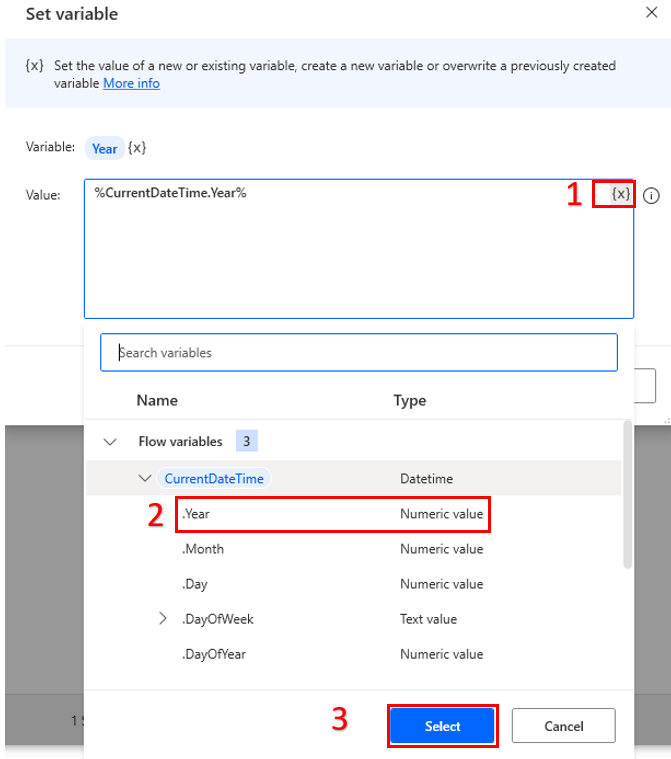
Follow the same steps to add the Year variable as well.
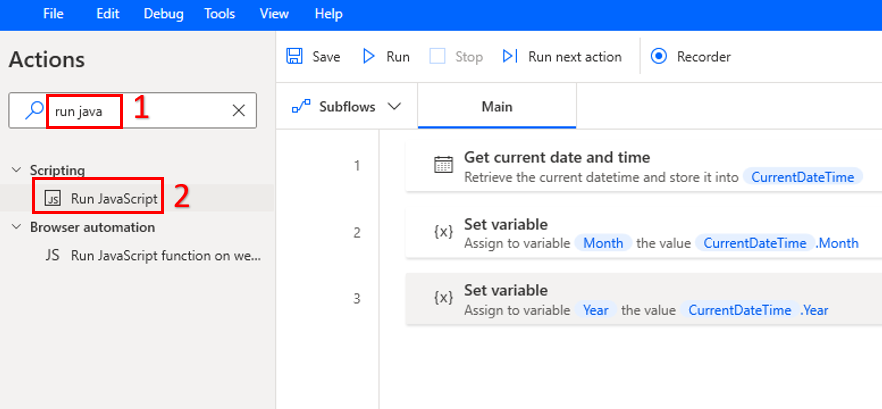
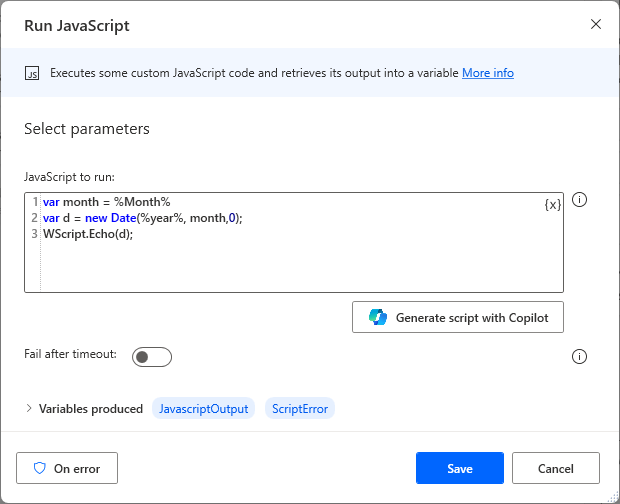
Search for run java under Actions and double-click Run JavaScript.
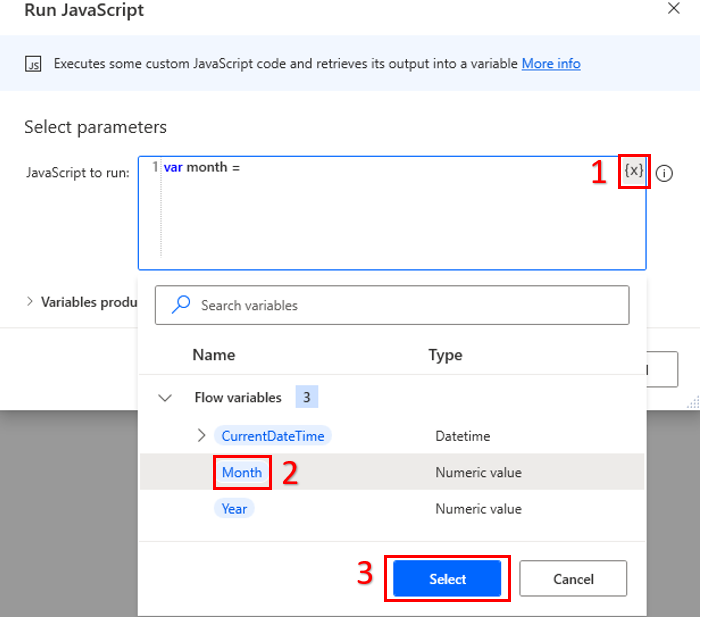
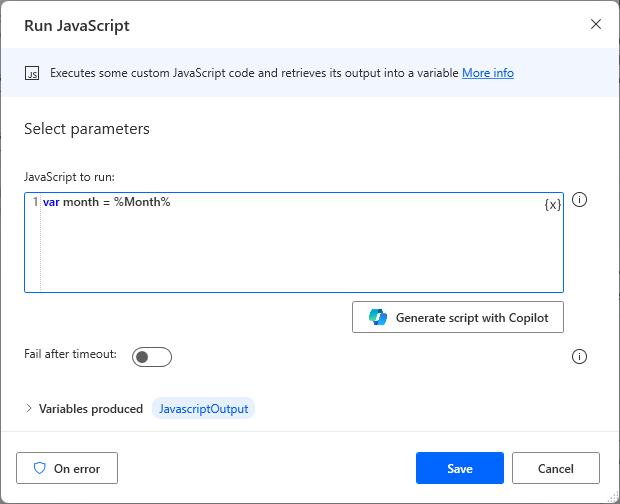
In the JavaScript to run box, type var month =, select {x}, select %Month%, and then select the Select button. Add ;.
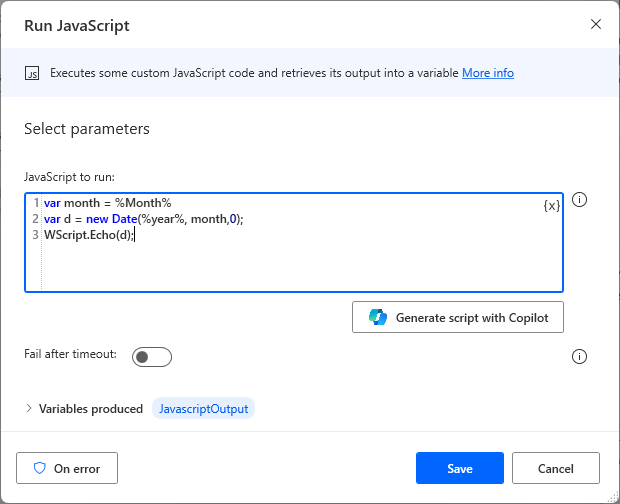
In a new line, type var d = new Date(, select {x}, select %Year%, and then select the Select button. Add , month);.
In a new line, type WScript.Echo(d);.
Next, select the Variables produced option and toggle on ScriptError. Then select Save.
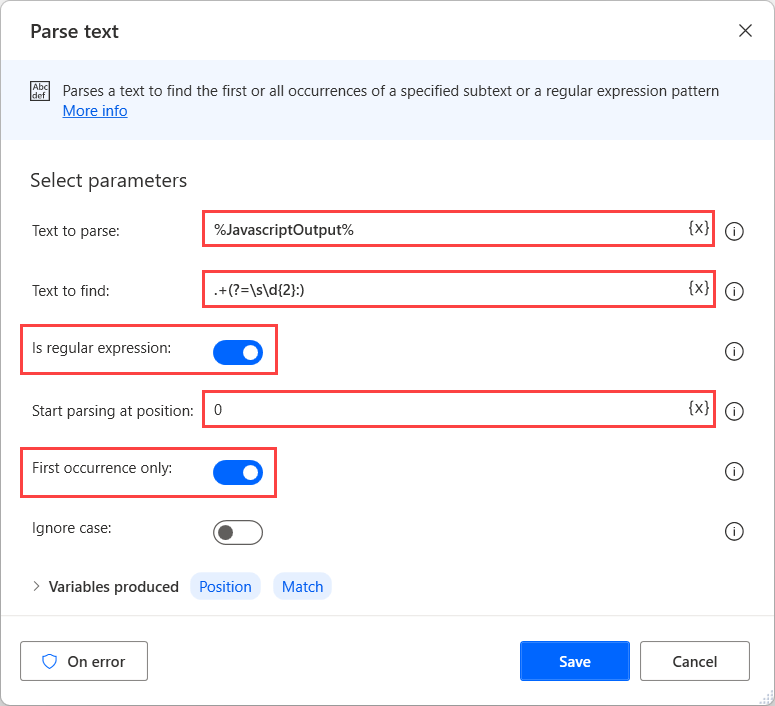
Search for the Parse text action in the workspace and use the presented regular expression to remove the date's unnecessary parts.
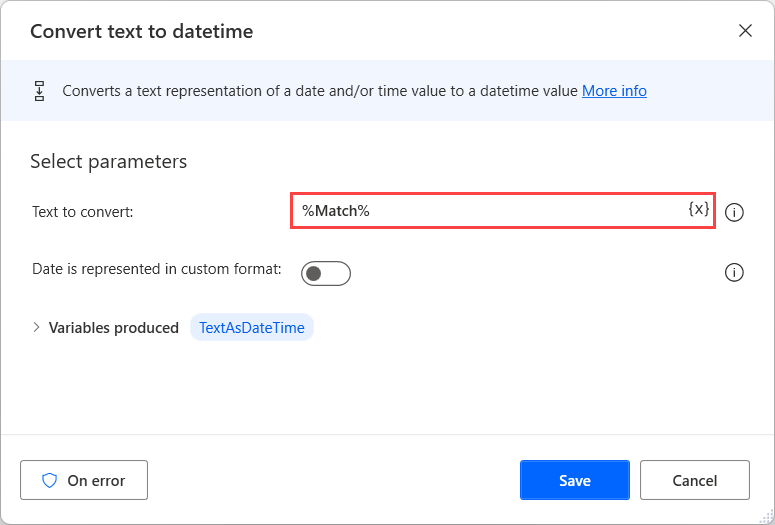
Use a Convert text to datetime action to convert the parsed text into a datetime variable.
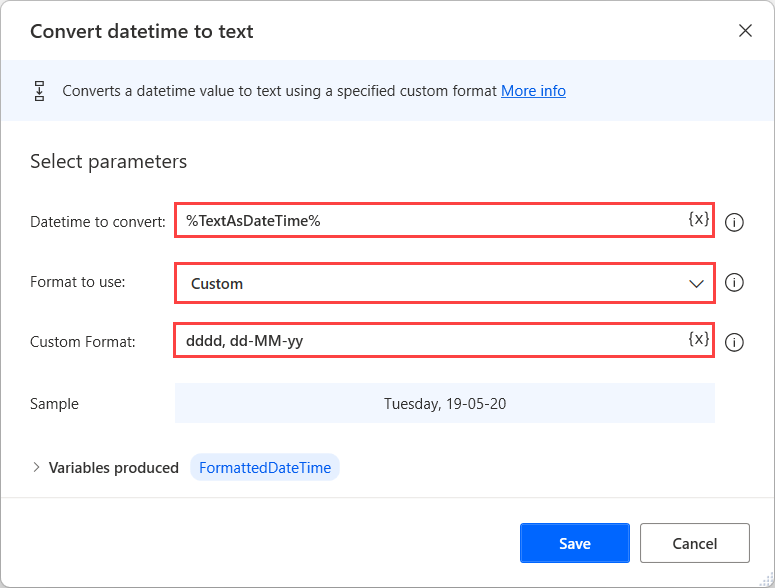
Use the Convert datetime to text action to convert the datetime value back to text. Deploy this action to create a custom format for the date.
Use a Display message action to show the final text variable that contains the last day of the month.
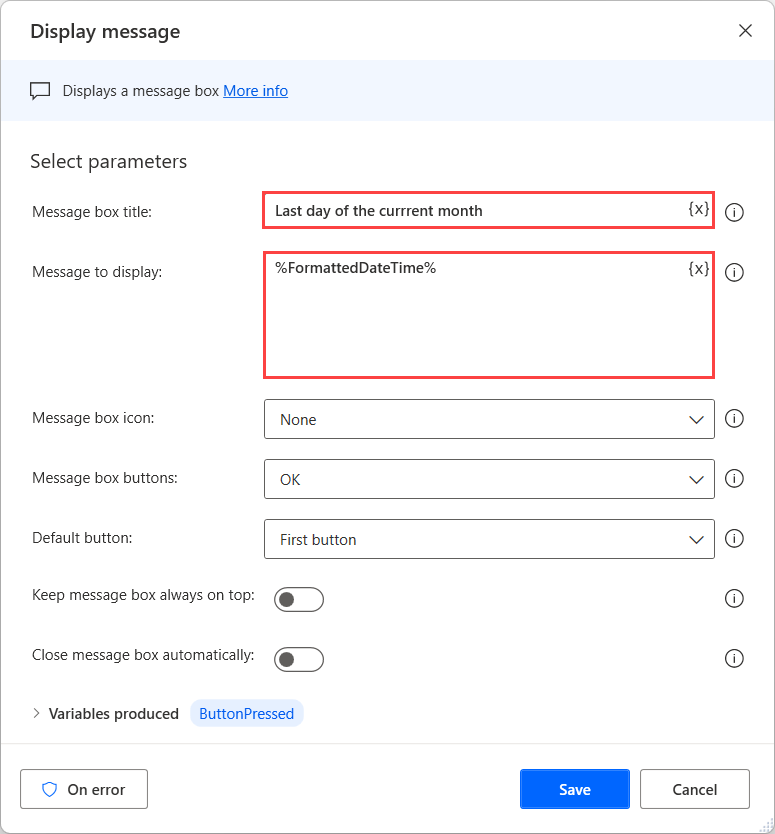
Save the flow and then run it. Try different time zones to make sure the flow can handle all possible scenarios.