Publish agents and analyze performance
After your agent content has been created, it needs to be published so that customers can engage with it. Published agents can be made available across multiple platforms and channels. Before an agent can be added to channels, interacted with, or used by team members, it needs to be published at least once. For example, an agent can be deployed to organizational websites, mobile applications, and messaging platforms such as Microsoft Teams or Facebook.
with the latest agent content. For example, if your organization's store hours change, after you have edited a topic to reflect the changes, you need to publish it again from within the Microsoft Copilot Studio portal. After the agent has been published again, the updated content is used by all channels that the agent is configured on.
Security
Before you publish your agent, you need to configure security and authentication settings. This ensures not only that users are able to access the data in the agent, but that it can be deployed to the necessary channels later. Security settings are available by selecting Settings > Security. There are three options for configuring Authentication in your agent:
- No authentication – No authentication is required; the agent is able to be used publicly on any channel.
- Authenticate with Microsoft – Uses Microsoft Entra ID authentication in
- Authenticate with Microsoft – Use Microsoft Entra ID authentication in Microsoft Teams, Power Apps, and Microsoft 365 Copilot to authenticate users. The agent is available on the Teams + Microsoft 365 channel and native app and custom app channels. This option is the default setting.
- Authenticate manually – Configure either Microsoft Entra ID or Generic OAuth 2 authentication. The agent is available on any channel.
Enterprise-level security
Microsoft Copilot Studio provides security and governance controls for tenant administrators. New standard harness agents use Authenticate with Microsoft by default. Makers and administrators should restrict access to conversation transcripts because transcripts can contain sensitive user data.
Tenant administrators can search Microsoft Purview audit records for Copilot Studio activities. Inventory, adoption, and governance reports are available through Power Platform administration and governance tools, including the Copilot Studio Kit.
To view these logs, admins need to log in to the Microsoft Purview portal.
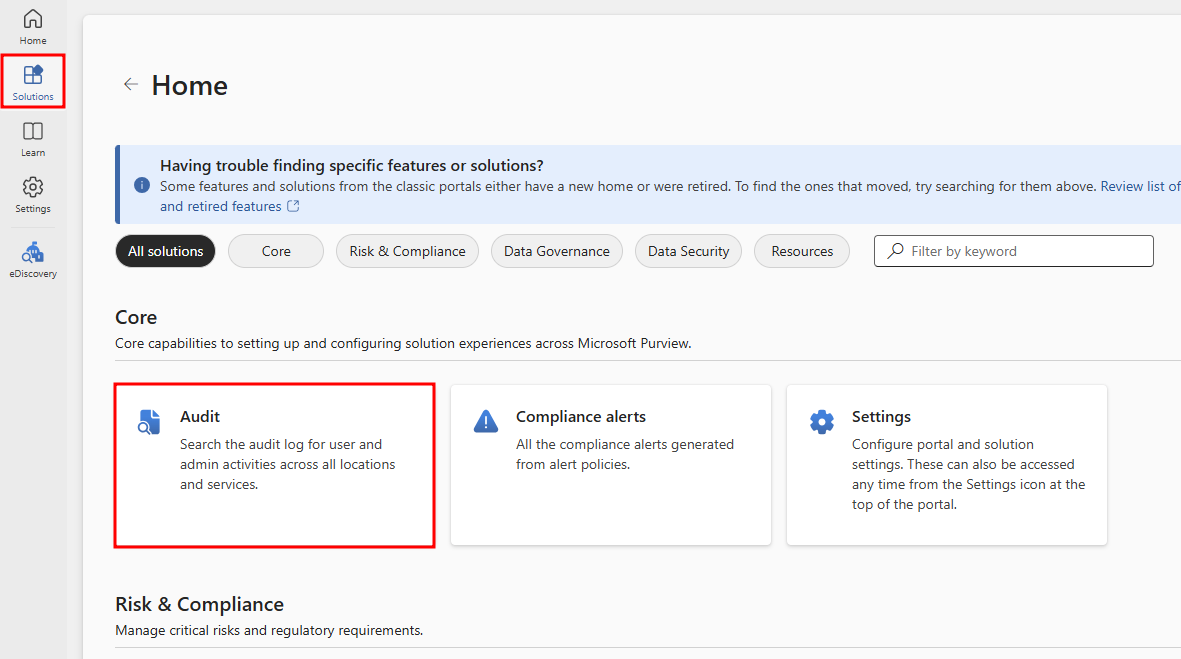
From the left menu, select Solutions and choose Explore all. From the Solutions Home page, select Audit under Core.
Note
For more information on the type of information logged and understanding audited fields, visit the Audit Copilot Studio activities in Microsoft Purview documentation.
Billing and usage in the admin center
System and agent admins are able to review billing and usage details in the Power Platform admin center. Using this data, they can identify and report on how teams within their organization are using Microsoft Copilot Studio.
To view Copilot Studio usage and billing information, log in to the Power Platform admin center and navigate to the Licensing tab from the left navigation menu. From the Licensing pane that opens to the left, select Copilot Studio.
In the first section of the Summary tab for Copilot Studio, you see links for:
- Purchasing capacity licenses - Navigates you to the admin portal for license requests.
- Managing billing plans - Navigates you to the Pay-as-you-go plans management tab.
- Manage Copilot credits - Opens a side panel where you can allocate Copilot Credits to environments.
- Managing sessions - Opens a side-panel that displays a selected environment's status, allocated capacity, and sessions consumed.
- Summary report downloads - Downloads a report on the tenant's Copilot Credit consumption.
Next, you see recommendations for billing plans, which are required when using agents in a production setting and for tracking usage. This section is followed by a capacity summary displaying pay-as-you-go Copilot Credits and prepaid capacity. The Copilot credits capacity tab shows consumption by product, consumption trends, and Copilot Credit usage by environment.
The Environments tab lets you select a specific environment to manage. For the selected environment, the Copilot credits capacity tab shows capacity consumption by product and Copilot Credit consumption details for individual agents and other resources. The Sessions capacity tab displays the assigned session capacity and its consumption.
Publish an agent
When you're ready to publish your agent, select the Publish button from the top navigation pane. During the publishing process, the agent is checked for errors. Agent publishing typically takes a few minutes. When the publish is successful, the top of the page displays a green banner indicating that everything worked correctly. If errors are detected, you're notified through a message that is displayed in the application.
Before the agent is deployed to the different channels that use it, you might want to gain feedback from other team members. When an agent is first published, it can be made available to the demo website. You can provide the demo website's URL to team members or stakeholders to try it out. The advantage of using the demo website is that the experience is different than testing the agent during the design process. The test agent experience is only intended to allow agent authors to test it. So the demo website link increases the pool of users that can test and provide feedback that is related to the overall experience of the agent.
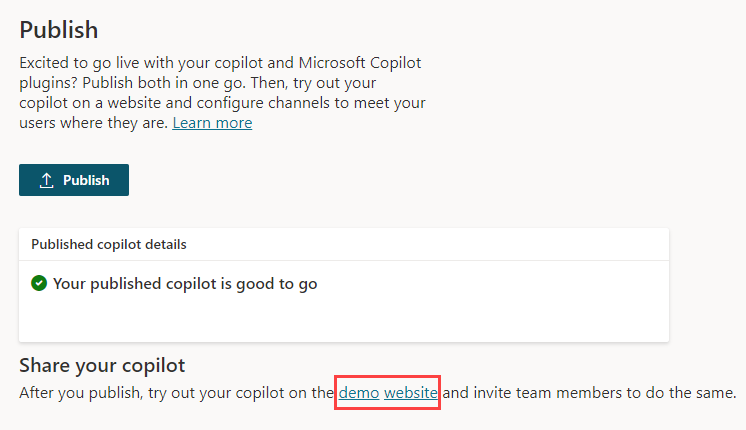
To add an agent to the demo website, select the demo website link under Share your agent. This webpage demonstrates what your agent looks like to a user who comes to your webpage. The agent canvas is at the bottom. You can interact with it by entering text in the window or by selecting a starter phrase from the provided options.
Note
The demo website is available when the agent's Authentication setting is No authentication or Authenticate manually. It's not available when Authenticate with Microsoft is selected.
After you publish the agent, you can deploy it to supported channels. Channel availability depends on the harness:
- Standard harness agents support Microsoft channels, websites and apps, contact center integrations, and messaging channels. Some messaging channels use Azure Bot Service.
- GitHub Copilot harness agents currently support a smaller channel set. The available options are listed in the publish dialog and can change as the preview develops.
- Copilot chat harness agents publish to internal users in Microsoft 365 Copilot Chat.
For the current channel lists, see Publish and deploy a standard harness agent and Available channels for GitHub Copilot harness agents.
Analyze the performance of your agent
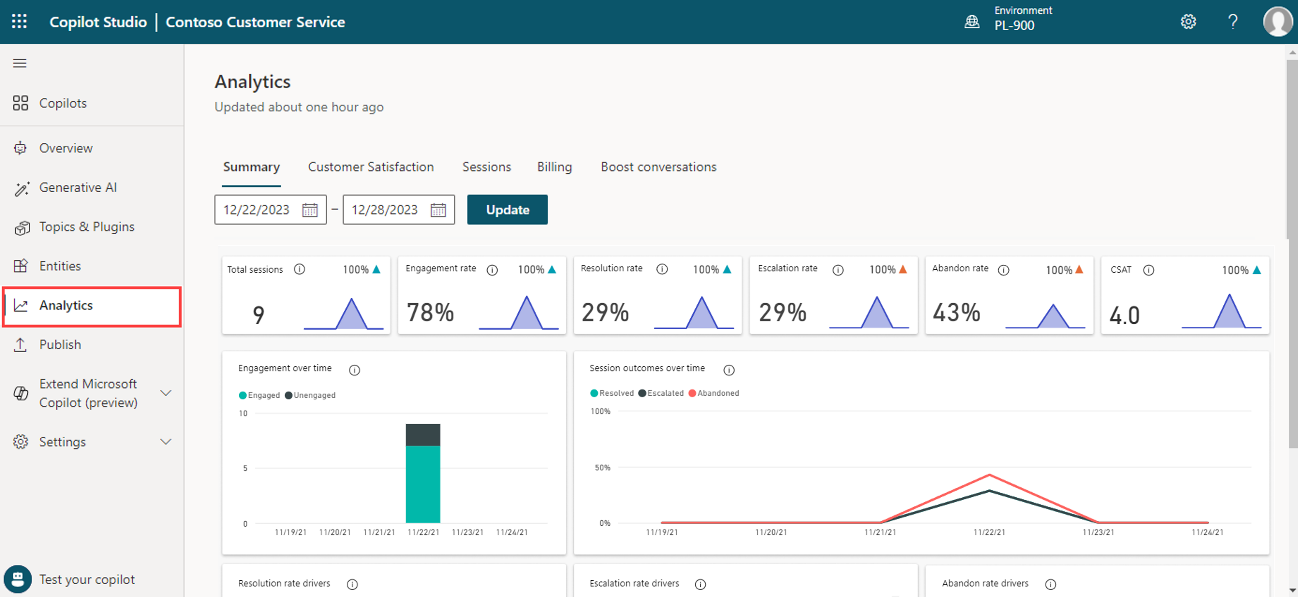
After an agent is deployed and customers are interacting with it, statistics that are related to the agent become available. You can access this information through the Analytics tab in the side navigation pane. This pane provides key performance indicators (KPIs) that show:
- The volume of sessions that your agent has handled
- How effectively your agent was able to engage users and resolve issues
- Escalation rates to human representatives
- And abandonment rates during conversations.
You can also find customer satisfaction information at the KPI level and in the Customer Satisfaction tab.
Copilot Studio Kit
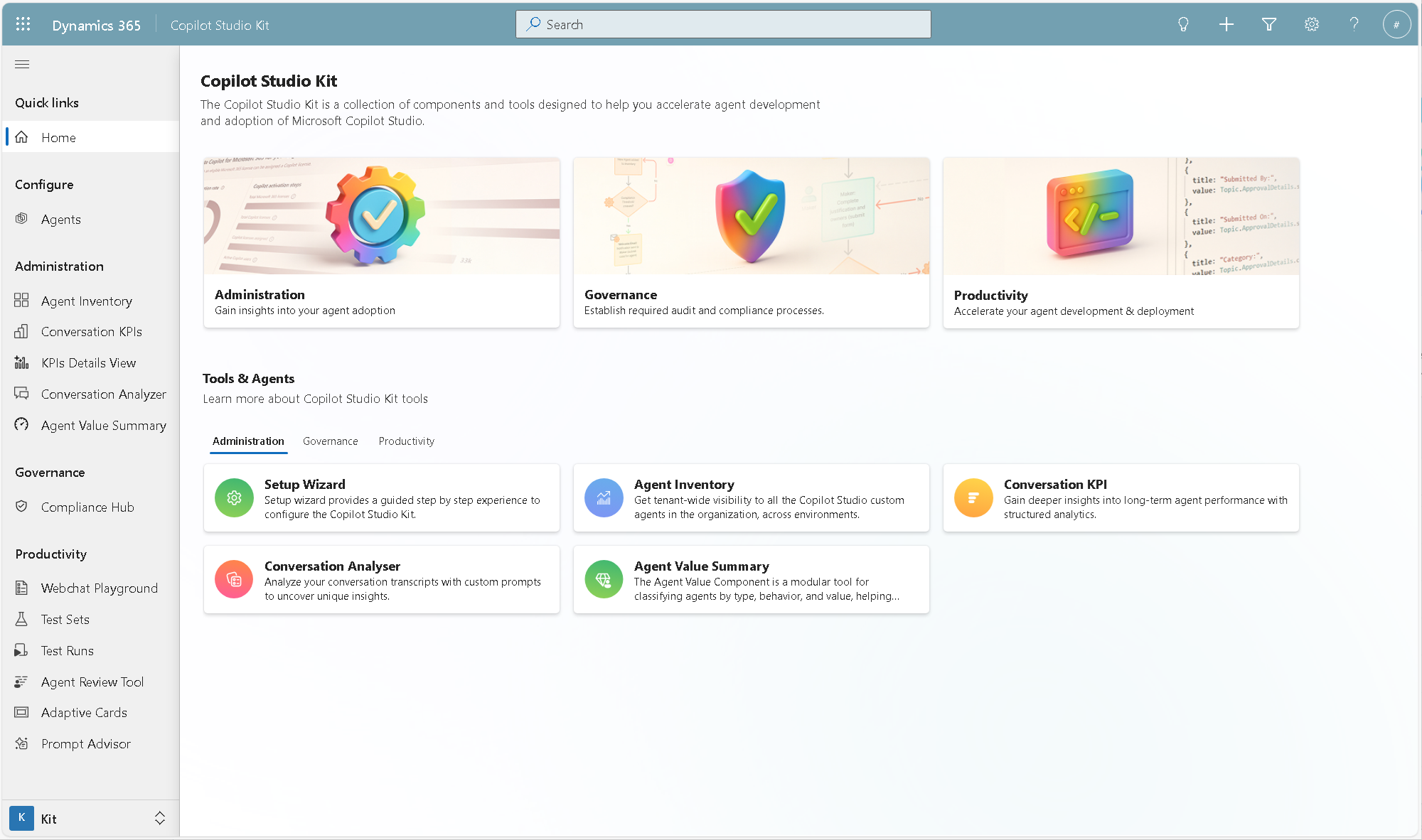
The Power Customer Advisory Team (Power CAT) creates and maintains the Copilot Studio Kit to equip you with tools to build, govern, test, and optimize custom agents.
For more information, see Copilot Studio Kit overview.