Lab - Create a new security role and add duties
Read this first - before you start the lab!
Important
For this lab, you CANNOT sign in with your own credentials. Use the following steps to sign in to your lab environment with the correct credentials.
Ensure that you are signed in to Microsoft Learn.
Select Launch VM mode or Sign in to launch VM mode in this unit.
In the Resources tab on the lab side bar, select the T icon next to Password in the MININT box, to have the administrator password for the Virtual Machine entered for you.
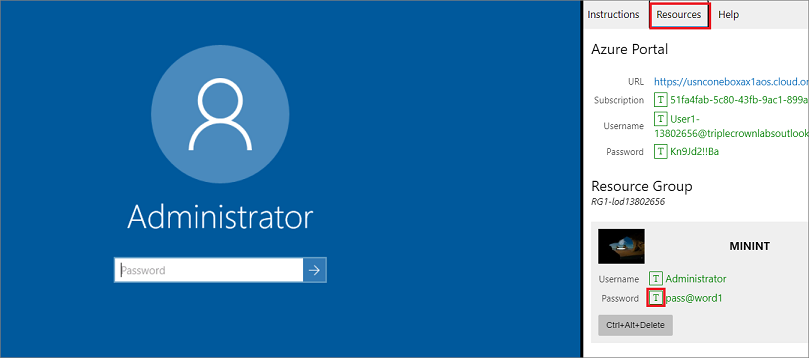
Select Enter.
Microsoft Edge will open. Wait for it to navigate to the Sign in page for finance and operations.
On the Microsoft Sign in page in finance and operations, place your mouse cursor into the Username field.
On the Resources tab of the lab side bar, below the Azure portal heading, select the T icon next to Username, then press Enter.
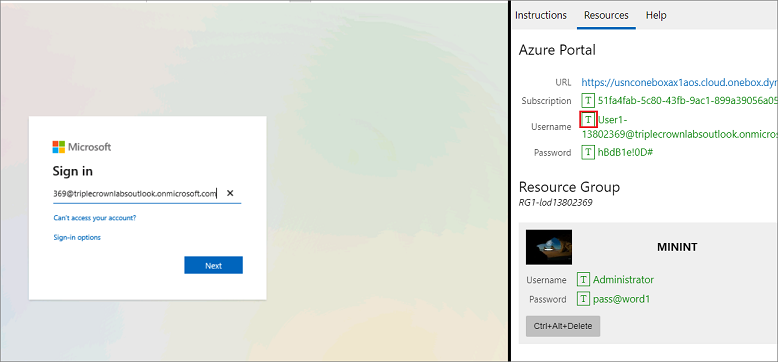
Your mouse cursor will now be in the Password page.
On the Resources tab of the lab side bar, below the Azure portal heading, select the T icon next to select Password, then press Enter.
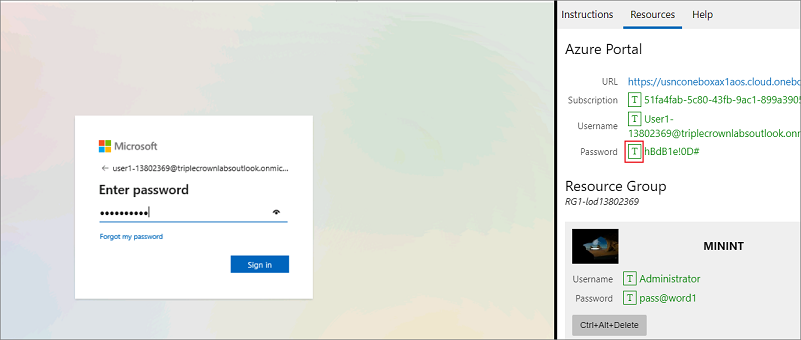
Don't stay signed in or store the password on the virtual machine.
Select Accept in the Permissions requested page.
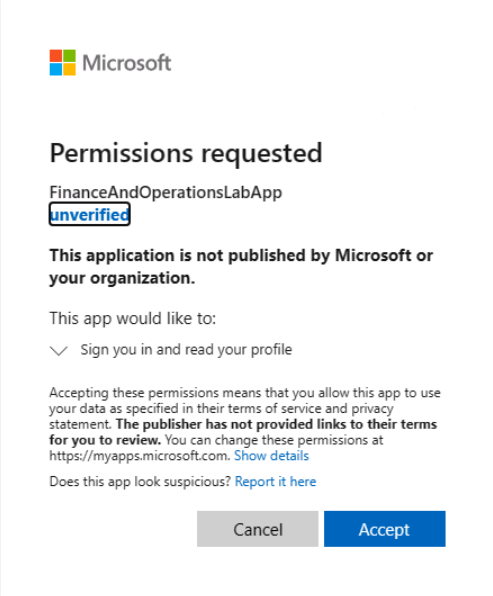
To see the lab instructions, select the Instructions tab on the lab side bar.
You can now begin your work on this lab.
Scenario
The finance and operations apps developer has been asked by the Fleet Management company to create a new role based on a new position that they are filling for a Fleet Service Manager. The manager needs duties to manage cars and customers, as well as the basic duties that are associated with Fleet Management.
Create a new project
- Minimize the Microsoft Edge window.
- Open Visual Studio.
- Select Yes in the Do you want to allow this app to make changes to your device? window.
- Select Continue without code.
- Open the File menu and select New > Project.
- Ensure that Finance Operations is selected in the Recent project templates section, and then select Next.
- In the Configure your new project dialog box, enter FleetManagementSecurityProject in the Project name field.
- Select Create.
- Select Dynamics 365 in the Extensions menu.
- Select Options.
- Under the Dynamics 365 node on the left pane, select Projects.
- Ensure the check boxes for Organize projects by element type and Synchronize database on build for newly created project are selected.
- Select OK.
Create the FMServiceManager role
- In the Solution Explorer window, right-click FleetManagementSecurityProject.
- Select Add > New Item.
- In the left column, under the Dynamics 365 Items node, select Security.
- In the middle column, select Security Role.
- In the Name field at the bottom of the page, enter FMServiceManager.
- Select Add to add the new security role to your project. The FMServiceManager role will now be open in the element designer window.
Add duties to the FMServiceManager role
- Select View, and then Application Explorer.
- In the Application Explorer, in the AOT, expand the Security node.
- In the Application Explorer window, in the AOT, expand the Security node.
- Expand the Security Duties node.
- Select and drag the FMBasicDuties duty from the AOT in the Application Explorer window to the element designer window (in the middle of the page) in the Duties node beneath the FMServiceManager role.
- Select and drag the FMManageCars duty from the AOT in the Application Explorer window to the element designer window in the Duties node beneath the FMServiceManager role.
- Select and drag the FMManageCustomers duty from the AOT in the Application Explorer window to the element designer window in the Duties node beneath the FMServiceManager role. You should have two duties under the Duties node now, FMBasicDuties, and FMManageCars.
- Perform a build by right-clicking the project FleetManagementSecurityProject in the Solution Explorer window and selecting Build.
You may see an error because the batch server needs to be turned off in the environment. However, this does not affect the build. This may be because of a batch job that is currently running in the environment that would be interfering with any of the objects, such as security privileges, in the current build. Stopping the batch server would prevent an error occurring because of any currently running batch jobs.
Close the lab environment
- Select Done in the Instructions pane in the lab side bar.
- In the Lab is complete window, select Continue, and then select Leave to return to the next unit in the module.