Note
Access to this page requires authorization. You can try signing in or changing directories.
Access to this page requires authorization. You can try changing directories.
Applies to: ✔️ Windows VMs
Summary
This article provides a workaround for a problem in which a Windows Server 2012 R2 virtual machine (VM) doesn't start and generates an INACCESSIBLE_BOOT_DEVICE error after a Microsoft Azure platform update.
Symptoms
A Windows Server 2012 R2 VM that was previously running without problems doesn't start after an Azure host platform update. When you use Boot diagnostics to view the screenshot of the VM, you see one of the following screens:
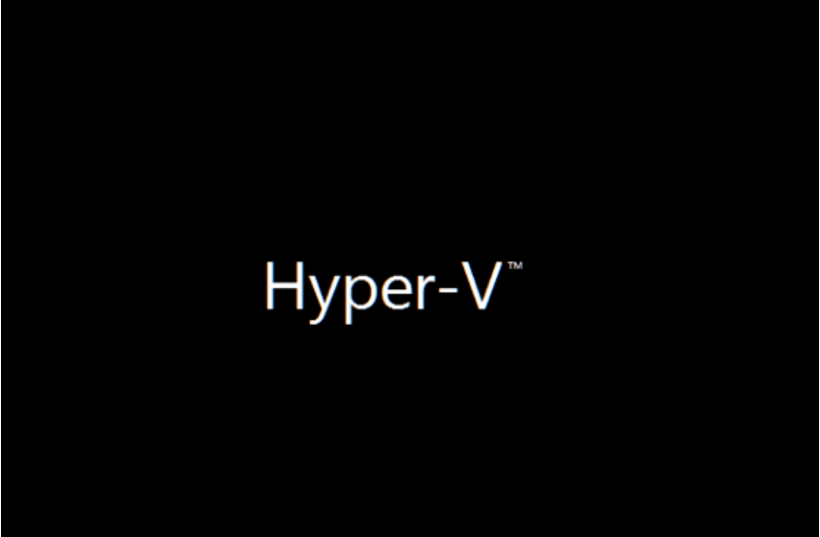
Symptom 1: The VM is stuck on the Hyper-V splash screen.
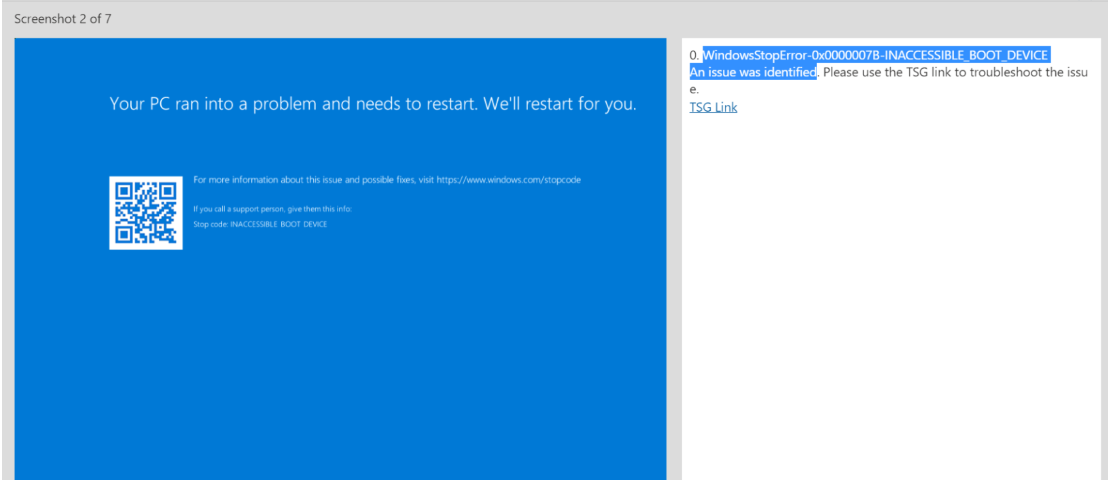
Symptom 2: The VM displays the INACCESSIBLE_BOOT_DEVICE stop error (blue screen).
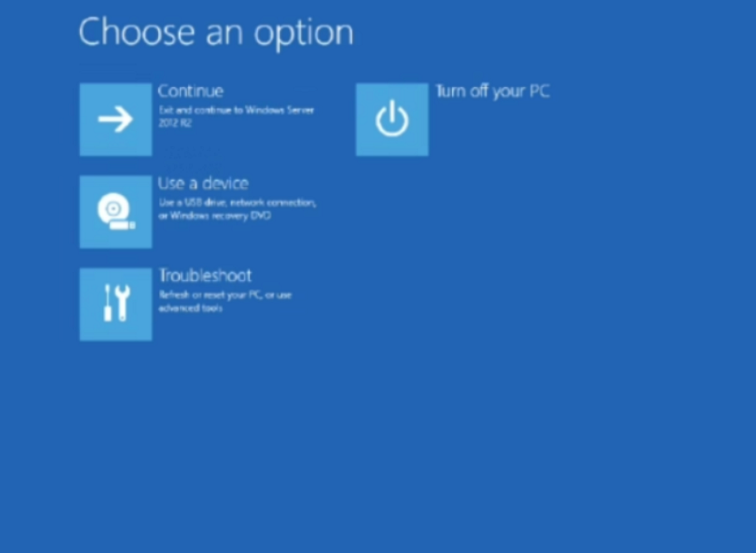
Symptom 3: The VM starts up into the Windows Recovery Environment instead of the normal Windows desktop.
Note
The VM works correctly in an on-premises or nested Hyper-V environment. The problem occurs only on Azure.
Cause
Recent Azure Hyper-V host updates changed how virtual hardware (ACPI/VMBus devices) is presented to guest operating systems (OSs). Specifically, the updates change certain Hyper-V ACPI device identifiers:
ACPI\VMBuschanges toACPI\MSFT1000.ACPI\Hyper_V_Gen_Counter_V1changes toACPI\MSFT1002.
Windows Server 2012 R2 is no longer in Extended Support, and its boot-time storage stack can't adapt to these newer ACPI device identifiers. During early startup, the OS can't bind the storage driver correctly. This situation causes the INACCESSIBLE_BOOT_DEVICE error.
This problem affects only legacy guest OSs (Windows Server 2012 and Windows Server 2012 R2). Newer supported guest OS versions (Windows Server 2016 and later versions) aren't affected.
Workaround
Tip
If you have a recent backup of the VM, you can try to restore the VM from the backup to fix the startup problem.
Important
This workaround is a temporary mitigation. Future Azure host updates might reintroduce the problem. The only permanent resolution is to upgrade to a supported Windows Server version.
To resolve this problem, use a repair VM to apply an offline registry fix that maps the legacy ACPI device identifiers to the updated ones.
Step 1: Create a repair VM and attach the OS disk
Create a repair VM that you can use to attach the OS disk from the affected VM and make offline registry changes.
- Use steps 1-3 of the VM Repair Commands to prepare a repair VM.
- Take a snapshot of the affected VM's OS disk before you proceed.
- Attach the OS disk as a data disk to the repair VM.
- Connect to the repair VM by using Remote Desktop.
- Note the drive letter that's assigned to the attached OS disk (for example, F:).
Step 2: Apply the registry fix
Open an elevated Command Prompt window on the repair VM, and run the following commands. Replace F: with the drive letter of the attached OS disk.
reg load HKLM\TempHive F:\Windows\System32\Config\SYSTEM
reg copy "HKLM\TempHive\ControlSet001\Enum\ACPI\VMBus" "HKLM\TempHive\ControlSet001\Enum\ACPI\MSFT1000" /s
reg copy "HKLM\TempHive\ControlSet001\Enum\ACPI\Hyper_V_Gen_Counter_V1" "HKLM\TempHive\ControlSet001\Enum\ACPI\MSFT1002" /s
reg unload HKLM\TempHive
This step copies the legacy ACPI device enumerations to the new identifiers that the updated Azure host expects.
If you receive an "Access is denied" error message during the registry copy, use the following alternative steps.
Step 2 (alternative): Run the fix as SYSTEM
The Enum registry keys under HKLM\SYSTEM are protected and owned by NT AUTHORITY\SYSTEM. If the direct registry copy returns "Access is denied," use the following method:
On the repair VM, create a script file at C:\acpi_fix.cmd that uses the following content. In each step, replace F: with the drive letter of the attached OS disk.
@echo off
setlocal
set "OS=F:"
rem Load offline SYSTEM hive from attached OS disk
reg load HKLM\TempHive "%OS%\Windows\System32\Config\SYSTEM" || goto :err
rem Detect active ControlSet from Select\Current
for /f "tokens=3" %%A in ('reg query HKLM\TempHive\Select /v Current ^| find /i "Current"') do set CUR=%%A
set "CS=ControlSet001"
if /i "%CUR%"=="0x2" set "CS=ControlSet002"
if /i "%CUR%"=="0x3" set "CS=ControlSet003"
if /i "%CUR%"=="0x4" set "CS=ControlSet004"
echo Using %CS% (Current=%CUR%)
rem Recreate destination keys
reg delete "HKLM\TempHive\%CS%\Enum\ACPI\MSFT1000" /f >nul 2>&1
reg delete "HKLM\TempHive\%CS%\Enum\ACPI\MSFT1002" /f >nul 2>&1
reg add "HKLM\TempHive\%CS%\Enum\ACPI\MSFT1000" /f
reg add "HKLM\TempHive\%CS%\Enum\ACPI\MSFT1002" /f
rem Copy legacy identifiers to updated Hyper-V/Azure identifiers
reg copy "HKLM\TempHive\%CS%\Enum\ACPI\VMBus" "HKLM\TempHive\%CS%\Enum\ACPI\MSFT1000" /s /f
reg copy "HKLM\TempHive\%CS%\Enum\ACPI\Hyper_V_Gen_Counter_V1" "HKLM\TempHive\%CS%\Enum\ACPI\MSFT1002" /s /f
rem Unload hive
reg unload HKLM\TempHive
echo Done
exit /b 0
:err
echo Failed to load offline hive. Verify %OS%\Windows\System32\Config\SYSTEM exists.
exit /b 1
Verify that the offline Windows path exists:
dir F:\Windows\System32\Config\SYSTEMCreate a scheduled task to run the script as SYSTEM:
schtasks /create /tn ACPI_FIX /sc ONCE /st 23:59 /ru SYSTEM /rl HIGHEST /tr "cmd.exe /c \"C:\acpi_fix.cmd\" > C:\acpi_fix_out.txt 2>&1" /f
schtasks /run /tn ACPI_FIX
Validate the output:
type C:\acpi_fix_out.txtClean up the scheduled task:
schtasks /delete /tn ACPI_FIX /f
Step 3: Rebuild the VM
Perform the following steps to rebuild the affected VM so that it can start from the OS disk that you repaired by using the repair VM:
- Detach the OS disk from the repair VM.
- Reattach the disk to the original VM as the OS disk.
- Start the VM.
Resolution
Windows Server 2012 R2 exited Extended Support on October 10, 2023. Extended Security Updates (ESU) might be active for your server. They provide security updates only until October 13, 2026. ESU doesn't include bug fixes, compatibility updates, or platform behavior changes. Microsoft doesn't plan to release a permanent OS-level fix for this compatibility problem.
The only supported and permanent resolution is to upgrade or migrate the workload to a supported Windows Server version (Windows Server 2019 or later). Upgrading the guest OS fully resolves the compatibility problem and restores platform support, stability, and future update reliability.
For more information about how to upgrade, see Upgrade Windows Server.