Note
Access to this page requires authorization. You can try signing in or changing directories.
Access to this page requires authorization. You can try changing directories.
Summary
This article helps you understand and resolve problems on the Upload sessions page in Microsoft Dynamics 365 Commerce headquarters, where channel data uploaded through Commerce Data Exchange (CDX) stays in the Uploaded status instead of changing to Applied.
It covers two related situations:
- Expected delays. Two independent processes that don't run in sync create and apply upload sessions. A session that stays briefly in the Uploaded status is normal.
- Configuration warnings. Commerce headquarters detects setups that prevent sessions from being applied, such as an inactive upload distribution schedule (
P-0001) or a batch job that's missing, stopped, or withheld. It then shows a warning on the page.
To view the Upload sessions page, go to Retail and Commerce > Inquiries and reports > Commerce Data Exchange > Upload sessions.
Upload session create and apply phases
Understanding which component does what explains most reports of "stuck" upload sessions.
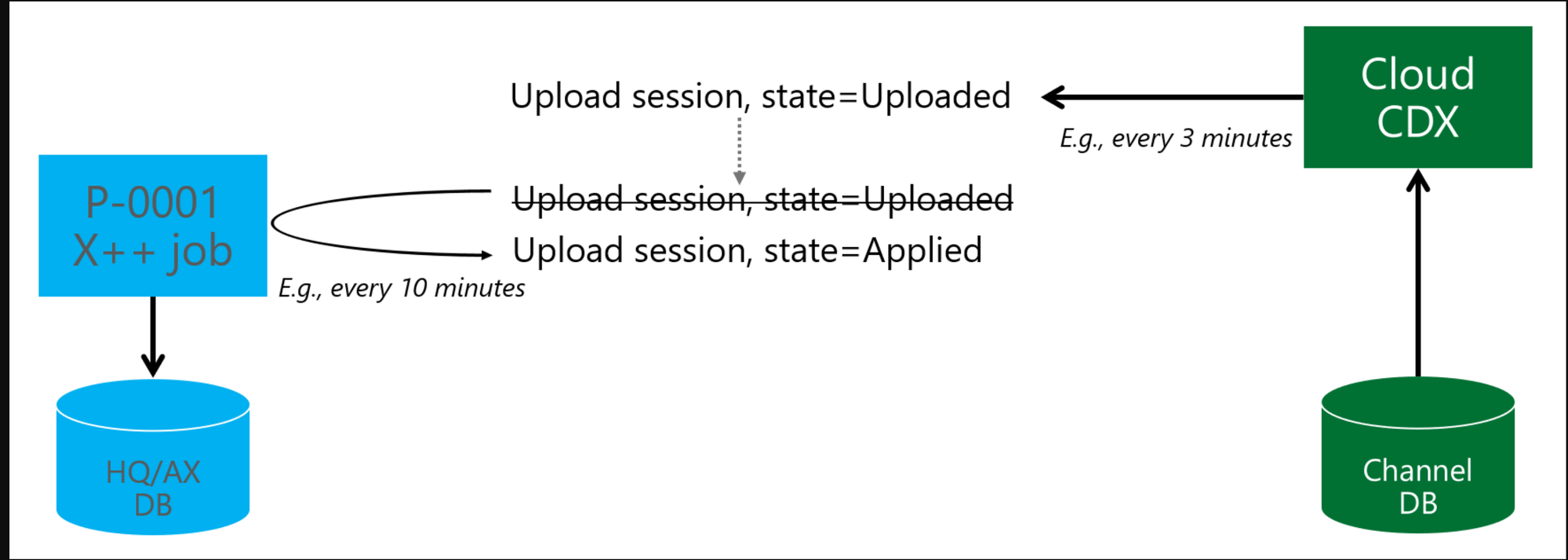
Commerce headquarters doesn't have a direct connection to the channel database. Therefore, uploading channel data is a two-phase process:
| Phase | Component | What it does |
|---|---|---|
| 1. Create | CDX, which runs either as cloud CDX or as the Async Client Service on a self-hosted Commerce Scale Unit (CSU) | Reads from the channel database, creates the CDX package, uploads it to storage, and creates the upload session with the status Uploaded. |
| 2. Apply | P-0001 batch job (RetailCDXDataUpload_AX7 task) |
Downloads the CDX package from storage, writes the data to the headquarters database, and updates the session status to Applied. |
The two phases run on separate schedules and aren't coordinated. For example, CDX might run every three minutes while the P-0001 batch job runs every 10 minutes. Therefore, sessions naturally wait in the Uploaded status between the two runs.
Important
The P-0001 batch job doesn't create upload sessions. It only applies sessions that already exist. Only CDX creates them.
In earlier versions, both steps ran as tasks in the same P-0001 batch job against a collocated channel database, so sessions usually appeared to move to the Applied status immediately. The RetailCdxChannelDbDirectAccess task that formerly read the channel database directly no longer performs this work.
Upload sessions stay in the Uploaded status, or P-0001 doesn't create sessions
Symptoms
You experience one or both of the following symptoms:
- The Upload sessions page shows sessions in the Uploaded status for an extended period.
- Running the
P-0001batch job, either by selecting Run now or through its recurrence, doesn't create any upload sessions, even though there are new records in the channel database.
Cause
Both symptoms are expected behavior in the current topology, as described in Upload session create and apply phases. Sessions in the Uploaded status are actually a positive signal: data flows from the channel to headquarters and waits for the next P-0001 run. Because P-0001 only consumes sessions, it never creates them.
Solution
No action is required if sessions change to Applied after the next P-0001 run. To confirm that the system is healthy, complete the following checks. They apply to both cloud CDX and a self-hosted CSU.
- Verify that CDX is connecting to the channel database. Go to Retail and Commerce > Headquarters setup > Commerce scheduler > Channel database, select the channel database, and then expand the Data synchronization FastTab. The Last connection field shows when CDX last contacted the database. A recent timestamp confirms that CDX is active, regardless of where it runs.
- On the same FastTab, confirm that Pause data synchronization is set to No. When synchronization is paused, CDX stops creating upload sessions for the datastore until the option is cleared.
- Verify that the
P-0001distribution schedule is active and has a recurring batch job. If it isn't, see the warning sections in this article. - Compare the two intervals. If the
P-0001recurrence is much less frequent than the CDX interval, sessions wait longer before they're applied.
Note
For cloud deployments, Microsoft manages the CDX service itself and customers or partners can't access it. Use the Last connection field to confirm that it's running. If that field isn't updating and the configuration is correct, create a Microsoft Support request.
Additional checks for a self-hosted CSU
If CDX runs as the Async Client Service on a self-hosted CSU, you can also check the service directly:
On the computer that hosts the self-hosted CSU, check the Windows Services list to verify that the Async Client Service is running. If sessions are never created, check this service first.
In a development environment, you can change the service interval by editing the following file:
C:\Program Files\Microsoft Dynamics 365\10.0\Commerce Scale Unit\Microsoft\AsyncClient\AsyncClientService.exe.config<applicationSettings> <Microsoft.Dynamics.Retail.AsyncClient.Service.Properties.Settings> <setting name="DownloadInterval" serializeAs="String"> <value>00:15:00</value> </setting> <setting name="UploadInterval" serializeAs="String"> <value>00:15:00</value> </setting>The default interval is 15 minutes for both settings. Restart the service after you change the file.
Note
Change this configuration only in development environments. For more information about setting up a self-hosted CSU, see Set up a local development environment.
Upload session warning behavior
The remaining sections describe warnings that Commerce headquarters shows at the top of the Upload sessions page. Each warning includes a Learn more link that brings you to this article.
Most warnings appear only when sessions are in the Uploaded status for more than 15 minutes, which suggests that the delay isn't just normal scheduling. The exception is the withheld batch job warning, which always appears when it's detected, even if no sessions are pending.
Note
The page shows up to five warnings at a time. After you resolve the listed problems, refresh the page to confirm that no more warnings are detected.
The distribution schedule doesn't have any recurrent batch jobs
Symptoms
The Upload sessions page shows the following warning:
The distribution schedule '<ScheduleName>' doesn't have any recurrent Batch jobs to apply the uploaded sessions.
Upload sessions remain in the Uploaded status and are never changed to Applied.
Cause
The upload distribution schedule is active and correctly mapped to the channel database group, but it has no associated batch job. The batch job was either never created with a recurrence or was deleted afterward.
Because the batch job behind the schedule is what applies sessions, uploaded data accumulates in headquarters but is never processed.
Solution
Create a recurring batch job for the distribution schedule:
- Go to Retail and Commerce > Retail and Commerce IT > Distribution schedule.
- Select the distribution schedule that's named in the warning, which is typically P-0001.
- Select Run now, and then set a recurrence on the Run in the background tab. For example, set the job to run every 15 minutes.
- Confirm that the job is created and that its status is Waiting or Executing on the Batch jobs page.
The batch job isn't in a valid state
Symptoms
The Upload sessions page shows the following warning:
The distribution schedule '<ScheduleName>' is run by Batch job '<BatchJobId>' (<BatchJobCaption>) which is not in a valid state to apply the uploaded sessions.
Cause
The batch job that runs the distribution schedule exists, but its status isn't Executing or Waiting. Only those two statuses allow uploaded sessions to be applied. The job is typically in the Ended, Canceled, or Error status.
A job that ends without a recurrence runs one time and then stops. A job in the Error status stopped because of a failure in a previous run.
Solution
- Go to System administration > Inquiries > Batch jobs, and find the batch job by using the batch job ID from the warning message.
- Select Batch job history to review the log and identify why the job stopped.
- Resolve any underlying error that's reported in the history.
- Set the job status back to Waiting so that the batch framework picks it up again. If the job has no recurrence, define one on the Recurrence page, or re-create the job by selecting Run now on the Distribution schedule page.
The batch job is withheld
Symptoms
The Upload sessions page shows the following warning:
The distribution schedule '<ScheduleName>' is run by Batch job '<BatchJobId>' (<BatchJobCaption>) which is in state 'Hold'. No upload sessions will be applied.
This warning appears even when no upload sessions are pending.
Cause
The batch job that runs the upload distribution schedule is in the Hold status. The batch framework skips a job on hold, so no upload sessions are applied while it remains withheld.
A job is usually placed on hold in one of the following ways:
- A user manually withholds it to pause synchronization.
- It's withheld during troubleshooting, a data upgrade, or an environment servicing operation, and isn't resumed afterward.
Solution
- Go to System administration > Inquiries > Batch jobs, and find the batch job by using the batch job ID from the warning message.
- Confirm that the job no longer needs to be withheld.
- Select Change status, and then set the status to Waiting.
- Refresh the Upload sessions page, and verify that pending sessions change to the Applied status.
The channel database group belongs to an inactive distribution schedule
Symptoms
The Upload sessions page shows the following warning:
The channel database group '<GroupName>' belongs to distribution schedule '<ScheduleName>' which is not active.
Cause
The channel database group is mapped to an upload distribution schedule, but the Active option on that schedule is set to No. Inactive schedules are skipped, so uploaded sessions for the group are never applied.
Solution
- Go to Retail and Commerce > Retail and Commerce IT > Distribution schedule.
- Select the distribution schedule that's named in the warning.
- Select Edit, and then set Active to Yes.
- Verify that the schedule has a recurring batch job. If it doesn't, select Run now, and then define a recurrence.
The channel database group doesn't belong to an upload distribution schedule
Symptoms
The Upload sessions page shows the following warning:
The channel database group '<GroupName>' doesn't belong to one or more upload distribution schedules to apply the uploaded sessions.
Cause
The channel database group that produces the upload sessions isn't mapped to any upload distribution schedule. This problem commonly occurs after you create a new channel database group but don't add it to the P-0001 upload schedule.
Channels in the group continue to upload data to headquarters, but because no schedule covers the group, the uploaded sessions are never applied.
Solution
- Go to Retail and Commerce > Retail and Commerce IT > Distribution schedule.
- Select the upload distribution schedule, which is typically P-0001.
- On the Database group FastTab, select Add, and then select the channel database group that's named in the warning.
- Save the change, and confirm that the schedule is active and has a recurring batch job.
Upload sessions are delayed even though the batch job is running
Symptoms
The Upload sessions page shows the following informational message:
Batch job '<BatchJobId>' (<BatchJobCaption>) configured for distribution schedule '<ScheduleName>' is executing, but some upload sessions created <Minutes> minutes ago are still not applied. This could be due to a large number of upload sessions pending to be applied, or due to large upload sessions, or due to F&O Batch framework running at full capacity with other tasks.
Cause
The configuration is correct and the batch job is running, but the job can't keep up with the incoming volume. This condition is a throughput problem rather than a setup problem. Common contributing factors include:
- A backlog of upload sessions that are waiting to be applied.
- Individual upload sessions that contain a large volume of data, such as sessions that are produced after an extended offline period at a store.
- The batch framework running at full capacity because of other scheduled work.
Solution
- On the Upload sessions page, review the number and size of sessions in the Uploaded status to judge whether the backlog is decreasing over time. A backlog that drains steadily usually needs no action.
- Go to System administration > Inquiries > Batch jobs, and review the overall batch load. Consider raising the priority of the upload job, or rescheduling competing batch work to off-peak hours.
- Verify that the batch server has enough threads available in System administration > Setup > Server configuration.
- Consider increasing the
P-0001recurrence frequency so that sessions are applied sooner after they're created.
If the backlog continues to grow after you complete these steps, create a Microsoft Support request. For more information, see Get Support.
Turn off the upload session warning messages
The warnings are enabled by default. If you must suppress them, for example because a known configuration is intentional in a non-production environment, set a configuration parameter in Commerce headquarters:
- Go to Retail and Commerce > Headquarters setup > Parameters > Commerce shared parameters > Configuration parameters.
- Add a parameter that's named
CDX_DISABLE_DISPLAY_UPLOAD_SESSION_WARNING_MESSAGE_V2and has a value of1.
Important
Resolve the reported configuration problems instead of suppressing the warnings. If you turn off the warnings, upload sessions can silently stop being applied.