Note
Access to this page requires authorization. You can try signing in or changing directories.
Access to this page requires authorization. You can try changing directories.
Original KB number: 3115602
Symptoms
When you try to access folders in a secondary Microsoft Exchange Server mailbox that was added to your Microsoft Outlook profile, you may experience random performance problems. For example, you may experience the following symptoms:
When you view items in the secondary mailbox, new items may not appear or items seem to be missing.
Items that you had deleted still appear in the secondary mailbox.
Slow Outlook performance or random hangs.
On a server that is running Microsoft Exchange Server, an event that resembles the following event is logged in the Application log:
Event Type: Error
Event Source: MSExchangeIS
Event Category: General
Event ID: 9646
Description:
Closing Mapi session "/o=Organization/ou=Administrative Group/cn=Recipients/cn=recipient" because it exceeded the maximum of 500 objects of type "objtFolder".
Additionally, you may find errors that resemble the following in the synchronization log messages in the Outlook Sync Issues folder:
13:22:28 Synchronizer Version 12.0.6529
13:22:28 Synchronizing Mailbox 'TeamShared'
13:22:28 Synchronizing Hierarchy
13:22:28 Error Synchronizing Hierarchy for Mailbox 'TeamShared'
13:22:28 [80040305-54A-4DE-1900]
13:22:28 Your server administrator has limited the number of items you can open simultaneously. Try closing messages you have opened or removing attachments and images from unsent messages you are composing.
13:22:28 Microsoft Exchange Information Store
13:22:28 For more information on this failure, click the URL below:
13:22:28 http://www.microsoft.com/support/prodredirect/outlook2000_us.asp?err=80040305-54a-4de-1900
13:22:28 Error synchronizing folder

13:22:31 Synchronizing local changes in folder 'TeamShared - Level1'
13:22:31 Error synchronizing folder
13:22:31 [80040305-54A-4DE-421]
13:22:31 Your server administrator has limited the number of items you can open simultaneously. Try closing messages you have opened or removing attachments and images from unsent messages you are composing.
13:22:31 Microsoft Exchange Information Store
13:22:31 For more information on this failure, click the URL below:
13:22:31 http://www.microsoft.com/support/prodredirect/outlook2000_us.asp?err=80040305-54a-4de-421 When this issue occurred, the following synchronization error numbers have also been seen in synchronization messages in the Sync Issues folder:80040305-54A-4DE-822
80004005-501-0-1380
Note
You must select the Folder List module on the Navigation pane to see the Sync Issues folder in your mailbox.
Cause
This problem may occur if the following conditions are true:
The secondary mailbox that you're trying to access is added to your Outlook profile so that it appears in the Navigation pane.
Note
You can add secondary mailboxes to your profile manually through the Advanced tab in the Microsoft Exchange dialog box, or automatically by using the "Auto-Mapping" feature on Exchange.

This secondary mailbox contains many folders.
Your profile is configured in Cached Exchange Mode.
The default option to Download shared folders is enabled in your profile.

This problem occurs because Outlook 2010 and later versions locally cache (in your Outlook data file [.ost]) all folders to which you have access in the secondary mailbox. This is a change from earlier versions of Outlook. Outlook 2003 doesn't cache any shared folders. By default, Outlook 2007 caches only those shared folders that don't contain email (such as Calendar, Contacts, and Tasks).
Note
In Outlook 2007, this problem is more likely to occur if you also have the following registry data configured on your Outlook client.
Subkey:
HKEY_CURRENT_USER\Software\Microsoft\Office\12.0\Outlook\Cached Mode
Or
HKEY_CURRENT_USER\Software\Policies \Microsoft\Office\12.0\Outlook\Cached Mode
DWORD: CacheOthersMail
Value: 1
Resolution
For Outlook for Office 365
Lift the 500 shared folders limitation in Outlook
The synchronization of the shared folders is improved so that Outlook will no longer encounter the 500 shared folders limitation, and Outlook should be able to accommodate up to 5,000 shared folders. The new functional limit will vary by Outlook's available resources and system configuration. These changes were released to the Office Monthly (Targeted) channel with the version1904 release, to the Office Monthly Channel with the version 1905 (Build 11629.20196) release and later. And they're included in Semi-Annual channel releases on the regular Semi-Annual schedule (September 2019 for Semi-Annual Channel (Targeted) and January 2020 for general release). For more information, see Lifting the 500 Folder Limit in Outlook.
For Outlook 2019, Outlook 2016, Outlook 2013, Outlook 2010, and Outlook 2007
To resolve this problem, use one of the following methods.
Important
This section, method, or task contains steps that tell you how to modify the registry. However, serious problems might occur if you modify the registry incorrectly. Therefore, make sure that you follow these steps carefully. For protection, back up the registry before you modify it so that you can restore it if a problem occurs. For more information about how to back up and restore the registry, see How to back up and restore the registry in Windows.
Method 1: Reduce the number of folders in the Shared mailbox
The best solution to this issue is to reduce the number of mail folders in the shared mailbox, especially if your mailboxes are in the Office 365 environment. Other methods 2 and 3 in this article advise you to turn off the caching of mail folders or all folders in the shared mailbox. These solutions do work, but it's recommended to keep caching enabled for Office 365 mailboxes and mailboxes on a slow network. For more information, see the following article:
Best practices for using Office 365 on a slow network
Method 2: Disable caching of all shared folders
Outlook 2010 and later versions
To disable the caching of all shared folders in Outlook 2010 and later versions, follow these steps:
On the File tab, select Account Settings in the Account Settings list.
In the Account Settings dialog box, select the E-mail tab and then double-click your Microsoft Exchange Server account.
In the Change Account dialog box, select More Settings.
In the Microsoft Exchange dialog box, select the Advanced tab.
Select to clear the Download shared folders check box.
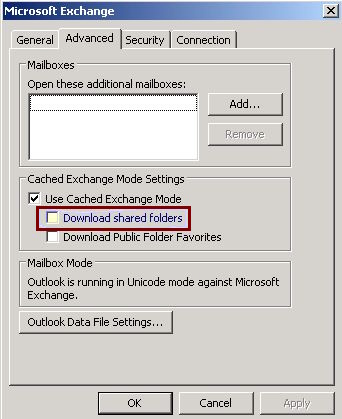
Select OK two times.
Select Next, select Finish, and then select Close.
Restart Outlook.
Outlook 2007
To disable the caching of all shared folders in Outlook 2007, follow these steps:
On the Tools menu, select Account Settings.
In the Account Settings dialog box, select the E-mail tab and then double-click your Microsoft Exchange Server account.
In the Change Account dialog box, select More Settings.
In the Microsoft Exchange dialog box, select the Advanced tab.
Select to clear the Download shared folders check box.
Select OK two times.
Select Next, select Finish, and then select Close.
Restart Outlook.
After you make this change, none of the shared folders in the secondary mailbox will be available to you in Outlook when you're working offline. However, all folders in the primary mailbox will still be available to you when you're working offline.
For more information about how to disable the download shared folders by using a Group Policy setting, select the following article number to go to the article in the Microsoft Knowledge Base:
982697 By default, shared mail folders are downloaded in Cached mode in Outlook 2010 and Outlook 2013
Method 3: Change the configuration of the secondary Exchange mailbox to a second Exchange account in your profile
Outlook 2010 and later versions only
If you want to cache all folders in the secondary Exchange mailbox, follow these steps to modify your Outlook profile so that the secondary mailbox is added as a second Exchange account.
Note
To follow these steps, you must either know the password for the account of the secondary mailbox or you must have full mailbox permissions to the account for the secondary mailbox. See your Exchange Server administrator for this information or permissions.
Make sure that automapping is disabled for the secondary mailbox. For more information, see the following Microsoft Knowledge Base article:
2646504 How to remove automapping for a shared mailbox in Office 365
On the File tab, select Account Settings in the Account Settings list.
In the Account Settings dialog box, select the E-mail tab, and then double-click your Microsoft Exchange Server account.
In the Change Account dialog box, select More Settings.
In the Microsoft Exchange dialog box, select the Advanced tab.
Select the Advanced tab. In the Mailboxes section, select the secondary mailbox, and then select Remove.
Select Yes when you're prompted to confirm the removal of the mailbox.
Select OK, select Next, select Finish, and then select Close.
Note
At this point, the secondary Exchange mailbox is no longer associated with your Outlook profile.
Exit Outlook.
Open the Mail item in Control Panel.
Select your profile, and then select Properties.
Select E-mail Accounts.
On the E-mail tab of the Account Settings dialog box, select New.
In the Choose Service section of the Add New Account dialog box, select E-mail Account, and then select Next.
If you know the password for the secondary mailbox account, go to step 14.
If you don't know the password for the secondary mailbox account, but your account has full mailbox permissions to this secondary mailbox, go to step 18.
In the Auto Account Setup section of the Add New Account dialog box, enter the following account information for the secondary mailbox, and then select Next.
- Name
- Email address
- Password
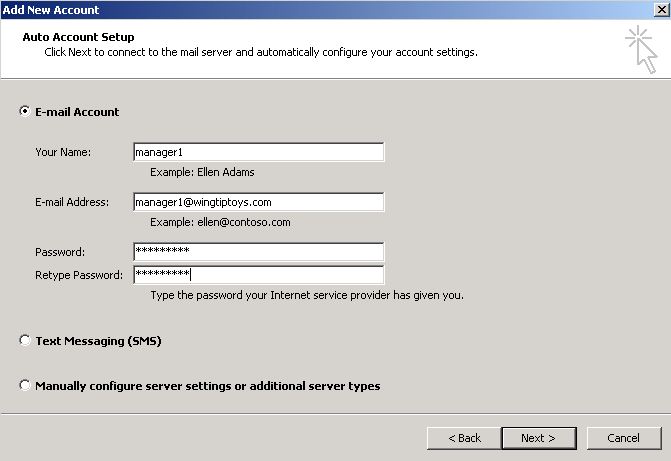
After the account has successfully been configured, select Finish.
Select Close, select Close, and then select OK.
Go to step 22.
In the Auto Account Setup section of the Add New Account dialog box, select Manually configure server settings or additional server types, and then select Next.
In the Choose Service section of the Add New Account dialog box, select Microsoft Exchange or compatible service, and then select Next.
In the Server Settings section of the Add New Account dialog box, enter the following information for the secondary mailbox, and then select Next.
- Server (this is the Exchange server name)
- Use Cached Exchange Mode (enabled to allow the secondary mailbox to be cached locally in your .ost file)
- User name
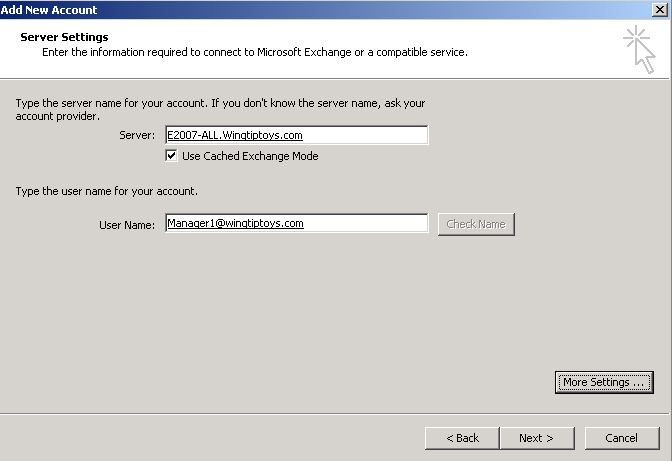
Select Finish, select Close, select Close, and then select OK.
Start Outlook.
Note
If your account doesn't have full mailbox permissions to the secondary mailbox, you're prompted for the account credentials to the secondary mailbox. You may experience the following specific issues when you use Outlook after you make the configuration changes that are specified in this method.
- New email alerts are displayed for both Exchange mailboxes.
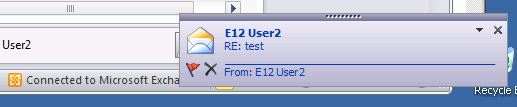
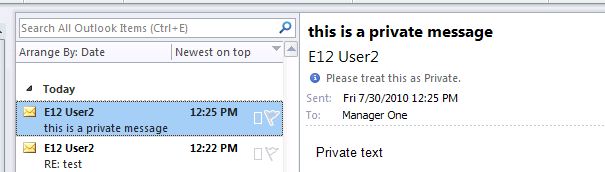
- Messages that are marked as private can be viewed in the second Exchange mailbox even though the account of the first Exchange mailbox isn't configured specifically to allow for the viewing of private messages.
More Information
When you add other mailboxes to your Outlook profile and enable caching of the shared mailbox folders, Outlook individually registers every folder in each cached mailbox. Each of these registered folders counts toward the objtFolder type limit on the server that's running Exchange Server. This is a per-mailbox limit.
As stated in the 9646 event that is shown in the "Symptoms" section, the default limit for objtFolder objects per mailbox is 500.
If you cache a shared mailbox that contains more than 500 folders, this limit is exhausted, and you may experience the problems that are mentioned in the "Symptoms" section.
Additionally, a large number of Public Folder favorites can contribute to exhausting the objtFolder object limit.
For more information about the maximum allowed share of server resources on Microsoft Exchange Server 2007, see A user is consuming their maximum allowed share of server.
For more information about Exchange Server 2010 mailbox store session limits, go to the following Microsoft websites:
In order to determine the number of folders and subfolders that are in a mailbox or folder, run the Get-MailboxFolderStatistics cmdlet.