Note
Access to this page requires authorization. You can try signing in or changing directories.
Access to this page requires authorization. You can try changing directories.
Summary
This article helps you resolve the "User is not authorized to read secrets" error that occurs when you create, update, or import environment variables that reference Azure Key Vault secrets in Microsoft Dataverse and Power Platform. This error indicates that Power Platform can't access the specified Key Vault secret. Common causes include missing role assignments, incorrect access control settings, and network restrictions. To fix this issue, go through each section in this article to check and verify your settings and configurations.
This article applies to Dataverse and Power Platform solutions. For Azure Key Vault errors that are related to Wrap for Power Apps, see Azure Key Vault errors in Wrap for Power Apps.
Symptoms
When you create, update, or import a solution that contains an environment variable that references an Azure Key Vault secret, you receive the following error message:
This variable didn't save properly. User is not authorized to read secrets from '/subscriptions/<SubscriptionId>/resourceGroups/<ResourceGroup>/providers/Microsoft.KeyVault/vaults/<VaultName>/secrets/<SecretName>' resource.
You might also see the following error entry in the diagnostic logs:
Azure.RequestFailedException: Caller is not authorized to perform action 'Microsoft.KeyVault/vaults/secrets/getSecret/action' on resource '/subscriptions/<SubscriptionId>/resourceGroups/<ResourceGroup>/providers/Microsoft.KeyVault/vaults/<VaultName>/secrets/<SecretName>' (Status: 403 Forbidden)
The following screenshot shows how this error appears in the Power Apps maker portal when you create or save an environment variable.
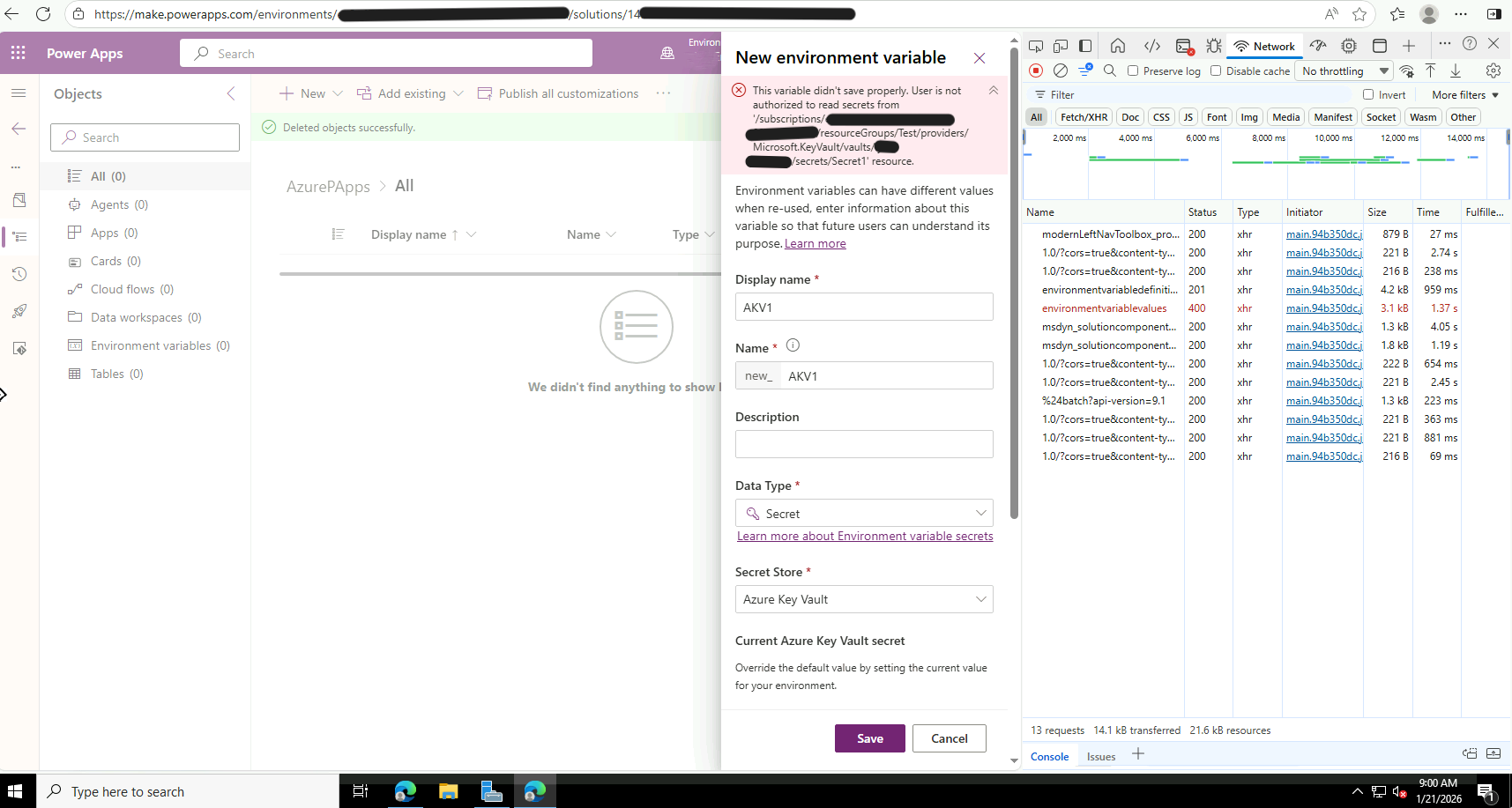
This error might occur in the following scenarios:
- Creating a new environment variable that has the type of Secret and that uses Azure Key Vault as the secret store.
- Updating the Key Vault secret reference value of an existing environment variable
- Importing a solution that contains environment variables that reference Azure Key Vault secrets
Grant the Key Vault Secrets User role to the Dataverse service principal
The Dataverse service principal requires the Key Vault Secrets User role on your Azure Key Vault. Without this role, Dataverse can't retrieve the secret value on behalf of users.
Important
If you previously configured your service principal to have only the Key Vault Reader role, you must also add the Key Vault Secrets User role because the Key Vault Reader role alone isn't sufficient.
To add this role assignment:
- In the Azure portal, go to your key vault.
- In the left pane, select Access control (IAM).
- Select Add > Add role assignment.
- On the Role tab, search for and select Key Vault Secrets User.
- On the Members tab, select Select members.
- Search for Dataverse, and select the Dataverse application identity. If multiple Dataverse service principals appear, select each one.
- Complete the wizard by selecting Review + assign.
Grant the user the Key Vault Secrets User role
The user who creates or updates the environment variable also needs the Key Vault Secrets User role on the Azure Key Vault.
To grant this role to the user:
- In the Azure portal, go to your Key Vault.
- Select Access control (IAM) from the left navigation.
- Select Add > Add role assignment.
- On the Role tab, search for and select Key Vault Secrets User.
- On the Members tab, select Select members.
- Search for and select the user who has to create or update the environment variable.
- Complete the wizard by selecting Review + assign.
Switch Key Vault to Azure RBAC
Power Platform uses Azure role-based access control (RBAC) to check permissions. If your Key Vault still uses the legacy Vault access policy permission model, permission checks can fail even if the correct policies are set.
To switch the permission model:
- In the Azure portal, go to your key vault.
- Select Settings > Access configuration.
- Under Permission model, select Azure role-based access control.
- Select Save.
Important
After you switch to Azure RBAC, make sure that the Key Vault Secrets User role is assigned to both the user and the Dataverse service principal.
Register the Microsoft.PowerPlatform resource provider
You have to register the Microsoft.PowerPlatform resource provider for your Azure subscription. If you don't register Power Platform, it can't interact with Azure resources on your behalf.
To register the resource provider:
- In the Azure portal, go to Subscriptions, and select your subscription.
- In the left pane, select Resource providers.
- Search for
Microsoft.PowerPlatform. - If the status is shown as NotRegistered, select the field, and then select Register.
For more information, see Resource providers and resource types.
Verify that Key Vault is in the same tenant
The Azure Key Vault must be in the same Microsoft Entra tenant as your Power Platform environment. Cross-tenant Key Vault access isn't supported.
To check the tenant configuration:
- Verify that your key vault and your Power Platform environment are in the same Microsoft Entra tenant.
- If they're in different tenants, take one of the following actions:
- Move the key vault to the same tenant as your Power Platform environment.
- Create a new key vault in the correct tenant, and migrate the secrets.
Create the private endpoint in the correct region (Private Link scenarios)
If you use Azure Key Vault together with Private Link and Virtual Network (VNet) support for Power Platform, the private endpoint must be in the same region as the Power Platform environment cluster. For example, if your environment is in West US, the private endpoint must also be in West US.
Important
Virtual Network support for Power Platform requires a Managed Environment. Make sure that your environment is enabled as a Managed Environment before you set up Private Link.
To create a private endpoint in the correct region:
- In the Azure portal, go to your key vault.
- Select Settings > Networking > Private endpoint connections.
- Create a new private endpoint in the same region as your Power Platform environment.
- Select the virtual network and subnet that are delegated to Power Platform.
- If your Enterprise Policy includes multiple subnet delegations (for example, West US and East US), create private endpoints in each region.
- Make sure Private DNS integration is enabled for the new endpoint.
For more information, see Set up Virtual Network support for Power Platform.
Allow Power Platform IP addresses through the Key Vault firewall
If you enable a firewall on your Key Vault, the firewall might block Power Platform requests. This block might occur because Power Platform IP addresses aren't on the Azure Trusted Services list, or because the firewall allows access only from specific IP addresses or virtual networks.
To update the firewall rules:
- In the Azure portal, go to your key vault.
- Select Settings > Networking.
- Under Firewalls and virtual networks, add the Power Platform IP address ranges that are listed at Power Platform URLs and IP address ranges.
Important
The "Allow trusted Microsoft services to bypass this firewall" option doesn't include Power Platform. You must explicitly add the IP ranges.